
Free tools Windows power users keep installed
One-click scans. No signup required.
iTechGuides is reader-supported. When you buy through links on our site, we may earn an affiliate commission. As an Amazon Associate I earn from qualifying purchases. Learn more
If you have a blurry picture on your LG TV, first check whether the blur appears on every input or only one app, channel, or connected device. A fault limited to one source usually points to that source, its settings, signal, or cable; a faulty image in the TV’s own Picture Test is a reason to contact LG support. Try the checks below in order, using your model’s manual if a menu path differs.
1. Find out whether the blur affects one source or the whole TV
Compare the affected picture with the TV’s menus, another built-in app or channel, and another input if available. This is a practical way to narrow down the cause: LG’s Picture Test and source-troubleshooting guidance distinguish display problems from issues with a broadcast or connected device.
- Only one channel or program is blurry: Check the broadcast signal, channel, set-top box, or service provider.
- Only one app or connected device is blurry: Check that app or device’s picture settings, output quality, and connection.
- Several sources are blurry: Continue with the TV’s picture settings and Picture Test.
These checks help identify where to investigate; they do not prove a single cause.
What’s actually slowing this PC down?
Pick the symptom - the matching free tool is one click away.
2. Check Picture Mode and Energy Saving
On the input that looks blurry, try Standard or Vivid Picture Mode. LG notes that picture settings can be specific to an input, so check the mode again after switching between broadcast, HDMI, or other sources. Energy Saving can also make the picture look dark or blurry; turn it off temporarily as a diagnostic check if it is enabled.
#1 Best Overall
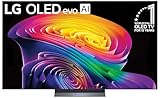
- BRIGHTNESS BOOSTER: Brighter visuals and vivid detail with Brightness Booster powered by the a11 AI Processor Gen 3
- PERFECT BLACK AND PERFECT COLOR: Over 8.3 million self-lit smart pixels with Perfect Black and Perfect Color technology¹.
- A11 AI PROCESSOR: Find and choose what to watch fast, without lag, and enjoy optimized picture with AI Director Processing powered by the LG a9 AI Processor Gen8, delivering 5.6x greater AI processing, 50% faster performance, and 70% improved graphics
- DOLBY VISION, DOLBY ATMOS AND FILMMAKER MODE: Loaded with Dolby Vision for extraordinary color, contrast and brightness, plus Dolby Atmos² for sound you can feel all around you. Land in the center of the action with FILMMAKER MODE with Ambient Light Technology, allowing you to see films just as the director intended.
- ULTIMATE GAMEPLAY: Delivers smooth, responsive gaming with a 0.1ms response time, up to 165Hz⁵ refresh rate, NVIDIA G-Sync, AMD FreeSync Premium and VRR.
Menu labels and routes depend on the TV’s software generation. LG’s guidance provides separate paths for recent versions, including webOS 26 or later, webOS 22 or later, webOS 6.0, and webOS 5.0 or earlier. The blurry-screen guide also distinguishes webOS 22, webOS 3.5, and older Smart TV or Netcast menus. Don’t assume one path applies to every LG TV: consult the manual for your model if the labels do not match.
Picture Mode and viewing conditions are matters of preference as well as troubleshooting. LG’s picture-settings guide notes that the best choice can depend on the viewing environment and personal preference. Changing a mode may improve how an image looks, but it cannot restore detail that is missing from the video source.
Rank #2

- DYNAMIC QNED COLOR: Enhances color accuracy for vibrant, more lifelike viewing with certified 100% Color Volume
- A7 AI PROCESSOR 4K GEN9: Enhanced brightness, improved sound, refined picture detail. It all comes together for a thrilling watching experience
- HDR10 PRO: Dynamically adjusts brightness, revealing crisp details and vivid color in both bright and dark scenes for a stunning, lifelike picture
- FILMMAKER MODE: Watch films just how the directors envisioned them with automatic preservation of the director's original colors, settings and frame rates for a true at-home cinematic experience FILMMAKER MODE with Ambient Light Technology
- WEBOS SMART PLATFORM: Delivers smarter, easier streaming, plus Google Gemini
3. Match the aspect ratio and check PC display settings
If the problem occurs with a computer or another external source, check the source’s output settings as well as the TV’s. For a PC, set the operating system to its recommended display resolution, then check that the TV is configured appropriately for the external input. LG’s PC guidance describes setting the HDMI input icon to PC for some older products from 2018 or earlier; this is not a universal instruction for newer models.
The Tool Desk
Outbyte PC Repair FREERepair Windows errors before they cause bigger problemsFix Now →Outbyte Driver Updater FREEFix the driver behind crashes, sound loss and screen glitchesFind Drivers →Choose an aspect ratio that suits the content. A mismatched setting can affect how the image is displayed, but sharpening or other picture enhancements should not be treated as a way to recreate detail absent from the incoming video.
Rank #3

- 43-INCH NANO 4K UHD DISPLAY – Enjoy detailed 3840 × 2160 4K resolution with Nano technology designed to deliver vivid color, optimized contrast, and an immersive viewing experience.
- AI-POWERED 4K UPSCALING – The alpha 7 processor helps upscale compatible lower-resolution content toward enhanced near-4K clarity for sharper everyday viewing.
- HDR10 PRO & FILMMAKER MODE – HDR10 Pro enhances contrast and picture detail, while Filmmaker Mode helps present compatible movies closer to the creator's intended look.
- WEBOS SMART TV EXPERIENCE – Access compatible streaming apps, live entertainment, movies, shows, and LG Channels through the intuitive webOS smart TV platform.
- SMART CONNECTIVITY & GAMING FEATURES – Built-in Wi-Fi, Bluetooth, HDMI connectivity, Game Optimizer, and convenient smart features provide flexible entertainment and gaming options.
4. Troubleshoot an HDMI connection
If the blur is on an HDMI-connected device, check the connection before replacing anything. LG’s HDMI guidance recommends an authentic cable and HDMI 2.0 or later for the set-top-box case it describes. For PC connections, LG recommends a certified High-Speed HDMI cable and says HDMI 2.0 or higher is recommended. These recommendations apply to the cited connection scenarios, not as a guarantee that a new cable will fix every blurry picture.
- Turn off the TV and the connected source device.
- Disconnect the HDMI cable at both ends, then reconnect it securely.
- If your TV supports it, run the HDMI cable check in Quick Help. LG describes this diagnostic on supported models running 2019 webOS or later; availability and menu route vary by model.
- If a cable is damaged, unsuitable, or implicated by the diagnostic, replace it with one that meets the requirements for your setup. Otherwise, continue checking the source and TV.
LG’s 2026 guide gives different Quick Help paths for webOS 23 and later versus webOS 22 and earlier, and notes that some models may not support the function. Look up support information by your TV’s model number rather than relying on a single menu route.
Rank #4

- DYNAMIC QNED COLOR: Enhances color accuracy for vibrant, more lifelike viewing with certified 100% Color Volume
- A7 AI PROCESSOR 4K GEN9: Enhanced brightness, improved sound, refined picture detail. It all comes together for a thrilling watching experience
- HDR10 PRO: Dynamically adjusts brightness, revealing crisp details and vivid color in both bright and dark scenes for a stunning, lifelike picture
- FILMMAKER MODE: Watch films just how the directors envisioned them with automatic preservation of the director's original colors, settings and frame rates for a true at-home cinematic experience FILMMAKER MODE with Ambient Light Technology
- WEBOS SMART PLATFORM: Delivers smarter, easier streaming, plus Google Gemini at your fingertips
5. Run the TV’s Picture Test
Picture Test displays an image generated by the TV, helping separate a problem with the display from one in a program or external source. Follow the instructions for your model to run it.
Do these 3 things before closing this tab:
1Clear out junk files and repair common Windows errors2Fix the driver behind crashes, sound loss and screen glitches3Repair Windows errors before they cause bigger problems- The test image looks normal: Investigate the broadcast, app, set-top box, PC, provider, or source connection that produced the blurry picture.
- The test image is also abnormal: Contact LG support. A fault visible in the TV’s own test image is not explained by a single blurry channel or external device.
LG’s instructions and menus vary by product, so use the model-specific manual if you cannot find Picture Test.
6. Know when to contact LG support
Contact LG if Picture Test is abnormal, or if the blur continues across inputs after you have checked picture settings and connections. LG cautions that an out-of-warranty technician visit may incur a service fee. Do not open the television or attempt an internal repair.
LG also addresses the question, “Why is the screen blurry for the first few minutes after I turn on the TV, then becomes clearer?” Its support guidance says this pattern may indicate an internal component issue and advises contacting customer support.
Quick Recap
Product prices and availability are accurate as of the date/time indicated and are subject to change. Any price and availability information displayed on Amazon at the time of purchase will apply.

