
iTechGuides is reader-supported. When you buy through links on our site, we may earn an affiliate commission. As an Amazon Associate I earn from qualifying purchases. Learn more
To use Blackboard Collaborate, open the session link provided by your instructor or institution, check that your browser meets the institution’s requirements, and follow the controls and directions shown in the session. The exact entry point and available tools can vary by course and session settings, so local instructions take precedence over generic steps.
Before you join
- Find the correct session link. Use the link in your course or the invitation provided by your instructor or institution. There is no verified universal Blackboard menu path for every installation.
- Check browser readiness. Blackboard Learn guidance lists session cookies and JavaScript as prerequisites. Consult your institution’s browser support information and browser checker, since supported browsers can depend on the Learn version. Blackboard Learn browser support.
- On a phone or tablet, expect a browser handoff. Blackboard says a Collaborate session launched from its mobile app opens in a separate browser window. That does not establish that every feature behaves identically on every mobile device. Blackboard mobile app guidance.
Join and take part in a session
- Open the course or invitation link supplied for your session.
- Follow any access prompts and the current on-screen instructions. If you launched from the Blackboard mobile app, continue in the separate browser window it opens.
- Use the controls currently shown in the session and follow the moderator’s directions for audio, video, chat, hand-raising, or sharing. Available controls and their names can vary by session; consult your institution’s current Collaborate help page for exact instructions.
Older Collaborate Ultra documentation describes live audio and video, chat, and content sharing, but it is not a reliable guide to today’s button names or operating steps. Blackboard Collaborate Ultra release notes (May 2015).
Choose a desktop browser or the mobile app
| Option | What to expect | What to check |
|---|---|---|
| Desktop browser | Access the session through the course or invitation link. | Confirm your institution supports the browser and that session cookies and JavaScript are enabled. See Blackboard Learn browser support. |
| Blackboard mobile app | Collaborate opens in a separate browser window, according to Blackboard’s mobile-app guidance. | Check that your institution supports your device and verify that the controls you need work in that configuration. The documentation establishes the handoff, not complete feature parity. See Blackboard mobile app guidance. |
If you cannot access the session
- Confirm that you are using the active course or invitation link supplied for this session.
- Check the institution’s browser requirements, including session cookies and JavaScript, and use its browser checker if available.
- If the link still does not work, contact the instructor or your institution’s support desk. They can confirm access and session-specific requirements.
What older technical guidance can—and cannot—tell you
Blackboard’s May 2015 Collaborate Ultra release notes describe a browser-based experience and report a historical minimum viable participation bandwidth of 128 kbps download. That figure is historical, not a current bandwidth requirement; the document should not be used to infer present-day technical requirements or interface steps. Read the May 2015 release notes.
Quick Recap
Best Value

- How it Fits: On-ear compact design may feel snug initially—adjust properly and wear 30-60 minutes daily for the first week. Optimal comfort achieved after 1-2 weeks as ear cups conform to your ears. Take 10-minute breaks during extended use.
- Wired computer headset with foldable design; ideal for calls, meetings, online learning, and more. Compact headset measures 6.1" W x 7.2" H with 2.8" ear cups and 4.4" boom mic. Ideal fit for small to medium head sizes
- Flexible, adjustable boom mic can be positioned at any angle; unidirectional mic reduces the background noise to ensure crisp, bright conversations (Provided that your conversation is under the correct direction of the microphone)
- 32mm speaker drivers offer an immersive listening experience with clear sound quality
- One-touch mute/unmute with intuitive in-line control box; Using microphone, slide the button upward to unmute and enabled audio settings in your device. For USB connection, ensure the 3.5mm jack (4-pin) is fully inserted into the USB adapter. For direct 3.5mm connection, first remove the USB adapter from your device
Rank #4
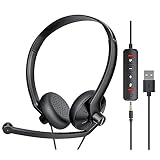
- ✅【Ultra light and Soft USB Headset】: USB computer headset is lightweight, featuring soft ear cups and an adjustable headband to fit all sizes. Memory foam ear cups rest gently on your ears, while the ergonomic design ensures a comfortable and secure fit without discomfort. Perfect for extended wear, it reduces pressure on the ears and blocks external noise.(Connecting to a PC requires the use of a USB port,so that microphone to function)
- ✅【Noise-Canceling USB Headphones for Clear Calls】: With voice pickup technology and advanced audio signal processing, the microphone of wired USB headset is calibrated for optimal performance.USB headset picks up your voice clearly in busy office environments, ensuring high-quality virtual meetings. Ideal for online meetings, e-learning, office business, conference calls, Skype chats, call centers, webinar presentations, Rosetta Stone, Dragon Speaking, Remote working and more.
- ✅【Crisp Audio USB Headphones with Microphone for Meetings】: The 40 mm dynamic drivers produce high-resolution sound and deliver clear, 100% authentic audio. Real-time audio calibration ensures an outstanding listening experience for clearer online meetings and increased work-from-home efficiency.
- ✅【3.5MM & USB Computer Headphones: Plug and Play】: The computer headset with mic mute & indicators/speaker mute is compatible with 3.5mm jack or USB devices: PC, tablet, Mac, iOS, laptop, Android phone. The cable (about 5+4 feet) with in-line audio volume control allows the freedom to stand and stretch during long conversations. Work and talk anytime, anywhere!
- ✅【Warranty Guarantee & Valued Service】: We're dedicated to providing you with high-quality wired headsets at an affordable price. We promise a hassle-free refund or replacement for any defects. Enjoy peace of mind with our commitment to your satisfaction.
Rank #3

- Noise-cancelling microphone reduces room noise for clearer Internet calls
- Full stereo sound for your music, movies and games
- Rotating microphone boom can be worn on your left or right side
- Adjustable headband gives you a customized fit
- Works with Windows 10 or later, Windows 8, Windows 7, Windows Vista, Mac OS X 10.5 or later, Chrome OS, Linux Kernel 2.6 plus and iOS or Android devices
Rank #2

- Digital Stereo Sound: Fine-tuned drivers provide enhanced digital audio for calls, meetings, music, and more
- Rotating Noise-Canceling Mic: Minimizes unwanted background noise for clear conversations; the rotating boom arm can be tucked out of the way when not in use
- Handy Inline Controls: Simple inline controls on the headset cable let you adjust the volume or mute calls without disruption
- USB-C Plug-and-Play: Simply plug the USB-C cable into your computer, including MacBook Neo laptops, and you're ready to talk or listen without installing software.
- Padded Comfort: Comfortable USB C headphones with adjustable headband feature swivel-mounted, leatherette ear cushions for hours of comfort
#1 Best Overall

- Digital Stereo Sound: Fine-tuned drivers provide enhanced digital audio for music, calls, meetings and more
- Rotating Noise Canceling Mic: Minimizes unwanted background noise for clear conversations; the rotating boom arm can be tucked out of the way when you’re not using it
- Handy In-line Controls: Simple in-line controls on the headset cable let you adjust the volume or mute calls without disruption
- Plug-and-Play USB Computer Headset: Simply plug the USB-A connector into your computer and you’re ready to talk or listen without the need to install software
- Padded Comfort: Comfortable headphones with adjustable headband features swivel-mounted, leatherette ear cushions for hours of comfort and is easy to clean
Product prices and availability are accurate as of the date/time indicated and are subject to change. Any price and availability information displayed on Amazon at the time of purchase will apply.
Independent reader supportYour contribution helps us test, update, and keep practical guides available for everyone.
