
iTechGuides is reader-supported. When you buy through links on our site, we may earn an affiliate commission. As an Amazon Associate I earn from qualifying purchases. Learn more
A useful billable time tracker does more than run a stopwatch: it ties each entry to a client and project, applies the right rate, and produces a report you can check before billing. To build a first version, model clients, projects, time entries, and rates separately; support both timers and manual entries; then add filtered reports and an export. Invoice creation and payment collection are separate features, not automatic consequences of tracking time.
What the first version needs to do
Design around one complete path: choose a client and project, record work, mark it billable or non-billable, calculate its value, review the result for a billing period, and hand the record off for invoicing. Keep the first release focused on that path rather than attempting to reproduce every feature of a mature time-tracking product.
- Create or select a client and one of that client’s projects.
- Start a timer or enter a completed duration manually.
- Save a description, billable status, and the rate context used for the work.
- Filter a report by client, project, and date range; inspect entries and totals.
- Export an invoice-ready record, or pass approved time into a separate invoice workflow.
This is a practical implementation design, not a database schema prescribed by the products cited here. Toggl documents client and project selection, billable rates, filtered billing reports, and exports; Clockify describes timesheets, reports, exports, and billable rates for client billing. Toggl’s billing and invoicing features and Clockify’s timesheet app illustrate the workflow components.
Model clients, projects, entries, and rates
Clients and projects
A client groups the work that may appear on a client-facing report. A project belongs to a client and gives the work a more useful billing or reporting category. Store stable IDs for both, rather than relying on names, which may change.
#1 Best Overall

- SIMPLE, ATTRACTIVE DESIGN - The notepad flaunts a design that's both stylish and fun, making it the perfect backdrop to track your daily tasks and other deliverables.
- 8.5" X 11": LETTER SIZE - With ample space for jotting down your activities/tasks, projects and deliverables, this notepad ensures you never miss a beat. The larger size offers room to log all your work.
- DOUBLE-WIRE SPIRAL BINDING - Tear off sheets as needed or keep them intact to be able to look back on your prior tasks. Whether you're at your desk, in a meeting, or on the go, your notepad is ready for you to use as you see fit.
- 50 SHEETS - Created so you can list all your tasks onto one sheet in order to keep track of time stamps as you note how you spend your time each day.
- VERSATILE FOR TRACKING ALL YOUR TASKS - Whether you're a professional who bills for your time, a student recording time spent on studies, or a volunteer tracking your hours, this notepad can help you record your time spent on any and all activities throughout your day.
Time entries
Give each entry a project, description, billable flag, and either a start and end time or a duration. For a timer, record the start and stop timestamps; for manual entry, accept a duration or a start/end pair. Store timestamps consistently, preferably in UTC, and display them in the user’s chosen time zone. Reject an end time earlier than the start time, and prevent accidental duplicate active timers for the same user unless your product deliberately supports them.
Rates and historical accuracy
Keep rates distinct from the entry itself. A rate may be associated with a client, project, person, or task; Toggl documents these as possible rate scopes, but that should not be treated as evidence that every tracker supports all of them. Toggl’s billing feature description lists those rate levels.
For reliable past reports, save the effective rate or a reference to a versioned rate when an entry is finalized. If a client’s rate changes in July, January’s approved hours should not silently recalculate at the July rate. Define how precedence works when multiple scopes apply—for example, a project rate overriding a client default—and show the chosen rate in the entry or report so a user can catch mistakes.
The Tool Desk
Outbyte Driver Updater FREEFix the driver behind crashes, sound loss and screen glitchesFind Drivers →Outbyte PC Repair FREEClear out junk files and repair common Windows errorsFree Scan →Rank #2

- 1 Work Hours Log Book With Clear Layout:This time sheet log book is designed for recording daily and weekly work hours making it suitable as a work hours log book for employees contractors and small business use
- 2 Weekly Time Sheet Log Book With Structured Fields:The weekly time sheet log book includes organized sections such as day date description time in time out and total hours helping improve accuracy in daily log book for work and employee tracking
- 3 Durable Spiral Bound Daily Log Book:This daily log book features strong spiral binding along with a 350 gsm kraft paper cover providing added durability while allowing pages to flip smoothly and lay flat for easy writing during daily use
- 4 Standard Size For Easy Use And Storage:This daily time sheet log book comes in 8.5 x 11 inch size providing ample writing space while remaining convenient for storage in office desks clipboards or filing systems
- 5 Multipurpose Timesheet Log Book For Various Jobs:This timesheet log book is suitable for offices warehouses construction teams freelancers and remote workers making it a practical daily log book and weekly time book for tracking work hours attendance and productivity
Capture time with a timer and manual entry
Timer flow
- In the entry form, select a client and project, enter a short description, and set billable status.
- Start the timer and display its elapsed duration and the selected project clearly.
- On stop, save the completed entry and make it editable, subject to any approval or lock rules you add.
- Warn before a user navigates away or starts another timer if doing so could interrupt or replace the active one.
Manual entry
Provide a way to add or correct time without running a timer. Let the user select the work date, client, project, duration or start/end times, description, and billable status. Preserve an edit history for changes to already approved or exported entries; silently overwriting billing records makes later reconciliation difficult.
Time trackers commonly offer more than one capture surface. Toggl describes timer and manual entry alongside calendar, desktop, browser, and mobile options; its help article covers creating entries and manual-entry context. Toggl’s project time-tracking page and entry-creation help article describe those methods. Harvest documents web, mobile, desktop, and browser-extension tracking in its time-tracking guide.
Automatic tracking and privacy
Automatic activity capture is optional, not a prerequisite for a useful tracker. If you add it, explain what is collected, when recording runs, where data is stored, who can see it, and how a user can pause or delete it. Do not borrow another product’s privacy assurances: your application must accurately describe its own behavior. Manual and timer-based entry are a simpler first release.
Rank #3

- Made in USA. Veteran-Owned and Proudly Produced in Ohio.
- THIS IS ESSENTIAL FOR LAWYERS AND CONSULTANTS: BookFactory Time Tracking book is a necessary addition to any attorney’s office, small business or freelance assignment. It’s a fundamental part of any business like. A simple and easy way track your billable hours
- TRACK BILLABLE HOURS BY DAY OR BY CLIENT: For business or personal use, time tracking is shown across a 2-page spread, on the left side, you have days and each hour, where you can write quick details about who you worked for. On the right side of the page you can keep more detailed track of the specific tasks you worked on and what client it was for – what breaks you took, and when, as well as the specific amount of time you spent on each task
- EXCELLENT VISUAL TO SHOW HOW YOU’RE SPENDING YOUR TIME: You may wonder where your day is going, or how you still have so much to do when you’ve already been working for hours. You may just need to be able to give your client an itemized invoice of work provided… either way, this book will be a help to you
- BUS-100-69CW-PP-(Time-Tracker)
Calculate billable value without hiding the inputs
For each billable entry, calculate value from its billable duration and the applicable rate. A basic calculation is:
Crashes, No Sound, or Screen Glitches?
Random freezes, missing sound and display glitches usually trace back to one bad driver. Find and replace yours safely.Free scan · under a minuteWindows Errors? Fix Them Before They Spread
Repair common Windows errors and clear accumulated junk for a smoother, more stable PC - no reinstall needed.Free scan · no reinstallbillable value = billable hours × hourly rate
Specify how you handle rounding—for example, whether you round each entry or only the final total—and make the policy visible. Store enough precision internally to avoid accumulating rounding errors, then format the display and export consistently. Non-billable entries should remain reportable as time worked but contribute no billable value.
Show the user the duration, billable status, rate, and calculated amount together. A report that displays only a total makes it harder to find an incorrectly classified entry or an unexpected rate. If your product supports budgets, alerts, approvals, or profitability views, treat those as additional controls rather than prerequisites for calculating a basic invoice-ready report; Toggl describes such controls on its billing and invoicing page.
Rank #4
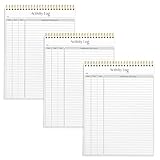
- SIMPLE, ATTRACTIVE DESIGN - The notepad flaunts a design that's both stylish and fun, making it the perfect backdrop to track for your daily tasks and other deliverables.
- 8.5" X 11": LETTER SIZE - With ample space for jotting down your activities/tasks, projects and deliverables, this notepad ensures you never miss a beat. The larger size offers room to log all your work.
- DOUBLE-WIRE SPIRAL BINDING - Tear off sheets as needed or keep them intact to be able to look back on your prior tasks. Whether you're at your desk, in a meeting, or on the go, your notepad is ready for you to use as you see fit.
- 50 SHEETS PER PAD/150 TOTAL SHEETS - Created so you can list all your tasks onto one sheet in order to keep track of time stamps as you note how you spend your time each day.
- VERSATILE FOR TRACKING ALL YOUR TASKS - Whether you're a professional who bills for your time, a student recording time spent on studies, or a volunteer tracking your hours, this notepad can help you record your time spent on any and all activities throughout your day.
Build a report that can be checked before billing
At minimum, let a user choose a client and date range, with an optional project filter. The report should show itemized entries as well as totals for hours and billable value. Include the work date, project, description, duration, billable status, and rate or amount when relevant. Toggl documents filtering reports by client, project, and date range and exporting them; Clockify describes reports and exports for project and task hours. See Toggl’s billing features and Clockify’s timesheet information.
- Check that the selected period and client are visible on the report.
- Review unassigned projects, missing descriptions, unusual durations, and entries with unexpected rates.
- Separate non-billable time from billable totals.
- Show whether entries are draft, approved, or already included in an invoice if your workflow uses those states.
- Make the export match the reviewed report, and identify the exported period and client in the file.
A CSV is a straightforward first export because it can be reviewed and imported into other billing workflows. A PDF can help preserve a readable report layout. The formats available vary by product; do not promise a particular format until you implement and verify it.
Keep time tracking, invoicing, and payment collection distinct
An invoice-ready report is not itself an invoice, and an invoice is not proof that payment was collected. A small first version can export reviewed time data for use in a separate invoicing process. Native invoice creation adds another workflow: customer details, invoice numbering, taxes or other applicable charges, terms, and line-item presentation. Payment collection adds still more requirements, including a payment provider and a process for reconciling invoice status.
Best Value
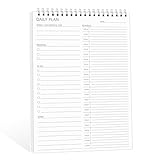
- ✔This daily plan pad features detailed hourly schedule timelines from 12 AM to 11 PM, perfectly segment your morning, afternoon and evening hours. Track meetings, appointments and fixed tasks hour by hour to eliminate procrastination and boost your daily time management efficiency.
- ✔ 1.Put an end to the time black hole: Every hour of activity is recorded, so you always know where your time goes and bid farewell to "being busy yet achieving nothing". 2.Cure procrastination: Visual time grids have an inherent sense of supervision; blank time slots serve as a direct reminder, with more binding power than phone alerts. 3.Gain instant a sense of accomplishment: Check off completed tasks with a simple tick. A filled time axis page by page delivers physical feedback that digital tools cannot match, making it easier to keep going the more you use it.
- ✔ 1.Students & Exam Takers: Plan class, review and practice time; allocate study hours for each subject precisely for targeted exam preparation. 2.Professionals: Schedule meetings, work projects and commute time; prioritize tasks clearly and bid farewell to chaotic overtime. 3.Freelancers & Stay-at-Home Parents: Clearly divide work/childcare/personal time to avoid blurring the boundaries between life and work. 4.Self-Discipline Enthusiasts: Check in on fitness, reading and learning; develop regular routines with hourly scales to build good habits effortlessly.
Stripe’s guide explains the general process of making an invoice for hours worked: how to make an invoice for hours worked. Harvest’s help center includes guidance for creating an invoice from tracked time, expenses, or fixed fees: Harvest Help Center. These examples show different workflow depths; they do not establish that every tracker creates invoices or collects payments. Verify a product’s current capabilities before choosing it for those steps.
Choose build or buy by workflow depth
If the goal is learning or a tailored internal workflow, building the core tracker can be worthwhile. If the immediate need is reliable client billing, compare existing products on the parts that matter to your process. The table summarizes capabilities described by the cited product pages; it is not a hands-on test or a complete feature-parity assessment.
| Product | Documented in the cited material | What to verify for your workflow |
|---|---|---|
| Toggl Track | Client/project time tracking, timer and manual entry, billable-rate options, filtered billing reports, and exports. | Current plan limits, pricing, and whether its invoice and payment features meet your needs. |
| Harvest | Time tracking across web, mobile, desktop, and browser extension; help material includes invoice creation from tracked time, expenses, or fixed fees. | Current plan limits, pricing, and the precise payment-collection workflow available to you. |
| Clockify | Timesheets, project/task hours, reports, exports, billable rates, and client-billing use cases. | Current plan limits, pricing, and invoice creation or payment collection requirements. |
These descriptions come from the linked vendor pages: Toggl, Harvest, Harvest billing help, and Clockify. They do not establish current 2026 prices or plan gates, so check official product information before making a purchase decision.
Quick Recap
Test the workflow before relying on its totals
- A timer can start, stop, and create an entry tied to the selected project.
- A user can enter time manually and edit an entry without losing its client or project association.
- Changing a current rate does not alter historical approved entries unless that is an explicit, documented action.
- Non-billable hours appear in time totals but not billable-value totals.
- Client and date filters return only the matching entries, and the report total agrees with its itemized rows.
- An export preserves the selected report’s period, entries, and totals.
- Rounding, time-zone display, duplicate timers, and edits to approved or exported entries behave according to rules you have stated.
Product prices and availability are accurate as of the date/time indicated and are subject to change. Any price and availability information displayed on Amazon at the time of purchase will apply.

