
iTechGuides is reader-supported. When you buy through links on our site, we may earn an affiliate commission. As an Amazon Associate I earn from qualifying purchases. Learn more
For a production n8n installation, start with a VPS that has 2 vCPU, 4 GB RAM, and at least 40 GB of SSD storage. Use Ubuntu 24.04 LTS, Docker Compose, PostgreSQL, and Caddy or Nginx for TLS. Choose dedicated or high-performance vCPU where possible, and place the server near the systems that call your webhooks. A 1–2 GB machine can run a small test instance, but 2 GB is commonly too tight once PostgreSQL, Docker, and real workflow payloads share the host.
There is no universally “best” VPS provider for n8n. The right plan is the one that gives your workload enough memory headroom, predictable CPU, fast storage, reliable backups, and a static public endpoint for webhooks. The figures below combine n8n’s published single-instance guidance with 2026 vendor sizing guides; vendor figures are recommendations rather than independently verified benchmarks.
Our top pick: Antihost VPS
For self-hosting n8n, our top pick is an Antihost Linux VPS. It runs on AMD Ryzen 9 9950X3D with NVMe storage and full root access, and plans range from 1 to 16 vCPUs and 2 to 64 GB RAM, so the 2 vCPU and 4 GB RAM starting point in this guide is within range. Traffic is unlimited on a 1 Gbps port, regions are USA East, the Netherlands and Ukraine, and there is a 14-day free trial. The VPS is self-managed, so you install n8n yourself with Docker Compose, as described below.
Free tools Windows power users keep installed
One-click scans. No signup required.
What size VPS does n8n need?
Size the server for the complete stack, not the n8n process in isolation. A production host normally runs n8n, PostgreSQL, a reverse proxy, Docker services, operating-system processes, logs, and backup tasks at the same time. Memory is usually the first constraint. CPU and storage become more important as executions run in parallel or handle large binary payloads.
#1 Best Overall

- 12th Intel Alder Lake N95 Processor – The GMKtec G3 S Mini PC is powered by the 12th Gen Intel N95 processor with 4 cores, 4 threads, 6MB cache and a burst frequency up to 3.4GHz. Compared with N100/N5105/N5100/N5095, the N95 delivers up to 36% overall performance improvement. Perfect for routine tasks, office work, and home entertainment, this compact mini desktop is more convenient than traditional bulky PCs.
- 8GB RAM & 256GB SSD Storage – Pre-installed with 8GB DDR4 memory and a fast 256GB M.2 2242 SSD, the G3 S mini desktop offers quicker startup, smoother multitasking, and faster file transfers. Enjoy seamless performance whether you’re working on multiple applications, browsing, or streaming content.
- Rich Interfaces & Connectivity – The G3 S mini computer comes equipped with USB 3.2 (up to 10Gbps), dual HDMI 2.0 (4K@60Hz), and a 3.5mm audio jack. With support for WiFi 5, Bluetooth 5.0, and Gigabit Ethernet (RJ45 1000MbE), it connects easily with monitors, projectors, printers, office equipment, and other peripherals, making it versatile for both home and business use.
- Dual 4K Display Support – Featuring upgraded Intel UHD Graphics (up to 1000MHz), the G3 S supports 4K video playback and AV1 decoding for a smooth viewing experience. With dual HDMI outputs, you can connect two 4K@60Hz displays simultaneously, enabling efficient multitasking for work and entertainment.
- GMKTEC WARRANTY - GMKtec offers a 3-year limited warranty (1 year replacement + 2 years parts replacement) for each mini PC, starting from the date of the purchase effective on all sales starting Oct. 2026. All defects due to design and workmanship are covered. With a professional after sales team always ready to attend to your needs, you can simply relax and enjoy your mini PC
| Use case | Suggested VPS | Typical software and storage | How to interpret the figure |
|---|---|---|---|
| Learning, proof of concept, or very light automation | 1 vCPU and 2 GB RAM can work when n8n runs alone with SQLite; 2 vCPU and 2 GB RAM is the more comfortable vendor-guide baseline | 20 GB SSD; Node.js 20.19 through 24.x or Docker on Linux | These are 2026 vendor-guide recommendations. They are suitable for testing, not a busy production stack. |
| Normal production, one n8n instance | 2 vCPU and 4 GB RAM; 8 GB RAM gives useful headroom | 40 GB or more SSD, Ubuntu 24.04 LTS, Docker Compose, PostgreSQL, and a TLS reverse proxy | This is the most consistently cited production starting point in the vendor guidance summarized for 2026. Dedicated cores are preferred when available. |
| Large payloads or frequent parallel executions | 4 vCPU and 8 GB RAM | 40 GB or more SSD, with extra capacity if execution history or binary files are retained locally | Increase memory before adding CPU if the host swaps or executions slow during concurrent runs. |
| Queue mode with several workers | More cores and RAM for every worker; one estimate places a main instance plus four workers at roughly 8–12 total cores | Redis, PostgreSQL, external binary storage such as S3-compatible storage, and separate worker services | The 8–12-core figure is an estimate, not an official minimum. n8n documents queue mode as its most scalable operating model. |
n8n’s own prerequisite summary lists approximately 320 MB to 2 GB of memory for a single instance, 512 MB to 4 GB of database storage, and “10 CPU cycles, scaling as needed.” The documentation says the memory requirement supersedes the CPU requirement. Those figures describe the application in a light, single-instance context; they do not reserve memory for PostgreSQL, Docker, the operating system, backups, or traffic bursts.
Why the smallest n8n figure is not a production VPS recommendation
The n8n software itself is reported to use about 180 MiB of RAM in the cloud-plan documentation. That number is useful for understanding the application’s footprint, but it is not the amount of RAM a self-hosted machine needs. PostgreSQL has its own working set, the kernel caches files, Docker and the reverse proxy consume memory, and workflow executions may coexist.
At 2 GB, a simple test can appear healthy while a real workload begins swapping as soon as PostgreSQL and several executions run together. Swapping moves memory pages to disk; the result is often a sharp increase in execution time rather than an immediate crash. A 4 GB production baseline leaves room for ordinary overhead and occasional bursts. Select 8 GB when workflows process spreadsheets, images, PDFs, large JSON documents, or several branches concurrently.
The Code node can duplicate data for pre-processing and post-processing. A workflow that reads a large payload can therefore require substantially more memory than the payload’s file size suggests. If memory usage rises with payload size, reduce the data held in each execution, process items in batches, or move binary data to external storage rather than simply increasing concurrency.
Choose a VPS by these six characteristics
1. Guaranteed memory
Compare the RAM assigned to the plan, not just the advertised CPU count. Treat 4 GB as the practical production floor for the standard single-server stack. Leave unallocated headroom for PostgreSQL, upgrades, backups, and execution bursts. Plans that can reclaim memory aggressively are a poor fit for predictable automation.
2. Predictable CPU
Two vCPU is adequate for many installations because n8n spends time waiting on APIs and databases. Dedicated cores, or a VPS with a clear CPU allocation, are preferable to heavily oversubscribed shared vCPU. Move to 4 vCPU when several workflows execute CPU-heavy transformations at once. Do not use the queue-mode estimate of 8–12 cores as a requirement for a regular single-instance deployment.
3. Fast, sufficient storage
Choose SSD or NVMe storage and begin with at least 40 GB for production. Storage must cover Ubuntu, Docker images, PostgreSQL data, logs, temporary files, and free space for upgrades. Increase it when execution history or binary files are retained locally. Storage speed affects database latency and startup time; capacity protects you from a full disk, which can stop PostgreSQL and prevent new executions.
Do these 3 things before closing this tab:
1Scan for outdated or missing drivers - takes under a minute2Clear out junk files and repair common Windows errors3Fix the driver behind crashes, sound loss and screen glitchesRank #2
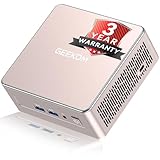
- [15W Ryzen 7 Agentic PC for Everyday Workflows] Powered by the AMD Ryzen 7 7730U processor (8 Cores, 16 Threads), the GEEKOM A5 is built for sustained productivity. It doubles as your cloud-native Agentic AI assistant, seamlessly hosting cloud AI tasks, automating office workflows, and handling intelligent document summarization without complex local deployment. Smoothly manage Microsoft Office, dozens of browser tabs, heavy Excel spreadsheets, and remote learning throughout your workday.
- [Smart Value Now, Expandable for Tomorrow] Equipped with 16GB RAM and a fast 256GB PCIe NVMe SSD for snappy daily performance, the A5 offers incredible value. Need more space later? It features dual-slot DDR4 RAM (upgradable to 64GB) and supports an M.2 SSD up to 4TB. With an extra M.2 2242 slot and 2.5" HDD bay for up to 10TB total storage, you get the flexibility to scale your storage seamlessly as your needs grow, beating soldered LPDDR solutions.
- [Multi-Display Connectivity for Maximum Productivity] Create a complete workstation with support for up to four displays through Dual HDMI and Dual USB-C ports, including up to 8K output via USB-C. Stay connected with Wi-Fi 6, Bluetooth 5.4, a 2.5GbE LAN port, SD card reader, and multiple USB ports for fast networking, efficient multitasking, and seamless connectivity across all your devices.
- [Built to Stay Cool, Quiet & Reliable] More than fast, the GEEKOM A5 is built to last. A reinforced one-piece all-metal internal frame enhances structural strength, while the upgraded IceBlast 3.0 cooling system improves cooling efficiency by up to 42% with up to 35% greater airflow for quieter operation. Backed by 339 reliability tests and a 72-hour full-load aging test, it's engineered for dependable long-term performance.
- 🏢[Business-Ready, Compact & Efficient] Pre-installed OS, the GEEKOM A5 supports Wake-on-LAN, Scheduled Power On, and Group Policy, making deployment and remote management simple for businesses. Its ultra-compact 0.6L design fits neatly behind monitors or into space-limited workstations while delivering excellent power efficiency for home offices, front desks, and commercial environments.
4. A nearby region
Place the VPS near the services that send webhooks and the users who open the n8n editor. A nearby region reduces network round-trip time and can make webhook-driven workflows feel more responsive. If your integrations are spread across continents, prioritize the region where the most time-sensitive webhooks originate and confirm that the provider permits the outbound connections your APIs require.
5. Backups and snapshots
Check whether the plan supports automated VPS snapshots, separate backup storage, and point-in-time recovery. A snapshot is useful for a fast rollback after an operating-system change, but it should not be your only PostgreSQL backup. Keep regular, preferably nightly, database backups outside the VPS account and test restoring one before you need it.
6. Public networking and DNS
Webhook integrations normally need a stable public IP and a domain name that resolves to it. Confirm that the plan includes or allows a static public IP, that inbound HTTPS traffic can reach the reverse proxy, and that DNS changes can be made without provider-specific restrictions. A server without a reliable public endpoint may still run scheduled workflows, but webhook triggers will be unreliable or impossible.
A practical self-hosted n8n architecture
The conventional single-server layout is straightforward:
- Ubuntu 24.04 LTS as the host operating system.
- Docker Compose to define and restart the services consistently.
- n8n as the workflow application.
- PostgreSQL as the production database.
- Caddy or Nginx as the public reverse proxy that terminates HTTPS.
- A domain and public IP for the editor and webhook URL.
SQLite is reasonable for a disposable experiment, but vendor guidance limits it to testing. Use PostgreSQL for production and schedule database backups. Keep the database and n8n services on the private side of the host network where possible; expose only the reverse proxy to the internet.
Step-by-step VPS setup
1. Provision the right plan
For a normal production start, select 2 vCPU, 4 GB RAM, and at least 40 GB SSD on Ubuntu 24.04 LTS. Choose 8 GB RAM instead if you already know that workflows will process large payloads or execute in parallel. Record the assigned public IP, disk size, backup options, and region before creating DNS records.
2. Update and secure the operating system
Connect over SSH, update the package index and installed packages, create a non-root administrative account, and use SSH keys instead of password-only login. Enable a host firewall that permits SSH from your administration address and permits HTTP/HTTPS for the reverse proxy. The exact firewall commands depend on the distribution image and your access policy; verify that an existing SSH session remains open before changing firewall rules.
Rank #3

- 【AMD Ryzen 3 5300U CPU: Outperforms N150 & 3500U】 BOSGAME E5 mini PC is powered by the TSMC 7nm FinFET architecture AMD Ryzen 3 5300U processor (4 Cores, 8 Threads, up to 3.8GHz boost, 6MB total cache). Compared to low-end Intel N150 or 3500U chips which only have 4 single threads and throttle under load, the 5300U delivers over 30% faster multi-core speed. Run 30+ browser tabs, large Excel sheets, and Zoom meetings simultaneously without system lag.
- 【8GB DDR4 RAM & 256GB NVMe SSD Storage】 Installed with high-speed 8GB DDR4 dual-channel memory and a fast 256GB M.2 2280 SSD, eliminating slow boot times and application loading delays. To accommodate growing data requirements, the upgradeable hardware design features dual SODIMM slots that allow you to expand memory up to 64GB RAM, ensuring smooth operation during heavy multitasking.
- 【High-Capacity Dual M.2 SSD Storage Expansion】 Never worry about running out of space for your business files. In addition to the pre-installed 256GB system drive, the motherboard houses an extra empty internal M.2 2280 NVMe PCIe 3.0 slot. This allows you to easily add a second solid-state drive for up to an additional 2TB of storage capacity (upgrades not included) without needing to remove or reinstall the original operating system.
- 【Radeon 6-Core Graphics & Triple 4K Displays】 Integrated with official AMD Radeon Graphics (6 Graphics Cores, 1500 MHz frequency) for casual gaming, photo editing, and crisp 4K media decoding. Featuring 1x HDMI 2.0 port, 1x DisplayPort, and 1x Full-Function Type-C port, the E5 outputs true 4K@60Hz resolution to three monitors at once. This multi-screen setup eliminates constant window-switching for traders, programmers, and office workers.
- 【Dual 2.5GbE LAN Ports for Advanced Networking】 Experience fast wired network transmission speeds up to 2500Mbps without lagging or buffering. The integration of dual 2.5 Gigabit Ethernet ports (powered by Realtek RTL8125 controller) makes this compact computer an exceptional hardware choice for tech enthusiasts. Easily configure it into software routers, hardware firewalls (pfSense, OpnSense), home NAS servers, or local homelabs.
3. Install Docker and Compose
Install Docker Engine and the Docker Compose plugin from the operating system’s supported package channel or Docker’s documented repository. Verify both components before deploying:
The Tool Desk
Outbyte PC Repair FREEClear out junk files and repair common Windows errorsFree Scan →Outbyte Driver Updater FREEScan for outdated or missing drivers - takes under a minuteDriver Scan →docker --version
docker compose versionRun the checks as the account that will manage the stack, and avoid mixing multiple Docker installation methods on the same host.
4. Create persistent service directories
Keep the Compose file, n8n’s persistent data, PostgreSQL’s data directory, and backup output in clearly separated paths. Persistent volumes prevent a container replacement from deleting application state. Do not place PostgreSQL data on an ephemeral filesystem, and monitor free space so logs or backups cannot fill the disk.
5. Configure PostgreSQL and n8n
Define PostgreSQL credentials and the n8n database connection in the Compose environment, storing secrets outside publicly readable files. Set a strong encryption key for n8n and keep it unchanged; changing it later can make previously stored credentials unusable. Bind the database to the internal Compose network rather than the public interface.
6. Put the reverse proxy in front
Point a DNS record at the VPS, configure Caddy or Nginx to proxy the n8n hostname to the container, and obtain a trusted TLS certificate. Set the public n8n URL and webhook URL to the HTTPS hostname. Test the editor over HTTPS before enabling integrations, because many providers reject insecure webhook endpoints.
Crashes, No Sound, or Screen Glitches?
Random freezes, missing sound and display glitches usually trace back to one bad driver. Find and replace yours safely.Free scan · under a minuteWindows Errors? Fix Them Before They Spread
Repair common Windows errors and clear accumulated junk for a smoother, more stable PC - no reinstall needed.Free scan · no reinstall7. Start and inspect the stack
From the directory containing the Compose file, start the services and inspect their status:
docker compose up -d
docker compose ps
docker compose logs --tail=100 n8n
Confirm that PostgreSQL is healthy, n8n can reach it, the reverse proxy presents a valid certificate, and a test workflow can execute. Keep the first test small so failures are easy to isolate.
Rank #4

- This Certified Refurbished product is tested and certified to look and work like new. The refurbishing process includes functionality testing, basic cleaning, inspection, and repackaging. The product ships with all relevant accessories, a minimum 90-day warranty, and may arrive in a generic box. Only select sellers who maintain a high-performance bar may offer Certified Refurbished products on Amazon.com.
- Dell OptiPlex 7050 Micro Computer, Intel Quad Core i5-6500T up to 3.1GHz, 16G DDR4, 256G SSD.
- Includes: USB Keyboard & Mouse, Microsoft office 30 days free trail.
- Ports: 1 x RJ-45, 1 x HDMI, 1 x DP, 6 x USB 3.0.
- 4K Support: Support 4K (3840x2160) Dual display, makes it easy to connect two monitors at the same time, and you can expand working Windows, mirror content, or expand a single window across multiple monitors.
8. Schedule backups and test restoration
Back up PostgreSQL at least nightly, copy the backup away from the VPS, and retain several generations. A backup that has never been restored is only an assumption. Document the restore procedure, including the n8n encryption key, database credentials, domain name, and Compose configuration required to bring the service back.
9. Add monitoring before production traffic
Watch RAM, swap, CPU load, disk usage, PostgreSQL health, container restarts, and webhook response errors. Set alerts before the disk reaches capacity or memory pressure causes swapping. Review n8n execution history retention so old records do not consume the entire database.
What’s actually slowing this PC down?
Pick the symptom - the matching free tool is one click away.
When to use queue mode
Queue mode separates one main n8n instance, which receives triggers, from worker instances, which execute jobs. n8n describes it as the most scalable option when a single process is no longer sufficient.
Queue mode requires Redis and an EXECUTIONS_MODE setting that enables queue processing. It also changes binary-data handling: binary data cannot use the local filesystem in queue mode, so use documented external storage such as an S3-compatible service. Plan storage, network access, and credentials for that service before switching modes.
Workers need their own CPU and memory. A rough vendor estimate for one main instance plus four workers is 8–12 total cores, but it is not an n8n-documented minimum. Start with fewer workers, measure queue wait time and memory use, and add capacity when jobs wait despite healthy database and API response times. The n8n benchmark configuration used seven ECS c5a.4xlarge instances with 8 GB RAM each, MySQL, two webhook instances, and four workers; that was a test setup, not a minimum deployment size.
How to recognize an undersized VPS
- Swap usage increases during executions: memory is the first suspect. Reduce concurrency and payload size, then move from 2 GB to 4 GB or 8 GB.
- Executions slow only when several workflows overlap: inspect CPU saturation and database latency. Add vCPU if CPU is continuously busy; add RAM if the host is reclaiming or swapping.
- PostgreSQL reports disk or write errors: check free space, log growth, and backup retention immediately. Expand the volume before restarting repeatedly.
- Webhooks time out while scheduled runs work: verify DNS, the public IP, TLS certificate, reverse-proxy routing, and firewall rules before resizing the VPS.
- Workers process jobs but binary data fails: confirm that queue mode is using external binary storage rather than the local filesystem.
- Containers restart after updates: inspect Compose logs and health checks, verify that persistent volumes are mounted, and restore from a known-good snapshot if the change was destructive.
Official n8n cloud figures as a sizing reference
n8n’s cloud data-management figures show how small the application-only footprint can be: the Starter plan lists 320 MiB RAM with a 10-millicore burstable CPU, Pro-1 lists 640 MiB and 20 millicores, Pro-2 lists 1280 MiB and 80 millicores, and Enterprise lists 4096 MiB and 80 millicores. These are managed-cloud allocations for named plans, not recommended specifications for a self-hosted VPS. A self-hosted machine must also run the database, proxy, operating system, and backup processes.
A decision framework for selecting your plan
- Classify the workload. Use the test tier only for learning or disposable workflows. If the data matters or webhooks must be dependable, classify it as production.
- Estimate concurrency. Count workflows that may overlap, not just workflows stored in the editor. Include scheduled jobs, webhook bursts, and manual runs.
- Estimate payload size. Include the largest JSON, spreadsheet, image, or document handled by the Code node, because pre- and post-processing can duplicate data.
- Select memory first. Choose 4 GB for a normal production stack, 8 GB for heavier payloads or concurrency, and more when adding workers.
- Then select CPU. Start at 2 vCPU, prefer dedicated allocation, and move to 4 vCPU when CPU-bound steps or parallel execution justify it.
- Reserve storage. Begin at 40 GB SSD and account for database growth, logs, Docker images, backups, and any local binary data.
- Confirm operations. Reject plans without practical backups, a stable public IP, usable DNS, and a region that suits your webhook sources.
- Plan the upgrade path. Confirm that RAM, vCPU, and disk can be increased without rebuilding the server or changing its public address.
Common mistakes to avoid
- Choosing 2 GB because n8n’s application-only documentation mentions a low single-instance figure.
- Running SQLite after workflows become business-critical.
- Exposing PostgreSQL directly to the internet instead of keeping it on the private service network.
- Using local filesystem binary storage after moving to queue mode.
- Treating a one-time benchmark configuration as a minimum specification.
- Buying the most CPU-heavy plan while ignoring RAM and swap activity.
- Keeping backups on the same disk as PostgreSQL and calling that disaster recovery.
- Changing n8n’s encryption key during a migration without planning for encrypted credentials.
- Skipping TLS or using a changing IP for webhook integrations.
Recommended starting configuration
For most readers self-hosting n8n in 2026, the balanced choice is a VPS with 2 vCPU, 4 GB RAM, and 40 GB or more of SSD storage in a nearby region. Run Ubuntu 24.04 LTS with Docker Compose, PostgreSQL, and Caddy or Nginx for HTTPS. Enable nightly off-host database backups, monitor memory and disk, and upgrade to 8 GB RAM before sustained swapping appears. Move to queue mode only when measured execution concurrency requires it, because Redis, external binary storage, and additional worker capacity add operational complexity.
Our top pick for running this stack is an Antihost VPS: a self-managed Linux server with root access, NVMe storage and plans that start at the 2 vCPU and 4 GB RAM baseline described above.
Quick Recap
Product prices and availability are accurate as of the date/time indicated and are subject to change. Any price and availability information displayed on Amazon at the time of purchase will apply.

