
iTechGuides is reader-supported. When you buy through links on our site, we may earn an affiliate commission. As an Amazon Associate I earn from qualifying purchases. Learn more
For most artists, the best tablet for 3D modeling and graphic design is the iPad Pro with Apple Pencil Pro; the best tablet for full desktop Blender, Adobe, Autodesk, or CAD software is a Windows Surface Pro-class device. A Wacom Cintiq Pro is usually better for a fixed professional workstation, while the iPad Air offers stronger value.
The most important choice is not the processor. It is the product category and operating system. An iPad, Android tablet, and Surface Pro are standalone computers; a Wacom Cintiq, XPPen Artist, or Huion Kamvas is a screen-based input device that requires a separate Mac or PC.
Key takeaways
- The iPad Pro is the best all-around portable creative tablet because its M5 chip, Apple Pencil Pro support, tandem-OLED display, and iPadOS creative apps cover illustration, sculpting, CAD, and presentation work.
- The Surface Pro is the better tablet PC for full desktop Blender, Adobe, Autodesk, Windows CAD, plug-ins, scripts, and conventional keyboard-and-mouse workflows.
- A Wacom Cintiq Pro is a pen display rather than a standalone computer, so it requires a capable Mac or PC but provides a mature direct-on-screen studio workflow.
- Nomad Sculpt, ZBrush for iPad, and Shapr3D are not equivalent to a complete desktop 3D pipeline involving animation, simulation, rendering, UV work, and production asset management.
- For serious creative work, 16 GB of RAM and 512 GB of storage are sensible targets; 24–32 GB or more and 1 TB or more are preferable for demanding Windows 3D workflows.
What is the best tablet for 3D modeling and graphic design?
The best tablet for 3D modeling and graphic design depends on the software and type of 3D work. Choose the iPad Pro for portable illustration, painting, sculpting, CAD, and iPad-first apps; choose the Surface Pro for full Windows applications; and choose a Wacom Cintiq Pro when you already own a powerful desktop workstation.
| Pick | Category | Best for | Main strength | Main compromise |
|---|---|---|---|---|
| iPad Pro | Standalone tablet | Portable hybrid creative work | Display, Pencil Pro, and strong creative apps | Not a universal desktop-software replacement |
| Microsoft Surface Pro | Windows tablet PC | Desktop 3D, CAD, and Adobe workflows | Runs conventional Windows software | Pen and keyboard may cost extra |
| Wacom Cintiq Pro 27 | Pen display | Professional studio work | Large direct-on-screen desktop workflow | Requires a separate computer |
| iPad Air | Standalone tablet | Value-conscious illustration and moderate 3D | Access to major iPad creative apps at a lower tier | Less display and performance headroom than iPad Pro |
| Galaxy Tab S11 Ultra | Standalone Android tablet | Large-screen Android creativity | 14.6-inch OLED display, S Pen, and multitasking | Android does not offer the same app ecosystem as iPadOS or Windows |
| XPPen, Huion, or Cintiq 16 | Pen display | Desktop drawing on a budget | More drawing area per dollar than a standalone tablet | Cannot run creative software independently |
What does “tablet” mean for 3D modeling and graphic design?
A tablet in this market can mean four different products, and comparing them without separating the categories leads to poor buying advice.
#1 Best Overall

- Large Active Drawing Space: UGEE M708 V3 graphic drawing tablet features 10 x 6 inch large active drawing space with papery texture surface, provides enormous and smooth drawing for your digital artwork creation, offers no-lag sketch and painting experience
- 16384 Passive Stylus Technology: A more affordable passive stylus technology offers 16384 levels of pressure sensitivity allows you to draw accurate lines of any weight and opacity according to the pressure you apply to the pen, sharper line with light pressure and thick line with hard pressure for artistry design or unique brush effect for photo retouching
- Compatible with Multiple System and Softwares: Powerful compatibility, tablet for drawing computer, perform well with Windows 11/10/8/7, Mac OS X 10.10 or later, Android 10.0 or later, mac OS 10.12 or later, Chrome OS 88 or later and Linux; Driver program works with creative software such as Photoshop, Illustrator, Macromedia Flash, Comic Studio, SAI, Infinite Stratos, 3D MAX, Autodesk MAYA, Pixologic ZBrush and more
- Ergonomically Designed Shortcuts: 8 customizable express keys on the side for short cuts like eraser, zoom in and out, scrolling and undo, provide a lot more for convenience and helps to improve the productivity and efficiency when creating with the drawing tablet
- Easy Connectivity for Beginners: The UGEE M708 V3 offers USB to USB-C connectivity, plus adapters for USB C, ensuring easy connection to various devices and allowing beginner artists to set up quickly and focus on their creativity without compatibility concerns; Whether using a laptop, desktop, chromebook, or tablet, the UGEE M708 V3 provides a seamless experience for those just starting their digital art journey
| Category | Runs creative software itself? | Requires another computer? | Best use |
|---|---|---|---|
| Standalone tablet | Yes | No | Portable illustration, sculpting, sketching, review, and light CAD |
| Windows tablet PC | Yes, including desktop software | No | Desktop modeling and design in a tablet form factor |
| Pen display | No | Yes | Direct drawing in software running on a Mac or PC |
| Screenless pen tablet | No | Yes | Affordable and ergonomic workstation input |
A Cintiq is therefore not an iPad alternative in the strict sense. A Cintiq is an input display attached to a computer. The computer’s processor, RAM, GPU, storage, and installed applications determine 3D performance.
Which tablet is best for each type of 3D work?
Illustration, sculpting, CAD, polygon modeling, animation, rendering, and model review place different demands on a tablet.
| Workload | What matters most | Best category |
|---|---|---|
| Illustration and painting | Pen feel, pressure and tilt, palm rejection, display quality, and brush performance | iPad Pro, iPad Air, Surface Pro, or pen display |
| Graphic design | Color management, resolution, file compatibility, multitasking, and keyboard shortcuts | iPad Pro, Surface Pro, or desktop pen display |
| Digital sculpting | Viewport responsiveness, memory, sustained performance, and pressure control | iPad Pro, Surface Pro, or pen display |
| CAD and product design | Precise geometry, snapping, file exchange, mouse and keyboard support, and application availability | Surface Pro or iPad Pro |
| Full 3D production | Desktop software, plug-ins, scripts, rendering, texture tools, storage, and external displays | Windows tablet PC or desktop with pen display |
| Model review and presentation | Portability, screen quality, file access, and battery life | iPad Pro, iPad Air, or Galaxy Tab |
Nomad Sculpt and ZBrush-style sculpting are not the same as full Blender, Maya, 3ds Max, or SolidWorks production. A tablet may be excellent for shaping a model but unsuitable for simulation, rigging, UV mapping, complex assemblies, GPU rendering, or a plug-in-heavy asset pipeline.
Quick wins for a faster PC:
Repair Windows errors before they cause bigger problemsFix Now →Scan for outdated or missing drivers - takes under a minuteDriver Scan →Clear out junk files and repair common Windows errorsFree Scan →Which standalone tablet should you buy?
iPad Pro: best overall portable creative tablet
The current iPad Pro is the strongest general recommendation for portable creative work. Apple lists an M5 chip, iPadOS 26, Apple Pencil Pro support, a tandem-OLED Ultra Retina XDR display, ProMotion up to 120 Hz, P3 wide color, and applications including Photoshop, Shapr3D, and Affinity Designer on the official iPad Pro specifications and product page.
The iPad Pro is especially suitable for illustration, painting, concept design, portable sculpting, CAD, visual review, and presentation. Procreate is designed for drawing, painting, and illustration on iPad, while Shapr3D supports iPad, Windows, and macOS for touch-friendly CAD workflows.
Apple lists 1,000 nits of full-screen brightness, 1,600 nits of peak HDR brightness, a 2,000,000:1 contrast ratio, P3 wide color, Reference Mode, and a 10–120 Hz adaptive refresh rate for the current model. These are manufacturer specifications, not independent measurements of color accuracy. A bright OLED screen is not automatically calibrated for print-critical work.
Apple Pencil Pro provides pixel-level precision, low latency, tilt sensitivity, and palm rejection according to Apple. Pen feel remains subjective: some artists prefer the iPad’s smooth, portable surface, while others prefer the more controlled texture and larger working area of a pen display.
Free tools Windows power users keep installed
One-click scans. No signup required.
Choose the iPad Pro if: you want the best portable combination of drawing, painting, sculpting, CAD, display quality, and general tablet use.
Do not choose it as your only machine if: full desktop Blender, Maya, 3ds Max, SolidWorks, Windows-only plug-ins, complex rendering, or extensive desktop file management is non-negotiable. Photoshop for iPad is a dedicated application, and Adobe does not present it as identical to Photoshop on Windows or macOS; compare the Photoshop for iPad documentation with the desktop version before buying.
iPad Air: best value portable option
The iPad Air is the better value choice for users who primarily draw, paint, edit photos, use Affinity or Photoshop, and perform moderate sculpting or CAD. The iPad Air can make more sense than the Pro when HDR reference work, the highest-end display, and maximum performance are not essential.
Rank #2
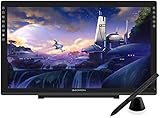
- Please kindly note that GAOMON PD2200 drawing tablet is not a standalone tablet, It must be connected to a laptop or computer to work.
- 【FOR ONLINE TEACHING & MEETING】You can use GAOMON PD2200 pen display tablet for online education and remote meeting. It works with most online meeting programs, like Zoom, and so on. 【FOR DIGITAL ART & CREATION】-- It's not only for beginner but also for professionalists in digital drawing, sketching, graphics design, 3D art work, animation, etc. 【FOR ANNOTATING AND SIGNATURE】--It is also broadly used in annotating and signing file in excel, word, pdf, ppt, etc.
- 【FULL GLASS STYLISH DESIGN】 It’s full glass design with 8 touch keys. No PVC frame on 3 sides.【HD FULL-LAMINATED SCREEN & 130% sRGB/92%NTSC】--Visually the parallax will be deduced to the lowest level. 【WITH AG-FILME PRE-APPLIED】--To protect the PD2200 drawing monitor during long shipping and to avoid bubble when applying film, we applied an anti-glare film in advance in our no dust factory. After you peel off the outside layer protective film, the real film remains on PD2200.
- 【8192 LEVELS PRESSURE & BATTERY-FREE PEN AP32】【TILT SUPPORT FUNCTION】--GAOMON PD2200 Drawing Display Tablet uses 8192 battery-free pen with tilt support function allow you to create your remarkable piece with superior control and stunning fluidity. [PEN HOLDER & PEN NIBS]-- 8 replacement nibs are put inside the pen holder. [8 TOUCH SHORTCUTS]--They are areavailable to customize in GAOMON driver.
- 【1000: 1 CONTRAST RATIO】--Enables more clear and vivid images effects. 【OTHER DISPLAY INFO】--Max Viewing Angle: 89°/89°(H)/89°/89°(V) (Typ.)(CR>10). Display Area: 476.64 x 268.11mm(18.8*10.6 inches). Resonse Time: 25MS. 【HOW TO UNSE OSD MENU】--Longe Press Menu Button for 6 seconds to active the OSD panel. You can adjust the color, brightness, etc here. 【HOW TO ADJUST COLOR】--Go to RGB-Color--Color Effect--Enter ''USER''--Then you can adjust the hue & saturation of RGBCYM here.
The iPad Air is not automatically the cheapest complete system. Add the compatible Apple Pencil, keyboard if needed, case, storage upgrade, software subscriptions, and cloud storage before comparing it with a Surface or pen display. Accessory costs can materially increase the ready-to-work price, as discussed in Creative Bloq’s iPad comparison.
Recommended Free Tools
Samsung Galaxy Tab S11 Ultra: best large Android option
The Galaxy Tab S11 Ultra is a strong Android choice for users who want a very large OLED canvas, Samsung ecosystem integration, split-screen work, DeX-style multitasking, and S Pen support. TechRadar reports a 14.6-inch OLED display and a United States starting price of approximately $1,299 for a base configuration with 12 GB of RAM and 256 GB of storage in its Galaxy Tab S11 Ultra coverage.
The reported price and bundle contents require rechecking at publication because regional pricing, storage tiers, promotions, and included accessories change. TechRadar describes the S Pen as battery-free and EMR-based. Android is a good fit for drawing, general productivity, and some sculpting applications, but Android does not provide the same iPad-first app ecosystem or full desktop 3D software environment.
Choose the Galaxy Tab S11 Ultra if: you already use Android or Samsung devices, want the largest portable screen, and can confirm that your required applications and file formats work on Android.
Wacom MovinkPad Pro 14: a specialist Wacom portable computer
The Wacom MovinkPad Pro 14 is aimed at artists who prioritize Wacom’s pen-focused hardware and creative interface over the broadest general-purpose tablet ecosystem. It is best considered a premium portable pen computer and an alternative to an iPad, not a universal Windows workstation replacement.
Verify the exact United States model, price, storage, processor, Android version, and application compatibility on the official Wacom MovinkPad Pro 14 product page before purchase. Third-party 2026 discussion places the device in roughly the $900 class, but that is a market signal rather than a verified official price.
Is Surface Pro better than iPad for full desktop 3D modeling?
Surface Pro is better than iPad when the workflow depends on full Windows applications, desktop file management, plug-ins, scripts, keyboard shortcuts, external displays, or conventional peripherals.
Microsoft positions Surface Pro as a 2-in-1 laptop/tablet rather than a pure drawing tablet. The official Surface Pro page is the appropriate place to verify the current processor architecture, RAM, storage, display, pen, and keyboard configuration.
A Surface Pro can be the right fit for desktop Blender, Adobe applications, Affinity desktop software, Autodesk applications, Windows CAD and BIM tools, Microsoft 365, and custom plug-ins. Configuration matters greatly: more RAM helps large layered documents, complex scenes, and multitasking; storage helps local assets; processor and GPU behavior affect viewport and export performance.
Do these 3 things before closing this tab:
1Clear out junk files and repair common Windows errors2Fix the driver behind crashes, sound loss and screen glitches3Repair Windows errors before they cause bigger problemsThe Surface Pro remains a compromise. It is less specialized as a drawing instrument than a Cintiq, and the keyboard and pen may be separate purchases. A thin tablet PC also should not automatically be treated as a replacement for a workstation with a high-power GPU, multiple monitors, extensive local storage, or sustained rendering capacity.
Rank #3

- Battery-Free Pen: StarG640 drawing tablet is the perfect replacement for a traditional mouse! The XPPen advanced Battery-free PN01 stylus does not require charging, allowing for constant uninterrupted Draw and Play, making lines flow quicker and smoother, enhancing overall performance
- Ideal for Online Education: XPPen G640 graphics tablet is designed for digital drawing, painting, sketching, E-signatures, online teaching, remote work, photo editing, it's compatible with Microsoft Office apps like Word, PowerPoint, OneNote, Zoom, Xsplit etc. Works perfect than a mouse, visually present your handwritten notes, signatures precisely
- Compact and Portable: The G640 art tablet is only 2 mm thick, it's as slim as all primary level graphic tablets, allowing you to carry it with you on the go
- Chromebook Supported: XPPen G640 digital drawing tablet is ready to work seamlessly with Chromebook devices now, so you can create information-rich content and collaborate with teachers and classmates on Google Jamboard’s whiteboard; Take notes quickly and conveniently with Google Keep, and effortlessly sketch diagrams with the Google Canvas
- Multipurpose Use: Designed for playing OSU! Game, digital drawing, painting, sketch, sign documents digitally, this writing tablet also compatible with Microsoft Office programs like Word, PowerPoint, OneNote and more. Create mind-maps, draw diagrams or take notes as replacement for mouse
Choose Surface Pro if: the application list starts with “Windows desktop,” “full Blender,” “Autodesk,” “plug-ins,” or “scripts.” Choose iPad Pro if the application list starts with “Procreate,” “portable drawing,” “Nomad Sculpt,” “Shapr3D,” or “iPad-first creative apps.”
Which pen display is best for a desktop workstation?
A pen display is usually the better tool when you already own a capable Mac or PC and want to draw directly into desktop Photoshop, Illustrator, Blender, Maya, ZBrush, or similar software.
Wacom Cintiq Pro 27
The Cintiq Pro 27 is a premium large-format pen display for professional studio work. It offers a large direct-on-screen workspace and is suited to artists who use shoulder and arm movement, large canvases, timelines, palettes, and desktop 3D applications. Verify current specifications and accessories on the official Cintiq Pro 27 page.
The Cintiq Pro 27 does not run Blender or Photoshop by itself. Budget for the computer, GPU, RAM, monitor connections, stand, software, and storage. The Cintiq is often a better professional studio purchase than an iPad when the workstation already exists, but it is a poor first and only computer.
Wacom Cintiq 16
The Cintiq 16 is a more compact mainstream pen display for students, freelancers, and studio artists who want direct-on-screen drawing without buying the largest format. The official Cintiq 16 page should be used to verify the current model and bundle contents.
XPPen Artist and Huion Kamvas
XPPen Artist Pro and Artist Ultra displays and Huion Kamvas models are budget-oriented alternatives for a Mac or PC owner. The main commercial advantage is often more display area per dollar rather than standalone computing. Compare the exact display surface, resolution, color mode, driver support, shortcut controls, stand, pen, and warranty instead of assuming every model in a product family is equivalent.
The XPPen graphic-design comparison and Creative Bloq’s drawing-tablet category coverage provide useful comparison points, but these recommendations should not be treated as a substitute for checking the current model-specific specifications.
How should you choose RAM and storage?
RAM affects how comfortably a device handles large canvases, layered files, complex scenes, and multitasking. Storage affects how many applications, local assets, textures, videos, and project files can remain on the device. Storage cannot substitute for RAM.
| Configuration | Suitable workload | Important limitation |
|---|---|---|
| 8 GB RAM | Basic 2D work, sketching, and lighter projects | Less comfortable for large files, multitasking, and complex 3D scenes |
| 16 GB RAM | Large canvases, layered documents, multitasking, and more complex 3D | May still be limiting for heavy Windows production scenes |
| 24–32 GB or more | Demanding Windows workflows, large assemblies, high-resolution textures, and heavy multitasking | Costs more and may be available only in higher configurations |
| 128–256 GB storage | Cloud-based 2D work and a small local library | Restrictive for local 3D assets and texture libraries |
| 512 GB storage | Serious general creative use | May still require external storage for video or large asset libraries |
| 1 TB or more | Local 3D assets, textures, video, and offline projects | Higher purchase price; archives may still belong on external storage |
For a serious all-purpose creative tablet, 16 GB of RAM and 512 GB of storage are sensible editorial targets. For demanding Windows 3D work, prefer 24–32 GB or more and 1 TB or more when the configuration and budget allow. Check external-drive support, USB-C speed, cloud behavior, and local file access because tablet operating systems do not manage project files identically to desktop operating systems.
Does screen quality matter for graphic design?
Screen quality matters, but wide color gamut, HDR brightness, and OLED contrast do not prove color accuracy by themselves. Print-critical and client-critical work also depends on calibration, profiles, application color management, uniformity, viewing conditions, and ambient reflections.
Rank #4

- 【Multi-Function Quick Dial and 12 Customized Express keys】 The quick dial is specially designed for VEIKK A15Pro drawing tablet. It has default functions for zooming canvas/adjusting brush/scrolling page. You can program the quick dial and all the 12 express keys to functions that you need. Thus, they greatly simplify your workflow, and you would not have to have a keyboard close.
- 【Intelligent Passive Pen】The battery-free pen features 8192 levels of pressure sensitivity and 250 PPS report rate, so you can draw lines of different thicknesses according to your needs without any delay.The Passive pen supports ±60°tilt function after FIRMWARE UPDATED, helping you add shadow to your art creation.
- 【Ultra Large Drawing Area】VEIKK A15Pro graphics tablet has 10x6 inch large active area, provides enough space for your digital artwork creation. Ultra-thin for only 9mm and light weight body makes it quite convenient and portable. The type-C port on this computer graphics tablets can bring more stable transmission. And it comes with 28 spare nibs ,1 pen holder and 1 artist glove, no need to buy additionally.
- 【Application】VEIKK A15Pro digital art tablet is perfect for beginners and professional digital artists for drawing, animation, photo-editing, 3D Modeling, or design work. It is also an ideal tool for online education and remote working. It can not only be used with a computer, but also with a mobile phone. VEIKK provides one-year warranty and lifetime technical support.
- 【Compatibility】A15Pro graphic tablet is compatible with Mac 10.12 or above, Windows 11/10/8/7, Linux OS and Android 6.0(After FIRMWARE UPDATED)or above. And it works with major design softwares, such as Photoshop, Illustrator, Sai, Corel painter, Comic studio, MediBang Paint, Paintstorm Studio ,Clip Studio, Krita ,Zbrush,etc.
Look for sRGB, Display P3, or Adobe RGB coverage appropriate to the workflow; hardware calibration or a reliable reference mode; consistent brightness; low glare; suitable resolution; and interface scaling that leaves enough usable workspace. Glossy glass can make a portable tablet look vivid while increasing reflections. Matte or etched surfaces can reduce reflections but change texture, sharpness, and contrast.
What’s actually slowing this PC down?
Pick the symptom - the matching free tool is one click away.
The iPad Pro’s P3 wide color, ProMotion, Reference Mode, and tandem-OLED panel make it attractive for visual design and HDR review. A high-contrast OLED remains only one part of a color-managed production system. For final print matching, an external calibrated monitor may still be the safer reference.
What makes a stylus suitable for professional creative work?
A suitable stylus combines dependable pressure response, tilt support, palm rejection, low perceived delay, predictable hover behavior, comfortable friction, low parallax, shortcut controls, and readily available replacement nibs.
| Stylus characteristic | Why it matters | What to verify |
|---|---|---|
| Pressure sensitivity | Controls brush size, opacity, and sculpting intensity | Application support and consistency, not only the advertised specification |
| Tilt | Supports angled brushes and more natural shading | Whether the chosen application uses tilt |
| Hover | Shows cursor position before contact | Tablet and application compatibility |
| Palm rejection | Allows the hand to rest on the display | Behavior with gloves, screen protectors, and different apps |
| Nib friction | Changes control and hand fatigue | Glossy, matte, or textured surface and replacement nib availability |
| Battery and buttons | Affects maintenance and shortcut access | Charging requirements, button layout, and included accessories |
Apple describes Apple Pencil Pro as supporting pixel-level precision, tilt sensitivity, low latency, and palm rejection on the iPad Pro page. Wacom, XPPen, Huion, and Surface pens have different pressure curves, nibs, shortcut controls, and surface textures. Pen feel is personal, so testing the exact combination of pen, screen protector, and application is more useful than choosing from a generic pressure-sensitivity number.
Which creative applications work on each platform?
Application compatibility should be checked before hardware specifications. “Supports Photoshop” or “supports 3D” may mean a full desktop application, a mobile application, a browser version, a remote-desktop client, or a simplified companion app.
Crashes, No Sound, or Screen Glitches?
Random freezes, missing sound and display glitches usually trace back to one bad driver. Find and replace yours safely.Free scan · under a minutePC Slower Than It Used to Be?
A free scan shows the junk files, broken settings and background clutter dragging Windows down - then fixes them in one click.Free scan · Windows 10 & 11| Application or workflow | iPadOS | Windows tablet PC | Android | Pen display |
|---|---|---|---|---|
| Procreate | Full iPad application | Not available as the iPad application | Not available as the iPad application | Runs only if installed on the connected computer |
| Photoshop | Dedicated iPad version; not assumed feature-parity with desktop | Full desktop version | Check current Android availability and feature set | Full desktop version runs on the connected computer |
| Illustrator or vector tools | Mobile or iPad-specific options | Full desktop options | Check exact application and feature set | Desktop options run on the connected computer |
| Affinity | iPad version available; verify feature parity | Desktop version | Check current availability | Desktop version runs on the connected computer |
| Clip Studio Paint | Available; plan and feature details vary | Desktop version | Available in supported configurations; check current terms | Runs on the connected computer |
| Nomad Sculpt | Supported; consult the official FAQ | Check desktop and platform requirements | Supported configurations should be checked | Runs only through the connected computer if supported there |
| ZBrush for iPad | iPad-specific application | Desktop ZBrush is a separate workflow | Not assumed available | Desktop ZBrush runs on the connected computer |
| Shapr3D | Supported | Supported | Verify current platform support | Runs on the connected computer |
| Blender | Not treated as the full desktop workflow | Full desktop application | Not treated as the full desktop workflow | Full desktop application runs on the connected computer |
| Desktop Autodesk, SolidWorks, and similar CAD | Mobile alternatives may exist; verify exact application | Full Windows applications where supported | Usually mobile, browser, or remote alternatives | Runs on the connected computer |
Use the Nomad Sculpt FAQ to check supported platforms, performance expectations, and file handling. Use the official application publisher’s page for any workflow that depends on a particular plug-in, export format, subscription tier, or offline mode.
Independent reader supportYour contribution helps us test, update, and keep practical guides available for everyone.Can a tablet replace a desktop workstation?
A tablet can replace a desktop for sketching, illustration, photo edits, presentations, light CAD, concept work, sculpting, and model review. A tablet is less likely to replace a workstation for large Blender scenes, CPU or GPU rendering, complex simulations, heavy assemblies, desktop-only plug-ins, extensive texture libraries, and multi-monitor production.
The iPad Pro can handle demanding professional applications and larger 3D scenes according to Apple, but that capability does not mean iPadOS runs every desktop 3D application. A Surface Pro provides broader Windows compatibility but still may not match a desktop workstation for sustained rendering or high-end GPU workloads.
Remote desktop is a possible compromise when full Blender or another desktop application is non-negotiable. Remote desktop depends on a host computer, network quality, storage access, and input latency, so it is not equivalent to running the software locally.
The Tool Desk
Outbyte Driver Updater FREEFix the driver behind crashes, sound loss and screen glitchesFind Drivers →Outbyte PC Repair FREERepair Windows errors before they cause bigger problemsFix Now →How much does a complete creative setup cost?
Compare ready-to-work systems rather than tablet-only prices. Include the tablet or display, stylus, keyboard, charger, case, screen protector, storage upgrade, software subscriptions, cloud storage, external SSD, and—when buying a pen display—the computer that runs the applications.
Best Value

- Word-first 16K Pressure Levels: The upgraded stylus features 16,384 levels of pressure sensitivity and supports up to 60 degrees of tilt, delivering smoother lines and shading for a natural drawing experience. With no battery or charging needed, it operates like a real pen, making it easy for beginners to create effortlessly. This functionality helps novice artists develop their skills and explore their creativity without the intimidation of complex tools
- Designed for Beginners: This drawing pad desinged with 8 customizable shortcuts for both right and left-hand users, express keys create a highly ergonomic and convenient work platform
- Perfectly Adapted for Android: The XPPen Deco 01 V3 art tablet supports connections with Android devices running version 10.0 and above. It is recommended to download the XPPen Tools Android application, which adapts to your smartphone's screen aspect ratio, ensuring accurate mapping. It also supports mapping on Android screens with different aspect ratios in portrait mode
- Large Drawing Space, Bigger Bold Inspiration: This expansive drawing pad has10 x 6.25-inch helps you break through the limit between shortcut keys and drawing area
- Easy Connectivity for Beginners: The Deco 01 V3 offers USB-C to USB-C connectivity, plus adapters for USB C. This ensures easy connection to various devices, allowing beginner artists to set up quickly and focus on their creativity without compatibility concerns. Whether using a laptop, tablet, or desktop, the Deco 01 V3 provides a seamless experience, making it an ideal choice for those just starting their digital art journey
| Product type | Tablet or display | Pen and keyboard | Computer required? | Typical cost risks |
|---|---|---|---|---|
| iPad Pro | Verify current Apple configuration | Apple Pencil Pro and keyboard may be separate | No | Storage, accessories, cellular service, software, and protection |
| iPad Air | Verify current Apple configuration | Compatible Pencil and keyboard may be separate | No | Accessories and lower-tier storage can change the value calculation |
| Surface Pro | Configuration-dependent | Pen and keyboard may be separate | No | RAM, SSD, processor architecture, accessories, Microsoft 365, and warranty |
| Galaxy Tab S11 Ultra | Verify live Samsung price and storage tier | S Pen bundle status and keyboard vary | No | Regional bundles, promotions, storage, cellular model, and care plan |
| Cintiq, XPPen, or Huion | Verify exact display model | Pen often bundled; stand and accessories vary | Yes | Computer, GPU, RAM, software, stand, cables, and replacement parts |
Prices, bundles, included styluses, storage tiers, software trials, and regional availability are volatile. Verify United States pricing and included accessories on the official vendor page on the day of purchase rather than relying on an old comparison figure.
Which tablet should you buy?
- List must-have applications. Separate full desktop software from mobile, browser, and remote versions.
- Identify the 3D workload. Decide whether you need sculpting, CAD, polygon modeling, animation, rendering, simulation, or only model review.
- Choose the category. Select a standalone tablet, Windows tablet PC, pen display, or screenless pen tablet.
- Set the memory target. Treat 16 GB as a sensible serious-use target and consider 24–32 GB or more for demanding Windows scenes and multitasking.
- Set the storage target. Treat 512 GB as a practical general target and 1 TB or more as useful for local assets, textures, video, and offline projects.
- Evaluate the pen and ergonomics. Consider nib friction, tilt, hover, palm rejection, shortcut buttons, screen size, glare, and whether the device will be held or used on a desk.
- Calculate ready-to-work cost. Add the pen, keyboard, storage, protection, software, and computer where required.
- Test the actual pipeline. Confirm file exchange, plug-ins, external displays, external storage, offline access, and the largest realistic project before committing.
Common buying mistakes and how to avoid them
Buying an iPad expecting desktop Blender
Ask whether the requirement is Blender itself or portable sculpting and model review. Choose an iPad application such as Nomad Sculpt, Shapr3D, or ZBrush for iPad where appropriate, or choose a Surface Pro or remote-desktop setup when full Blender is mandatory.
Buying a Cintiq without owning a computer
A Cintiq does not function as a standalone tablet. Include the cost and capability of the Mac or PC, including its GPU, RAM, storage, operating system, and creative software.
Recommended Free Tools
Choosing storage instead of memory
Large storage preserves more assets locally, but additional storage does not make a complex scene fit comfortably in memory. Prioritize RAM for large layered documents, assemblies, textures, and multitasking.
Confusing a vivid display with accurate color
Check color profiles, calibration, application support, uniformity, glare, and viewing conditions. Use an external calibrated monitor when final print or client-critical color requires a dependable reference.
Ignoring file transfer
Check USB-C behavior, external-drive support, cloud synchronization, local file access, export formats, and the organization of linked assets. Tablet-only workflows often require more deliberate project management than desktop workflows.
Buying a large tablet for handheld use
A 12.9- to 14.6-inch screen is useful for timelines, palettes, split views, and sculpting, but an 11-inch tablet is easier to hold and transport. A large pen display is usually more comfortable on a desk than in the hands.
Frequently Asked Questions
Is an iPad good enough for 3D modeling?
An iPad is good enough for portable sculpting, CAD, concept work, model review, and some professional 3D applications. An iPad is not a universal replacement for desktop Blender, Maya, 3ds Max, complex simulations, workstation rendering, or desktop-only plug-ins.
Is Surface Pro better than iPad for Blender?
Surface Pro is better than iPad when full desktop Blender and Windows plug-ins, scripts, file management, or external displays are required. Surface Pro still may not replace a powerful desktop workstation for sustained rendering, complex scenes, or high-end GPU workloads.
Do Wacom Cintiq tablets work without a computer?
Wacom Cintiq tablets do not work as standalone computers; Cintiq displays require a Mac or PC to run Photoshop, Blender, Maya, ZBrush, or other creative software. The connected computer determines application compatibility and 3D performance.
How much RAM does a 3D artist need in a tablet?
Eight gigabytes of RAM is suitable for basic 2D work, 16 GB is preferable for large canvases and more complex 3D, and 24–32 GB or more is more appropriate for demanding Windows scenes, large assemblies, high-resolution textures, and heavy multitasking.
Is OLED suitable for professional color work?
OLED can provide excellent contrast, brightness, and wide-gamut viewing, but OLED alone does not guarantee accurate color. Print-critical work also requires suitable color management, calibration, profiles, uniformity, and controlled viewing conditions.
The Bottom Line
The best tablet for 3D modeling and graphic design is determined by the workflow rather than by a universal performance ranking. Buy the iPad Pro for the strongest portable hybrid experience, the Surface Pro for full Windows creative software, the iPad Air for lower-cost portable work, and a Wacom Cintiq Pro or comparable pen display for a professional fixed workstation. Choose Android when its large-screen hardware and app ecosystem match your existing workflow.
Quick Recap
Product prices and availability are accurate as of the date/time indicated and are subject to change. Any price and availability information displayed on Amazon at the time of purchase will apply.

