
Recommended Free Tools
iTechGuides is reader-supported. When you buy through links on our site, we may earn an affiliate commission. As an Amazon Associate I earn from qualifying purchases. Learn more
For the lowest practical latency, start with Steam Frame’s dedicated Wireless Adapter on its 6 GHz Wi‑Fi 6E link, update the headset software, connect the host PC to the local network by cable when possible, and select the highest refresh mode your PC can sustain without frame-time spikes. Leave foveated streaming enabled. There is no authoritative one-size-fits-all bitrate, codec, channel, or end-to-end latency value, so tune those variables against Steam Link and SteamVR performance indicators rather than copying a preset.
Use this baseline before changing advanced settings
A clean transport path matters more than a theoretically aggressive bitrate or refresh target. Set up the system in this order so that every later adjustment is made on a known-good foundation.
1. Choose the dedicated Wireless Adapter first
Valve designed the Steam Frame Wireless Adapter to create a direct, low-latency connection between the headset and the host PC over 6 GHz Wi‑Fi 6E. Steam Support’s pairing procedure connects the adapter to the host computer and then pairs the headset with it. A September 2026 hands-on test reported that the included USB Type-A adapter was the most reliable way to play, with no connection failures or visible quality drops during testing.
Use the adapter as your starting transport even if your home router is modern. A router-based path introduces another radio and another scheduling point; the dedicated link removes that extra hop from the PC-to-headset path. A router can remain useful for ordinary Wi‑Fi on the second radio, but it should not replace the adapter while you are establishing a low-latency baseline.
#1 Best Overall
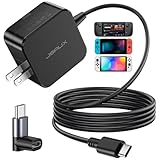
- Intelligent Output Adjustment: The JSAUX 45W USB C Power Delivery charger passed the UL 62368-1 test, with intelligent output adjustment function, support 45W 36W 27W 15W output, has the power to charge your steam deck, phone, tablet, and MacBook
- Fast Charge for Steam Deck & Switch: Equipped with 45W output, this USB C fast charger fully replaces the original Steam Deck charger and charges the device to 100% in about 2.5 hours. Also supports full-speed charging for Steam Frame / Nintendo Switch / Switch OLED models (up to 39W), ensuring fast, reliable power for uninterrupted gaming
- 5FT USB C Charging Cable: Come with an extra-long 5 Feet type C Integrated cable giving you plenty of cord to reach an outlet. Passed 10000+ times swing tests, the built-in USB C cable is more durable & flexible to bend at any angle and withstand daily wear. No low-power issue while you playing time
- Universal Compatibility: High-speed charging, compatible with Steam Frame, Steam Deck, Nintendo Switch 2, Switch, Switch OLED/Lite, iPhone 18 Pro/18 Pro Max/Air/17/16/15 Series, Samsung Galaxy S26/S25/S24/S23/S22/S21/S20 Series, Galaxy Note 10/Note 20, Google Pixel 2/3/4/5/6/7/8/9, Pixel XL, LG G5/G6/G7, LG V20/V30, iPad Pro 11"/12.9", Galaxy Tab S8 S7, MacBook Pro/Air and more USB C devices. Note: Does not support the Switch 2 console mode, does not support full-speed charging for Switch 2.
- Universal Compatibility: High-speed charging, compatible with Steam Deck, Nintendo Switch 2, Switch, Switch OLED/Lite, iPhone 18 Pro/18 Pro Max/Air/17/16/15 Series, Samsung Galaxy S26/S25/S24/S23/S22/S21/S20 Series, Galaxy Note 10/Note 20, Google Pixel 2/3/4/5/6/7/8/9, Pixel XL, LG G5/G6/G7, LG V20/V30, iPad Pro 11"/12.9", Galaxy Tab S8 S7, MacBook Pro/Air and more USB C devices. Note: Does not support the Switch 2 console mode, does not support full-speed charging for Switch 2.
2. Install updates before troubleshooting
Open the VR Dashboard, go to Steam Settings > System > Updates, and install every available Steam Frame update. Firmware, radio, decoder, and streaming changes can alter behavior, so changing bitrate or channels before updating can lead you to tune around a problem that has already been fixed.
3. Keep the host PC’s network path stable
Connect the PC to the local network by Ethernet when practical. This is a reliability recommendation, not a published mandatory speed requirement: Valve’s public documentation does not specify one required Ethernet rate or router model. The aim is to prevent the computer’s own Wi‑Fi contention from competing with the headset link. If cabling is impossible, keep the PC on a strong, stable local connection and avoid adding repeaters, mesh hops, or other wireless relays.
4. Start with a sustainable refresh mode
Steam Frame supports refresh rates up to 144 Hz. Reported defaults are 90 or 72 Hz depending on power mode, and Playtime mode uses 72 Hz. Begin with the default for your selected power mode. Raise the target only after frame timing remains stable in the applications you actually play; a higher refresh ceiling cannot recover frames that the game, encoder, or transport cannot deliver.
Quick wins for a faster PC:
Fix the driver behind crashes, sound loss and screen glitchesFind Drivers →Clear out junk files and repair common Windows errorsFree Scan →Scan for outdated or missing drivers - takes under a minuteDriver Scan →5. Keep foveated streaming enabled
Eye tracking lets Steam Frame devote the most encoding work to the area you are looking at. Valve engineer Jeremy Leinbaugh explained that the viewed region can receive about 10 times as much bandwidth and encoding bitrate as it otherwise would, because detail is concentrated where your eyes are directed. This is a core part of the latency and bandwidth design, not merely an image-quality option. Disable it only when diagnosing a specific eye-tracking or compatibility fault.
Rank #2
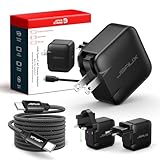
- Supports TV Mode & Handheld Mode Charging for Switch 2: JSAUX 65W USB C charger fully supports charging for Nintendo Switch 2 in both TV Mode (via dock) and Handheld Mode (direct USB C connection). Designed to meet the power requirements of Switch 2 for smooth gameplay without interruption. Important: This charger supplies power only and does NOT transmit HDMI, video, or audio signals
- 65W GaN USB C Fast Charger for Most USB C Devices: Powered by advanced GaN technology, this 65W USB C fast charger delivers efficient, high-output Power Delivery for Nintendo Switch 2, Switch OLED, and Switch in both docked and handheld use. Ideal as a Xbox Ally charger, Steam Deck charger, ROG Ally charger, MacBook charger, USB C laptop charger, tablet charger, and fast phone charger for iPhone, Galaxy, Pixel, and more. Compact yet powerful — replace multiple chargers with one versatile 65W GaN power adapter
- International Travel USB C Charger with US, UK & EU Plugs: JSAUX 65 watt travel USB C charger features a built-in foldable US plug and includes interchangeable UK and EU plug adapters, supporting worldwide 100–240V input for use in over 150 countries. Ideal for international travel, business trips, vacations, and portable gaming setups, it combines global compatibility with a compact, space-saving design that replaces multiple country-specific adapters
- Includes 6.6FT (2M) Braided USB C to USB C Cable: Comes with a durable 6.6ft braided USB C cable supporting Power Delivery 3.0 fast charging and high-speed data transfer. Reinforced connectors improve longevity, while the extended length gives you flexibility for dock setups, desks, hotel rooms, or couch gaming
- Wide Compatibility & Safe Charging: Compatible with Steam Frame, Nintendo Switch 2, ROG Xbox Ally, Switch OLED, Steam Deck, ROG Ally, MacBook Pro/Air, iPad Pro, iPhone 18 Pro/18 Pro Max, iPhone Duo, iPhone Air, iPhone 17/16/15 Series, Galaxy S26/S25/S24/S23/S22/S20, Pixel 9/8/7, and more. Features built-in protection against over-voltage, over-current, and short-circuit for worry-free charging
Adapter, router, or both: which path should you use?
There are three practical arrangements. Compare them by transport path, radio band, stability, processing headroom, refresh target, and visible compression rather than by the router’s marketing speed.
| Configuration | Transport and band | Best use | Risks and trade-offs |
|---|---|---|---|
| Dedicated Wireless Adapter | Direct PC-to-headset 6 GHz Wi‑Fi 6E link | Primary choice for low-latency PC VR | Requires suitable placement near the play area and an available USB Type-A port; nearby obstructions or interference can still affect the radio path. |
| Router-based streaming | Headset and PC communicate through the local Wi‑Fi network | Fallback when the adapter is unavailable or for controlled troubleshooting | Adds a network hop and exposes the stream to other clients, channel contention, and router scheduling. Valve does not publish a universal router model or channel setting. |
| Adapter plus local Wi‑Fi | Dedicated 6 GHz stream while the second headset radio uses ordinary Wi‑Fi | Normal operation when you want the dedicated stream and a separate local connection | Two radios do not make an extended outage harmless; a prolonged failure still ends streaming and returns the headset to its default environment. |
If you are comparing an adapter and a router, hold the game, refresh rate, and image settings constant. A path that appears sharper may simply be using a different bitrate or avoiding a transient drop. Judge each arrangement by sustained frame timing and packet behavior over a representative play session.
How Steam Frame’s two-radio fallback affects latency
Steam Frame can use one radio for the dedicated 6 GHz adapter while the other connects to local Wi‑Fi. Valve says that if one link is disrupted, the other can immediately cover the gap. This is useful for brief interruptions, but it is not a license to tolerate a poor primary signal: extended dropouts still terminate the stream and return you to the default environment.
Configure for graceful handoff
- Place the adapter where the headset has a clear path to it, rather than behind the PC chassis, under a desk, or inside a cabinet.
- Keep the adapter’s cable and connector secure so a loose USB connection is not mistaken for radio instability.
- Leave the second local Wi‑Fi connection available unless testing shows a particular interoperability problem.
- When diagnosing an issue, change one link at a time. Otherwise you cannot tell whether a recovery came from radio placement, a software update, or a transport change.
Choose refresh rate by frame-time evidence
Refresh rate sets how often the headset expects a new image. Higher values can make motion feel smoother, but they also reduce the time available for the game to render, the PC to encode, the network to transport, and the headset to decode. Use a mode that remains consistent rather than one that produces a high number with frequent misses.
Rank #3

- PREMIUM MATERIAL CONSTRUCTION – This wireless charging pad is built with a durable plastic body complemented by a sleek aluminum alloy frame, delivering a modern, premium look while maintaining lightweight portability for everyday use.
- COMPACT & PORTABLE DIMENSIONS – Measuring just 3.9 inches in diameter and 0.24 inches in thickness, this slim wireless charger is ultra-compact and travel-friendly, slipping easily into bags or pockets without adding bulk.
- INSTANT DROP-AND-CHARGE – Simply place your Qi-enabled device onto this fast wireless charger and charging begins immediately – no cables to plug in. The non-slip surface keeps your phone securely in place even when incoming calls vibrate, while the built-in LED indicator lets you know your device is actively charging.
- 10W RAPID CHARGING PERFORMANCE – Delivering 10W of power output, this Qi wireless charging station charges compatible smartphones efficiently and quickly. It works seamlessly even with phone cases on, so you never need to remove your protective cover before charging.
- COMPREHENSIVE SAFETY PROTECTION – Equipped with built-in over-current, over-voltage, over-temperature, and short-circuit protection, this wireless charger stand ensures safe, reliable charging every time. Charging time varies by phone model – most devices reach a full charge in approximately 2.5 hours.
| Mode or target | What is established | How to use it |
|---|---|---|
| 144 Hz | Steam Frame’s reported maximum capability | Attempt only when the game and PC maintain clean frame timing at lower modes. Treat it as a ceiling, not a recommended universal setting. |
| 90 Hz | Reported default in some power modes | Good starting point when your system can sustain it without encoder or transport stalls. |
| 72 Hz | Reported default in other power modes and the Playtime mode target | Use when power savings or additional frame-time headroom matter more than maximum smoothness. |
A safe escalation sequence
- Launch a demanding VR title or scene that represents your normal use.
- Start at the default 90 or 72 Hz mode for the selected power profile.
- Watch Steam Link and SteamVR performance indicators for frame-time spikes, transport stalls, dropped frames, or visible reprojection.
- If the indicators stay clean for a sustained session, move up one available refresh step.
- Repeat the same test. If instability appears, return to the last stable mode rather than compensating with a larger bitrate.
When the game itself misses its render budget, lowering refresh can help. When only transport stalls rise, changing refresh may hide symptoms without fixing the network path; inspect placement, cabling, and radio contention instead.
Bitrate, codec, and channel: what you can and cannot set universally
The available evidence does not establish a universal Steam Link bitrate, a single best codec, a mandatory Wi‑Fi channel, or an end-to-end latency number for every PC, room, and radio environment. Hardware load, game resolution, eye movement, local interference, and the selected refresh rate all change the result. Do not treat community values as Valve defaults.
Tune bitrate from a known baseline
- Keep the dedicated adapter, current software, and a stable PC network connection in place.
- Choose a refresh mode that is already stable.
- Set the streaming bitrate to a moderate value available in your Steam Link controls; record the value so you can reverse a change.
- Play a repeatable scene for several minutes while watching transport and frame-time indicators.
- Increase bitrate in small steps only while transport remains clean and the encoder has headroom.
- Stop increasing when image improvements become hard to see or when transport stalls, frame-time spikes, dropped frames, or reprojection appear.
- Back off to the last stable value and retest after a longer session, including rapid head movement and visually complex scenes.
A lower bitrate is preferable to a higher setting that causes stalls. Compression artifacts are usually less disruptive than a hitch during head movement, and foveated streaming already allocates more detail to the viewed region.
Do these 3 things before closing this tab:
1Clear out junk files and repair common Windows errors2Scan for outdated or missing drivers - takes under a minute3Repair Windows errors before they cause bigger problemsDo not chase a codec or channel number without a symptom
If Steam Frame exposes codec or channel choices in your software version, test them as controlled experiments, not as universal prescriptions. Change one variable, keep the adapter and refresh mode fixed, and compare the same scene. A channel that is quiet in one room can be congested in another, while a codec that reduces bandwidth can increase PC encode or headset decode work. Retain the option that produces the cleanest sustained indicators on your equipment.
Rank #4

- Intelligent Output Adjustment: The JSAUX 45W USB C Power Delivery charger passed the UL 62368-1 test, with intelligent output adjustment function, support 45W 36W 27W 15W output, has the power to charge your steam deck, phone, tablet, and MacBook.
- Fast Charge for Steam Deck & Steam Frame: Equipped with 45W output, this USB C fast charger fully replaces the original Steam Deck charger and charges the device to 100% in about 2.5 hours. Also supports full-speed charging for Steam Frame / Nintendo Switch / Switch OLED models (up to 39W), ensuring fast, reliable power for uninterrupted gaming.
- 10FT USB C Charging Cable: Come with an extra-long 10 Feet type C Integrated cable giving you plenty of cord to reach an outlet. Passed 10000+ times swing tests, the built-in USB-C cable is more durable & flexible to bend at any angle and withstand daily wear. No low-power issue while you playing time.
- Multiple Protection: The built-in Smart charging chip and IOA 2.0 intelligent charging system in the JSAUX USB C Wall charger efficiently protect your phone and personal safety by preventing over-current, over-voltage, overheating, and short-circuit.
- Universal Compatibility: High-speed charging, compatible with Steam Deck, Steam Frame, Nintendo Switch 2, Switch, Switch OLED/Lite, iPhone 18 Pro/18 Pro Max/Air/17/16/15 Series, Samsung Galaxy S26/S25/S24/S23/S22/S21/S20 Series, Galaxy Note 10/Note 20, Google Pixel 2/3/4/5/6/7/8/9, Pixel XL, LG G5/G6/G7, LG V20/V30, iPad Pro 11"/12.9", Galaxy Tab S8 S7, MacBook Pro/Air and more USB C devices. Note: Does not support the Switch 2 console mode, does not support full-speed charging for Switch 2.
Placement and local radio hygiene
Six-gigahertz signals generally benefit from a short, unobstructed path. The adapter should be near the play space, with its antenna area not blocked by the computer’s metal chassis or dense furniture. Avoid routing the cable so the adapter is pressed against the back of the PC or hidden behind a monitor stack.
- Keep the headset and adapter in the same room during testing.
- Remove unnecessary obstacles between them, especially metal shelving and closed cabinets.
- Separate the adapter from other high-speed USB devices and hubs if you observe disconnects; this is a troubleshooting step, not a published Steam Frame requirement.
- Reduce competing wireless traffic during diagnosis, then add devices back to identify whether contention is involved.
- Do not add a repeater or second wireless bridge to “extend” the path before establishing a direct baseline.
Diagnose stutters and dropped frames by symptom
Use the symptom that appears first to choose the next test. Avoid changing several settings at once.
| Symptom | Likely area to inspect | Corrective action |
|---|---|---|
| Frequent transport stalls or dropped frames | Radio path, interference, or extra network hops | Re-seat the adapter, move it into clearer line of sight, connect the PC by cable when possible, remove repeaters, and retest at the last stable bitrate. |
| Stable transport but game frame-time spikes | Game rendering or refresh target | Lower refresh one step, close competing workloads, and verify whether the spikes occur in the same scene even with streaming changes held constant. |
| Encoder-related frame-time pressure | Bitrate, resolution, or PC encode headroom | Reduce bitrate gradually, keep foveated streaming enabled, and test again before changing the radio path. |
| Visible reprojection during head movement | Missed frame deadlines from rendering, encoding, or transport | Return to a stable refresh and bitrate combination, then isolate whether render or transport indicators are responsible. |
| Brief recovery followed by a return to the default environment | Extended outage on both available links or loss of the streaming session | Check adapter power and placement, confirm updates are installed, and test the primary link without assuming dual-radio fallback can cover a sustained failure. |
| Image looks compressed but timing is stable | Bitrate is below the level your scene can use comfortably | Raise bitrate in small increments and stop at the first sign of transport or encoder instability. |
Use a repeatable troubleshooting loop
- Update Steam Frame from Steam Settings > System > Updates in the VR Dashboard.
- Disconnect unnecessary wireless bridges and return to the dedicated adapter.
- Verify the PC’s local network path, preferably with Ethernet.
- Use the default refresh mode and a moderate bitrate.
- Test one demanding, repeatable scene while recording the performance indicators you observe.
- Change exactly one variable, retest the same scene, and keep the change only if the indicators improve.
Do you need Wi‑Fi 6E or Wi‑Fi 7?
The dedicated Steam Frame Wireless Adapter uses a 6 GHz Wi‑Fi 6E link, so you do not need to buy a Wi‑Fi 7 router merely to use the preferred adapter path. The adapter provides the headset-to-PC transport independently of your router’s advertised generation. A router can still matter for the headset’s separate local Wi‑Fi connection or for a router-based fallback, but Valve’s published material does not identify a mandatory Wi‑Fi 6E or Wi‑Fi 7 router model.
If you choose router-based streaming, match the router and client capabilities you actually have, then evaluate packet stability in your room. A newer label does not guarantee lower latency when the PC is wireless, the channel is congested, or the stream crosses additional mesh nodes.
Best Value

- Share what's on your tablet, laptop, smartphone, or Surface onto an HDTV or monitor. Works with all Miracast enabled Windows 10 phones, tablets, and laptops, including the Surface line up.
- Stream movies, view photos, or display a presentation on a big screen all wirelessly. Compatibility: Surface devices, including Surface Book/Surface Laptop/Surface Pro/Surface Pro 4/Surface 3/Surface Pro 3/Surface 2/Surface Pro 2, and other Miracast enabled Windows 10/Windows 8.1 devices. Full functionality not available with non HDCP devices; Windows app support: Supported Platforms X86, X64 and ARM, with Windows 10 and Windows 8.1+ operating system
- Modernize your meetings by displaying business applications, Office documents, videos and websites through a conference room projector or monitor
- Simply plug into an HDTV, connect, then wirelessly mirror or extend your screen
- Snap the ends together to pack and travel
Balance image quality against latency
Streaming quality is a three-way balance between visual detail, processing time, and transport margin. Increasing bitrate can reduce blockiness but consumes more network and encoder capacity. Increasing refresh rate can improve motion cadence but leaves less time for each frame. Foveated streaming changes the balance by concentrating detail at the gaze point instead of sending the entire image at the same high level.
- Prioritize stable frame delivery for fast-action games and scenes with frequent head movement.
- Prefer a modest bitrate increase when timing is clean but compression is obvious in the viewed region.
- Prefer a refresh reduction when render or encoder deadlines are consistently missed.
- Prefer adapter placement and network-path fixes when transport stalls rise independently of game complexity.
A practical low-latency profile to keep
Once testing is complete, document the combination that works for your room and PC: transport path, adapter placement, refresh mode, bitrate, and any codec or channel choice exposed by your software. Include the game or scene used for validation and the indicators that remained stable. This record makes it easier to recover after a driver, firmware, room-layout, or router change without assuming that someone else’s numbers apply to your setup.
The strongest general profile is therefore straightforward: dedicated 6 GHz adapter, current software, a stable local PC connection, foveated streaming enabled, and the highest refresh rate that remains consistently inside the game, encoder, and transport budgets. Every value beyond that baseline should be earned by repeatable measurements on your own system.
The Tool Desk
Outbyte Driver Updater FREEFix the driver behind crashes, sound loss and screen glitchesFind Drivers →Outbyte PC Repair FREEClear out junk files and repair common Windows errorsFree Scan →Quick Recap
Product prices and availability are accurate as of the date/time indicated and are subject to change. Any price and availability information displayed on Amazon at the time of purchase will apply.

