
iTechGuides is reader-supported. When you buy through links on our site, we may earn an affiliate commission. As an Amazon Associate I earn from qualifying purchases. Learn more
For the Nintendo Switch 2 remake, start with Standard display mode, Toggle targeting, subtitles on, and motion aiming on if gyro control feels comfortable. Standard preserves the normal information layer, Toggle avoids repeatedly holding ZL during combat, and subtitles improve clarity. If the screen feels crowded, move to Pro and then Master, understanding that each step removes more on-screen information.
Players on PC have a separate option: Ship of Harkinian. GamesHub’s recommended configuration is 4K resolution, 60fps gameplay, the OoT Reloaded texture pack, widescreen support, right-stick camera controls, fast text, D-Pad item shortcuts, enhanced draw distance, improved aiming controls, and HD HUD textures. That port requires your own lawful copy of Ocarina of Time, which you convert for use with the software.
| # | Preview | Product | Price | |
|---|---|---|---|---|
| 1 |

|
Legend of Zelda: Ocarina of Time 3D | $52.99 | Buy on Amazon |
| 2 |

|
The Legend of Zelda: Ocarina of Time | $89.99 | Buy on Amazon |
| 3 |
|
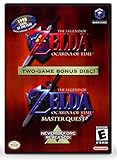
The Legend of Zelda: Ocarina of Time (w/ Master Quest) | $118.95 | Buy on Amazon |
| 4 |

|
LEGO The Legend of Zelda: Ocarina of Time – The Final Battle 77093 | Building Sets for Adults,... | $129.95 | Buy on Amazon |
Recommended settings at a glance
The best setup depends on whether you value information, immersion, or control flexibility. Use this table as a starting point rather than changing every option at once.
Recommended Free Tools
| Player or situation | Display mode | Targeting | Motion aiming | Subtitles |
|---|---|---|---|---|
| Most players on Switch 2 | Standard | Toggle | On if gyro feels natural | On |
| Players who want a cleaner image | Pro | Toggle | Optional | On unless text is distracting |
| Maximum immersion | Master | Hold or Toggle, according to preference | Optional | On for readability, off only if you deliberately want less interface information |
| Players who prefer a held lock-on button | Standard, Pro, or Master | Hold | Optional | On |
| PC players using Ship of Harkinian | 4K target with widescreen | Use the port’s enhanced aiming controls | Controller-dependent | Fast text recommended |
The Switch 2 remake is announced for November 5, 2026. The product phrase “The Legend of Zelda: Ocarina of Time Nintendo Switch 2” refers to this supported console release, while Ship of Harkinian is an unofficial PC path with a different set of controls and requirements.
#1 Best Overall
- This is the world edition. It has different packaging but is fully authentic and works on US region 3DS systems.
- The Legend of Zelda veterans can look forward to the Master Quest - a second quest with revamped puzzles and redesigned dungeons.
- The Legend of Zelda: Ocarina of Time 3D is a masterful improvement on one of the landmark releases in video game history.
- “E10+”, w/Animated Blood, Fantasy Violence, Suggestive Themes
What the three Switch 2 display modes change
The remake provides three information-density presets: Standard, Pro, and Master. They are not separate difficulty levels. They change how much interface information remains visible while you explore and fight.
Standard: the safest default
Standard keeps the normal information layer on screen. It is the most practical choice for a first playthrough because you can see the game’s usual prompts and status information without learning which elements have been hidden.
- Choose Standard when you are learning the remake, switching items frequently, or playing on a smaller display.
- It is the best baseline for diagnosing other control problems because missing information is less likely to be caused by the interface preset.
- Use Standard if you want the clearest reminder of available actions during combat and exploration.
Pro: less information, still convenient
Pro reduces the amount of on-screen information. It is useful after you understand the controls and want more of the scene visible without removing every aid.
The Tool Desk
Outbyte PC Repair FREERepair Windows errors before they cause bigger problemsFix Now →Outbyte Driver Updater FREEScan for outdated or missing drivers - takes under a minuteDriver Scan →- Move to Pro when Standard feels visually busy.
- Keep subtitles enabled if dialogue readability matters; reducing interface information does not make small text easier to read.
- If you repeatedly need to switch back to Standard to find an action prompt, Pro is removing more convenience than you want.
Master: the cleanest view
Master hides the information layer. This produces the least clutter, but it also removes the visual reminders that help with unfamiliar encounters and item use.
- Use Master for a second run or when immersion is more important than constant status information.
- Do not choose it as a troubleshooting step for a player who is already missing prompts; switch to Standard instead.
- Pair Master with whichever targeting method you can activate reliably, because the display mode itself does not solve control errors.
Choosing Hold or Toggle targeting
Targeting has two behaviors: Hold and Toggle. The choice affects how you maintain a lock-on, not the game’s difficulty.
Hold targeting
Hold is the better fit if you want to keep ZL pressed for the entire lock-on. Releasing the button ends the held input, so it favors players who prefer a direct physical relationship between the button and the target state.
- Choose Hold if you already use hold-to-aim controls in other action games.
- It can feel predictable during short encounters because the lock exists only while the button is depressed.
- It may be less comfortable during long fights if holding ZL continuously makes your hand tense.
Toggle targeting
Toggle activates targeting with a press and lets you release ZL while the lock remains active. That makes it more convenient for repeated combat, especially when you need to use other buttons or adjust your grip.
Quick wins for a faster PC:
Scan for outdated or missing drivers - takes under a minuteDriver Scan →Repair Windows errors before they cause bigger problemsFix Now →- Choose Toggle if you frequently reacquire targets or dislike holding a shoulder button.
- It is the recommended starting behavior for most players because it reduces continuous finger pressure.
- Remember to press again when you want to leave the targeting state; otherwise, the camera or movement may feel different from free exploration.
How to decide in the first session
- Enter a low-risk area where you can target an enemy without losing progress.
- Try Hold for several encounters, deliberately releasing ZL between attacks.
- Switch to Toggle and repeat the same type of encounter.
- Keep the behavior that lets you maintain awareness of the target without thinking about the button itself.
Do not change display mode and targeting at the same time if you are trying to identify a control problem. Test one variable, then the other.
Motion aiming: when gyro control helps
Motion aiming can be enabled or disabled. GamesRadar’s hands-on preview described the remake’s gyro controls as smooth for slingshot use and said item switching was easier. That makes motion aiming worth trying, but it is not mandatory.
Enable motion aiming when
- You make small aiming corrections more easily by moving the controller than by making fine right-stick adjustments.
- You play with a motion-capable controller and have enough room to move it comfortably.
- You want to use gyro for precision while retaining the stick for larger camera or cursor movements.
Disable motion aiming when
- Controller movement causes the reticle to drift or makes you overcorrect.
- You play in a position where the controller must remain almost perfectly still.
- You switch between controllers with different motion behavior and find the response inconsistent.
Start with motion aiming on in a safe area. Make a few small corrections, then deliberately stop moving the controller. If the reticle settles and the movement feels predictable, keep it enabled. If you are fighting the controller rather than aiming, disable it; stick aiming is a valid full-time alternative.
Subtitles and readability
Subtitles can be switched on or off. Leaving them enabled is the safer choice for a first playthrough, for players who play with low volume, and for anyone who wants dialogue text available without relying entirely on audio.
What’s actually slowing this PC down?
Pick the symptom - the matching free tool is one click away.
- Keep subtitles on when the display is at a distance or when more than one person is playing in the room.
- Turn them off only when you have confirmed that you can follow dialogue comfortably and want the least text on screen.
- Subtitles are independent of the Standard, Pro, and Master information presets, so reducing HUD information does not require sacrificing dialogue text.
If the interface feels crowded, first move from Standard to Pro rather than turning off subtitles that you still need. This separates general HUD reduction from dialogue accessibility.
Rank #3
- Play the original Legend of Zelda Ocarina of Time
- Or the Master Quest edition with many bonus features
Switch 2 setup recipes for different players
First playthrough
Use Standard, Toggle targeting, subtitles on, and motion aiming on for an initial test. This combination keeps the normal information layer, removes the need to hold ZL continuously, and lets you evaluate gyro control before committing to it.
Experienced player seeking immersion
Try Pro first, then Master if you still want less interface information. Keep Toggle if you prefer convenience during combat; Master does not require Hold targeting. Leave subtitles on unless you specifically want dialogue text removed.
Player who dislikes motion controls
Use Standard or Pro, Toggle or Hold according to hand comfort, and disable motion aiming. The remake’s gyro option is a preference, not a requirement for normal play.
Player with a small or distant screen
Start with Standard and subtitles on. The normal information layer gives you more context when interface elements are harder to inspect, while subtitles preserve dialogue readability when audio or text size is difficult to judge from a distance.
Step-by-step: tune the remake without losing your baseline
- Start with Standard. This gives you the full normal information layer while you learn the remake.
- Set targeting to Toggle. Test a few encounters and switch to Hold only if you prefer keeping ZL depressed while locked on.
- Enable subtitles. Play through enough dialogue to confirm that the text is comfortable at your seating distance.
- Test motion aiming. Use a low-risk aiming situation, make small corrections, and disable the option if the reticle feels harder to control.
- Reduce display information only after controls feel right. Move from Standard to Pro, then Master if you want a progressively cleaner view.
- Change one setting at a time. If something becomes confusing, you can return to the last known-good combination instead of guessing which option caused the change.
Performance and display expectations on Switch 2
The remake is announced for Nintendo Switch 2 on November 5, 2026. OoT Guide reported that a preview build ran at 60fps on a television, but final resolution and handheld performance had not been confirmed. Treat the preview result as information about that build, not a launch guarantee for every display mode or play situation.
This distinction matters when choosing settings. Standard, Pro, and Master describe information density; they do not promise a particular resolution or frame rate. Likewise, motion aiming and subtitles are feature switches, not performance modes. Until final technical specifications are published, avoid assuming that television behavior will exactly match handheld behavior.
Rank #4
- GAMER COLLECTIBLE MODEL KIT – Adults ages 18 and up can share their love of video games with the LEGO The Legend of Zelda: Ocarina of Time – The Final Battle (77093) fantasy adventure building set, a display model with 5 iconic characters from the game
- LEGO CASTLE RUINS BUILDING SET – This detailed gaming collectible features a ruined castle area, Link, Zelda and Ganondorf minifigures, and 2 more iconic characters
- FEATURES AND FUNCTIONS – Recreate the final battle scene with movable rubble, a button to raise Ganondorf from the ruins, the hidden Megaton Hammer in the tower, secret Recovery Hearts and more
- ICONIC NINTENDO CHARACTERS – This nostalgic The Legend of Zelda building set includes a large, brick-built figure of Ganon and a small, transparent build to represent Navi the fairy
- GIFT FOR ADULTS – This building set makes a great gamer gift for fans of The Legend of Zelda series or collectible LEGO models, and makes a fun Nintendo character gift for birthdays or holidays
Ship of Harkinian: the configurable PC alternative
Ship of Harkinian is a separate PC route for players who want extensive graphics and control customization. It is not the Switch 2 remake. The software requires you to supply your own copy of Ocarina of Time and convert it for use by the PC port, so ownership of a lawful source copy is a prerequisite.
Free tools Windows power users keep installed
One-click scans. No signup required.
GamesHub’s recommended PC configuration
| Area | Recommended choice | Why it matters |
|---|---|---|
| Resolution | 4K | Uses a high-resolution desktop presentation when your display and hardware support it. |
| Frame rate | 60fps gameplay | Targets the smoother gameplay configuration recommended for the port. |
| Textures | OoT Reloaded texture pack | Provides the recommended texture upgrade. |
| Aspect ratio | Widescreen support | Uses a wider display format instead of a narrow original presentation. |
| Camera | Right-stick camera controls | Maps camera movement to the modern second stick. |
| Text | Fast text | Reduces the waiting associated with text presentation. |
| Item access | D-Pad item shortcuts | Provides direct item access without relying only on the original control flow. |
| World rendering | Enhanced draw distance | Shows more of the environment at once where the port supports it. |
| Aiming | Improved aiming controls | Uses the port’s enhanced aiming behavior rather than the unmodified original scheme. |
| Interface | HD HUD textures | Matches the higher-resolution presentation with sharper interface assets. |
These are configuration recommendations reported by GamesHub, not a guarantee that every computer will deliver identical results. Select the highest combination your system can sustain without stutter or input delay, then lower individual visual options if necessary rather than changing every control at once.
Who should choose the PC route
- Choose Ship of Harkinian if you already have a lawful source copy and want widescreen, right-stick camera control, texture upgrades, draw-distance changes, or shortcut customization.
- Choose the Switch 2 remake if you want a supported console release without converting game data or assembling a PC configuration.
- Do not treat the PC recommendations as settings for the Switch 2 remake; the two versions expose different options and have different prerequisites.
Switch 2 remake versus Ship of Harkinian
| Decision point | Switch 2 remake | Ship of Harkinian on PC |
|---|---|---|
| Availability | Announced for Nintendo Switch 2 on November 5, 2026 | Separate unofficial PC software |
| Setup effort | Choose in-game display, targeting, motion, and subtitle options | Supply and convert your own lawful Ocarina of Time copy, then configure the port |
| Display customization | Standard, Pro, and Master information-density presets | 4K target, widescreen, enhanced draw distance, texture and HUD options |
| Camera and aiming | Toggle or Hold targeting; optional motion aiming | Right-stick camera and improved aiming controls recommended |
| Text and item access | Subtitles can be enabled or disabled | Fast text and D-Pad item shortcuts recommended |
| Best for | A straightforward supported console experience | Players who prioritize extensive PC customization |
Troubleshooting common setting problems
The screen feels too busy
Move from Standard to Pro. If the remaining information still distracts you and you know the controls, try Master. Keep subtitles enabled if they are helping you follow dialogue; HUD reduction and subtitle visibility solve different problems.
Targeting feels awkward
Switch between Toggle and Hold rather than changing motion aiming first. Toggle is easier when you do not want to keep ZL pressed; Hold is better when you want the lock to exist only while the button is held.
Gyro aiming is making shots worse
Disable motion aiming and use stick control. The hands-on praise for smooth gyro behavior describes a positive experience, not a requirement or a guarantee that every player will prefer it.
You cannot tell whether a performance issue is expected
Remember that the reported 60fps television result came from a preview build. Final resolution and handheld performance were not confirmed, so do not infer launch behavior from that preview alone.
The PC setup is not behaving like the console remake
Check that you are using the correct version’s settings. Ship of Harkinian is a separate PC port with its own configuration, and it requires converted data from your own Ocarina of Time copy. Switch 2 display presets and PC texture or camera options are not interchangeable.
A practical test checklist
- Can you read dialogue comfortably with subtitles on or off?
- Can you enter and leave targeting without thinking about the button behavior?
- Can you make a small aiming correction with motion enabled, or is the stick more precise for you?
- Does Standard show information you actually use, or would Pro remove clutter without hiding something important?
- If you choose Master, do you already know the actions that the normal information layer would have reminded you about?
- On PC, does your computer sustain the selected resolution and frame-rate target without visible stutter?
For most Switch 2 players, the final choice remains Standard display mode, Toggle targeting, subtitles enabled, and motion aiming enabled only when gyro control feels comfortable. Pro and Master are deliberate reductions in information, while Ship of Harkinian is the flexible PC alternative for players prepared to provide and convert their own game copy.
Quick Recap
Product prices and availability are accurate as of the date/time indicated and are subject to change. Any price and availability information displayed on Amazon at the time of purchase will apply.

