
iTechGuides is reader-supported. When you buy through links on our site, we may earn an affiliate commission. As an Amazon Associate I earn from qualifying purchases. Learn more
The best PPSSPP settings are a starting point, not a universal preset. Begin with the emulator’s defaults, confirm that your game reaches its intended speed, then change one setting at a time. For most devices, select Vulkan when it is available, use a rendering resolution your hardware can sustain, and leave frameskip disabled unless simpler changes fail. Games that demand the lowest input latency need a different balance: a small graphics-command buffer, VSync off, and a test of Force Real Clock Sync.
PPSSPP’s own guidance says most graphics options are generally fine at their defaults. Your device’s CPU and GPU, graphics driver, operating system, game, display refresh rate and control method all affect the result. The settings below therefore use conservative defaults first, with separate paths for image quality, low-end hardware and timing-sensitive play.
Start with a clean baseline
Before changing performance options, run the game with its current settings and observe three things: whether the speed indicator stays at the game’s intended rate, whether motion is even rather than jerky, and whether controls appear on screen without a delay. PPSSPP recommends starting from defaults because unusual combinations of speed hacks can fix one title while breaking another.
The Tool Desk
Outbyte Driver Updater FREEFix the driver behind crashes, sound loss and screen glitchesFind Drivers →Outbyte PC Repair FREEClear out junk files and repair common Windows errorsFree Scan →- Open PPSSPP and launch the problem game.
- Record the current backend, rendering resolution, frameskip and any per-game overrides. Keeping a short note makes it possible to identify the change that caused a glitch.
- Play the same demanding scene for several minutes. A menu may run smoothly while a race, battle or effects-heavy area exposes the real bottleneck.
- Change one option, return to that same scene and compare. If the result is worse, undo that single change before testing another.
Use PPSSPP’s Recommended settings as the reference point. The documentation describes its setup as “The following setup is expected to be optimal for most players,” but that is a general starting point rather than a promise for every game or device.
#1 Best Overall

- Sony PSP 3000 International Console, Fully Technician Tested.
Choose the graphics backend first
The backend determines how PPSSPP sends rendering work to your operating system and driver. It is a useful first experiment when a game has missing effects, unusual colors or unstable performance, but selecting a backend cannot guarantee a fixed frame rate.
| Backend | Best starting use | What to do if a title has problems |
|---|---|---|
| Vulkan | Most devices when the option is available | Try another supported backend if the game shows rendering errors or your driver is unstable. |
| OpenGL | Android compatibility when Vulkan is unavailable or troublesome | Use it as a compatibility test rather than assuming it is faster. |
| D3D11 | Windows systems using Direct3D | Compare with another supported Windows backend when a game does not render correctly. |
PPSSPP describes Vulkan as “The recommended backend on most devices, if available.” On Android, OpenGL remains an important fallback because device drivers vary widely. On Windows, D3D11 is a practical alternative when Vulkan produces a title-specific problem. Switch backends for one game at a time and check the same scene after each change.
Set rendering resolution to match your hardware
Rendering resolution is usually the largest visual-quality and GPU-workload control. The original PSP image is 480×272. A higher multiplier draws the scene at a larger internal resolution, making edges and text look sharper on a modern display, but it also increases the work required for every frame.
| Multiplier | Practical role | Trade-off |
|---|---|---|
| 1× (native) | Lowest rendering workload and the safest fallback for a struggling device | Uses the PSP’s original 480×272 image, so it can look soft when enlarged. |
| 2× | Moderate quality for low- to mid-power hardware | Sharper than native while retaining a relatively manageable workload. |
| 4× | High-quality starting point on capable hardware; PPSSPP describes it as almost 1080p | PPSSPP’s example is 1920×1088 versus 1920×1080, and performance still depends on the game and device. |
| 8× | Very high-quality output on powerful hardware; PPSSPP describes it as 4K | Can be unnecessarily expensive on a small screen and may reduce speed. |
On a capable phone, tablet or PC, choose the multiplier that is close to your display’s resolution and then test a demanding scene. PPSSPP’s documentation recommends 4× or 8× MSAA where supported for a quality-oriented setup, but MSAA is currently limited to Vulkan and desktop GPUs. If speed drops, lower the rendering resolution before reaching for frameskip.
Very high multipliers can also reveal thin lines in menus or HUD elements. Many PSP games were designed and tested at 480×272, so a line that was blended at native resolution may become visibly narrow or uneven when rendered much larger. That is a game asset limitation, not necessarily a faulty emulator.
A quality-first profile for capable devices
Use this profile only after the baseline already runs at the intended speed. It prioritizes a clean image without enabling broad speed hacks.
Rank #2

- Sony PSP 3000 International Console, Fully Technician Tested.
- Backend: Vulkan when available.
- Rendering resolution: Start at the display-appropriate multiplier; 4× is a sensible high-quality test and 8× is for hardware that has ample headroom.
- Texture filtering: Auto Max Quality, as recommended by PPSSPP for capable systems.
- MSAA: Test 4× or 8× only when the backend and GPU support it.
- Speed hacks: Leave them disabled. A faster-looking setting can alter timing or produce incorrect graphics.
- Post-processing: Add effects only after the game is stable, because each effect adds workload and can complicate troubleshooting.
Check temperature and sustained performance on mobile hardware. A game can begin smoothly and slow later if the device reduces its clock speed under heat. If that happens, lower the rendering multiplier or remove post-processing rather than adding frameskip immediately.
Do these 3 things before closing this tab:
1Fix the driver behind crashes, sound loss and screen glitches2Repair Windows errors before they cause bigger problems3Scan for outdated or missing drivers - takes under a minuteRecover speed on low-end Android and other weak hardware
When the game is slow or uneven, follow the least destructive changes first. These steps target rendering load before altering frame delivery or game effects.
- Reduce rendering resolution to 2×. Re-test the same scene. If it is still slow, use 1×.
- Turn off display post-processing. This removes extra full-screen effects that consume GPU time.
- Test Software skinning. Its benefit depends on the device; keep it only if that hardware improves consistently.
- For a severe slowdown in one game, test Disable GPU readbacks. Watch the scene closely for missing effects, distorted images or other visual defects. Re-enable it if graphics become incorrect.
- Use Skip buffer effects only as a per-game experiment. PPSSPP warns that many games can render incorrectly with buffer effects skipped, including severe artifacts or flicker.
- Use frameskip 1 or 2 only as a last resort. It may raise apparent speed when rendering is the bottleneck, but it lowers the displayed frame rate and can cause visible flicker.
Auto frameskip is generally intended for very low-power devices. It is not a universal smoothness switch: the emulator may skip different frames as workload changes, producing less consistent motion than a stable lower resolution.
Speed options that can break a game
- Disable GPU readbacks can distort graphics even when it improves speed in a particular title.
- Skip buffer effects can remove effects that a game relies on and may cause severe artifacts or flicker.
- Lazy texture caching can break text rendering in some games.
- Software rendering is generally much slower and is restricted to native 1× resolution, so it is a diagnostic fallback rather than a performance upgrade.
Undo the last change as soon as a visual defect appears. Do not stack every speed hack and assume the combined result is better; you lose the ability to identify which option caused the problem.
Settings for the lowest input latency
Rhythm, fighting, racing and action games can feel wrong even when the frame rate looks acceptable. For these games, prioritize the time between a button press and the updated image instead of maximum resolution.
Free tools Windows power users keep installed
One-click scans. No signup required.
| Setting | Latency-oriented starting value | Trade-off or qualification |
|---|---|---|
| Backend | Vulkan when available | Use another supported backend if the title has driver-specific rendering problems. |
| Buffer graphics commands | 1 or No buffer | A smaller buffer can reduce input-to-screen delay but may reduce CPU/GPU parallel work and performance. |
| VSync | Off for a latency test | PPSSPP generally recommends VSync on for display behavior from version 1.20; turning it off is a specific latency trade-off and can introduce tearing. |
| System / Force Real Clock Sync | Experiment with it enabled | Keep it only if timing and responsiveness improve on your hardware and game. |
| Low latency display | Try it, especially with a 60 Hz display | Turn it off if frame rate or smoothness becomes problematic, particularly on Windows 10. |
Change these options one at a time. Start with the graphics-command buffer, then test VSync, then Force Real Clock Sync. A setting that lowers latency can also reduce throughput; if the game begins to stutter, restore a deeper buffer or VSync and accept the extra delay for steadier presentation.
Rank #3
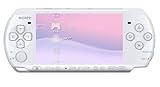
- This Certified Refurbished product is manufacturer refurbished, shows limited or no wear, and includes a 90-day warranty
- Play any of more than 360 games anytime, anywhere on the dazzling, 4.3” widescreen LCD
- Take your entertainment with you on the go by placing your downloaded videos on Memory Stick Duo
- Listen to music, watch movies, check the Internet, watch live and recorded TV, and jam to Internet Radio
VSync and Low latency display are different controls
VSync synchronizes frame presentation with the display. PPSSPP’s general graphics guidance says it is usually best on from PPSSPP 1.20, while its latency guidance recommends turning it off for timing-sensitive play. Those recommendations address different goals. VSync on can provide cleaner frame pacing; VSync off can shorten the wait before a newly rendered frame is shown but may produce tearing.
Low latency display is a separate option. PPSSPP especially recommends trying it on 60 Hz displays, yet notes that it can hurt frame rate or smoothness on some systems, with Windows 10 called out as a case where turning it off may help. Test both options with the same game scene instead of treating either as universally faster.
Make controls accurate and comfortable
Open Control Mapping to bind PSP actions to a physical gamepad, keyboard or PPSSPP’s virtual buttons. Accurate controls depend as much on layout and analog response as on graphics settings.
PC Slower Than It Used to Be?
A free scan shows the junk files, broken settings and background clutter dragging Windows down - then fixes them in one click.Free scan · Windows 10 & 11Crashes, No Sound, or Screen Glitches?
Random freezes, missing sound and display glitches usually trace back to one bad driver. Find and replace yours safely.Free scan · under a minuteMap a gamepad or keyboard
- Open PPSSPP’s settings and enter Controls, then Control Mapping.
- Select each PSP action and press the gamepad button or keyboard key you want to assign.
- Check both analog directions, the digital pad, shoulder buttons and Start/Select. A missing shoulder binding is easy to overlook because many games do not use it in the opening scene.
- Test the mapping in a safe area before starting a long session. If two actions trigger together, remove the duplicate assignment and bind each action again.
A Bluetooth controller is optional. If touch controls feel cramped, consider a controller that supports your specific phone, tablet or PC; compatibility varies by operating system and connection mode.
Fit virtual buttons to the screen
Touch controls can be moved and resized through the layout controls. Adjust opacity so buttons remain visible without obscuring the game, and enable auto-hide if the overlay distracts you during play. Place frequently used actions where your thumbs naturally rest, then test diagonal movement and simultaneous button presses rather than judging the layout from a menu.
Calibrate the analog stick
Use the analog-stick calibration controls when the character drifts, fails to reach a full direction or responds too abruptly. Calibration changes the response and deadzone behavior. Make small adjustments, release the stick between tests and verify that the neutral position remains stable. Excessive deadzone can make fine movement difficult; too little can allow drift.
Rank #4

- Sony PSP 3000 International Console, Fully Technician Tested.
Fix audio symptoms separately
Audio crackling and graphics slowdown do not necessarily have the same cause. PPSSPP documents two playback choices with different goals: “Classic for the lowest latency, smooth for less glitches when running at speeds other than 100%.” Choose Classic when latency is the priority and the game already plays cleanly at normal speed. Choose Smooth when alternate speeds or an uneven workload produce glitches.
Quick wins for a faster PC:
Fix the driver behind crashes, sound loss and screen glitchesFind Drivers →Repair Windows errors before they cause bigger problemsFix Now →Do not change audio settings as a general cure for a low frame rate. First determine whether the speed indicator and visuals are slow. If only sound breaks up while the game remains at normal speed, test Smooth; if both audio and video slow, return to the graphics workflow.
Match the fix to the symptom
| Symptom | First checks | Next action |
|---|---|---|
| Low speed in demanding scenes | Rendering resolution, post-processing and backend | Lower to 2× or 1×, disable post-processing and test Vulkan or another supported backend. |
| Uneven motion on weak hardware | Resolution and thermal behavior | Reduce rendering load; reserve frameskip 1 or 2 for cases where simpler changes do not hold speed. |
| Flicker or missing effects after a speed change | Skip buffer effects, Disable GPU readbacks and other hacks | Re-enable the last altered option and retest. |
| Controls feel delayed | Graphics-command buffer, VSync and Force Real Clock Sync | Test Vulkan, Buffer graphics commands at 1 or No buffer, VSync off and Force Real Clock Sync. |
| Screen tearing after latency tuning | VSync status | Turn VSync on and compare frame pacing against the latency benefit. |
| Analog drift or missed diagonals | Control Mapping and analog calibration | Rebind the stick and adjust its response/deadzone gradually. |
| Crackling at a non-100% speed | Audio playback mode | Try Smooth; use Classic when lowest latency matters and normal-speed playback is clean. |
Use per-game changes and keep a reversible setup
Different PSP titles use different rendering paths and timing. A setting that is harmless in one game can produce artifacts or worse latency in another, so apply aggressive options as per-game overrides whenever PPSSPP offers that choice. Keep a short note of the backend, resolution, frameskip and hacks used for each title.
If a game becomes unstable, return to the last known-good profile: default graphics settings, a supported backend, frameskip off, no experimental buffer or readback hacks, and your original control mapping. Then reintroduce only the change that addresses the observed symptom. This method is slower than applying a large preset, but it preserves image quality and control accuracy when a title has unusual requirements.
A practical decision order
- Start at defaults and verify intended speed.
- Select Vulkan when available; use OpenGL on Android or D3D11 on Windows as compatibility alternatives when needed.
- Set rendering resolution: 4× or 8× for capable hardware, 2× or 1× when speed is limited.
- Remove extra workload: turn off post-processing and test Software skinning if the device struggles.
- Investigate title-specific defects: test Disable GPU readbacks or Skip buffer effects only per game and revert at the first visual error.
- Reserve frameskip for last-resort speed recovery.
- For latency-sensitive play, test a small graphics-command buffer, VSync off and Force Real Clock Sync, then keep the combination that remains smooth.
- Finish with controls and audio: map every required action, calibrate the analog stick and select Classic or Smooth according to latency and glitch symptoms.
For the official option descriptions and version-specific notes, consult PPSSPP’s Graphics settings, Recommended settings, Control settings and Audio Settings pages.
Quick Recap
Product prices and availability are accurate as of the date/time indicated and are subject to change. Any price and availability information displayed on Amazon at the time of purchase will apply.

