
iTechGuides is reader-supported. When you buy through links on our site, we may earn an affiliate commission. As an Amazon Associate I earn from qualifying purchases. Learn more
The smoothest remote-gaming setup starts with a clean 5 GHz Wi‑Fi connection to your phone, an Ethernet connection from the gaming PC to the router, and a stream resolution that matches the phone or host display. Begin at a stable frame-rate target—usually 60 fps when the device and network can sustain it—then reduce resolution or bitrate if decoding or network latency rises. Keep Steam Link sessions on the same local network as the host computer, and use a physical controller for games designed around sticks, triggers, or fast button inputs.
These settings reduce the most common causes of stutter: wireless congestion, unnecessary scaling, overloaded video decoding, and input methods that are poorly suited to action games. The exact balance still depends on your phone, router, PC, distance from the access point, and whether you are playing locally or over the internet.
Use this baseline profile first
Apply the following profile before changing individual options. It gives you a clean reference point for diagnosing whether a problem comes from the network, the phone, or the game-streaming app.
Outdated Drivers Are Slowing You Down
One free scan finds every outdated or missing driver and matches the right update for your exact hardware.Free scan · exact hardware matchPC Slower Than It Used to Be?
A free scan shows the junk files, broken settings and background clutter dragging Windows down - then fixes them in one click.Free scan · Windows 10 & 11| Setting | Starting choice | When to change it |
|---|---|---|
| Phone Wi‑Fi | 5 GHz band | Move closer to the router or lower stream demands if the signal is weak or unstable. |
| PC connection | Ethernet to the router | Use wireless only when a wired connection is impractical. |
| Steam Link network | Phone and PC on the same local network | Use an internet-based feature instead when you are away from home. |
| Stream resolution | Phone-native resolution or the host-display resolution recommended by the app | Lower it when frame delivery, decoding, or latency becomes unstable. |
| Frame rate | A stable target supported by the phone; 60 fps is a common starting target | Lower the target if frames are dropped or the phone cannot decode consistently. |
| Bitrate or bandwidth | Start conservatively, then raise it only while motion remains clean | Lower it on shared Wi‑Fi or whenever the image stutters. |
| Controls | Supported Bluetooth or USB controller | Use touch controls mainly for menus, turn-based games, or games designed for touch. |
There is no vendor-published universal bitrate number that guarantees smooth play across phones, routers, and games. Treat bitrate as a tuning control, not a quality promise: the right value is the highest setting your particular connection can deliver without queueing, packet loss, or decode delay.
#1 Best Overall

- FULL SIZED CONTROLLER FORM FACTOR — Console performance meets mobile convenience for iPhone* and Android; play for extended periods in complete comfort and control with larger ergonomic handles that feel more natural to hold than standard mobile controllers (*iPhone 15 series and up)
- FULL SIZED TMR THUMBSTICKS — Perfect your aim with high-precision, anti-drift thumbsticks that are superior to Hall Effect designs
- DUAL MOUSE CLICK BACK BUTTONS — Enjoy the same ultra-responsive actuation found in our top gaming mice with 2 back buttons built into the controller’s ergonomic handles
- UNPARALLELED CASE COMPATIBILITY — Fits many popular phone cases thanks to an innovative USB C ‘island’ design and thicker depth clearance than other controllers
- POWERED BY THE RAZER NEXUS GAME LAUNCHER — Launch games, customize controls, record and share gameplay, and keep the controller updated with a free* app that can be brought up at the touch of a dedicated button. (*Razer Nexus does not require a fee/subscription, however some apps within Razer Nexus do)
Why remote gaming feels laggy
Remote play combines several delays that are easy to confuse. The PC renders a frame, compresses it into a video stream, sends it through the network, and the phone decodes and displays it. Your button press then travels back to the PC before the next frame reflects the input. A setting that overloads any one stage can feel like “internet lag,” even when the internet connection is not the cause.
Network delay and congestion
Wireless airtime is shared. Valve specifically recommends choosing the 5 GHz Wi‑Fi band instead of the highly congested 2.4 GHz band. Valve also warns that simultaneous wireless traffic between the PC, router, and phone can interfere with itself. A phone and PC both using Wi‑Fi may therefore perform worse than a phone on Wi‑Fi with the PC on Ethernet, even when both links show a strong signal.
Encoding and decoding delay
The host PC must encode the game output and the phone must decode it. Moonlight notes that newer, faster phones are more likely to stream smoothly because they can use the device’s hardware video system. A phone that is comfortable with ordinary video playback may still struggle with a high-resolution, high-frame-rate interactive stream if hardware decoding is unavailable or disabled.
Scaling and frame pacing
Sending a resolution that does not fit the phone or the host display can add scaling work and produce uneven frame pacing. Moonlight advises matching the stream resolution to the host display. Steam Link exposes live resolution and bandwidth controls, so you can adjust those values while watching whether delivery stabilizes.
Build the network correctly
Put the phone on 5 GHz Wi‑Fi
In the router’s Wi‑Fi list, select the network name associated with the 5 GHz band. Some routers combine both bands under one name and steer devices automatically; if your router exposes separate names, choose the 5 GHz one manually. Stay within reliable range of the access point. A weak 5 GHz signal can be less stable than a strong 2.4 GHz signal, but the first troubleshooting move for a nearby phone should be to remove 2.4 GHz congestion rather than accept its slower, busier channel.
Pause large downloads, cloud backups, video streams, and other heavy wireless transfers while testing. Valve’s warning about traffic between the PC, router, and phone is especially relevant when the host PC is also wireless.
Rank #2
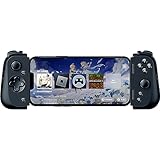
- CONSOLE QUALITY MOBILE GAMING CONTROLS — Designed with cutting edge microswitch buttons, analog triggers, and programmable macros to bring console-quality control to the phone
- UNIVERSAL FIT WITH EXTENDABLE BRIDGE — Features a stable, extendable bridge that provides a secure fit that perfectly holds all modern iPhone models, including the latest iPhone 14 models lightning connectors
- DISCOVER THE BEST GAMES IN ONE PLACE FOR FREE — Browse through thousands of compatible games, record and share gameplay, and keep Kishi updated with an integrated Razer Nexus App that allows full customizability
- STREAM PC AND CONSOLE GAMES — Play full PC, Xbox and PlayStation games directly on the phone, with support for the biggest game streaming apps.
- OPTIMIZED FOR MAXIMUM PERFORMANCE — Utilize iPhone's lightning connection to eliminate input latency, allow for seamless control—and passthrough charging for ultimate iOS compatibility
Connect the gaming PC by Ethernet
Run an Ethernet cable from the gaming PC to a LAN port on the router. Moonlight recommends a wired host connection and a good 5 GHz client connection; its documentation describes Ethernet or other wired host links as highly recommended. This removes one wireless hop and leaves more airtime for the phone.
Keep local Steam Link devices on one network
For a local Steam Link session, the phone and the computer running Steam must be connected to the same network. Valve documents this requirement for Android and Apple clients. Avoid placing one device on a guest network if that network isolates clients from each other. If the app cannot discover the computer, check that both devices received addresses from the same home network and that the computer is awake and running Steam.
Separate local play from internet play
A home Steam Link or Moonlight session and an Xbox Remote Play session are different network cases. Local streaming depends primarily on the quality of the home link between phone, router, and PC. Xbox Remote Play can use 5 GHz Wi‑Fi or mobile data and lists a downstream requirement of 10 Mbps. That figure is a Microsoft requirement for the Remote Play service, not a guarantee of a particular latency or image quality on every mobile network.
Choose resolution, frame rate, and bitrate in the right order
1. Match the resolution to the screen or host
Use the phone’s native resolution when the streaming client recommends it, or match the host display resolution when following Moonlight’s guidance. Avoid selecting a substantially higher stream resolution merely because the PC game can render it. The phone still has to receive, decode, and display every frame.
Valve’s Steam Link hardware documentation references 720p and 1080p display capability for Steam Link clients. Those are useful targets when your phone and network can sustain them, not promises that every phone, router, or game will deliver identical results.
Quick wins for a faster PC:
Fix the driver behind crashes, sound loss and screen glitchesFind Drivers →Repair Windows errors before they cause bigger problemsFix Now →Scan for outdated or missing drivers - takes under a minuteDriver Scan →2. Set a sustainable frame-rate target
Start at the phone’s native refresh target when the device and network can sustain it; 60 fps is a common starting point. A stable lower frame rate is preferable to a nominally higher target that repeatedly drops frames. If the stream shows judder, test a lower frame-rate target before increasing any other setting.
Rank #3

- CONSOLE-QUALITY MOBILE GAMING CONTROLS — Designed with cutting edge microswitch buttons, analog triggers, programmable macros, and the Xbox Button to bring console-quality control to the phone
- UNIVERSAL FIT WITH EXTENDABLE BRIDGE — Features a stable, extendable bridge that perfectly holds all modern iPhone models, providing a secure fit that won’t come loose while gaming
- DISCOVER THE BEST GAMES IN ONE PLACE FOR FREE — Browse through thousands of compatible games, record and share gameplay, and keep Kishi updated with an integrated Razer Nexus App that allows full customizability
- STREAM PC AND XBOX GAMES — Play full PC and Xbox games directly on iPhone, with support for Xbox Cloud Gaming (Beta) and Xbox remote play — stream from the mobile device or play from the cloud (Third-party hardware and services may be required)
- OPTIMIZED FOR MAXIMUM PERFORMANCE — Utilizes the iPhone's lightning connection to eliminate input latency, allowing for responsive, seamless control—and features passthrough charging to power the phone when gaming
3. Reduce resolution before chasing maximum sharpness
When frames drop or decode time rises, lower the stream resolution one step. This reduces the amount of video data and the work required by the phone. If the image then becomes smooth, the earlier setting exceeded either the network’s available capacity or the phone’s decode budget.
4. Tune bitrate or bandwidth last
Bitrate controls how much data is used to represent each frame. Higher values can preserve more detail in fast motion, but they also make congestion and queueing more likely. Lower the bitrate when Wi‑Fi is shared or when the image stutters. Raise it gradually only after the connection remains stable at the selected resolution and frame rate.
Because official sources do not publish one universal bitrate guarantee, do not copy a single number from another phone or router and assume it will work. Use the app’s performance overlay or network test, change one control at a time, and keep the setting that produces consistent frame delivery.
Recommended Free Tools
Step-by-step setup workflow
- Run the app’s network test or performance overlay. Record whether the warning points to network delay, dropped frames, or decoding. This establishes a baseline before you change settings.
- Connect the phone to 5 GHz Wi‑Fi. Confirm that the phone is not silently using the 2.4 GHz network. Move near the router for the initial test.
- Wire the host PC to the router. Use Ethernet whenever possible, then restart the streaming session so the client sees the new path.
- Verify the local-network requirement. For Steam Link at home, make sure the phone and PC are on the same network and that the PC is running Steam.
- Set resolution to the phone-native or recommended host-display value. Do not upscale simply to match the game’s maximum PC output.
- Select a stable frame-rate target. Try 60 fps if the phone and connection are capable; otherwise choose the next lower stable target.
- Adjust bitrate or bandwidth. Lower it when the network is busy or the picture stutters. Increase it only in small steps while motion remains smooth.
- Remove background competition. Pause downloads and backups. Turn off battery restrictions that suspend or throttle the streaming app, using your phone’s battery settings; menu names vary by operating system and manufacturer.
- Pair the controller before launching the game. Connect a supported Bluetooth or USB controller, then test every stick, trigger, shoulder button, and face button in the app or game.
- Repeat the overlay check during a demanding scene. A quiet menu can hide a problem that appears only during fast camera movement, effects, or a busy multiplayer match.
Phone-side settings that prevent interruptions
Use hardware video decoding when available
Moonlight’s guidance favors newer, faster phones because they are more likely to use the device hardware video system. Leave hardware decoding enabled when the client provides that option. If the app reports decode latency or frames are arriving faster than the phone can process them, reduce resolution or frame rate rather than forcing a software path that overheats the device.
Prevent the operating system from stopping the stream
Disable aggressive battery optimization for the streaming app while you play. Also prevent the display from dimming or locking during a session if your phone exposes a per-app option. Android and iOS labels differ by version and manufacturer, so look for the streaming app under Battery, Power, Background activity, or App refresh settings.
Control heat and power draw
High frame rates, bright displays, and sustained decoding generate heat. Remove a thick case during testing, avoid direct sunlight, and keep the phone charged without covering its vents. Thermal throttling can appear as a session that starts smoothly and becomes uneven several minutes later.
Rank #4

- FULL SIZED CONTROLLER FORM FACTOR — Console performance meets mobile convenience; play for extended periods in complete comfort and control with larger ergonomic handles that feel more natural to hold than standard mobile controllers
- FITS PHONES, IPAD MINI & ANDROID TABLETS UP TO 8" — Game on a phone or go even bigger; get a viewing experience worthy of the best AAA games with an innovative telescopic bridge that fits iPad mini and Android tablets up to 8 inches
- FULL SIZED TMR THUMBSTICKS WITH SWAPPABLE CAPS — Perfect your aim with high-precision, anti-drift thumbsticks that are superior to Hall Effect designs; customize them for more speed or precision with 2 swappable caps
- DUAL MOUSE CLICK BACK BUTTONS & CLAW GRIP BUMPERS — Enjoy the same ultra-responsive actuation found in our top gaming mice with 2 back buttons built into the controller’s ergonomic handles—topped with 2 claw grip bumpers for even more control
- POWERED BY THE RAZER NEXUS GAME LAUNCHER — Launch games, customize controls, record and share gameplay, and keep the controller updated with a free* app that can be brought up at the touch of a dedicated button. (*Razer Nexus does not require a fee/subscription, however some apps within Razer Nexus do)
Reduce radio interference
Keep the phone near the router and away from crowded wireless equipment during diagnosis. If moving closer fixes the problem, improve access-point placement or add a properly positioned access point rather than immediately raising bitrate.
The Tool Desk
Outbyte Driver Updater FREEFix the driver behind crashes, sound loss and screen glitchesFind Drivers →Outbyte PC Repair FREERepair Windows errors before they cause bigger problemsFix Now →Controller choices for remote PC gaming
Touch controls are convenient but occupy part of the screen and rarely match the precision of physical sticks and triggers. A controller is strongly preferred for action, racing, platform, and first-person games. It also reduces the temptation to increase stream resolution just to make small touch targets easier to see.
Steam Link on Android
Valve lists Xbox One S controllers, DualShock 4 controllers on Android 9 or newer, and the Razer Kishi among supported Steam Link input devices. Pair the controller in the phone’s Bluetooth settings or connect it by USB when the phone and controller support that connection. Open the game only after confirming that the correct profile and button layout are active.
Xbox Remote Play
Microsoft requires a supported Bluetooth controller for Xbox Remote Play. Pair it before starting the remote session, then test the guide, menu, triggers, and sticks. A controller that works in the phone’s system menus may still need to be selected inside the game.
When touch controls are sufficient
Touch input can work well for turn-based games, strategy interfaces, card games, visual novels, and short menu-driven sessions. For games that require simultaneous camera movement and precise actions, use a physical controller to remove an input limitation that network tuning cannot fix.
What’s actually slowing this PC down?
Pick the symptom - the matching free tool is one click away.
Steam Link, Moonlight, or Xbox Remote Play?
Choose the service that matches where the game runs and how you connect to it. The following comparison uses the documented requirements and controls rather than assuming that one client is universally faster.
Best Value

- Universal Mobile Gaming Controller: Designed to bring console-level control to your phone for gaming anywhere
- Cloud and Mobile Gaming: Compatible with leading cloud gaming services including Xbox Game Pass Ultimate, Stadia, Amazon Luna, GeForce NOW, & Steam Link; & hundreds of popular mobile games including Fortnite, Minecraft, Roblox, Brawlhalla, Asphalt 9: Legends, Black Desert Mobile, emulators, & many more.
- Refine Your Aim and Execution: Clickable analog thumbsticks provide greater accuracy and tactile feedback, and the performance buttons and d-pad deliver precision input
- Latency-Free Gameplay: Unlike Bluetooth controllers which produce lag, the controller has zero latency by directly connecting to the device’s charging port
- USB Type C Charging Port: For pass-through charging of your phone or tablet while using the controller
| Service | Typical use | Connection guidance | Resolution and bitrate controls | Controller notes |
|---|---|---|---|---|
| Steam Link | Stream a computer running Steam to a phone | For local play, phone and host PC must be on the same network; Valve recommends 5 GHz Wi‑Fi. | Steam exposes live resolution and bandwidth controls; 720p and 1080p are referenced in Steam Link display documentation. | Valve lists Xbox One S, DualShock 4 on Android 9+, and Razer Kishi support for Android. |
| Moonlight | Stream from a PC server to a compatible client | Moonlight recommends a mid- to high-end wireless router, 5 GHz (802.11n or better strongly recommended), and an Ethernet host connection. | Match stream resolution to the host display; lower stream demands when decoding or network delivery is unstable. | Use a controller supported by the phone and client; verify mappings before starting the game. |
| Xbox Remote Play | Play from a compatible Xbox console on a phone or tablet | Requires remote features enabled, 5 GHz Wi‑Fi or mobile data, and 10 Mbps downstream according to Microsoft. | Use the controls exposed by the Xbox app; the documented requirement does not establish a universal bitrate target. | A supported Bluetooth controller is required. |
For Steam games already installed on your PC, Steam Link is the most direct local-network path. Moonlight is appropriate when its PC-server and client combination fits your hardware and you want the controls documented for that ecosystem. Xbox Remote Play is the relevant choice when the game runs on a compatible Xbox console rather than on the PC.
The documented requirements above do not list a separate subscription for Steam Link or Moonlight. Xbox Remote Play is an Xbox ecosystem feature; check the current account, console, and game eligibility shown by Microsoft for your setup rather than assuming that every title is available.
Troubleshoot by symptom
The picture is sharp but controls feel delayed
- Move the phone closer to the 5 GHz access point.
- Wire the host PC to the router.
- Stop other wireless transfers.
- Lower bitrate to reduce queueing, then retest during a fast scene.
- Check the performance overlay to distinguish network delay from decode delay.
The stream stutters or freezes
- Lower bitrate first if the Wi‑Fi network is shared.
- If stutter continues, lower resolution or frame rate.
- Confirm that the phone has not switched to 2.4 GHz.
- Disable battery restrictions that pause background activity for the streaming app.
- Check for overheating after several minutes of play.
Frames are dropped even on a strong Wi‑Fi signal
- Test with the PC on Ethernet; a strong phone signal does not remove a wireless host bottleneck.
- Enable hardware decoding when the client offers it.
- Lower the resolution to reduce the phone’s decode workload.
- Use a newer or faster phone if the device cannot sustain the selected stream.
The app cannot find the PC
- For Steam Link, confirm that Steam is running and that both devices are on the same local network.
- Check whether the phone is on a guest or isolated network.
- Reconnect both devices to the intended 5 GHz network and run the app’s discovery or network test again.
Buttons or sticks do not work correctly
- Pair the controller before opening the game.
- Confirm that the controller model is supported by the service and phone OS.
- Test every control in the client, then check the game’s own controller profile.
- Reconnect by Bluetooth or USB if a button is missing or mapped incorrectly.
Settings by gaming situation
Playing in the same room as the router
Use 5 GHz Wi‑Fi on the phone and Ethernet on the PC. Start with the phone-native or host-display resolution, a stable 60 fps target when supported, and a conservative bitrate. This is the best environment for testing the phone’s decoding ability because distance and wall attenuation are minimized.
Free tools Windows power users keep installed
One-click scans. No signup required.
Playing elsewhere in the house
Keep the phone on the strongest 5 GHz location available. If the stream degrades as you move rooms, lower bitrate and resolution before increasing frame rate. A better access-point position can help more than a sharper stream setting.
Playing over mobile data
Xbox Remote Play documents 5 GHz Wi‑Fi or mobile data and a 10 Mbps downstream requirement. Mobile networks can vary in latency and congestion even when the measured download speed is above that figure. Use a lower stream demand when the connection fluctuates, and monitor data usage because interactive video consumes substantially more data than ordinary web browsing.
Playing a competitive action game
Prioritize consistency over image detail. Use Ethernet for the host, keep the phone on clean 5 GHz Wi‑Fi, select the highest frame-rate target the phone can sustain without drops, and lower bitrate or resolution as soon as the overlay shows instability. A physical controller is more important here than maximum resolution.
Playing a slower single-player game
You can trade some responsiveness for image quality if the game does not demand rapid aiming or timing. Raise bitrate in small steps only after the baseline remains stable, and keep a controller connected for reliable camera and menu input.
What the official requirements do—and do not—prove
Valve, Moonlight, and Microsoft provide practical connection requirements, supported-device guidance, and controls, but they do not publish one cross-platform latency score or a universal bitrate guarantee for every phone and router combination. A setting advertised as “high quality” therefore cannot be treated as a measured response-time promise.
Use the built-in network test or performance overlay, change one variable at a time, and evaluate during the game scenes that matter to you. The winning profile is the one that keeps frame delivery, decoding, and input response stable on your own equipment—not the profile with the largest resolution or bitrate number.
Quick Recap
Product prices and availability are accurate as of the date/time indicated and are subject to change. Any price and availability information displayed on Amazon at the time of purchase will apply.

