
Crashes, No Sound, or Screen Glitches?
Random freezes, missing sound and display glitches usually trace back to one bad driver. Find and replace yours safely.Free scan · under a minuteWindows Errors? Fix Them Before They Spread
Repair common Windows errors and clear accumulated junk for a smoother, more stable PC - no reinstall needed.Free scan · no reinstalliTechGuides is reader-supported. When you buy through links on our site, we may earn an affiliate commission. As an Amazon Associate I earn from qualifying purchases. Learn more
There is no single “best” Logitech G29 force-feedback profile. The reliable baseline is to leave Logitech’s wheel software at its defaults, calibrate in each game, and tune force feedback (FFB) where the simulator exposes it. In iRacing, the documented starting point is 20% strength and 0% damping; then use iRacing’s Auto strength function or its force meter to avoid clipping. Gran Turismo 7 provides Max. Torque and Sensitivity controls but does not prescribe one ideal numeric pair for every G29. Assetto Corsa Competizione and F1 25 likewise require in-game adjustment rather than a profile copied from another title.
The settings below are starting points, not a claim of a universally most realistic result. Car, track, platform, wheel condition, driving style and personal preference all change the useful range.
What the G29 settings actually control
Force feedback is the game’s estimate of steering forces sent to the wheel motor. A setting that feels detailed in one simulator can feel heavy, numb or clipped in another because every title scales physics forces differently.
Do these 3 things before closing this tab:
1Scan for outdated or missing drivers - takes under a minute2Clear out junk files and repair common Windows errors3Fix the driver behind crashes, sound loss and screen glitchesStrength or maximum torque
Strength determines the overall force level. More strength makes cornering and self-aligning torque feel heavier, but it also reduces headroom. If the game requests more force than the G29 can produce, the signal clips: several different force levels are all delivered as the same maximum motor output, so extra detail disappears.
#1 Best Overall

- Immersive Gaming Experience: Perfect for PlayStation 5, PS4 and PC gaming titles, the Driving Force simulates the feeling of driving a real car with precision steering and pressure-sensitive pedals
- Premium Control: The Driving Force feedback racing wheel provides a detailed simulation of driving a real car, with helical gearing delivering smooth, quiet steering and a hand-stitched leather cover
- Customizable Pedals: These pressure-sensitive nonlinear brake pedals provide a responsive, accurate braking feel on a sturdy base - with adjustable pedal faces for finer control
- 900-Degree Rotation: Lock-to-lock rotation of the Driving Force means you can turn the wheel around two and a half times, hand over hand on wide turns - just like a real F1 race car
- Up Your Game: Take your racing simulation to the next level with Driving Force accessories like the Driving Force Shifter or desk and rig mounts
Damping
Damping adds resistance that is usually independent of the tire force being simulated. It can calm oscillation and make the wheel feel heavier while stationary or at low speed, but too much damping masks texture and small changes in load. iRacing’s Logitech guidance starts at 0% damping.
Sensitivity or minimum-force behavior
Some games use “sensitivity” to alter how quickly resistance builds as steering begins. In Gran Turismo 7, Sensitivity affects resistance at the start of steering input, while Max. Torque changes the maximum torque and response under hard cornering. These labels are game-specific; do not assume that a sensitivity slider has the same meaning in another title.
Linearity
Linearity changes how input or force is distributed across the range. iRacing says its linear mode can be left off to boost smaller forces and make lower-end gear-driven wheels such as the G29 feel livelier. That is an iRacing recommendation, not a universal instruction for every game.
Recommended Free Tools
Rank #2

- REALISTIC RACING SIMULATION DUO: Feel what is like to drive a real race car with G29 Driving Force Racing Wheel & Pedals and Driving Force Shifter
- PAIRED FOR PRECISION: Take full control of the race with G29 Driving Force Racing Wheel & Pedals and Driving Force Shifter
- PRECISE CONTROL: Helical transmission gears reduce noise and vibration with anti-backlash keeping wheel and pedals tight. The six-speed “H” shifter helps you execute smooth, accurate gear transitions
- FORCE FEEDBACK: The dual motor force-feedback realistically simulates the feel of tires on a turn, understeer, oversteer, drifting and more
- PREMIUM BUILT: Look, feel and durability of a real race car wheel, pedals and shifter. Wheel cover, knob and boot are covered in high-quality, hand-stitched leather with a solid steel gear shaft and polished metal pedals
Set up the wheel before tuning a game
- Install the current Logitech wheel software available for your operating system. For a PC troubleshooting case, Logitech specifically advises installing Logitech Gaming Software and checking both the game mappings and the Logitech software mappings. Do not create overlapping assignments in two profiles.
- Leave wheel-driver values at their defaults initially. iRacing’s support article, “Recommended Settings for Logitech Wheel and Pedals,” modified September 9, 2025, says of newer Logitech wheels including the G29: “we would recommend leaving the defaults.” The purpose is to establish a known baseline; make game-level changes first.
- Connect the wheel directly and let its calibration complete. Wait for the normal startup rotation before opening the game. A hub, power problem or interrupted calibration can produce a weak or off-centre signal that no FFB slider will fix.
- Run the game’s own wheel calibration. Set the centre, steering range and pedal axes using the title’s calibration screen. Save the profile for the correct platform and wheel, rather than applying a controller preset.
- Confirm that FFB is enabled. A wheel can steer correctly while the force channel is disabled. Check the game’s FFB toggle, device selection and assignment for steering, brake and throttle.
- Drive a representative car before judging the result. A road car, high-downforce car and open-wheel car can produce very different steering loads. Evaluate several corners and a kerb instead of changing a value after one straight.
Why one profile cannot be transferred between games
Games differ in their physics, force scale, filtering, clipping behavior and menu terminology. A strength percentage is not a shared unit. The same number can be mild in one title and saturate the G29 in another. Platform implementations can also differ, so a PC value should not automatically be copied to PlayStation.
Logitech lists the G29 as compatible with Gran Turismo 7, Assetto Corsa Competizione, F1 25 and many other racing games. Compatibility means the wheel is supported; it does not supply a recommended FFB profile. Check the exact game and platform shown in the title’s support information before assuming that a setting will work.
iRacing: documented G29 starting settings
iRacing provides the clearest official baseline for this wheel. Its Logitech support guidance recommends enabling in-game FFB, beginning with 20% strength and 0% damping, and then adjusting strength to taste. iRacing also lists the G29 at 2.2 Nm in its controller guidance.
Rank #3

- Immersive gaming: Driving Force is perfect for games on PlayStation 5, PS4 and PC and simulates the driving experience of real vehicles thanks to precise steering and pressure-sensitive pedals
- Premium control: the racing steering wheel with driving force feedback simulates in detail the driving feel of real vehicles with helical teeth for a fluid, quiet steering, hand-stitched leather cover
- CUSTOMIZABLE PEDALS: Pressure-sensitive non-linear brake pedals provide precise braking feel with fast response, durable base, adjustable pedal surfaces for even more precise control.
- 900° steering range. Two and a half turns of the steering wheel between stops, hand-over-hand in wide turns, just like a real F1 racing car
- Play even better: The next level for your racing simulation with Driving Force accessories such as the Driving Force gear lever or holders for desk and rig
Recommended first pass
- Open the iRacing wheel or controller options and select the G29.
- Run the calibration wizard. Follow its centre, lock-to-lock and pedal instructions rather than entering a value copied from a different wheel.
- Enable force feedback.
- Set strength to 20% and damping to 0% as the initial documented baseline.
- Leave other filtering or response options at their defaults for the first session. If using linear mode, note that iRacing says leaving it off can make the smaller forces more apparent on gear-driven wheels such as the G29.
- Drive several laps in the car you intend to use. Adjust strength only after the wheel has reached normal operating behavior.
Use Auto to prevent clipping
iRacing explains that clipping occurs when the simulator asks for more force than the wheel can deliver. The result is not merely a heavier wheel; additional force detail is lost. Its Auto function can set strength to the highest level that does not cause clipping after the driver has completed several laps.
- Choose a representative car and track, including the hardest corners you normally drive.
- Drive enough laps for the force estimate to reflect repeated heavy loads.
- Use iRacing’s Auto option for force level, or watch the in-game force meter while driving.
- If the meter repeatedly reaches its limit, reduce strength. If it never approaches the limit and the wheel feels too light, increase strength in small steps.
- Repeat the check when switching to a substantially different car. A setting that is safe for a low-downforce car may clip in a high-downforce car.
iRacing states that “Force feedback levels are highly based on personal preference.” Treat Auto as a clipping-control aid, not as proof that one number is physically correct for every driver.
Gran Turismo 7: use Max. Torque and Sensitivity deliberately
Gran Turismo 7’s manual identifies two relevant wheel controls:
Rank #4

- Racing Wheel: A definitive sim racing wheel for PlayStation 4 and PlayStation 3: Realistic steering and pedal action for the latest racing titles
- Racing Wheel: Easy-access game controls: On-wheel D-pad, console buttons, paddle shifters and LED indicator lights
- Racing Wheel: Built to last: Durable solid steel ball bearings, stainless steel shifter and pedals and hand-stitched leather wheel grip
- Shifter: The sim racing shifter for G29 and G920 Driving Force Racing Wheels: Adds realistic shifting to your racing rig
| GT7 control | What the manual says it changes | How to tune it |
|---|---|---|
| Force Feedback Max. Torque | Changes maximum torque and the response under hard cornering. | Start at a moderate value, test several corners, and raise it only while the wheel remains controllable and detailed. |
| Force Feedback Sensitivity | Affects resistance as steering begins. | Use small changes to alter initial steering weight; excessive values can make the first part of the turn feel artificially abrupt. |
The manual does not give a universally optimal numeric pair for every G29 user. That omission matters: a value that suits one car, assist setting or driving style is not an official “realistic G29 setting.”
GT7 tuning procedure
- Open GT7’s controller or wheel settings and select the G29 profile.
- Complete the game’s steering and pedal calibration.
- Set Force Feedback Max. Torque to a middle value for the first run and leave Sensitivity near its neutral or default position.
- Drive a familiar circuit in a car with predictable steering load.
- Raise Max. Torque one step if the wheel is consistently too light. Lower it if long corners saturate the motor, steering corrections become tiring or detail disappears.
- Adjust Sensitivity separately. If the wheel feels dead for the first few degrees of input, increase it slightly; if turn-in feels unnaturally sharp or resistant, reduce it.
- Save separate profiles when you regularly alternate between very light and very heavy cars.
Assetto Corsa Competizione: build a car-aware baseline
Logitech lists the G29 as compatible with Assetto Corsa Competizione, but the official material reviewed does not establish a current, exact G29 numeric FFB recipe. Do not relabel a setting intended for a direct-drive or other high-torque wheel as a G29 recommendation.
What’s actually slowing this PC down?
Pick the symptom - the matching free tool is one click away.
Practical method
- Use the game’s wheel calibration and confirm the steering lock matches the car and simulator profile.
- Begin with the game’s default gain and zero or low damping, then drive a representative GT car.
- Increase gain until the wheel communicates cornering load without staying at a constant maximum in fast turns.
- Use damping only to control unwanted oscillation or excessive vibration. If kerb and tire-load detail becomes muted, reduce damping.
- Check the result in both a slow hairpin and a fast loaded corner. A profile that feels good in one may clip in the other.
Because no exact current official G29 numbers are established here, record your own values by car class and platform rather than presenting a community preset as authoritative.
Best Value
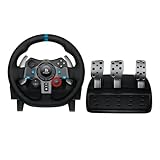
- Immersive Gaming Experience: Perfect for PlayStation 5, PS4 and PC gaming titles, the Driving Force simulates the feeling of driving a real car with precision steering and pressure-sensitive pedals
- Premium Control: The Driving Force feedback racing wheel provides a detailed simulation of driving a real car, with helical gearing delivering smooth, quiet steering and a hand-stitched leather cover
- Customizable Pedals: These pressure-sensitive nonlinear brake pedals provide a responsive, accurate braking feel on a sturdy base - with adjustable pedal faces for finer control
- 900-Degree Rotation: Lock-to-lock rotation of the Driving Force means you can turn the wheel around two and a half times, hand over hand on wide turns - just like a real F1 race car
- Up Your Game: Take your racing simulation to the next level with Driving Force accessories like the Driving Force Shifter or desk and rig mounts
F1 25: tune for the title and platform you actually use
The G29 is listed as compatible with F1 25, but the available official guidance does not publish an exact current G29 FFB recipe. Settings from a newer or stronger wheel should not be copied and described as G29 settings.
Method for finding a usable F1 25 profile
- Choose the correct G29 device profile and run the game’s calibration.
- Start with the game’s default FFB strength and low damping.
- Test a track containing slow traction zones, medium-speed direction changes and high-speed corners.
- Raise strength until you can feel front-axle load and understeer without the wheel remaining pinned at maximum force.
- Use damping sparingly. If the wheel feels sluggish during rapid chicanes, lower damping before increasing strength.
- Recheck after changing steering assists, car setup or platform. Those changes can alter the apparent weight and detail.
How to tell “weak” from “correct”
A light wheel is not automatically malfunctioning. The G29 has limited torque compared with high-torque wheels, and some cars produce modest steering forces. iRacing lists 2.2 Nm for the G29, while Logitech’s current product specification lists 2.3 Nm. These are separate nominal figures from two publishers, not a reconciled laboratory measurement, so neither should be treated as a precise output guarantee.
- Weak but detailed: small road texture and load changes are present, but overall weight is low. Increase in-game strength gradually.
- Heavy but vague: the wheel resists strongly yet feels as if every corner has the same force. Suspect excessive strength, clipping or damping.
- Dead around centre: inspect calibration, centre settings and any minimum-force or sensitivity control. Do not immediately add large damping.
- Violent oscillation: lower strength, check that the wheel is centred, and add only the minimum damping needed to stabilize it.
Why force feedback clips and how to fix it
Clipping is a range problem. The simulator can calculate a stronger force than the motor can reproduce; once the output reaches its ceiling, different input levels collapse into the same maximum output. You lose distinctions between, for example, a heavy corner and an even heavier bump.
The Tool Desk
Outbyte PC Repair FREERepair Windows errors before they cause bigger problemsFix Now →Outbyte Driver Updater FREEScan for outdated or missing drivers - takes under a minuteDriver Scan →- Watch the game’s force meter if one is available. Repeated maximum readings indicate that the gain is too high for the car and conditions.
- Reduce strength or gain in small steps until peaks remain below the ceiling while normal cornering still feels informative.
- Use the title’s automatic function when it is documented. In iRacing, Auto uses several laps to choose the highest non-clipping strength.
- Recheck after changing cars, tracks or major setup parameters. Clipping is content-dependent.
- Do not “fix” clipping by adding damping. Damping changes resistance and can hide detail; it does not restore headroom.
PC force-feedback troubleshooting
No force feedback, but steering input works
- Install or repair Logitech Gaming Software as Logitech advises for PC cases.
- Verify that the G29 is selected as the active wheel in the game.
- Check the FFB enable switch and ensure strength is not set to zero.
- Review mappings in both the game and Logitech software. Remove duplicate profiles or assignments that override the intended game profile.
- Reconnect the wheel, allow its startup calibration to finish, then restart the game.
Centre is wrong or changes between sessions
- Calibrate in the game again with the wheel physically centred.
- Check that the Logitech profile is not applying a different rotation or centre value.
- Save the profile after calibration and confirm that the game loads it for the correct executable.
Pedals or buttons work but the wheel feels inconsistent
- Check the steering axis range and dead zone.
- Test with a clean game profile before adding custom filters.
- Compare a slow corner and a high-load corner to distinguish a calibration issue from normal car-dependent force changes.
A repeatable tuning workflow for any supported racing game
- Establish the baseline: Logitech software defaults, game calibration completed, FFB enabled.
- Choose one car and track: include a corner that normally creates the highest load.
- Set strength first: seek clear load changes without repeated saturation.
- Set damping second: add only enough to control oscillation or unwanted rattling.
- Adjust sensitivity or minimum force third: target centre feel and initial turn-in, not overall weight.
- Check detail: verify that kerbs, bumps and transitions remain distinguishable after every change.
- Save by game and platform: never overwrite a working profile with values from another title.
- Revalidate after content changes: a different car or major physics update can require a new strength check.
Common mistakes to avoid
- Copying a percentage between games: percentages are not standardized units.
- Maxing every slider: more force can mean more clipping and less detail.
- Using damping to compensate for low strength: this creates weight without necessarily adding useful tire information.
- Applying direct-drive settings to the G29: stronger wheels have different torque headroom and may need very different values.
- Judging after one car or one corner: force output depends on vehicle and track load.
- Assuming compatibility equals a preset: Logitech’s compatibility list confirms support, not a universal configuration.
Bottom line
For a modern Logitech G29 setup, keep the wheel software at its defaults and do the meaningful work in each game. In iRacing, begin at 20% strength and 0% damping, leave linear mode off if you want stronger small forces on this gear-driven wheel, and use Auto or the force meter to avoid clipping. In GT7, tune Max. Torque and Sensitivity independently because the manual does not define one ideal pair. For ACC and F1 25, use calibration, moderate strength and minimal damping as a starting method rather than an invented official recipe. The most realistic result is the profile that preserves force detail without clipping for the car and platform you are actually driving.
Quick Recap
Product prices and availability are accurate as of the date/time indicated and are subject to change. Any price and availability information displayed on Amazon at the time of purchase will apply.

