
For most Windows users, the best Hindi typing software is already installed: Hindi Phonetic, the built-in keyboard in Windows 11 and Windows 10. It lets you type Hindi words with English keys—for example, namaste produces नमस्ते—and choose a Devanagari suggestion.
Use Hindi Traditional instead if you already know the fixed-key INSCRIPT layout. You do not need to download the old Microsoft Indic Language Input Tool, and the former Google Input Tools Windows desktop application is no longer the normal supported option.
Quick comparison
| Option | Best for | How it works | External download? |
|---|---|---|---|
| Hindi Phonetic | Most users, occasional Hindi typing, beginners | Type Roman sounds and select Hindi suggestions | No |
| Hindi Traditional / INSCRIPT | Regular Hindi typists who know a fixed keyboard layout | Each key maps to a Devanagari character or sign | No |
| Remington or Kruti Dev tools | Users required by a particular office, exam, or legacy workflow | Uses a separate legacy keyboard or font mapping | Usually, but compatibility varies |
| Google Input Tools | Browser-based occasional transliteration | Web or Chrome-based input | Not as a current Windows desktop installer |
For a normal Windows 11 or Windows 10 PC, start with Hindi Phonetic. Microsoft describes its transliteration rules as based on ISO 15919, while its Hindi Traditional keyboard is a fixed Devanagari layout. These are different systems, not interchangeable names for the same keyboard.
1. Hindi Phonetic: the best general-purpose choice
Hindi Phonetic is the easiest option if you can pronounce Hindi but do not know where Devanagari characters are located on a physical keyboard. You type using English keys, review the suggestions, and press Enter to accept the first suggestion.
#1 Best Overall

- The Best GIFT for any occasion
- High-quality stickers for different keyboards Desktop, Laptop and Notebook
- The Hindi Alphabet is spread onto transparent - matt sticker, with yellow color lettering
- Stickers are made of high-quality transparent - matt vinyl, thickness - 80mkn, typographical method.
- Applying stickers on you keyboard properly once, and you can be aware that letters will stay for ever.
For example, activate the keyboard and type namaste. A suggestion such as नमस्ते appears. If the first result is not correct, use the cursor keys to select another candidate before pressing Enter.
Install Hindi Phonetic in Windows 11
- Open Start > Settings > Time & language > Language & region.
- Next to Preferred languages, select Add a language.
- Search for and select Hindi, then select Next.
- In Install language features, select Install. The display-language pack is not required merely to type Hindi while keeping Windows in another display language.
- When Hindi has been added, select the … button next to Hindi and choose Language options.
- Under Keyboards, select Add a keyboard.
- Select Hindi Phonetic.
If the keyboard is present but does not offer words, remain on Hindi’s Language options page and check Language features. Select Download next to Basic typing. If there is no Download button, Microsoft indicates that the feature is already installed.
Install Hindi Phonetic in Windows 10
- Open Start > Settings > Time & language > Language.
- Under Preferred languages, select Add a language.
- Select Hindi, choose Next, and then select Install.
- Select Hindi under Preferred languages, then choose Options.
- Under Keyboards, select Add a keyboard.
- Select Hindi Phonetic.
To install its dictionary, use Hindi > Options > Basic typing > Download. The download requires an Internet connection and may complete through Windows Update in the background.
Switch to Hindi Phonetic and type
- Open an app such as Notepad, Word, or your browser’s text box.
- Select the input-language indicator in the taskbar and choose Hindi Phonetic. The indicator changes from
ENGto हिं. - Type the Roman spelling of the Hindi word. For example, try
mera naamorshukriya. - Use the cursor keys to move through alternatives if needed.
- Press Enter to commit the selected suggestion.
You can also switch layouts with Windows logo key + Spacebar. Hold the Windows key and press Spacebar repeatedly to cycle through the installed keyboards.
2. Hindi Traditional / INSCRIPT: best for fixed-keyboard typing
Hindi Traditional is the better choice for professional typists who have learned the INSCRIPT arrangement. It does not convert English spellings into Hindi suggestions. Instead, keys are assigned directly to Devanagari letters, vowel signs, and punctuation.
Microsoft’s example for typing बगीचा uses this sequence:
Rank #2
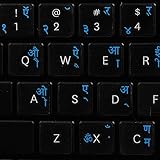
- The Best GIFT for any occasion
- High-quality stickers for different keyboards Desktop, Laptop and Notebook
- The Hindi Alphabet is spread onto transparent - matt sticker, with blue color lettering
- Stickers are made of high-quality transparent - matt vinyl, thickness - 80mkn, typographical method
- Applying stickers on you keyboard properly once, and you can be aware that letters will stay for ever
| Character | Key |
|---|---|
| ब | y |
| ग | i |
| ी | r |
| च | ; |
| ा | e |
To add it, follow the same Windows language path used for Hindi Phonetic, but select Hindi Traditional under Keyboards. Do not assume that Hindi Traditional is a Remington or Kruti Dev layout. Remington and Kruti Dev workflows are separate legacy systems, often tied to particular software or fonts.
INSCRIPT is efficient once memorized because it avoids choosing suggestions, but it has a steep learning curve for someone accustomed to English QWERTY typing. If you only type Hindi occasionally, Hindi Phonetic will usually be faster.
The Tool Desk
Outbyte PC Repair FREEClear out junk files and repair common Windows errorsFree Scan →Outbyte Driver Updater FREEFix the driver behind crashes, sound loss and screen glitchesFind Drivers →3. Remington and Kruti Dev: use only for compatibility
Some offices, typing tests, publishers, and older documents still specify Remington-style typing or Kruti Dev fonts. In that situation, compatibility with the recipient’s software matters more than convenience.
Before installing a third-party tool, confirm exactly what the requirement says:
- Unicode Hindi: usually works best with Windows Hindi Phonetic or Hindi Traditional and is suitable for modern websites, email, and Office documents.
- INSCRIPT: a standardized fixed keyboard arrangement, available in Windows as Hindi Traditional.
- Remington: a different keyboard convention used by some typing exams and offices.
- Kruti Dev: commonly associated with legacy, non-Unicode font-based documents rather than ordinary Unicode Hindi text.
Installing a random “Hindi typing software” package can create problems: unsupported installers, unwanted bundled programs, incorrect keyboard mappings, or documents that display correctly only on computers with the same legacy font. Use a supplied tool only when the organization receiving the files explicitly requires it.
4. Google Input Tools: not the best Windows desktop answer
Older guides often recommend Google Input Tools as a downloadable Windows program. That advice is outdated. The old Google Input Tools for Windows desktop application was removed in May 2018. Current Google input options are associated with browser-based tools and the Chrome extension rather than the former desktop installer.
Quick wins for a faster PC:
Clear out junk files and repair common Windows errorsFree Scan →Fix the driver behind crashes, sound loss and screen glitchesFind Drivers →Rank #3

- The Best GIFT for any occasion
- High-quality stickers for different keyboards Desktop, Laptop and Notebook
- The Hindi Alphabet is spread onto transparent - matt sticker, with red color lettering
- Stickers are made of high-quality transparent - matt vinyl, thickness - 80mkn, typographical method.
- Applying stickers on you keyboard properly once, and you can be aware that letters will stay for ever.
For Hindi typing across Windows applications, the built-in Hindi Phonetic keyboard is simpler: it is managed from Windows Settings, works with standard Unicode text, and does not require a separate desktop installer.
Fix common Hindi keyboard problems
“Hindi IME is not ready yet”
This normally means the phonetic keyboard dictionary has not finished downloading. Connect to the Internet, leave Windows Update available, and check Hindi’s language options for the Basic typing download. The dictionary may download in the background.
Hindi is missing from the keyboard list
Add Hindi first through Add a language. Windows cannot add the Hindi keyboard until the relevant language entry exists. If the keyboard you want is not listed under the language you selected, open the … > Language options menu beside Hindi and check there.
The taskbar language icon is not visible
Open Start > Settings > Time & language > Typing > Advanced keyboard settings. Under Switching input methods, clear Use the desktop language bar when it’s available. This restores the taskbar input-language icon, although it disables the older desktop language bar.
Free tools Windows power users keep installed
One-click scans. No signup required.
Windows + Spacebar does nothing
The shortcut cycles between installed keyboard layouts. If only one layout is installed, there is nothing to switch to and the shortcut appears to do nothing. Add Hindi Phonetic or another keyboard first.
The Remove button is disabled
Windows will not remove the only keyboard layout for a display language. Add a replacement layout before removing the unwanted one. Similarly, a language cannot be removed while it is the current Windows display language; switch the display language first.
Rank #4
- Transparent Keyboard Stickers Enables you to Write a foreign language with your software. Graphic May Vary. White Overlays. Be sure to clean your keyboard, or start with a new keyboard, before applying the Stickers, to assure long lasting use.
- The Overlay adhesive firmly attaches the overlay in place without damaging the keyboard key or the original key legend. The adhesive will not ooze, harden or wear out.
- These keyboard stickers are transparent with the character set displayed in a unoccupied corner of each key. The existing letters on your keyboard show through the sticker. High Quality. Overlays are manufactured of durable Lexan. They won't tear, crack, discolor, or slip off even after years of use.
- If desired, Overlays may be removed without causing damage to the original key or the legend on the key.
- All printing is on the reverse side of the overlay (i.e., underneath) so that the printing will not rub or scratch off in normal use.
Windows changes the keyboard at the sign-in screen
Changing the Windows display language can also change the keyboard layout. Check the input indicator carefully before entering a password at sign-in, particularly if your password contains characters that depend on a particular keyboard arrangement.
Windows says only one language pack is allowed
Some Windows Single Language editions support only one display language. You may see Only one language pack allowed or Your Windows license supports only one display language. This restriction concerns language packs and licensing; it is not a reason to download an untrusted IME. Check your Windows edition before attempting to add a display language.
What’s actually slowing this PC down?
Pick the symptom - the matching free tool is one click away.
Windows 10 support note
Windows 10 support ended on October 14, 2025. Microsoft no longer provides normal free Windows Update software updates, technical assistance, or security fixes for Windows 10 after that date. The Hindi keyboard steps still apply to Windows 10 installations that have the required language features, but upgrading to a supported Windows version is the safer long-term choice.
Which Hindi typing option should you choose?
- Choose Hindi Phonetic if you type Hindi with English keys or are learning Devanagari.
- Choose Hindi Traditional / INSCRIPT if you already know the standardized fixed layout.
- Choose a Remington or Kruti Dev-compatible tool only when an employer, exam, or existing document system specifically requires it.
- Avoid old download guides that tell you to install Microsoft Indic Language Input Tool or the former Google Input Tools Windows desktop application.
There is no command-line installation or switching command required. Windows Settings, the taskbar input selector, and Windows + Spacebar cover the normal setup.
Sources: Microsoft: Set up and use Indic phonetic keyboards, Microsoft: Hindi IME, and Microsoft: Manage language and keyboard input layouts.
FAQ
What is the best Hindi typing software for Windows 11?
Windows’ built-in Hindi Phonetic keyboard is the best general-purpose option. It lets you type Roman transliterations such as namaste and select the suggested Devanagari text.
Do these 3 things before closing this tab:
1Repair Windows errors before they cause bigger problems2Fix the driver behind crashes, sound loss and screen glitches3Clear out junk files and repair common Windows errorsBest Value
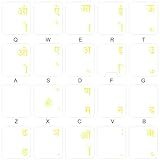
- The Best GIFT for any occasion
- High-quality stickers for different keyboards Desktop, Laptop and Notebook
- The Hindi Alphabet is spread onto transparent - matt sticker, with yellow color lettering
- Stickers are made of high-quality transparent - matt vinyl, thickness - 80mkn, typographical method.
- Applying stickers on you keyboard properly once, and you can be aware that letters will stay for ever.
Is Hindi Phonetic free?
Yes. Hindi Phonetic is included with Windows 11 and Windows 10 language features, so normal Hindi typing does not require a separate paid or third-party IME.
Do I need Microsoft Indic Language Input Tool?
No. Current Windows documentation supports adding Hindi Phonetic through Settings. The old standalone Indic Language Input Tool is not required for ordinary Hindi typing on Windows 10 or Windows 11.
Is Hindi Traditional the same as Kruti Dev or Remington?
No. Hindi Traditional is Microsoft’s fixed Devanagari keyboard layout associated with the Indic/INSCRIPT approach. Remington and Kruti Dev are separate legacy typing or font workflows.
Why does Hindi Phonetic show no word suggestions?
Open Hindi’s language options and check whether Basic typing has finished downloading. If a Download button is shown, select it and wait for the dictionary installation to complete.
Recommended Free Tools
Can I switch between English and Hindi without using the mouse?
Yes. Press Windows logo key + Spacebar to cycle through installed keyboard layouts. The shortcut works only when more than one layout is installed.
The Bottom Line
Install Hindi Phonetic first. It is built into Windows 11 and Windows 10, requires no external IME, and is the most practical choice for typing Hindi with English keys. Select Hindi Traditional only if you specifically want the fixed INSCRIPT layout; use Remington or Kruti Dev software only for a documented legacy compatibility requirement.
Quick Recap
Product prices and availability are accurate as of the date/time indicated and are subject to change. Any price and availability information displayed on Amazon at the time of purchase will apply.

