
What’s actually slowing this PC down?
Pick the symptom - the matching free tool is one click away.
iTechGuides is reader-supported. When you buy through links on our site, we may earn an affiliate commission. As an Amazon Associate I earn from qualifying purchases. Learn more
There is no single, officially verified “best” preset for every PC. The reliable approach is to start with the game’s default or recommended configuration, measure a repeatable scene, then change one graphics option at a time until frame pacing and image quality are acceptable on your system. Company of Heroes 3’s published requirements are a starting point—not a guarantee of any particular frame rate.
What “smooth performance” means in Company of Heroes 3
Smoothness is more than a high average frame rate. In a real-time strategy game, camera movement, large battles, explosions and rapid zooming can expose uneven frame delivery even when an average counter looks satisfactory. Choose a target that matches your display and tolerance for stutter, then judge the same repeatable workload after every change.
- Use the same resolution, map, camera position, unit density and game speed for each comparison.
- Watch for hitching and uneven frame pacing, not only the average number shown by an overlay.
- Check image clarity at the distance where you normally read unit silhouettes, terrain and interface elements.
- Record the patch version and driver version so a later update does not make an old comparison misleading.
Relic’s patch archive refers to visual-state interpolation at 30, 60, 144 frames per second or more. That describes engine processing and does not promise that a particular computer will reach any of those rates.
Free tools Windows power users keep installed
One-click scans. No signup required.
Official PC requirements to check first
Relic Entertainment’s requirements page, updated February 20, 2025, lists the following baseline. Steam repeats the same requirements and describes the game as “Optimized for DirectX 12 and multi-core CPUs.” These are published specifications, not independent performance measurements.
#1 Best Overall

- High-Quality Graphic Cards for PC Gaming - designed to provide you with an immersive and realistic gaming experience. This powerful graphics card for gaming PC is perfect for gamers who demand the best performance and visual quality.
- NVIDIA Graphics Card with Dual Fan VR Ready OC - Equipped with a 192-bit HDMI/DP 6GB GDRR6 HDCP Support, the MSI GTX 1660 TI Ventus XS 6G OC is a top-of-the-line NVIDIA graphics card that delivers stunning visuals and smooth gameplay for an unforgettable gaming experience.
- Computer Graphics Cards with DirectX 12 Support - compatible with the latest DirectX 12 technology, ensuring that you can enjoy the most advanced and cutting-edge gaming titles without any performance hiccups.
- Video Cards for PC with Advanced Cooling System - This GPU graphics card features a dual fan design that efficiently dissipates heat, keeping your video cards for PC cool and stable even during intense gaming sessions.
- Upgrade Your Gaming Experience with MSI - is a reliable and powerful computer graphics card that will take your gaming experience to new heights. Don't settle for less, upgrade your gaming rig with this high-performance video card today!
| Component | Minimum | Recommended |
|---|---|---|
| Operating system | Windows 10 | Windows 10 |
| Processor | Intel i5 6th-generation or AMD Ryzen desktop processor, 4 cores at 3 GHz or equivalent | Intel i7 8th-generation or AMD Ryzen desktop processor, 8 cores at 3 GHz or equivalent |
| Memory | 8 GB RAM | 16 GB RAM |
| Graphics | NVIDIA GeForce GTX 950, AMD Radeon R9 370, or equivalent performance | NVIDIA GeForce GTX 1660, AMD Radeon RX 5600, or equivalent performance |
| DirectX | Version 12 | Version 12 |
| Storage | 40 GB | 40 GB |
A system below the minimum graphics class, memory requirement or operating-system requirement is outside Relic’s stated baseline. A system that meets the recommended class may still need tuning for its resolution, background workload and preferred frame pacing.
Set a clean baseline before changing options
1. Confirm the game is using the intended GPU
On a desktop with more than one graphics adapter, verify that Company of Heroes 3 is running on the discrete card rather than an integrated adapter. On a laptop, compare results while plugged in and using the manufacturer’s performance power mode. Record which adapter is active; otherwise, a settings change can appear to help when the real change was a different GPU or power state.
2. Close variables that can distort a comparison
- Finish or pause downloads, cloud synchronization and large background updates.
- Close applications that add overlays or capture video unless you intentionally want to measure their cost.
- Use the same Windows power mode and the same display refresh-rate setting for every run.
- Allow the game to finish loading the test scene before judging the result.
3. Start from the game’s default or recommended configuration
Reset the graphics options, select your normal display resolution and run the game without changing several controls at once. A reset gives you a known reference point and prevents an old experimental configuration from hiding the effect of later changes.
The Tool Desk
Outbyte Driver Updater FREEScan for outdated or missing drivers - takes under a minuteDriver Scan →Outbyte PC Repair FREEClear out junk files and repair common Windows errorsFree Scan →Use a repeatable benchmark loop
Relic’s patch archive confirms that benchmark results are part of the PC interface, although it does not publish a universal benchmark protocol or an optimal preset. If your build exposes an in-game benchmark, use it. Otherwise, create a repeatable gameplay route that stresses the same camera movement, zoom level and unit activity every time.
- Choose one workload. Use the built-in benchmark when available, or capture a short, repeatable section of a saved game or skirmish. Keep the map, units and camera actions unchanged.
- Run the baseline. Let the scene settle, complete the benchmark or repeat the route, and note average behavior, obvious low-end dips, hitching and image quality.
- Change exactly one option. Do not alter resolution, preset, shadows and scaling simultaneously. A single-variable change tells you what actually affected your result.
- Repeat the same workload. Use identical camera movements and timing. If the result differs only because the battle state changed, discard that run and start again.
- Keep a small log. Record the option, old value, new value, frame behavior, clarity and whether the change helped, hurt or made no noticeable difference.
- Keep the best trade-off. Retain a change only when the performance improvement is visible in the difficult scene and the loss of detail is acceptable at your normal viewing distance.
Compare both average behavior and the low-end moments that cause stutter. If your capture method exposes frame-time data, use it alongside the average; otherwise, note repeatable hitches by observation. No current official source ranks individual Company of Heroes 3 options by performance impact, so your own controlled comparison is more defensible than a universal internet preset.
How to tune the graphics options without guessing
Menu names and available values can change with patches. Treat the categories below as a decision framework, not a claim that one category is always the largest bottleneck.
Resolution and display mode
Confirm the game is rendering at the resolution you intend to use. If you are testing a lower resolution, keep every other option unchanged and compare text, unit edges and terrain detail from your normal seating position. A lower output resolution can make an otherwise stable image look soft, so judge the visual result as well as the performance result.
Rank #2

- Memory Speed:14 Gbps.Digital Max Resolution:7680x4320
- Chipset: NVIDIA GeForce GTX 1660 Super
- Boost clock: 1815 MHz
- Memory Interface: 192-Bit
- Video Memory: 6GB GDDR6
Quality preset or quality-performance scaling
If the game offers a quality preset or a quality/performance scaling control, use it as a quick way to establish a new starting point, then test individual options from there. The available evidence does not establish which preset or scaling value is universally best. Do not treat a named preset as a verified solution for every GPU, CPU, resolution or patch.
Texture, terrain and material detail
Change detail categories one at a time and inspect the surfaces you normally read during play: roads, buildings, foliage and unit models. Keep a higher setting when it does not improve your measured problem, and lower it only when the test scene shows a repeatable benefit that is worth the visual reduction.
Shadows, lighting and effects
Compare a scene containing the lighting and combat effects that normally trigger slowdowns. Look for changes in shadow definition, smoke, explosions and other transient effects. Because the available sources do not provide a current setting-by-setting ranking, measure these controls on your own hardware instead of assuming that a particular shadow or effect value is the largest gain.
Anti-aliasing and image reconstruction
Evaluate edge shimmer on buildings, vehicles and terrain at the camera distance you use in matches. If an anti-aliasing or reconstruction option is available, change only that option and repeat the same scene. Record whether the image becomes clearer, softer or more unstable; a setting that looks good in a static screenshot may be less comfortable during camera movement.
Quick wins for a faster PC:
Fix the driver behind crashes, sound loss and screen glitchesFind Drivers →Repair Windows errors before they cause bigger problemsFix Now →Interface and post-processing controls
Do not lower an interface option merely because it appears in the graphics menu. Test visual post-processing separately from HUD readability, and keep the interface legible during a busy battle. If an option produces no measurable improvement in your difficult scene, restore it rather than sacrificing quality without a benefit.
Diagnose the bottleneck before lowering more quality
When the graphics processor is the likely limit
A GPU-limited run usually shows that lowering a tested visual option improves the same demanding scene, while CPU activity and game simulation remain comparatively steady. Confirm this by changing one graphics control and repeating the workload. If several visual changes produce no meaningful difference, stop lowering quality and investigate another limit.
When the processor or simulation is the likely limit
Company of Heroes 3 is optimized for multi-core CPUs, and Relic lists separate four-core minimum and eight-core recommended processor classes. Large battles can therefore expose a processor or simulation limit that reducing image quality will not solve. Compare a quiet scene with a battle containing many units; if slowdowns appear mainly as the simulation becomes busy and visual changes do little, focus on background tasks, power mode, thermals and processor capability rather than endlessly reducing detail.
Rank #3

- 【Amazing Gaminig Experience】GTX 1660 Super graphics card is a mainstream gaming GPU built on the 12 nm process, equipped with 192-Bit and 6GB GDDR6 memory with 14000 MHz. Providing computer enthusiasts with a smoother, higher quality gaming experience.
- 【High Definition Display Effect 】GTX 1660S 6GB Graphics Card has 3 monitor support ouput included 1X DVI Port+ 1X Display Port + 1X HDMI Port, can support three monitors. GTX 1660 super is connected to the rest of the system using a PCI-Express 3.0 x16 interface, supports up to 8K display, delivers more higher definition pc gaming effect.
- 【Powerful Cooling Performance】ZER LON cooling system uses a combination of traditional grooved and copper powder sintered composite heat pipes that directly contact the GPU core to quickly export core heat. At the same time, the integrated thermal design makes the core, memory, power supply MOS tube and the heatsink fully in contact, effectively reducing the working temperature, avoiding MOS tube overheating caused by full load degradation and other reasons, thus improving the stability and life
- 【VR-Ready Graphics】Equipped with advanced technologies, such as NVIDIA VRWorks, the GTX 1660S 6G graphics card provides an excellent virtual reality (VR) gaming experience. It ensures low latency, high compatibility, and stunning visuals for VR applications.
- 【What You Will Get】1x GTX 1660 Super 6GB graphics card, 2-Year Limited warranty, Before installing the driver, you must uninstall the old driver first, otherwise it may cause the driver installation to fail. You can download the driver for this graphics card directly from the official website. Select the driver corresponding to your computer's operating system for download and installation. Alternatively, you can use software that automatically installs drivers for the installation process.
When memory or background activity is involved
The published memory targets are 8 GB minimum and 16 GB recommended. Close unnecessary applications and repeat the test. If behavior improves only after reducing background usage, the issue is not evidence that a particular graphics option is “best”; it indicates that available system memory or competing workloads affected the run.
When storage or loading causes the hitch
A pause during loading or the first appearance of assets is different from a sustained frame-rate problem during a repeatable battle. Note when the hitch occurs. If it happens only while assets are being loaded, changing image quality may not address the cause; check free space, drive health and background disk activity first.
When DirectX 12 errors appear
Both the minimum and recommended specifications require DirectX 12. Relic’s patch archive includes version-specific fixes for DirectX 12 crashes. If a crash began after an update, install the current game patch and graphics driver, restart the PC and retest the same baseline. Do not infer from an old patch note that a fix applies unchanged to every current build.
A practical tuning order
The order below minimizes confusion while preserving a useful image. It is a workflow, not a ranking of which control costs the most performance.
- Reset to the default or recommended configuration and confirm the intended resolution.
- Run the same benchmark or gameplay route twice to establish repeatability.
- If the baseline is unacceptable, change one visual control by one available step and rerun the test.
- Keep the change only if it improves the difficult scene without an unacceptable loss of clarity.
- Continue one control at a time until the result is stable, then test a normal match rather than relying solely on the benchmark.
- After a game or driver update, rerun the baseline before assuming your old settings still behave the same way.
When two configurations appear close, prefer the one with steadier frame delivery and clearer unit information, not the one with a marginally higher average that produces distracting dips.
Do these 3 things before closing this tab:
1Fix the driver behind crashes, sound loss and screen glitches2Clear out junk files and repair common Windows errors3Scan for outdated or missing drivers - takes under a minuteTroubleshooting common outcomes
“Everything is already on low, but battles still stutter.”
Run the CPU-versus-GPU check above. Confirm that the game is using the intended adapter, that the processor is not throttling, and that background applications are closed. A graphics-quality reduction cannot reliably fix a simulation or power problem.
“The benchmark is acceptable, but a real match is not.”
Use a saved or skirmish scene that reproduces the actual problem. Record unit count, map and camera behavior. A benchmark that does not contain your worst workload cannot validate a match-wide setting.
Rank #4
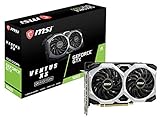
- Chipset: NVIDIA GeForce GTX 1660
- Boost Clock: 1830 MHz
- Memory Interface: 192 bit
- Video Memory: 6GB GDDR5
- Output: DisplayPort x 3 (V1; 4)/ HDMI 2; 0B x 1
“The picture became blurry after tuning.”
Restore the last change and retest. Check output resolution and any scaling or reconstruction control independently. Keep the clearest configuration that remains stable in the difficult scene.
“A patch changed my results.”
Record the new version, reset only the options you are testing, and repeat the same baseline. Relic’s archive contains graphics-setting fixes and benchmark-result presentation changes tied to particular versions, so an old comparison may not transfer directly to a newer build.
“The game crashes after changing graphics settings.”
Restart the game, return to the last known working configuration and apply the latest available patch and graphics driver. Change one option at a time afterward. If the crash is specifically associated with DirectX 12, document the game version, adapter and reproducible steps when seeking support.
Should you upgrade hardware?
Use Relic’s recommended class as a reference rather than a shopping verdict. The named recommended graphics examples are an NVIDIA GeForce GTX 1660 or AMD Radeon RX 5600, with 16 GB of RAM and an eight-core, 3 GHz-class Intel i7 8th-generation or AMD Ryzen desktop processor. Neither the requirements page nor the store listing establishes current retail value, availability or a guaranteed frame rate for those parts.
If your system is below the minimum class, first verify the exact component and operating system. If it is between minimum and recommended, use the self-benchmarking workflow to decide whether a modest visual compromise is acceptable. If it meets or exceeds the recommended class but still struggles, identify whether the limit is GPU, CPU, memory, thermals or background activity before buying anything.
What the official evidence does—and does not—establish
- It establishes the published hardware, operating-system, DirectX 12 and 40 GB storage requirements.
- It establishes that the PC interface includes benchmark results and that some patches addressed graphics settings, DirectX 12 crashes or benchmark presentation.
- It does not establish a universal best preset, a definitive ranking of individual options, a best scaling mode or a frame-rate guarantee for recommended hardware.
That boundary matters: a setting recommendation is only meaningful when it identifies the tested resolution, hardware, scene and patch. Without those details, “best” is an unsupported generalization.
Recommended Free Tools
Bottom line
For smooth Company of Heroes 3 performance, begin with the default or recommended configuration, verify that your PC meets the published baseline, and benchmark a repeatable demanding scene. Change one graphics option at a time, compare frame pacing and image clarity, and stop when the result is stable for the way you actually play. Treat the GTX 1660/RX 5600 and 16 GB RAM recommendations as hardware context—not an FPS promise—and investigate CPU, memory, thermals and background activity when lowering visual quality does not help.
Quick Recap
Product prices and availability are accurate as of the date/time indicated and are subject to change. Any price and availability information displayed on Amazon at the time of purchase will apply.

