
What’s actually slowing this PC down?
Pick the symptom - the matching free tool is one click away.
iTechGuides is reader-supported. When you buy through links on our site, we may earn an affiliate commission. As an Amazon Associate I earn from qualifying purchases. Learn more
For this guide, “DJI Pocket” means the DJI Osmo Pocket 3. Start with 4K at 24, 25, or 30 fps for ordinary talking-head footage, use a shutter near twice your frame rate as a motion starting point, keep ISO as low as the scene allows, and lock white balance when the light is stable. Move to 50 or 60 fps for smoother motion, use Low-Light Video only when you accept its tracking limitations, and add an ND filter outdoors only when bright light forces a faster shutter than you want.
Those are starting points, not universal DJI presets. The best result depends on the light, movement, flicker frequency, skin tones, delivery platform, and whether you will edit the footage. Check a short test clip on the actual screen before recording a full vlog.
What this guide covers—and what it does not
DJI sells several generations of Pocket cameras. The controls, accessories, and recording limits below are for the Osmo Pocket 3; do not assume they apply to the original Osmo Pocket or Pocket 2. DJI states that Pocket 3 accessories are not compatible with Pocket 2.
DJI’s current support information describes a one-inch CMOS sensor, a 20 mm-equivalent f/2.0 lens, MP4 recording in H.264 or HEVC, and a minimum focus distance of 20 cm. These specifications explain the camera’s controls but do not guarantee a particular noise level, dynamic range, or low-light result. DJI’s listed User Manual is version 1.0 dated 2023-10-25, while its download center also lists release notes dated 2025-08-26. Menu labels can change with firmware, so compare your camera with the current manual and release notes if a control is in a different place.
#1 Best Overall
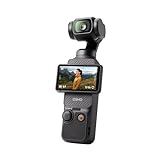
- Capture Stunning Footage - Osmo Pocket 3 vlogging camera features a 1-inch CMOS sensor and records in 4K resolution at an impressive 120fps. Capture breathtaking night views and sunsets with enhanced clarity.
- Effortlessly Frame Your Shots - Get the ideal composition with Osmo Pocket 3's expansive 2-inch touch screen that rotates for both horizontal and vertical shooting.
- Ultra-Steady Footage - Say goodbye to shaky videos! Osmo Pocket 3's advanced 3-axis mechanical stabilization delivers superb stability. Enjoy smooth footage while dancing, chasing pets, or hiking.
- Create Captivating Vlogs With ActiveTrack 6.0 - Stay effortlessly in focus as you record on the go. Set Osmo Pocket 3 up on a tripod and jump, dance, or spin, but remain center-frame.
- Fast and Accurate Focusing - Osmo Pocket 3 digital camera locks onto your subject for sharp, clear footage. Whether filming action-packed scenes or still shots, it ensures every detail is captured.
Fast starting points for common vlog situations
Use the table as a first setup, then adjust exposure while watching faces and bright areas on the Pocket 3 screen. The frame rates are choices, not a claim that one is objectively best.
| Situation | Resolution and frame rate | Shutter starting point | ISO approach | White balance | Useful extras |
|---|---|---|---|---|---|
| Indoor talking head with steady light | 4K 24, 25, or 30 fps | About 1/48, 1/50, or 1/60 second respectively | Keep low; add light before making a large ISO increase | Lock a preset or manual value when the light is consistent | Mini tripod; external microphone if the built-in microphones are not close enough |
| Indoor handheld movement | 4K 30 fps, or 50/60 fps for more motion detail | About 1/60 at 30 fps; about 1/100 or 1/120 at 50/60 fps | Raise only as needed and inspect shadows for noise | Use a fixed value under stable lamps; Auto can follow changing light | Move a lamp toward the subject before increasing ISO |
| Bright outdoor talking head | 4K 24, 25, or 30 fps | Keep the chosen motion look rather than allowing an unnecessarily fast shutter | Start low and protect skin and sky highlights | Lock when sunlight is consistent; recheck after entering shade | Magnetic ND filter only if the scene is too bright at the desired shutter |
| Outdoor walking or action | 4K 30, 50, or 60 fps according to movement and edit | Near twice the selected frame rate as a general convention | Allow enough ISO for a clean, correctly exposed face | Auto is convenient when sunlight and shade alternate | Follow mode; external microphone with wind protection if needed |
| Very dim scene | Normal video at a manageable frame rate, or Low-Light Video | Use the slowest shutter that still renders your movement acceptably | Increase only after improving light; Low-Light Video lists a higher ISO range | Set a stable value if the light color is stable | Remember that ActiveTrack is unavailable in Low-Light mode |
The shutter values in the table are general videography starting conventions. They are not DJI-prescribed indoor or outdoor recipes. Flickering LEDs, fluorescent fixtures, fast movement, and the look you want may require a different shutter.
How to reach manual exposure and white-balance controls
Pocket 3 gives you automatic and manual paths. Automatic exposure is useful when light changes quickly; manual exposure is more consistent when you want every clip in a sequence to match.
Quick wins for a faster PC:
Fix the driver behind crashes, sound loss and screen glitchesFind Drivers →Clear out junk files and repair common Windows errorsFree Scan →- On the Pocket 3 screen, swipe left to open the shooting controls.
- Tap PRO.
- Choose Exposure – M (Manual).
- Set shutter and ISO, then watch the live image as you move the camera or change the light.
- Use the white-balance control in Pro mode. Choose a stable preset or manual value when the scene’s color is constant; use Auto when you move between noticeably different light sources.
In DJI Mimo, open the camera view, enter AUTO, and switch to M for manual exposure. DJI’s video Pro controls also include white balance, color, focus, channel, wind-noise reduction, and directional-audio settings. The exact arrangement may vary after a firmware update.
Choose a frame rate for the finished video
24, 25, or 30 fps for normal presentation
Talking-head vlogs commonly use a standard frame rate such as 24, 25, or 30 fps. Choose the rate that matches your editing timeline, delivery platform, and regional lighting or broadcast workflow. A 24 fps clip is not automatically more cinematic, and 30 fps is not automatically smoother in every situation; consistency across a project matters more than a universal “best” number.
Rank #2

- Capture Stunning Footage - Osmo Pocket 3 vlogging camera features a 1-inch CMOS sensor and records in 4K resolution at an impressive 120fps. Capture breathtaking night views and sunsets with enhanced clarity.
- Effortlessly Frame Your Shots - Get the ideal composition with Osmo Pocket 3's expansive 2-inch touch screen that rotates for both horizontal and vertical shooting.
- Ultra-Steady Footage - Say goodbye to shaky videos! Osmo Pocket 3's advanced 3-axis mechanical stabilization delivers superb stability. Enjoy smooth footage while dancing, chasing pets, or hiking.
- Create Captivating Vlogs With ActiveTrack 6.0 - Stay effortlessly in focus as you record on the go. Set Osmo Pocket 3 up on a tripod and jump, dance, or spin, but remain center-frame.
- Fast and Accurate Focusing - Osmo Pocket 3 digital camera locks onto your subject for sharp, clear footage. Whether filming action-packed scenes or still shots, it ensures every detail is captured.
50 or 60 fps for motion
Use 50 or 60 fps when you need smoother movement, expect to pan quickly, or plan to slow the clip in an edit. Higher frame rates require more light for the same shutter convention, so an indoor scene may force a higher ISO. DJI lists 4K normal video at 24, 25, 30, 48, 50, and 60 fps. It also lists 2.7K and 1080p options with multiple frame rates up to 60 fps.
4K/120 is a different use case
DJI lists 4K/120 fps as a slow-motion capability, not as a recommendation for ordinary vlogging. Confirm the camera’s slow-motion mode and the final playback speed before choosing it; slow-motion recording can have different operating restrictions from normal video.
Crashes, No Sound, or Screen Glitches?
Random freezes, missing sound and display glitches usually trace back to one bad driver. Find and replace yours safely.Free scan · under a minuteWindows Errors? Fix Them Before They Spread
Repair common Windows errors and clear accumulated junk for a smoother, more stable PC - no reinstall needed.Free scan · no reinstallSet shutter for natural motion without creating flicker
A common videography convention is a shutter near twice the frame rate: roughly 1/48 at 24 fps, 1/50 at 25 fps, and 1/60 at 30 fps. At 60 fps, about 1/120 is a comparable starting point. This produces familiar motion blur, but it is not a rule from DJI. A faster shutter can make movement look sharper and more staccato; a slower shutter can add blur and may make hand movement less defined.
Indoor lighting can flicker at the electrical frequency or at a driver’s switching rate. If bands or brightness pulses appear, test the frame-rate and shutter combinations that match the electrical standard in your region, then inspect a short recording. You may need to depart from the twice-the-frame-rate convention to remove visible flicker.
DJI lists a video shutter range from 1/8000 second to the limit of the selected frame rate. That range describes what the camera can set, not a target for every shot. If bright sun forces a very fast shutter but you prefer the motion blur of a slower setting, reduce incoming light with an ND filter rather than simply accepting the faster shutter.
Rank #3

- Capture Stunning Footage - Osmo Pocket 3 vlogging camera features a 1-inch CMOS sensor and records in 4K resolution at an impressive 120fps. Capture breathtaking night views and sunsets with enhanced clarity.
- Effortlessly Frame Your Shots - Get the ideal composition with Osmo Pocket 3's expansive 2-inch touch screen that rotates for both horizontal and vertical shooting.
- Ultra-Steady Footage - Say goodbye to shaky videos! Osmo Pocket 3's advanced 3-axis mechanical stabilization delivers superb stability. Enjoy smooth footage while dancing, chasing pets, or hiking.
- Create Captivating Vlogs With ActiveTrack 6.0 - Stay effortlessly in focus as you record on the go. Set Osmo Pocket 3 up on a tripod and jump, dance, or spin, but remain center-frame.
- Fast and Accurate Focusing - Osmo Pocket 3 digital camera locks onto your subject for sharp, clear footage. Whether filming action-packed scenes or still shots, it ensures every detail is captured.
Indoor exposure: solve the light before the ISO
Place and shape the light
Move a lamp or window light toward the subject, raise the light to a flattering angle, and avoid placing the brightest window directly behind the face. Better illumination lets the camera maintain a lower ISO and usually gives cleaner shadows than trying to rescue a dark clip later.
Do these 3 things before closing this tab:
1Repair Windows errors before they cause bigger problems2Fix the driver behind crashes, sound loss and screen glitches3Clear out junk files and repair common Windows errorsUse ISO as a controlled compromise
In manual exposure, increase ISO only until the face is properly exposed after you have chosen a workable shutter. DJI lists a video ISO range of 50–6400. Those are camera limits published by DJI, not measurements of noise quality at each value. A higher setting can reveal more shadow detail but also make noise more visible; the acceptable point depends on the scene, skin tone, and how the video will be viewed.
When Low-Light Video helps—and what it changes
DJI lists Low-Light Video ISO 50–16000. Treat that as an available operating range rather than a promise that footage at ISO 16000 will look clean. Low-Light mode can be useful when adding light is impossible, but DJI states that ActiveTrack is not supported in Low-Light mode. If a solo creator needs subject tracking, test normal Video mode first or plan to keep the camera fixed.
Check the face, not only the room
A bright window or lamp can make the room look correctly exposed while leaving the face too dark. Frame the person as they will appear in the final edit, then adjust exposure while watching skin and bright highlights. Record a short test, move through the intended speaking gestures, and inspect the result before committing to a long take.
Outdoor exposure: protect highlights and control the shutter
Start with a sensible base
In daylight, begin at a low ISO and your chosen frame rate. Keep the face readable without clipping the sky, clouds, or reflective surfaces. Recheck exposure whenever you move from direct sun into shade; a setting that works on a bright sidewalk may underexpose a shaded doorway.
Rank #4

- Capture Stunning Footage - Osmo Pocket 3 vlogging camera features a 1-inch CMOS sensor and records in 4K resolution at an impressive 120fps. Capture breathtaking night views and sunsets with enhanced clarity.
- Effortlessly Frame Your Shots - Get the ideal composition with Osmo Pocket 3's expansive 2-inch touch screen that rotates for both horizontal and vertical shooting.
- Ultra-Steady Footage - Say goodbye to shaky videos! Osmo Pocket 3's advanced 3-axis mechanical stabilization delivers superb stability. Enjoy smooth footage while dancing, chasing pets, or hiking.
- Create Captivating Vlogs With ActiveTrack 6.0 - Stay effortlessly in focus as you record on the go. Set Osmo Pocket 3 up on a tripod and jump, dance, or spin, but remain center-frame.
- Fast and Accurate Focusing - Osmo Pocket 3 digital camera locks onto your subject for sharp, clear footage. Whether filming action-packed scenes or still shots, it ensures every detail is captured.
Use an ND filter only for a real need
If the scene remains too bright at your preferred shutter and the lowest practical ISO, a compatible magnetic ND filter can reduce the light entering the lens. DJI lists a Magnetic ND Filters Set for Pocket 3. Verify the exact kit and current availability before buying. An ND filter is optional: it is not required for every outdoor vlog, and using one in already dim shade can force unnecessary ISO.
Watch reflections and changing skies
Bright water, pale walls, and the sky can clip before the face looks too bright. Tilt or reposition the camera, use available shade, or adjust exposure before increasing shutter speed dramatically. If clouds repeatedly cover the sun, Auto exposure may prevent sudden dark or bright sections; manual exposure gives steadier color and brightness when the light is predictable.
White balance and color continuity
Auto White Balance is convenient when a walk takes you from sun to shade or between rooms. Its trade-off is that the color can shift during a shot as the camera re-evaluates the scene. For a seated vlog under one lamp or in consistent daylight, select a stable preset or manual white-balance value and keep it through the sequence. DJI confirms that white balance is adjustable in video Pro mode, but it does not publish one universal Kelvin value for all indoor or outdoor vlogging.
Mixed sources are especially difficult: a cool window and a warm lamp can illuminate different sides of the face. First decide which light should define the scene, then reduce or block the competing source where possible. A consistent color is easier to grade than a shot in which Auto White Balance changes halfway through a sentence.
The Tool Desk
Outbyte PC Repair FREERepair Windows errors before they cause bigger problemsFix Now →Outbyte Driver Updater FREEFix the driver behind crashes, sound loss and screen glitchesFind Drivers →Focus, framing, and gimbal behavior for solo creators
Use the right gimbal mode
Pocket 3 supports Follow, Tilt Locked, and FPV gimbal modes. Follow is a practical starting point for walking and ordinary handheld vlogging because it allows controlled pan movement. Tilt Locked can help keep the horizon and vertical composition steady when you do not want the camera to follow every tilt. FPV allows more of the camera’s roll and movement for an intentionally dynamic look. Make a short movement test before a long take; the mode changes how the camera responds, not exposure or audio quality.
Best Value

- DJI Osmo Pocket 3- 3-Axis Gimbal Mechanical Stabilizer, 1" CMOS Sensor, Full-Pixel Fast Focusing, Up to 4K120 Resolution, 2" Rotatable Screen, Smart Horizontal/Vertical Shooting, D-Log M & 10-Bit Support, Active Track 6.0, Stereo Recording, Up to 166 Minutes of Battery Life, USB-C PD Cable Included, Wi-Fi & Bluetooth Support
- DJI Battery Handle for Osmo Pocket 3- For DJI Osmo Pocket 3, Built-In 950mAh Battery, Increases Operating Time by 62%, 1/4"-20 Mounting Thread, Supports Hot Swapping, Weighs Only 2.2 oz, USB-C Port for External Audio Devices, DJI Osmo Mini Tripod- Mini Tripod with Non-Slip Design, + Transport or store your DJI Osmo Pocket 3 and select accessories in this Carrying Bag from DJI. The sleek zippered bag also accommodates the full DJI Creator Combo.
- Quick Capture for Vlogging Anywhere, Anytime-Built for travel, the Pocket 3 is compact and always ready to capture any special moment. Single-handed operation allows you to begin shooting in one second to capture photos and videos at the speed of life and in your preferred vertical or horizontal aspect ratio.
- Pocket Sized with 2" Rotatable Screen-Pocket-sized and extremely portable, the DJI Osmo Pocket 3 is a tiny camera that lets you single-handedly record memorable moments. Equipped to stabilize movement and take sharp photos and smooth videos, it gives you the freedom to create magic at hand.
- Dual Microphone Wireless Lavalier Microphone- The wireless lapel lavalier microphone can be clipped on the collar to free your hands for audio and video recording. Note: You need to take off the receiver to be able to hear the audio playback. Omnidirectional wireless lavalier microphone is built with professional-grade intelligent noise reduction chips, providing effective identification of the original sound and clear recording in noisy environment
Set up tracking with its limitations in mind
DJI describes ActiveTrack selection by double-tapping a subject in Photo or Video mode. It also offers Face Auto-Detect and Dynamic Framing functions. ActiveTrack is not supported in Low-Light, Panorama, Slow Motion, or Timelapse modes. Therefore, a solo presenter who switches to one of those modes should not expect the same tracking behavior. For a static monologue, a mini tripod and a carefully composed frame may be more reliable than tracking.
Mind the close-focus limit
DJI lists a minimum focus distance of 20 cm. Keep your face or a product demonstration at least that far from the lens unless the camera’s current focus behavior indicates otherwise. If a close object looks soft, move back before changing exposure settings.
Widen the frame only when composition requires it
DJI lists a compatible wide-angle lens that expands the field of view to 108°. It can help when the camera is close to you or when a second person must fit in the shot, but it is an optional framing tool. A wider view also includes more of the room, so check distracting edges and bright windows before recording.
Audio settings and microphone choices
Pocket 3 has three built-in microphones and supports DJI Mic 2 transmitter connections. DJI’s official FAQ says: “Yes. You can connect Osmo Pocket 3 with a third-party microphone through USB-C digital signals or a 3.5mm port adapter.” This means an external microphone is a solution for distance, clothing noise, or a louder environment; it is not mandatory for every vlog.
For a seated indoor presentation, place the camera close enough that the built-in microphones have a clear path to your voice, then monitor a test for air conditioners, refrigerators, and room echo. Outdoors, wind can overwhelm speech even when exposure is perfect. Enable the camera’s wind-noise reduction where appropriate, use directional-audio options when they suit the scene, and consider a compatible external microphone with suitable wind protection. Record and listen to a short clip before the main take because a menu setting cannot remove every wind or echo problem.
Storage and recording preparation
Pocket 3 has no built-in storage. A microSD card is required for recording, and DJI recommends at least UHS-I Speed Grade 3 for optimal transfer speed. Use DJI’s current compatibility list rather than relying on a guessed card model, especially after firmware changes.
- Insert the card before the first take and confirm that the camera recognizes it.
- Format it in the camera after copying any footage you need to keep.
- Check available capacity before a long walk or interview.
- Record a short clip at the exact resolution and frame rate you plan to use, then play it back.
- Carry a second card or a way to offload footage when the shoot cannot be repeated.
Higher resolution and frame rates create larger files. DJI’s listed 4K and 60 fps capabilities are not a guarantee that a particular card, phone, computer, or editing application will handle every combination equally well; test the complete workflow.
Free tools Windows power users keep installed
One-click scans. No signup required.
Optional accessories: match the tool to the problem
| Accessory | Use it when | Do not buy it merely because |
|---|---|---|
| Magnetic ND Filters Set | Bright daylight forces a shutter faster than the motion look you want | Every outdoor scene needs filtration; shade or lower light may make it counterproductive |
| UHS-I Speed Grade 3 microSD card | You need recording storage and reliable transfer performance | A larger number on the package alone proves compatibility; check DJI’s current list |
| DJI Mic 2 or another compatible microphone | The camera is too far from the speaker, the environment is noisy, or you need more controlled voice audio | The built-in three-microphone system already works for a close, quiet setup |
| Osmo Mini Tripod | You need a fixed talking-head shot or hands-free recording; DJI says it attaches through the threaded handle or battery grip | You mostly walk and already have a stable way to hold the camera |
| Compatible wide-angle lens | You need a 108° field of view for a close or two-person composition | A wider view would simply add unwanted room, windows, or edge distortion to the frame |
Practical setup procedures
Indoor seated vlog
- Mount the Pocket 3 on a stable surface or the Osmo Mini Tripod and place it at least 20 cm from your face.
- Choose 4K at 24, 25, or 30 fps according to your editing workflow.
- Enter Pro mode and select manual exposure if the room light will remain steady.
- Set a shutter near twice the frame rate, then add or move light toward your face.
- Raise ISO only until the face is usable, checking dark areas for noise.
- Lock white balance if the lamp or window light is consistent.
- Double-tap yourself for ActiveTrack only if you are in a supported Photo or Video mode; otherwise compose a fixed frame.
- Record and review a short clip for focus, flicker, voice clarity, and background distractions.
Outdoor walking vlog
- Insert a compatible UHS-I Speed Grade 3 microSD card and check remaining capacity.
- Choose 4K 30 fps for a straightforward walk, or 50/60 fps if you need smoother movement or slow motion.
- Select Follow gimbal mode for a controlled walking response, then test a pan and a turn.
- Start at low ISO and expose the face while watching bright sky and reflective surfaces.
- If daylight makes the shutter much faster than the motion look you want, add a compatible magnetic ND filter and recheck exposure.
- Use Auto White Balance for rapidly changing sun and shade, or lock it when the light is stable.
- Check wind-noise reduction and microphone placement, then record a short audio test.
- Repeat the exposure check whenever you enter shade, a building, or a different direction of sunlight.
Troubleshooting common failures
The indoor image is dark and noisy
- Add or reposition light before making a large ISO increase.
- Confirm that the shutter is not unnecessarily fast for the selected frame rate.
- Use normal Video at a workable frame rate, or try Low-Light Video when tracking is not required.
- Review the face and shadows in a test clip rather than judging only the room’s brightness.
The outdoor footage is blown out
- Lower ISO and check the face, sky, and reflective highlights.
- Use shade or change the camera angle.
- Add an ND filter if the scene is still too bright at the shutter you want.
- Recheck exposure after moving between sun and shade.
Motion looks harsh or smeared
- Compare the shutter with the general twice-the-frame-rate starting point.
- Lower an unnecessarily fast shutter when bright light allows.
- Raise the shutter for very fast movement or when blur is obscuring gestures.
- Test under the actual indoor lights because flicker may require a different shutter and frame-rate combination.
Color changes halfway through a take
- Lock white balance when the light is stable.
- Reduce mixed lighting, such as a warm lamp competing with a cool window.
- Keep Auto White Balance for genuinely changing light, but expect it to adapt as the scene changes.
ActiveTrack will not start
- Confirm that you are in Photo or supported normal Video mode.
- Do not expect ActiveTrack in Low-Light, Panorama, Slow Motion, or Timelapse.
- Double-tap the subject as DJI describes, then use a stable fixed setup if tracking remains unsuitable.
The recording will not save or transfers slowly
- Confirm that a microSD card is inserted; Pocket 3 has no built-in storage.
- Use a card meeting DJI’s UHS-I Speed Grade 3 recommendation and verify it against DJI’s current compatibility list.
- Format the card in-camera after safely backing up footage.
A repeatable pre-record checklist
- Confirm the camera is an Osmo Pocket 3 and that accessories match this generation.
- Choose resolution and frame rate for the edit rather than defaulting automatically to the maximum.
- Check shutter, ISO, and exposure on the face and brightest highlights.
- Set or verify white balance.
- Select Follow, Tilt Locked, or FPV according to the movement you want.
- Confirm focus distance and composition.
- Test ActiveTrack only in a supported mode.
- Check the microSD card, available space, and a short playback.
- Listen to an audio test, especially outdoors or in a reverberant room.
- Recheck everything when the light, location, or capture mode changes.
Bottom line for Pocket 3 vlog settings
Use a standard frame rate that fits your edit, a shutter near twice that rate as a starting convention, the lowest ISO that gives a properly exposed face, and stable white balance when the light is stable. Improve indoor light before pushing ISO; use an ND filter outdoors only to preserve a preferred shutter; and treat tracking, storage, audio, and tripod accessories as situation-specific tools. Pocket 3’s published ranges and modes tell you what the camera can do, while a short test in your own room or daylight tells you which setting actually works for the shot.
Quick Recap
Product prices and availability are accurate as of the date/time indicated and are subject to change. Any price and availability information displayed on Amazon at the time of purchase will apply.

