
iTechGuides is reader-supported. When you buy through links on our site, we may earn an affiliate commission. As an Amazon Associate I earn from qualifying purchases. Learn more
For a standalone laptop that runs Android apps, buy a Chromebook whose exact model supports Google Play. It installs compatible mobile apps locally and does not require a phone. A Windows laptop with Phone Link is better when you only need occasional access to apps that remain installed on your phone. Samsung DeX turns a compatible Galaxy phone or tablet into a desktop-style workstation, while Android-x86 is mainly for technical experimentation. Do not choose Windows Subsystem for Android for a new setup: Microsoft removed it and the Amazon Appstore from the Microsoft Store on March 5, 2025.
What counts as an “Android laptop” alternative?
There is no single mainstream product category called an Android laptop. People generally mean a notebook-shaped computer that can open Android applications, use a keyboard and trackpad, and work on a larger display. The important distinction is where the app actually runs:
- Local Android execution: the operating system runs the app on the laptop itself. Supported Chromebooks and Android-x86 use this model.
- Mirrored execution: the laptop displays and controls an app that is still running on a phone. Windows Phone Link uses this model.
- Phone-as-computer execution: a compatible Galaxy device runs the app while DeX supplies a desktop interface on an external monitor or PC.
That distinction determines whether the computer can work without your phone, what happens when the wireless connection drops, how apps access files and sensors, and whether an app can be resized like a desktop window.
Crashes, No Sound, or Screen Glitches?
Random freezes, missing sound and display glitches usually trace back to one bad driver. Find and replace yours safely.Free scan · under a minutePC Slower Than It Used to Be?
A free scan shows the junk files, broken settings and background clutter dragging Windows down - then fixes them in one click.Free scan · Windows 10 & 11Quick comparison of the practical choices
| Option | Where apps run | App source | Phone required? | Best fit | Main limitation |
|---|---|---|---|---|---|
| Supported Chromebook | Locally on ChromeOS | Google Play on supported models | No | Most people wanting a laptop-shaped Android app device | Play Store support and app behavior vary by model |
| Windows laptop plus Phone Link | On the connected Android phone | Apps already installed on the phone | Yes | Occasional larger-screen access without buying another computer | Not local Android execution; depends on phone, Wi-Fi and compatibility |
| Samsung DeX | On a compatible Galaxy phone or tablet | Apps installed on that Galaxy device | Yes, unless using a compatible Galaxy tablet as the host | A one-device setup with a desktop-style interface | Supported models, accessories and app window behavior are specific |
| Android-x86 | Locally on an installed Android-x86 system | Manual APK installation; direct Android Market access is not available | No | Developers, hobbyists and a dedicated spare PC | Installation, drivers, updates and security require hands-on maintenance |
| Windows Subsystem for Android | Formerly locally on Windows | Formerly Amazon Appstore or sideloading | No | Not a current new-install recommendation | Microsoft ended Store availability on March 5, 2025 |
1. Supported Chromebook: the closest direct replacement
A supported Chromebook is the simplest answer when you want Android apps on a conventional laptop. ChromeOS integrates the Google Play Store on eligible hardware, so apps are installed and updated locally. You can open them from the launcher, use a keyboard and trackpad, and continue working when your phone is elsewhere.
#1 Best Overall

- POWER YOUR STUDY, FUEL YOUR PLAY – Discover smarter learning with the Lenovo Idea Tab. Stay campus-ready with all-day battery life, AI-powered apps to enhance your work, and sharp graphics for tv marathons with friends.
- SMOOTH, POWERFUL, IMMERSIVE – The MediaTek Dimensity 6300 processor is more powerful than ever, with the AI-enhanced multitasking you need to stay ahead.
- CIRCLE IT, SEARCH IT – Use your Lenovo Tab Pen or fingertip to circle items for instant search results or to translate other languages without switching apps. Circle to Search with Google ensures answers are only a circle away.
- SHARP VIEW, CLEAR SOUND – Experience sharp visuals and immersive sound for study sessions and streaming breaks. With 72% NTSC and quad Dolby Atmos-tuned speakers you can enjoy your study breaks with vivid videos and crystal-clear sound.
- LEVEL UP YOUR STUDY – Write, organize, sketch, and calculate with four learning apps built to match your flow. Lenovo AI Note, Squid, Nebo, and MyScript Calculator help you stay clear, focused, and ready for every study session.
Verify the exact model before buying
Do not assume that every Chromebook has Android support. The Chromium Projects states that, unless an exception is specified, devices launched in 2019 or later support Android apps. That is a useful starting rule, not a substitute for checking the exact model and region. Google’s support guidance also notes that some Chromebooks do not support the Play Store, some Android apps do not work on some Chromebook models, and a work or school administrator can block Play Store access.
- Look up the full model number, not just a family name such as “Chromebook 14.” Different generations can have different support status.
- Confirm that the model lists Google Play Store or Android-app support in its specifications.
- Check the ChromeOS update-support date. A device may run Android apps today but have a short remaining security-update window.
- Search for the specific apps you need on Google Play from a browser or another Android device, then verify that the listing identifies the app as compatible with the Chromebook.
- For managed education or business hardware, ask the administrator whether Play Store access is enabled.
Set up Android apps on ChromeOS
- Connect the Chromebook to the internet and sign in with the Google account that will use the apps.
- Open the launcher and select Settings.
- Find the Apps section and open Google Play Store. On supported versions, enable the option to install apps and games from Google Play.
- Read and accept the Google Play terms when prompted.
- Open the Play Store, search for the app, and select Install.
- Launch the app from the launcher. Review its permissions and test keyboard shortcuts, window sizing, notifications and file access before relying on it for work.
Menu wording can change between ChromeOS releases, but the decisive check is whether the Chromebook’s Settings app exposes Google Play Store controls. If that section is absent, the device is not offering the normal supported installation path.
What works well on a Chromebook
- Messaging, note-taking, office, education, streaming and many productivity apps that already adapt to large screens.
- Apps that support landscape orientation and keyboard input.
- Workflows that need local files, because ChromeOS can expose selected Downloads or cloud-storage folders to Android apps through its file picker.
- Use away from a phone, provided the app itself does not require a phone-based login, SMS, Bluetooth accessory or mobile-only sensor.
Common Chromebook limitations
Android compatibility is not identical to phone compatibility. An app may install but display a portrait-oriented interface, hide controls outside the visible window, or expect touch gestures that are awkward with a trackpad. Apps that depend on telephony, GPS, a camera configuration, biometric hardware, background services or Google Play features unavailable on ChromeOS can be incomplete. Some games also reject Chromebook hardware or expose only a phone layout.
Hardware matters as much as software. A comfortable keyboard, a responsive trackpad, a 360-degree hinge or touchscreen (if your apps need touch), usable USB ports, an external-display output and all-day battery life can change the experience more than a small processor upgrade. Chromebooks with limited storage may install apps successfully but leave little room for offline media and Linux development tools, so check storage capacity against your workload.
Chromebook purchase checklist
- Android-app status: confirmed for the exact model.
- ChromeOS update support: a current and sufficiently long security-update period.
- Screen and input: resolution, brightness, keyboard layout, trackpad quality and touchscreen need.
- Ports: USB-C charging, USB-A accessories, headphones and display output as required.
- Memory and storage: enough for Chrome tabs, Android apps and offline files at the same time.
- App-specific tests: orientation, camera, printing, notifications, keyboard shortcuts and external-monitor behavior.
2. Windows laptop with Phone Link: use the phone you already own
Phone Link is useful when your requirement is “show my phone apps on a bigger screen,” not “install Android apps on Windows.” Microsoft explicitly states that apps opened through the feature run from the Android device. Windows receives the display and input; the phone remains the app host, so the phone must stay powered on, connected and within the feature’s supported conditions.
Rank #2

- 【Android 16.0 tablet】 CUPEISI tablet adopts the 2026 latest version of Android 16.0 system and has passed Google GMS certification, The android 16 tablets offer personalized security systems, lightning fast application launches, super smooth gaming, and stunning netflix multimedia experiences.
- 【20GB RAM+128GB ROM+2TB Expandable】 The CP31M android 16 tablet PC built-in a powerful storage combination of 20GB RAM (4GB + 16GB achieved through expansion technology) and 128GB ROM, comes with new generation ultra-high performance and low power consumption 2.0GHz CPU, achieve faster and more stable running and storage speeds. In addition, it can be expanded up to 2TB with a microSD card (card not included) for even more storage.
- 【Portable 2 in 1 Tablets with Keyboard】 This 10.1 inch android tablet equipped with a bluetooth keyboard, wireless mouse, and stylus as well as a foldable protective case, allowing you to seamlessly transform your 10'' tablet into a laptop-style device. This versatility makes it the ideal device for those who need to be productive on the go, whether it be for work, study, or play.
- 【10.1 inch Touchscreen & HD Camera】 The android 16.0 tablet has a 10.1in IPS display, 1280x800 resolution, a tablet with sensitive screen sensing, equipped with 8MP+2MP HD cameras, narrow edge screen design. The high-definition screen brings you more detailed natural colors and advanced visual effects. The "Reading Mode" can reduce harmful light to the eyes so you get to enjoy a comfortable night reading.
- 【2.4G/5G Wi-Fi 6.0+6000mAH Battery】 10 inch Wifi tablet support 5Ghz Wi-Fi 6 or 2.4Ghz, it has a more stable wireless signal, achieves faster transmission speed, and makes wireless devices more power-saving. In addition, it is equipped with a 6000mah battery, a single charge can last up to 6-8 hours, perfect for long-distance commuting and travel, reading, watching movies, dramas, listening to music and so on.
Documented requirements for multiple apps
Microsoft’s documented multiple-app support requires Windows 10 May 2020 Update or later, Android 11, current Phone Link and Link to Windows versions, and a compatible phone. Microsoft lists selected Samsung and HONOR devices for multiple simultaneous apps; support is not universal across Android manufacturers or models. A single-app experience may be available on more devices, but you should verify the exact phone in Microsoft’s current compatibility list before depending on it.
Set up Phone Link app mirroring
- On the Windows laptop, open Phone Link from the Start menu and choose the Android option.
- On the phone, install or open Link to Windows, using the current version supplied for your device.
- Sign in with the same Microsoft account on both devices and scan the pairing code shown by Phone Link.
- Approve the requested notifications, contacts, nearby-device and app permissions on the phone. These permissions control what the laptop can display or operate.
- Connect both devices to a reliable wireless network. Keep the phone unlocked or configured according to the prompts for app streaming.
- In Phone Link, open the Apps area, select an installed app, and test typing, pointer control, audio, notifications and window switching.
When Phone Link is the right answer
- You already own a compatible phone and only need occasional access to one or two mobile apps.
- You want to answer messages, approve a mobile-only workflow or demonstrate an app without moving data to Windows.
- You accept that battery use, phone notifications and phone availability affect the laptop session.
What Phone Link cannot replace
Phone Link does not create an Android installation on Windows. Removing the app from the phone removes it from the Phone Link list, and a broken wireless link interrupts the session. Phone-only sensors, secure authentication prompts, camera hand-offs and apps that block mirroring may not behave like native Windows programs. Performance also depends on the phone and network, so this is not the best route for long gaming sessions, offline travel or workloads that must continue when the phone is unavailable.
Quick wins for a faster PC:
Repair Windows errors before they cause bigger problemsFix Now →Fix the driver behind crashes, sound loss and screen glitchesFind Drivers →3. Samsung DeX: a desktop interface powered by a Galaxy device
Samsung DeX is designed for people who want one Galaxy phone or tablet to act as the computer. The Galaxy device runs the Android apps; DeX supplies resizable windows, a taskbar-like desktop, keyboard and mouse support, and external-display options. It can be a convincing laptop substitute for browser work, documents, messaging and media when your apps cooperate with desktop windowing.
Check model and software support first
Samsung lists DeX support for selected Galaxy S and Note phones, foldables and tablets. Support differs by model and connection method. Samsung also says DeX can be installed on compatible Windows 10-and-later PCs, but DeX on PC is unavailable on several newer Galaxy models running Android 15 and One UI 7 or later. Verify the exact Galaxy model and software version before buying accessories or planning a PC-based setup.
Ways to use DeX
- Wired display: connect the Galaxy device to a compatible monitor or television with an appropriate USB-C display adapter or cable, then add a keyboard and mouse.
- Wireless display: start DeX on a compatible display that supports the required wireless connection. Wireless convenience can trade away some responsiveness and resolution options.
- DeX on a Windows PC: where the Galaxy model and software still support it, install the DeX software on the PC and connect the phone as directed. Newer Android 15 and One UI 7 models may not offer this mode.
- Galaxy tablet: supported tablets can provide the screen and host device without a separate phone, though model-specific limitations still apply.
Practical DeX setup
- Confirm that the Galaxy model appears on Samsung’s current DeX support list and note whether your chosen wired, wireless or PC mode is supported.
- Update the Galaxy device and install pending security updates before testing the apps.
- Connect the display or start the wireless display process, then pair a Bluetooth or USB keyboard and mouse.
- Open the DeX app drawer and launch the mobile apps you need. Resize each window, switch between portrait and landscape behavior, and test drag-and-drop and file access.
- Check charging behavior. A phone powering a display and accessories can use battery quickly; use a hub or adapter that supports charging when your hardware allows it.
- Test the complete workflow, including calls, notifications, camera access, copy and paste, printing and sleep/wake behavior, before treating DeX as your primary computer.
DeX strengths and boundaries
DeX is attractive when you value a single data set, a familiar Galaxy environment and the ability to move from handheld to desktop work without installing every app twice. It is less attractive if you need a completely independent laptop, several hours of untethered work, specialized PC peripherals or applications that refuse to run in a resizable desktop window. Some Android apps remain phone-shaped, restrict multi-window use or do not support keyboard shortcuts.
Rank #3

- SLIM. LIGHTWEIGHT. READY TO GO: The all-new slim design is perfect for busy lives on the go.
- SKILLFULLY DESIGNED. MILITARY TOUGH: Built with premium craftsmanship to withstand the occasional drop or ding.
- ALL-DAY, ALL-IN-ONE CHARGING: Power through your school day – and beyond – with a long-lasting 12-hour battery.¹
- 3X FASTER THAN THE PREVIOUS GENERATION OF WIFI: Crush your schoolwork in record time with Wi-Fi that’s three times faster than the previous generation of Wi-Fi.
- YOUR PHONE AND CHROMEBOOK WORK BETTER TOGETHER: Easily transfer files between devices, and control your phone right from your Chromebook.
4. Android-x86: a technical project rather than a plug-and-play laptop
Android-x86 documents the project as a way to “Run Android on your PC.” It can turn compatible x86 hardware into an Android-based computer, but the experience varies sharply with the processor, graphics, Wi-Fi adapter, touch hardware, storage controller and firmware. Treat it as an experiment, a kiosk or a dedicated spare PC—not as the low-maintenance choice for a primary work laptop.
Free tools Windows power users keep installed
One-click scans. No signup required.
Why app installation is more involved
Android-x86 explains that it cannot use Android Market directly because only Google-licensed vendors can provide that service. In practice, users enable installation from unknown sources and install third-party applications manually. That means finding a trustworthy APK source, checking the package and version, copying it to the machine, installing it and repeating the process for updates. You do not get the same model-specific compatibility checks, automatic updates and malware screening that a supported Chromebook receives through Google Play.
Safer evaluation process
- Use a noncritical spare PC or a separate drive. Back up all files before changing partitions or boot settings.
- Check the Android-x86 release documentation for hardware notes, then test the image from removable media if the release supports it.
- Confirm that keyboard, trackpad, display resolution, audio, Ethernet or Wi-Fi and suspend/resume work before installing permanently.
- Keep Android-x86 isolated from sensitive accounts until you understand its update and security process.
- Install only APKs from sources you can verify, inspect requested permissions, and remove packages you no longer need.
- Plan how you will recover the PC if an update breaks booting, graphics or networking.
Who should choose Android-x86?
- Developers testing Android behavior on x86 hardware.
- Hobbyists who enjoy bootloaders, partitions, drivers and manual package management.
- Owners of an otherwise unused PC who want a dedicated Android appliance.
If you simply want dependable mobile apps with a keyboard, the maintenance burden and uncertain hardware support usually outweigh the flexibility.
Why Windows Subsystem for Android is no longer a current route
Microsoft’s current support guidance states: “Starting March 5, 2025, Windows Subsystem for Android™ and the Amazon Appstore aren’t available in the Microsoft Store.” That removes the normal supported acquisition path for someone setting up a new Windows laptop. Existing installations and specialized sideloading situations may continue to exist, but they are outside a straightforward consumer recommendation and should not be treated as a supported buying strategy.
Choose by the job you need to accomplish
| Your priority | Most suitable option | Reason |
|---|---|---|
| Independent laptop that can install Android apps | Supported Chromebook | Local Play Store installation, laptop controls and no phone dependency |
| Use a few phone apps on a Windows computer you already own | Phone Link | No new computer purchase, provided the phone and Windows versions qualify |
| Carry one Galaxy device between handheld and desktop use | Samsung DeX | Apps and data stay on the Galaxy host while DeX adds desktop windowing |
| Experiment with Android on unusual PC hardware | Android-x86 | Maximum control for users willing to install, troubleshoot and update manually |
| Install Android apps natively on a new Windows laptop | None of the supported choices above | Phone Link mirrors a phone, and Windows Subsystem for Android is no longer available as a new Microsoft Store path |
Compatibility checks before you commit
Check the app, not just the operating system
Find out whether the app requires a phone number, GPS, cellular modem, camera features, biometric authentication, Bluetooth peripherals, background alarms or Google Play services. A Chromebook may install the package but lack a required sensor. Phone Link may show the app while the phone handles those features, yet a permission prompt or secure screen can still interrupt mirroring. DeX may run the same package but expose a narrow portrait window.
Rank #4
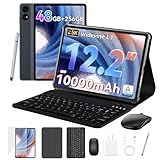
- 1.** 🚀 🤖 [Upgrade Your Digital Life: Native Android 16 & Gemini AI] This tablet with keyboard is the first to experience the cutting-edge Android 16 OS, stripped of bloatware for a pure, lightning-fast interface. Unlike older Android 13/14 tablets, the T60 utilizes Google's Gemini AI to smartly manage background apps and assist with writing summaries, ensuring your device stays snappy for years. Features "Private Space" for sensitive data and "Predictive Back" for intuitive navigation. It's designed for Canadians who demand a device that "just works" right out of the box—secure, intelligent, and future-proof.
- 2. **🖥🎨 [Pro-Grade Visuals: 12.2" 2.5K CSOT Display with 99% sRGB] Why settle for washed-out screens? Our premium CSOT LCD panel covers 99% sRGB color gamut, restoring colors with professional accuracy. This makes the T60 an ideal choice for graphic designers requiring precise color calibration or movie lovers seeking cinematic immersion. Featuring Anti-Glare technology and Eye-Comfort protection, it significantly reduces eye strain during long binge-watching sessions or late-night reading. Whether you are reviewing design proofs in a sunlit café or watching 4K content in bed, the view remains sharp, vibrant, and natural.
- 3. **💾🔥 [Multitasking Beast: 48GB RAM (12+36) & Gaming Power] Say goodbye to freezing screens.This small laptop Crushing the industry standard, our massive 48GB RAM (12GB Physical + 36GB Virtual) effortlessly handles resource-heavy tasks like Roblox gaming, CapCut 4K video editing, and split-screen multitasking. Keep 30+ apps active without reloading. The 256GB UFS storage (expandable to 1TB) acts as your offline warehouse for 500+ HD movies. Whether you are a gamer or a power user, enjoy a silky-smooth experience that cheaper 4GB/8GB tablets simply can't match.
- 4. **💻 ✏️ [Instant "Laptop Mode": Complete 8-in-1 Productivity Bundle] Why carry a heavy laptop? This value-packed bundle includes a Magnetic Keyboard, Mouse, Stylus Pen, and Protective Case ($100+ value), transforming the T60 into a mobile office instantly. Utilizing Android 16's Desktop Windowing Mode, you can attend Zoom/Teams calls while taking notes in Google Docs seamlessly. It is the ultimate budget solution for students and remote workers to handle essays in lecture halls or work from a coffee shop.
- 5. **🌲 🔋 [Unbound Freedom: GPS & 10000mAh Battery] Built for the nomad lifestyle and outdoor enthusiasts. The 10000mAh massive battery supports all-day usage, perfect for camping trips or long shifts. Unlike WiFi-only tablets, With precise GPS Navigation, it serves as a reliable large-screen navigator for truck drivers or road trippers, ensuring you never lose your way even without WiFi.
Check your connection and independence requirement
Choose a Chromebook or Android-x86 when the computer must work without a phone. Choose Phone Link or DeX only when keeping the host device nearby, charged and connected is acceptable. For travel, test the exact offline behavior of the apps; a mirrored session generally cannot continue after the phone or wireless link disappears.
Check input and display behavior
Before purchase, test whether the app accepts keyboard shortcuts, right-click, scrolling, drag-and-drop, external monitors and window resizing. A touchscreen or stylus can rescue a phone-oriented interface on a Chromebook, while a physical keyboard and mouse make DeX productive. Do not assume an app designed for a portrait phone will become a polished desktop program automatically.
Independent reader supportYour contribution helps us test, update, and keep practical guides available for everyone.Troubleshooting by symptom
The Play Store is missing on a Chromebook
Confirm the exact model’s Android-app status and update ChromeOS. If the Play Store section is absent in Settings, the device may not support it, may be running an edition with restrictions, or may be managed by an administrator. There is no reliable setting that converts every unsupported Chromebook into a supported Android-app model.
An app installs but will not start or looks wrong
Check the app’s compatibility listing, update ChromeOS and the app, and try changing the window size or orientation. If the app requires telephony, GPS, a specialized camera or another unavailable feature, use the phone version or a different platform rather than repeatedly reinstalling it.
Recommended Free Tools
Phone Link shows no apps
Verify Windows 10 May 2020 Update or later, Android 11 or later, current Phone Link and Link to Windows versions, and the phone’s model eligibility. Re-pair the devices, approve permissions again and place both on a stable network. Remember that the app must remain installed and functional on the phone.
Best Value

- LATEST ANDROID 16 SYSTEM: Experience the cutting-edge Android 16 OS with enhanced privacy controls and ultra-smooth multitasking. Featuring 24GB RAM (3+21) and 64GB ROM storage, this tablet handles educational apps, business software, and streaming with zero lag | See less
- 2-IN-1 VERSATILE LAPTOP MODE: Seamlessly transform your tablet into a high-productivity workstation. The comprehensive bundle includes a responsive Bluetooth keyboard and a silent wireless mouse, paired with a premium folding leather case that offers 360-degree protection and multiple viewing angles | See less
- OPTIMIZED FOR STUDENTS AND PROFESSIONALS: Designed for online learning, digital note-taking, and remote collaboration. The high-sensitivity capacitive stylus allows for precise sketching and annotation, while dual HD cameras provide crystal-clear video quality for Zoom meetings and virtual classrooms during travel | See less
- ULTRA-FAST WIFI6 AND PD CHARGING: Stay connected anywhere with high-speed dual-band WiFi for lag-free streaming and rapid file downloads. Equipped with a PD fast charging kit, this tablet significantly reduces recharge time, making it a suitable companion for long-haul business trips and outdoor use | See less
- COMPLETE BUNDLE AND ONE-YEAR WARRANTY: What's in the box: 10 inch Android 16 Tablet, Bluetooth Keyboard, Wireless Mouse, Stylus Pen, Protective Leather Case, and PD Fast Charger. Includes One-year brand warranty and 24/7 technical support | See less
Phone Link is laggy or disconnects
Keep the phone awake according to the app’s guidance, remove aggressive battery restrictions from Link to Windows, improve wireless coverage and close heavy phone workloads. If the task must work offline or for long periods, move to a supported Chromebook instead of trying to make mirroring behave like local execution.
DeX does not appear after an Android update
Recheck the Galaxy model and software version. Samsung’s compatibility rules change, and DeX on PC is unavailable on several newer models running Android 15 and One UI 7 or later. Try a supported external-display mode if your model offers it, or use the phone normally when no supported DeX path remains.
Android-x86 has missing Wi-Fi, audio or graphics
Consult the release’s hardware notes, test another image or kernel where documented, and keep a recovery drive available. If core hardware remains unreliable, stop before installing permanently; a supported Chromebook will usually require less driver work for everyday use.
Bottom-line buying guidance
Select a Chromebook with verified Google Play support when you want the closest thing to an Android laptop: local apps, a keyboard, a trackpad and independent operation. Select Phone Link when your Windows laptop is already adequate and mirroring a compatible phone is enough. Select DeX when a supported Galaxy phone or tablet is the center of your workflow and you are comfortable adding a display and peripherals. Select Android-x86 only for a technical project or spare machine. Exclude Windows Subsystem for Android from new-purchase plans because Microsoft ended its Microsoft Store availability on March 5, 2025.
Quick Recap
Product prices and availability are accurate as of the date/time indicated and are subject to change. Any price and availability information displayed on Amazon at the time of purchase will apply.

