
The Tool Desk
Outbyte PC Repair FREEClear out junk files and repair common Windows errorsFree Scan →Outbyte Driver Updater FREEScan for outdated or missing drivers - takes under a minuteDriver Scan →iTechGuides is reader-supported. When you buy through links on our site, we may earn an affiliate commission. As an Amazon Associate I earn from qualifying purchases. Learn more
To enable automatic updates for apps on an iPhone 15, open Settings > Apps > App Store, then turn on App Updates. Apple’s current iPhone guide says App Store apps update automatically by default, but this switch is the setting to check when you want to confirm that behavior.
The instructions below use Apple’s current iPhone labels. Apple documents this path for iPhone generally rather than as a separate iPhone 15 procedure, so an iPhone 15 running an older iOS version may show a different menu layout or wording.
Turn on automatic app updates on iPhone 15
The complete procedure takes place in the Settings app:
Crashes, No Sound, or Screen Glitches?
Random freezes, missing sound and display glitches usually trace back to one bad driver. Find and replace yours safely.Free scan · under a minuteWindows Errors? Fix Them Before They Spread
Repair common Windows errors and clear accumulated junk for a smoother, more stable PC - no reinstall needed.Free scan · no reinstall- Open Settings on your iPhone 15.
- Scroll down and tap Apps.
- Tap App Store.
- Find App Updates and turn the switch on.
Apple describes App Updates as the control that “automatically download[s] and install[s] app updates.” Once it is enabled, apps downloaded from the App Store can be updated without you opening each app’s listing.
#1 Best Overall
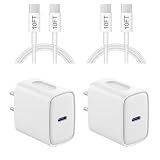
- 【20W PD 3.0 Fast Charger】20W PD 3.0 fast charger and 10ft USB-C to C cable, charge iPhone 18 17 16 15 to 50% in half an hour, which is 3× faster than with an original 5W charger
- 【Superior Safety】iPhone fast charger block equipped with a wide range of safety features, including temperature control, short circuit protection and current regulation to protect your connected devices and maximize the life of your device
- 【Widely Compatibility】USB-C charger block offers 20W fast charging for iPhone 18 Pro/18 Pro Max/Duo/17/17 Pro/17 Pro Max/Air, iPhone 16/16 Pro/16 Pro Max/16 Plus, iPhone 15/15 Pro/15 Pro Max/15 Plus, 2022/2021/2020/2018 iPad Pro 12.9/11 inch 6th/5th/4th/3rd, iPad 10th Generation, iPad Air 5th/4th, iPad Mini 6
- 【10FT USB C Cable】With the intelligent chip USB-C to C cable, friendly reversible design, charging speed max up to 20V/3A, also support 480 Mbp/s fast data transmission. 10ft length can give you more space to move while charging
- 【What you get】2-pack 20W USB-C wall charger and 10ft Type C cable. We offer 2-year warranty and 7 x 24 hours friendly customer service. If you have any questions, please feel free to contact us
If the switch is already on, automatic updates are enabled. You do not need to enable a separate switch for every individual app.
What the App Updates switch controls
This setting applies to apps obtained through the App Store. It controls downloading and installing updates for those apps, not updates to the iPhone operating system itself.
Apple’s current guide also states that apps installed by default on the iPhone are updated when iOS is updated. That is a different route from App Store apps you downloaded yourself. A built-in app can therefore receive an update as part of an iOS update even though the App Updates switch concerns App Store app updates.
Apple says App Store apps update automatically by default. Checking the switch is still useful after restoring an iPhone, changing settings, troubleshooting an app that appears out of date, or confirming how a particular phone is configured.
Check that automatic updating is enabled
Use the current Apple navigation path as a quick check:
- Settings is open.
- Apps is selected.
- App Store is selected.
- App Updates shows the enabled position.
There is no update schedule, frequency number, or guaranteed completion time in Apple’s setting description. The control authorizes automatic downloading and installation; it does not provide a user-configurable timetable.
Rank #2

- [For iPhone Duo Charger] 20W PD USB C power delivery wall plug and 6ft USB-C to C cable, charging your iPhone Duo 18 17 16 15 to 55% in half an hour, which is 3*faster than with an original 5W charger, Helps You Work Efficiently
- [Superior Safety] iPhone fast charger block equipped with a wide range of safety features, including temperature control, short circuit protection and current regulation to protect your connected devices and maximize the life of your device
- [Widely Compatibility] USB-C charger block offers 20W fast charging for iPhone Duo,iPhone 18 Pro/18 Pro Max,iPhone 17/17 Air/17 Pro/17 Pro Max, iPhone 16/16 Pro/16 Pro Max/16 Plus, iPhone 15/15 Pro/15 Pro Max/15 Plus,iPad Pro 12.9/11 inch 6th/5th/4th/3rd, iPad Air 5th/4th, iPad Mini 6 and more USB-C device
- [Fast Charging USB C Cable] With the intelligent chip USB-C to C cable, friendly reversible design, charging speed max up to 20V/3A, also support 480 Mbp/s fast data transmission. Tangle-free 6 Feet length is convenient for usage while charging and sync at home/office/travel in bed, hotel rooms, and more
- [What You Get] 2Pack USB C Wall Charger + 2Pack 6FT USB C cable. We offer 12 months warranty and friendly customer service. If you have any questions, please feel free to contact us
Automatic updates versus manual updates
Automatic updating removes the need to monitor every app. Manual updating gives you a deliberate checkpoint before installing one or more available updates. Both methods are built into iOS.
Recommended Free Tools
| Method | How you start it | Best fit |
|---|---|---|
| Automatic | Enable Settings > Apps > App Store > App Updates. | People who want App Store updates handled without selecting each app. |
| Manual, one app | Open the App Store, tap the account button or profile photo, tap App Updates, then tap Update beside the chosen app. | When you want to choose specific apps. |
| Manual, all available apps | Open the App Store, tap the account button or profile photo, tap App Updates, then tap Update All. | When you want to start every listed app update yourself. |
Turning on automatic updates does not remove the manual controls. You can still open the App Store account page and use Update or Update All whenever you want to initiate an update yourself.
Control App Store downloads over cellular data
Apple lists Cellular Data among the App Store settings. That control can allow App Store access over a mobile-data connection and can affect automatic-download behavior. The exact cellular options shown can vary by device, carrier, region, and iOS version.
To inspect the available controls, open Settings > Apps > App Store and look for the Cellular Data setting. Read the options shown on your iPhone 15 before changing them. If you do not want App Store activity to use mobile data, leave the relevant cellular access disabled and use Wi‑Fi for downloads.
Apple separately explains that Low Data Mode pauses automatic updates and other background tasks when the iPhone is not connected to Wi‑Fi. If App Updates is on but apps are not updating while the phone is using cellular data, check whether Low Data Mode is enabled for that connection. Cellular behavior is not identical for every carrier or region, so the labels and available choices on your phone may differ.
What’s actually slowing this PC down?
Pick the symptom - the matching free tool is one click away.
How to update apps manually
Manual updating is useful when you need a particular app’s update immediately or want to decide which updates to install.
Rank #3

- 【20W USB C Fast Charger】Equipped with USB C Power Delivery port, Latest-generation, future-proof fast charging technology, iPad pro charger provides max 20W output power, charging your iphone or ipad pro quickly, and it is 3X faster than standard usb c wall charger apple ipad high-speed charger, 20W PD USB Type C power delivery wall plug, helps you work efficiently.
- 【Superior Safety Fast Charging】The ipad pro usbc super fast charger with built-in safe guards can monitor temperature, voltage in real time, protect your devices against overheating, overvoltage, overcurrent, short-circuiting, maximumly protect your device. Also the iphone 18 17 16 15 fast charger have intelligent chip inside, actively adjust the power output depending on the device's needs. As battery gets fuller, charging becomes slower to give battery time to absorb the charge and prevent battery from breaking.
- 【10FT Extra Long USB C to C Cable】The ipad pro charger power cord kit equipped with a 10ft(3m) USB C to USB C charging cord, You can work and charge your ipad from longer distance. And it will lets you connect your USB-C host to a standard USB-C enabled device for charging and syncing data,photos and music at tranfriendly reversible design, sfer speeds of up to 480 Mbps.
- 【Universal Compatibility】20W PD wall charger plug Perfectly compatible with USB C enabled devices, no more trigger warning messages.It is compatible with Apple iPhone 18 Pro Max/18 Pro/18 Air/18/iPhone DUO/iPhone 17/17 Air/17 Pro/17 Pro Max/iPhone 16/16 Plus/16 Pro/16 Pro Max/iPhone 15/15 Plus/15 Pro/15 Pro Max,iPad 10rd Gen,iPad mini 6th Gen,iPad Pro 12.9 inch 6th/5th/4th/3rd Generation,iPad Pro 11 inch 4th/3rd/2nd/1st Generation iPad Air 5th/4th Gen. It can also fast charge for USB C enabled smartphones and Type-C phones and tablets.
- 【High Quality Charging Cable】Made of premium materials and built to last, our 10ft USB C to USB C charging cable is durable, tangle-free, and provides stable and efficient charging.You Get 1-PACK 20w PD USB C iPad charger block and 1-PACK 10FT USB-C to USB-C iPad charger cord, if there are any quality problem, please contact us.
- Open the App Store.
- Tap the account button or your profile photo.
- Tap App Updates.
- Tap Update next to an individual app, or tap Update All to start every available app update shown there.
The account page is also the place to look when you want to see which apps have updates available. If an app is not listed there, this screen is not offering an update for it at that moment.
Do not confuse app updates with iOS updates
App updates and operating-system updates use separate settings:
| What you are updating | Settings path |
|---|---|
| Apps downloaded from the App Store | Settings > Apps > App Store > App Updates |
| iPhone operating system | Settings > General > Software Update |
Changing App Updates does not turn on automatic iOS updates. Conversely, changing the Software Update settings does not replace the App Store setting for apps you downloaded. Use the path that matches the item you want to update.
Do these 3 things before closing this tab:
1Fix the driver behind crashes, sound loss and screen glitches2Repair Windows errors before they cause bigger problems3Scan for outdated or missing drivers - takes under a minuteTroubleshoot automatic app updates
The App Updates switch is off
Return to Settings > Apps > App Store and turn on App Updates. If you expected automatic updating but the switch is off, the phone is currently configured for manual updating. Once enabled, you can still use the App Store’s Update and Update All commands.
The App Updates option is not where expected
Apple’s current path is Settings > Apps > App Store. The research for this guide does not establish that every older iOS release uses the same navigation labels. If your iPhone 15 is running an older release, look for the App Store entry in Settings and then for an option named App Updates or a closely related automatic-download control. Do not assume that a screen from another iOS version will be identical to the current guide.
Apps are not updating while you are away from Wi‑Fi
Check Low Data Mode for the connection in use. Apple says Low Data Mode pauses automatic updates and background tasks when the iPhone is not connected to Wi‑Fi. If Low Data Mode is active, automatic updating may wait until the phone is on Wi‑Fi.
Rank #4

- 【Universal Compatibility】: Apple USB C Charging Cable provides high-speed charging for Type-C smartphones, tablets, and laptops, including iPhone 18 Pro,18 Pro Max, Duo, 17, 17Pro Max, 17e, Air, 16, 16e, 16 Pro, 16Pro Max, 16 Plus, iPhone 15, 15 Pro, 15Pro Max, 15 Plus, iPad Pro 13 inch(2024)/12.9 inch 6th 5th 4th 3rd gen, iPad Pro 11 inch (2024)/11 inch 4th 3rd 2nd 1st, iPad Air 13/11 inch(2024), iPad Air 5th 4th, iPad Mini 6, iPad 10, Galaxy S26, S25 Ultra, S24, S23 Ultra, S22, S21, Pixel 11 Pro, 10, 9 Pro XL, 9, 9 Pro, 9 Pro Fold, 8, 7 Pro, 7, 6a and any USB-C device.
- 【Fast and Safe】: The high-quality copper wire improves the charging and data transmission speed, lets you enjoy 20W fast charging and 480Mbps data transfer, and can power up most USB-C Phones from 0% to 50% within 30 minutes. This type c to c fast charging cable can provides stable voltage and current protection to ensure safety at the full fast charge.
- 【Durable Material】: This iPhone 15 USB C charger cord is made of premium Nylon braided, tangle-free and flexible. over 20000+ bend lifespan test makes the type c charger cord more durable than others. The high-quality aluminum housing makes the cable more resistant to heat and durable. Ensure a longer service life.
- 【10FT Extra Long USB C Cable】:USB C to C cable 10ft meets all your needs in your daily life. This extra-long type c cable can be used to charge your devices in your living room, bedroom, sofa, or car which makes your life more convenient.
- 【What You Get】: Our package includes 2-pack 10FT Extra long USB C charger cable. Enjoy worry-free, and friendly customer service for your peace of mind.
Next, review Settings > Apps > App Store and inspect Cellular Data. Apple provides cellular controls for App Store access and automatic downloads, but the options can vary by carrier and region. If cellular access is not allowed, use Wi‑Fi or adjust the available App Store cellular setting according to your data plan.
Quick wins for a faster PC:
Clear out junk files and repair common Windows errorsFree Scan →Scan for outdated or missing drivers - takes under a minuteDriver Scan →One app still appears out of date
Open the App Store, tap the account button or profile photo, and tap App Updates. If the app appears in the list, tap Update beside it. If several apps are listed, use Update All.
If the app is not listed, the App Store account page is not currently presenting an available update for it. The automatic setting does not create an update when the developer has not released one through the App Store.
You want to stop automatic updating
Open Settings > Apps > App Store and turn App Updates off. After that, use the App Store account page to update apps individually or with Update All. Turning the switch off changes the update method; it does not remove installed apps.
You changed the setting but need an update now
Enabling the switch is the correct configuration for automatic updating, but Apple’s documentation does not promise an immediate installation or a specific update time. For an update you need right away, use the manual path: App Store > account button or profile photo > App Updates > Update, or choose Update All.
Which apps are covered?
The App Updates setting concerns apps installed through the App Store. Apple distinguishes those from apps that come with the iPhone: default-installed apps are updated when iOS is updated. This distinction explains why an Apple-provided app may change after an operating-system update even when you did not initiate an App Store update for it.
When diagnosing an app that looks old, first identify how it was installed. For an App Store download, check the App Store account page. For an app supplied with iOS, check Settings > General > Software Update for an operating-system update.
Practical setup checklist
- Open Settings > Apps > App Store.
- Confirm that App Updates is on.
- Review Cellular Data if App Store downloads should be allowed over mobile data.
- Check Low Data Mode when automatic updates pause away from Wi‑Fi.
- Use App Store > account button or profile photo > App Updates for a specific update or Update All.
- Use Settings > General > Software Update for iOS itself, not the App Store switch.
What to remember about iPhone 15 instructions
There is no separate iPhone 15-only automatic-update mechanism established in Apple’s current documentation. The relevant control is the standard iPhone App Store setting: Settings > Apps > App Store > App Updates. The model name matters to the reader’s device, but the documented workflow is an iPhone-wide iOS workflow. If the labels on an older iOS installation differ, follow the App Store and App Updates entries shown on that version rather than assuming the current screen is unchanged.
Quick Recap
Product prices and availability are accurate as of the date/time indicated and are subject to change. Any price and availability information displayed on Amazon at the time of purchase will apply.
Free tools Windows power users keep installed
One-click scans. No signup required.

