
iTechGuides is reader-supported. When you buy through links on our site, we may earn an affiliate commission. As an Amazon Associate I earn from qualifying purchases. Learn more
For most first-time owners who want a quick, console-like retro setup, an Anbernic Linux handheld is easier. You normally prepare one firmware image, write it to a FAT32-formatted microSD card, insert the card and use the built-in launcher. An Android model is more adaptable, but it commonly asks you to finish system updates, choose and install emulators, select a frontend, grant storage permissions, map controls and test each system. Those Android steps are typical user experiences reported by the community, not a controlled timing study, so individual setup time varies.
The practical choice is therefore simple: choose Linux when your priority is a predictable appliance for classic systems; choose Android when broader app support and more configuration are worth the extra decisions.
Linux versus Android at a glance
| Setup question | Linux handheld | Android handheld |
|---|---|---|
| What happens on first boot? | A console-style launcher is usually ready after the correct image is on the card. | The device starts closer to a small tablet and may need app, emulator and frontend choices. |
| How is firmware installed? | Usually by writing a model-specific image to an SD card with a computer and card reader. | Some models can be used without an image-flashing step, but software configuration still remains. |
| Ease for retro-only use | Easier for most beginners who want to copy games and play. | More decisions and more opportunities for inconsistent app or controller settings. |
| Flexibility | Focused, appliance-like interface with fewer moving parts. | Broad Android app ecosystem, newer emulator choices and extensive customization. |
| Best fit | Fast start and classic systems, including 8-bit through PlayStation-era targets. | Owners willing to configure software for broader emulation and app support. |
| Main setup risk | Using the wrong image or writing it to the wrong card. | Configuration sprawl, storage permissions and controller mappings that differ between apps. |
That comparison describes the setup experience, not a performance benchmark. A faster processor or a newer emulator can change what a particular Android model runs well, while a Linux device can still be the easier product to prepare and use.
Free tools Windows power users keep installed
One-click scans. No signup required.
What “easy to set up” means here
Linux is a short, hardware-oriented workflow
Linux setup is concentrated in one place: the boot card. ANBERNIC’s official flashing instructions require a computer, a card reader and network access. You download the firmware for the exact model, extract the archive with 7-Zip, format the TF1 card as FAT32 and write the image with Rufus. Once the image boots, the handheld generally presents a dedicated game launcher rather than a blank operating-system desktop.
#1 Best Overall

- Kids Friendly Design: This P30S handheld game console is specially designed for kids. It has a stylish arcade - like appearance. The body fits a child's hand, and the game settings also cater to kids psychology, thus being very attractive.
- Excellent Gaming Experience: Equipped with a 3.0 - inch high - definition screen and excellent speaker sound, it provides an excellent visual and auditory experience for video games. This handheld game console is small and lightweight, convenient for kids to use and carry. Its ergonomic design ensures a comfortable grip, allowing children to fully enjoy the games.
- Rich Collection of Classic Games: This retro handheld game console contains 220 interesting kids video games, including various types such as entertainment, sports, and adventure games, just like those found in many retro game consoles. While playing these games, kids can cultivate skills such as hand - eye coordination, thinking, and problem - solving.
- Convenient Rechargeable and Long - lasting Battery: The video game console is equipped with an 860mAh lithium - ion battery. It ensures that kids can play games without interruption, because there is no need for frequent battery replacement, which is very suitable for playing portable games outdoors. It is a great addition to the world of handheld games for children and can bring more fun to them.
- Absolutely Surprising Gift: Our handheld game toy is a surprising gift for kids, teenagers, and even adults. It is the best gift for birthdays, Christmas, Halloween, and Thanksgiving. Customer satisfaction is our top priority. Our customer support team will serve you wholeheartedly.
This concentration makes Linux predictable. If the image is correct and the card was written successfully, there are fewer choices to make before you can navigate a game list. The trade-off is that a mistake at the card stage can prevent booting or erase the card’s contents, so Linux favors careful preparation over improvisation.
Android spreads setup across several apps and permissions
Android avoids the feeling of a single appliance. After the initial system setup and updates, you decide which emulator applications to use, whether you want a frontend that gathers systems into one library, where game files are stored and which folders each app may read. You may also need to map the handheld’s buttons separately in more than one emulator and check that save states work.
That flexibility is useful if you want to try different emulator builds or add ordinary Android applications. It also means the device can feel unfinished until the choices are made. Community accounts describing Android handheld setup commonly mention installing or updating emulators, selecting a frontend, granting storage access and tuning controls. Treat those accounts as practical impressions rather than a universal setup time or failure rate.
Quick wins for a faster PC:
Repair Windows errors before they cause bigger problemsFix Now →Fix the driver behind crashes, sound loss and screen glitchesFind Drivers →Clear out junk files and repair common Windows errorsFree Scan →How to set up an Anbernic Linux handheld
The following procedure follows ANBERNIC’s documented RG35XX 2024-style workflow. Menu names and file packages can change, so use the current support entry for your model rather than copying a file intended for another handheld.
1. Confirm the exact model and card role
- Read the model name printed on the handheld, box or existing system screen.
- Determine whether the card you are preparing is the TF1 system card. The official instructions refer specifically to formatting and flashing that card.
- Back up any personal files on the card before formatting. Formatting and imaging can remove everything on it.
Do not assume that two Anbernic devices using similar shells share firmware. The current firmware directory lists separate, model-specific entries, including an RG35XX H Linux package. A near match is not a safe match.
2. Gather the required tools
- A computer with enough free storage for the downloaded archive and extracted image.
- A compatible microSD card and a card reader.
- Network access to download the official package.
- 7-Zip to extract the firmware archive.
- Rufus, which ANBERNIC names as the image-writing utility in its instructions.
The tools are part of the documented process, not optional decoration. If your computer cannot read the card reliably, solve that hardware problem before writing an image; repeatedly interrupting a write is more likely to leave a non-booting card.
3. Download the firmware for the exact model
Open ANBERNIC’s official update page and select the model entry that matches your handheld. The directory is versioned and volatile: it currently shows entries such as RG35XX H Linux firmware and RG556 Android firmware, but package names and versions can change. Record the model and package version you selected so you can identify it later if you need to restore the card.
4. Extract the archive
- Locate the downloaded firmware archive on the computer.
- Use 7-Zip’s extract command and wait for the operation to finish completely.
- Identify the resulting disk-image file or image set, rather than trying to write the compressed archive itself.
If extraction reports an error, download the package again before proceeding. An incomplete archive can produce an image that appears to write successfully but fails at boot.
Rank #2
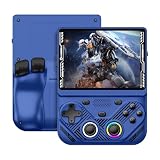
- 【Portable Dual System&RGBOX Dual Systems & RK3562 Chip Performance】 EmuELEC&RGBOX Dual Systems with Powerful RK3562 Chip: Experience seamless gaming with flexible dual-system support. Powered by the advanced Rockchip RK3562 quad-core Cortex-A53 2.0GHz processor and 2+4GB RAM, this console delivers fast, responsive performance, smooth multitasking, and enhanced capabilities for a wide range of emulators.
- 【4.3-Inch IPS Full HD Display】 4.3-Inch HD IPS Fully Laminated Display: Immerse yourself in crystal-clear visuals on the vibrant 4.3-inch IPS screen with a sharp 1024x768 HD resolution. The fully laminated display and anti-glare finish ensure excellent color reproduction and wide viewing angles, significantly reducing eye strain for comfortable extended gameplay. Whether playing classic 2D titles or fifth-generation 3D games, every frame is rendered with stunning clarity and detail.
- 【RG43V Pro Compatible with More retro games】NEW Upgrade RG43V Pro handheld game console, 64GB support Supports over 30 game formats, including open-source games and games in related formats, RG43V Pro Supports 2D&5-generation 3D games and ported games, which can be played immediately after addition. RGBOX can also access the RGBOX APP via a WiFi downloader to play over 22,000 classic retro game for a richer gaming experience, Built-in WiFi 6 Supports Dual-Band 2.5G & 5G Wi-Fi enables wireless local multiplayer for head-to-head battles or co-op play with friends – no extra accessories needed.
- 【All-in-One Multi-Function Game Console】 Precise Controls with Dual 3D Joysticks & Immersive Audio: Take command with dual 3D joysticks featuring a confirmation key and responsive mechanical buttons, including Hall linear triggers for precise analog control. The built-in vibration motors provide tactile feedback, while the joystick ambient lights offer 7 customizable color combinations to enhance your gaming atmosphere. Rich, dynamic audio is delivered through the hi-fi BOX cavity speaker or a private 3.5mm headphone jack.
- 【Fast Charging & Expandable Storage】 4000mAh Battery, Expandable Storage & Multiple Output Options: Enjoy up to 8 hours of gameplay on a single charge thanks to the powerful 4000mAh polymer lithium battery, with convenient USB Type-C fast charging. Expand your storage up to 1TB via the TF card slot. Connect to a larger screen with the HDMI output for TV play, or use the TYPE-C port for OTG, charging, and DP output, offering versatile connectivity for any gaming setup.
5. Format the TF1 card as FAT32
- Insert the TF1 card into the card reader.
- Confirm in the operating system that you selected the intended removable card, not an internal or backup drive.
- Format the card as FAT32, as specified by ANBERNIC’s instructions.
Formatting destroys existing data on the selected card. Keep the original card untouched, or make a verified backup, until the new card has booted and your saves and settings are accounted for.
6. Write the image with Rufus
- Launch Rufus and select the removable card.
- Choose the extracted firmware image.
- Start the write and allow it to complete without removing the card or closing the program.
- Use the operating system’s safe-eject function when Rufus and the operating system report that the operation is finished.
Rufus may warn that existing data will be destroyed. Recheck the drive letter or device capacity before accepting. This is the point at which selecting the wrong removable drive causes the most serious avoidable damage.
7. Boot and perform a small acceptance test
- Insert the prepared card in the handheld’s TF1 slot.
- Power on and wait for the first boot to finish; the initial start can take longer than later starts.
- Open the launcher, navigate through a few system categories and start a game file you legally obtained.
- Test the buttons, analog controls if present, volume, suspend or resume behavior and a save state.
A successful boot does not prove every feature is configured. Testing one game and a save state before copying a large library lets you identify a bad image, damaged card or control issue while recovery is still simple.
PC Slower Than It Used to Be?
A free scan shows the junk files, broken settings and background clutter dragging Windows down - then fixes them in one click.Free scan · Windows 10 & 11Crashes, No Sound, or Screen Glitches?
Random freezes, missing sound and display glitches usually trace back to one bad driver. Find and replace yours safely.Free scan · under a minute8. Preserve a recovery path
Keep the original card or a verified backup in a safe place while experimenting. If an alternate image or a failed update leaves the handheld unable to boot, return to the known-good card and repeat the documented process with the correct package. This is one of Linux’s clearest trade-offs: recovery is straightforward when you have the right image and backup, but not when you have overwritten your only copy.
How to set up an Anbernic Android handheld
Android setup is less about one imaging operation and more about making a series of software decisions. The exact screens depend on the model and Android build, but the order below reduces rework.
1. Complete the first-run system setup
- Charge the handheld and complete the Android welcome screens.
- Connect to a trusted network if the device requests one.
- Install available system updates before configuring emulators. Updates can change permissions, controller behavior or bundled applications, so configuring twice is wasteful.
- Restart after a major update if Android requests it.
The current firmware directory includes an Android entry for the RG556. Firmware availability and package versions are model-specific and can change; use the official model page rather than applying a package from a different handheld.
2. Choose only the emulators you need
Decide which systems you actually intend to play, then install and configure those emulator applications first. Installing many alternatives at once creates duplicate file associations, different controller layouts and several places to troubleshoot. Android’s flexibility is an advantage when you need a particular emulator build; it is a burden when every system has a different configuration.
3. Decide whether to use a frontend
A frontend can present systems and games through one console-like library, while launching each emulator directly involves fewer layers. Choose one approach initially. If you add a frontend later, configure its game directories after the underlying emulators already launch a test game; otherwise it becomes difficult to tell whether a problem belongs to the frontend, the emulator or the file path.
Rank #3

- 【Game Console with Linux Stylem】Comes with 64G TF Card Preloaded 5570 Classic Games,Support users to download games in relevant 15 kinds of games formats.
- 【supports 5G WIFI Bluetooth 2.4G Wireless Gamepad and Wired Gamepad Connection】 HDMI and TV output function makes the small screen become big screen in seconds, and the joystick connection supports multiplayer games, so you and your friends can enjoy the game together.
- 【3200 mAh Li-polymer battery and 3.5 INCHES OCA IPS screen】you can use for 6-7 hours, support fast charging with USB Type-C cable, With 3.5-inch IPS full viewing angle, zero distance OCA full-fit screen,the screen resolution is 640*480,Sharper picture quality and more saturated colours.
- 【Chip upgrade】with quad-core ARM Cortex-A53, Quad-core PowerVR SGX544MP GPU,makes have the characteristics of low power consumption and high performance. the Ram of the is LPDDR4 1GB, the larger the RAM running memory, the faster the system response time will be.
- 【Ideal gifts】Dimensions of Handled game :12.8cm*8.1cm *2.2cm,is a good size in the hand and is suitable for carrying aroundis a great gift for boyfriend, husband, brother, son, father and friends for birthday, Father's Day, Christmas, Valentines Day, Thanksgiving Day etc. Get lots of compliments on how it’s interesting or practical.
4. Grant storage access deliberately
- Create or identify the folder where your legally obtained game files will be stored.
- When an emulator requests storage access, select only the folder it needs.
- Confirm that the application can see a test file before copying a full library.
- If a frontend is used, grant it access to the same intended library location.
Android permissions are a common source of confusion. An emulator can be installed correctly yet show an empty library because it has not been allowed to read the selected folder. Avoid granting broad access unless you understand what the permission exposes.
5. Map and test controls in each emulator
- Open the emulator’s controller settings.
- Assign the handheld’s directional controls, face buttons, shoulder buttons, start and select controls.
- Check analog-stick behavior and dead zones on models that have sticks.
- Save the profile, launch a game and test every button in actual play.
Do not assume that one emulator’s mapping automatically applies to another. Android applications can use different names for the same physical button and can store independent profiles.
6. Test save states and suspend behavior
Create a save state, exit the emulator, reopen the game and load the state. Also test the handheld’s sleep and resume behavior with a low-stakes game. A library is not ready merely because titles appear in a menu; the ability to save and resume is part of a usable setup.
Do these 3 things before closing this tab:
1Scan for outdated or missing drivers - takes under a minute2Clear out junk files and repair common Windows errors3Fix the driver behind crashes, sound loss and screen glitches7. Add the rest of the library gradually
Copy a small, representative group of game files first. Check that filenames, artwork and system associations are correct, then expand the library. This staged approach makes a permission or path error obvious and prevents a long copy operation from hiding the first failure.
RG35XX H versus RG556: a direct setup comparison
| Characteristic | RG35XX H | RG556 |
|---|---|---|
| Platform represented in ANBERNIC’s current firmware directory | Linux | Android |
| Primary setup task | Download the matching Linux image, format TF1 as FAT32 and write it with Rufus. | Complete Android setup, update the system, choose apps and configure storage, frontend and controls. |
| Where most decisions occur | Before and during SD-card preparation. | After first boot, across Android settings and multiple applications. |
| Closest to plug and play? | Generally, for a retro-only library. | Less so initially, although it offers more ways to customize the final experience. |
| Typical failure pattern | Wrong model image, incorrect card selection or an incomplete write. | Missing storage permission, unconfigured controls, unsuitable emulator choice or frontend path. |
The table compares setup complexity, not which device is faster or which systems it can emulate. The available firmware entries establish their operating-system split; they do not provide a controlled benchmark of setup minutes, compatibility or failure rates.
Independent reader supportYour contribution helps us test, update, and keep practical guides available for everyone.Which platform fits your priorities?
Choose Linux when you want a focused retro appliance
- You mainly want 8-bit, 16-bit, arcade and PlayStation-era systems.
- You prefer one launcher and minimal app decisions.
- You are comfortable using a computer and card reader once to prepare the system card.
- You value predictable behavior after setup more than access to a broad app ecosystem.
Linux’s initial card work can sound technical, but it is a bounded checklist. Once completed correctly, there are fewer software components to keep aligned.
Choose Android when flexibility is the point
- You want to install different emulator builds or ordinary Android applications.
- You are willing to tune storage permissions, frontends and controller profiles.
- You expect to change the software stack as your needs evolve.
- You are targeting broader emulation and accept that setup is more iterative.
Android is not automatically difficult; it simply moves effort from imaging hardware to configuring software. An owner who enjoys testing applications may find that trade worthwhile.
The Tool Desk
Outbyte PC Repair FREEClear out junk files and repair common Windows errorsFree Scan →Outbyte Driver Updater FREEScan for outdated or missing drivers - takes under a minuteDriver Scan →Use the performance target as a buying heuristic, not a promise
For classic systems, a simple Linux handheld is often the easier fit because the interface and software stack are narrower. Higher-end targets or a need for Android applications can justify choosing Android. This is a buying heuristic, not a claim that every Linux model or every Android model performs the same way.
Rank #4
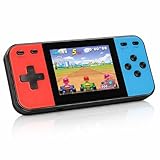
- 【Kids Friendly Design】This retro handheld game console is specially designed for kids, with a stylish arcade-like appearance and a compact body that fits children's hands perfectly. Every game is thoughtfully created for children, bringing nonstop joy and excitement that keeps young gamers fully entertained.
- 【Lots of Classic & Enjoyable Games】As an emulator handheld, this retro device comes with 240 fun kids' video games, including entertainment, sports and adventure types—just like classic retro gaming console handheld. While playing, kids can enhance hand-eye coordination, thinking and problem-solving skills.
- 【Fun Gaming Experience】Equipped with a 3.0-inch high-definition screen and quality speakers, this handheld game console offers an immersive visual and auditory experience. Small, lightweight and ergonomically designed, this hand held game console is easy to hold and carry, letting kids fully enjoy their gaming time.
- 【Rechargeable, Long-Lasting & Ultra-Portable】Powered by an 1200mAh rechargeable lithium battery, this kids' game console supports long hours of fun and uninterrupted play, with no need for frequent battery changes. Lightweight and easy to carry, it's perfect for gaming on the go or playing at home. It's a wonderful little gaming partner that brings endless joy to every child!
- 【Ideal Surprising Gift】This handheld gaming console is a wonderful surprise gift for kids, teens and even adults, perfect for birthdays, Christmas, Halloween and Thanksgiving. As a popular gaming console, it brings joy to recipients. We prioritize customer satisfaction, with our team ready to serve you wholeheartedly.
Troubleshooting the Linux path
The handheld does not boot after flashing
- Confirm that the firmware image matches the exact model and card slot.
- Recheck that the archive was fully extracted and that Rufus wrote the extracted image, not the compressed archive.
- Repeat the FAT32 format and image write on a known-good card.
- Restore the original or verified backup card to determine whether the handheld itself still operates.
The computer shows the wrong removable drive
Stop before formatting or writing. Disconnect unrelated removable storage, reconnect the intended card and verify its capacity and drive letter in both the operating system and Rufus. A mistaken selection can erase unrelated data.
The launcher works but a game or save state fails
Test a legally obtained game file from a small sample. If only one title fails, check that file and its system association rather than reflashing immediately. If multiple systems fail, revisit the card image and the card’s health, then restore the known-good backup if necessary.
Troubleshooting the Android path
The emulator cannot see game files
Open the emulator’s storage or library setting and grant access to the folder that actually contains the files. If a frontend is involved, verify its path separately. Android can show an installed app while still withholding permission to the intended directory.
What’s actually slowing this PC down?
Pick the symptom - the matching free tool is one click away.
Buttons work in one emulator but not another
Open each emulator’s controller-mapping screen and save an independent profile. Test shoulder buttons, start, select and analog controls in a game, not only in a settings preview.
The library is cluttered or launches the wrong app
Reduce the number of installed emulators and choose one default per system before adding more frontend rules. A smaller, deliberate software stack is easier to diagnose than several overlapping app associations.
An update changes behavior
Record the emulator and frontend versions you were using before changing them. Update one component at a time, then retest a game, a control profile and a save state. This isolates whether the change came from Android, an emulator or the frontend.
Backups, legal files and ongoing maintenance
Keep a known-good system card
For Linux, preserve the original card or a verified image backup before experimenting. For Android, keep a written note or screenshot of storage locations, emulator choices and controller mappings. The recovery method differs, but the principle is the same: document the working state before changing it.
Use legally obtained game files
The setup procedures do not supply ROMs or other game content. Use files you are legally entitled to use in your jurisdiction, and follow the applicable rules for making personal backups. Test the handheld with a small, legitimate sample before transferring a large collection.
Update with the model page open
ANBERNIC’s support article covering the documented flashing workflow was modified on 11 March 2025. Firmware listings and versions can change after that date, so treat the current model entry as authoritative for the package available when you set up the device. Never substitute a similarly named image from another model.
A practical decision checklist
- Want the shortest route to a console-style launcher? Pick the Linux option and follow the exact image-writing procedure.
- Do you already have a computer, card reader and a spare or backed-up card? Linux’s one-time preparation is manageable; without them, Android may avoid that hardware step.
- Are you comfortable choosing apps and debugging permissions? Android gives you more room to customize, but plan for per-app configuration.
- Is your library mainly classic systems? Linux is usually the more straightforward match.
- Do you specifically need Android applications or newer emulator choices? Accept the additional setup in exchange for that flexibility.
- Are you buying an RG35XX H or RG556? Treat the RG35XX H as the Linux-style, image-and-card workflow and the RG556 as the Android-style, app-and-permission workflow; confirm the current firmware entry before beginning.
For the question “Which is easier to set up, an Anbernic Android handheld or a Linux handheld?”, the defensible answer is Linux for most beginners seeking retro play. Android becomes the better choice when its flexibility is itself the goal and you are prepared to configure the software layer rather than simply write one system image.
Quick Recap
Product prices and availability are accurate as of the date/time indicated and are subject to change. Any price and availability information displayed on Amazon at the time of purchase will apply.

