
iTechGuides is reader-supported. When you buy through links on our site, we may earn an affiliate commission. As an Amazon Associate I earn from qualifying purchases. Learn more
The quickest way to time a WordPress quiz is to use the timer built into your quiz plugin or learning-management system. In Quiz and Survey Master (QSM), edit the quiz, open Options, choose Quiz Submission, enter the duration in Time Limit (in minutes), and save. A value of 0 turns the timer off. For a basic quiz, that is all the configuration required.
Before publishing, decide what should happen at zero: QSM can freeze the questions, or its optional Force Submit setting can submit the attempt automatically. If you need separate clocks for exam sections, warning messages, a progress bar, or timer persistence after a reload, QSM’s Advanced Timer add-on provides those controls. The sections below show how each option works and when another quiz system may be a better fit.
What a WordPress quiz timer does
A quiz timer is a software setting that limits how long a respondent can work on an attempt. It is not a separate hardware timer or WordPress core feature; the quiz plugin or LMS starts and displays the clock, records the expiry event, and applies the submission rule you select.
What’s actually slowing this PC down?
Pick the symptom - the matching free tool is one click away.
There are three timing models:
- Whole-quiz timing: one clock covers every question in the attempt.
- Per-page timing: each paginated section receives its own limit, useful for multi-section exams.
- Per-question timing: a separate limit is attached to individual questions; the Quiz Creator WordPress.org listing says it supports this model.
The model affects the learner experience. A whole-quiz timer lets a respondent spend extra time on a difficult question and move quickly through easy ones. Page or question clocks impose tighter pacing, so explain the rules before the attempt starts.
#1 Best Overall

- 2‑PACK DIGITAL TIMER WITH BATTERY. This set includes 2 digital timers with 2 AAA batteries. It supports both count‑down and count‑up timing, max timing range up to 99 minutes 59 seconds. Built‑in memory function retains your last time setting without repeated reset, suitable for cooking, homework, focus study and workout timing. ( *It can not set Hour. Also no clock function. )
- LOUD AUDIBLE ALARM & SILENT FLASHING RED LIGHT. 2 reminder modes for different environments. Loud beeping alarm can be heard from another room for kitchen cooking. Silent mode triggers flashing red light only, no beep noise, perfect for quiet classroom, kid's study room and library without disturbing others. ( *For alarm mode, timer will beep during setting. )
- 3‑WAY MOUNTING OPTIONS. Each timer features magnetic back to attach on fridge or metal surface; fold‑out kickstand for desktop tabletop placement; hanging hole allows hanging (Need extra small string). 3 placement solutions fit kitchen, classroom, office and home desk scenarios. Small item size: 2.68"D x 2.48"W x 0.63"H. (You will get: 2 pcs digital timers, 2 pcs AAA batteries (Pre-install).
- SIMPLE OPERATION & BATTERIES PRE‑INCLUDED. Easy M/S buttons make time setting intuitive for kids, seniors and teachers. 2‑pack AAA batteries are pre-included in timer, ready to use out of box. When not in use, please manually switch it to shut-off on the backside. ( *It does not feature auto shut off. Its battery can not be charged. )
- WIDE‑APPLICATION HOUSEHOLD & CLASSROOM TIME MANAGEMENT TOOL. Practical timing tool for kitchen baking, egg boiling; classroom teaching for teachers; kids homework & screen‑time control; fitness exercise, hair salon timing and many more daily timing tasks. Perfect as homeschool supplies, classroom must haves, back to school supplies & teacher essentials. Compact lightweight design for home and travel use.
Set a basic whole-quiz timer in Quiz and Survey Master
QSM’s standard timer is appropriate when every question shares one total allowance. Use this exact administration path:
- In the WordPress dashboard, open the quiz or survey you want to edit.
- Open the quiz’s Options tab.
- Open Quiz Submission.
- Locate Time Limit (in minutes).
- Enter the allowed duration as a number of minutes.
- Save the quiz.
For example, entering 30 gives the attempt a 30-minute limit. Entering 0 disables the timer. Keep the value and its unit together when documenting the exam so an editor does not mistake minutes for seconds.
Check when the clock starts
For a quiz that displays all questions on one page, QSM starts the timer when that page loads. With pagination, if the first page contains no question, QSM starts the timer when the respondent clicks Next for the first time. This distinction matters when the opening page contains only instructions: the instruction screen does not consume time in that documented configuration, but the first Next action starts the attempt clock.
Quick wins for a faster PC:
Clear out junk files and repair common Windows errorsFree Scan →Fix the driver behind crashes, sound loss and screen glitchesFind Drivers →Choose the expiry action
QSM says questions freeze when the timer reaches zero. If you want the attempt sent for grading without requiring another click, enable the optional Force Submit setting. Force submission also prevents the respondent from returning to the quiz after expiry. Decide this before launch; a frozen screen and an automatically submitted attempt produce different expectations for scoring and support requests.
Show remaining time in messages or results
QSM provides time-related template variables for email and results displays:
Rank #2

- 2‑PACK DIGITAL TIMER WITH BATTERY. This set includes 2 digital timers with 2 AAA batteries. It supports both count‑down and count‑up timing, max timing range up to 99 minutes 59 seconds. Built‑in memory function retains your last time setting without repeated reset, suitable for cooking, homework, focus study and workout timing. ( *It can not set Hour. Also no clock function. )
- LOUD AUDIBLE ALARM & SILENT FLASHING RED LIGHT. 2 reminder modes for different environments. Loud beeping alarm can be heard from another room for kitchen cooking. Silent mode triggers flashing red light only, no beep noise, perfect for quiet classroom, kid's study room and library without disturbing others. ( *For alarm mode, timer will beep during setting. )
- 3‑WAY MOUNTING OPTIONS. Each timer features magnetic back to attach on fridge or metal surface; fold‑out kickstand for desktop tabletop placement; hanging hole allows hanging (Need extra small string). 3 placement solutions fit kitchen, classroom, office and home desk scenarios. Small item size: 2.68"D x 2.48"W x 0.63"H. (You will get: 1*Lime Green+ 1*Mint Green digital timers, 2 pcs AAA batteries (Pre-install).
- SIMPLE OPERATION & BATTERIES PRE‑INCLUDED. Easy M/S buttons make time setting intuitive for kids, seniors and teachers. 2‑pack AAA batteries are pre-included in timer, ready to use out of box. When not in use, please manually switch it to shut-off on the backside. ( *It does not feature auto shut off. Its battery can not be charged. )
- WIDE‑APPLICATION HOUSEHOLD & CLASSROOM TIME MANAGEMENT TOOL. Practical timing tool for kitchen baking, egg boiling; classroom teaching for teachers; kids homework & screen‑time control; fitness exercise, hair salon timing and many more daily timing tasks. Perfect as homeschool supplies, classroom must haves, back to school supplies & teacher essentials. Compact lightweight design for home and travel use.
%TIMER%%TIMER_MINUTES%%TIMER_SECONDS%
Insert the variable supported by the message or results field you are editing, then run a controlled attempt to confirm the rendered output in your current QSM version. Do not assume that a variable shown in an email field will automatically appear in the quiz interface itself.
Use Advanced Timer for warnings, visual controls, and persistence
QSM’s Advanced Timer add-on extends the basic minute-only setting. It requires the QSM core plugin and the Advanced Timer add-on. The documentation describes these controls:
The Tool Desk
Outbyte PC Repair FREEClear out junk files and repair common Windows errorsFree Scan →Outbyte Driver Updater FREEFix the driver behind crashes, sound loss and screen glitchesFind Drivers →- Separate hour, minute, and second fields.
- Countdown or count-up behavior.
- A visual timer and an optional progress bar.
- A warning at 90 percent of the allotted time.
- Controls to stop the timer.
- Separate overall and per-page timers.
- Rules for resetting a timer after a reload.
- Rules for continuing after the browser tab is closed.
- Rules for continuing after the timer expires.
Because these are add-on features rather than the core setting, check the current add-on documentation and license terms before promising a particular control to learners. Plugin interfaces and licensing can change, so publish current labels rather than relying on an old screenshot.
Decide whether to count up or down
A countdown communicates a deadline and is the normal choice for an exam. A count-up display records elapsed time without imposing a fixed stop; use it when you need a duration record but do not want to prevent completion. Select the mode that matches the grading policy and label it clearly in the instructions.
Add a 90-percent warning
The warning option can alert respondents when 90 percent of the allowance has elapsed. A 30-minute timer therefore reaches its warning point at 27 minutes. Treat that as a reminder, not as extra time: the configured expiry rule still applies when the full allowance ends.
Rank #3
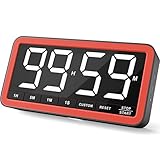
- Your Classroom & Kitchen Command Center - Take back control of your teaching or cooking time. The extra-large 7.8-inch display with 2.3-inch tall numbers keeps everyone—whether students or your family—informed and on task. With 3 brightness levels, it’s equally clear in a sunlit classroom or a dim kitchen. Set it once to track a quiz, a simmering sauce, or screen time, and replace the questions “How much time is left?” or “Is dinner ready?” with focused, productive time
- Library-Quiet & Family-Friendly Alerts - Manage any environment with 4 alert options. Activate Silent Mode for zero noise—just a discreet screen flash—perfect for libraries, exams, or naptime. For active settings, choose from 3 distinct audible alarms & beep with 3 adjustable volume levels to match your classroom or kitchen noise
- 99-Hour Timer for All-Day Management - Move beyond the kitchen. Count down from 99:59:59 or use count-up as a stopwatch. Perfect for timing a 90-minute exam, tracking a 3-hour meeting, managing a 1-hour workout or your child’s daily screen time. From science experiments to gym intervals, two modes handle any task
- Marathon Battery Life & Universal USB-C Charging - Designed for your relentless schedule. Enjoy over 7 days of continuous use on low brightness—enough to power through an entire school week or family routine on a single charge. Need more light? Get over 7 hours on high brightness for demanding tasks. Recharge effortlessly via USB-C (cable and 5V charger included). A clear low-power warning ensures you’re never caught off guard
- Versatile, Kid-Proof Placement - Strong silicone-covered magnets hold securely to any fridge, locker, or whiteboard. Use the built-in stand for your desk, or the hanging hole for a pantry or classroom hook. Intuitive, separated buttons make it foolproof for you, your students, or your kids to operate
Consider reload and browser-close behavior
Advanced Timer includes settings for resetting or continuing a timer after a page reload and for continuing after a browser tab is closed. Choose a policy that matches your assessment rules, then test it in the same browser and device patterns your audience uses. QSM’s documentation specifically notes that browser-close continuation does not work for single-page quizzes, so do not advertise that behavior for a one-page configuration.
Give each exam section its own page timer
Per-page timing is useful when an exam has distinct sections, such as a reading section followed by a practical section. QSM documents page timers that assign a limit to individual pages, warn about remaining time, and either disable the page’s questions or move the respondent onward when that page’s time elapses.
This setup needs all of the following:
- The QSM core plugin.
- The Advanced Timer add-on.
- Pagination configured in QSM options.
- A defined time limit for each page or section.
- An expiry action selected for the page, such as disabling questions or advancing the respondent.
Plan the sections before configuring them
Write a small timing map first. For example:
| Section | Pagination | Timing decision |
|---|---|---|
| Instructions | Opening page | Confirm whether this page contains a question; QSM’s documented start rule differs when the first page has no question. |
| Section 1 | Page 2 | Assign its own page limit and warning behavior. |
| Section 2 | Page 3 | Assign a separate limit and choose whether expiry disables questions or moves the respondent onward. |
The table is a planning aid, not a replacement for the add-on’s current field names. After saving, preview every page in order and verify which clock is visible, when it starts, and what happens at zero.
Overall and page clocks
Advanced Timer can provide both an overall timer and per-page timers. Use an overall limit when the exam has a hard total duration; add page limits when each section also needs its own pacing rule. If the two limits can conflict, state which rule controls the respondent’s result in the instructions and verify the behavior in a test attempt rather than assuming the visual display explains it.
Compare timer options across WordPress quiz systems
The right choice depends on whether you need one total clock, section-level control, or a course-integrated assessment. The documented feature differences are summarized here.
Rank #4
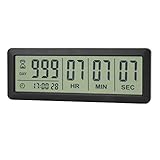
- ✔️999-Day Countdown Timer for Life’s Big Moments - Counts down (or up) up to 999 days, 23 hours, 59 minutes, and 59 seconds—perfect for retirement countdown clock, vacation countdown timer, wedding countdown, pregnancy due date tracker, or any long-term event countdown. Sounds a 60-second alert when time’s up.
- ✔️Digital Clock with Easy 12/24-Hour Switch - Built-in clock mode lets you toggle between 12-hour and 24-hour format. Works great as a reliable desktop timer or daily event day counter at home, in the office, or while studying.
- ✔️Super Simple Setup & Strong Magnetic Back - Easy button controls: hold SET to adjust time, press START/STOP to run or pause. Strong magnet on the back sticks securely to fridge, whiteboard, or any metal surface; removable stand keeps it stable on your desk—no tools needed.
- ✔️Battery-Powered & Travel-Friendly - Powered by 2 included CR2032 batteries for long-lasting use. Compact size (6.1 × 2.2 × 0.4 inches, LCD screen 5.4 × 1.6 inches) makes it easy to carry—ideal for new baby countdown, meeting timers, or tracking events on the go.
- ✔️Perfect for Milestones & Everyday Reminders - Designed for retirement countdown, vacation countdown, wedding day counter, pregnancy countdown, study timers, or meeting reminders. Quick reset by holding START and DOWN buttons—your go-to digital countdown clock for personal and professional life.
| System or configuration | Timing scope | Start behavior | At expiry | Persistence and advanced controls |
|---|---|---|---|---|
| QSM core timer | Whole quiz | Page load for a one-page quiz; with pagination and no question on page one, first Next click | Questions freeze; optional Force Submit submits automatically and blocks return | Basic minute field; advanced reload and browser-close rules are not part of this core setting |
| QSM Advanced Timer | Overall and per-page timers | Depends on the configured quiz and pagination flow | Warnings, disabling questions, or moving onward are documented page-timer behaviors; overall behavior follows the selected settings | Hour/minute/second fields, count-up or countdown, visual timer, progress bar, 90% warning, stop controls, reload and tab-close options; requires the core plugin and add-on |
| LearnDash quiz | Quiz timing controls documented within the LMS quiz settings; exact scope depends on the current configuration | Not stated in the cited documentation | Verify the current LearnDash quiz settings and version | Time limits are located under Display & Content Settings, alongside question-order and other quiz controls |
| Quiz Creator | Quiz-wide and per-question timers | Timed quizzes can use a Start Quiz button | The WordPress.org listing states that timer-expiry handling is supported; exact action is version-dependent | Confirm the current plugin version and compatibility before relying on a specific interface |
Mobile behavior, exact persistence rules, and licensing can vary by plugin version and configuration. Test the published quiz on the phone, tablet, and desktop layouts your audience will use; do not infer responsive behavior from the desktop editor.
When LearnDash is the better fit
Choose LearnDash when quizzes are part of a broader course or LMS workflow and you want timing controls alongside course-oriented settings. Its documentation places quiz time limits in Display & Content Settings. The available evidence does not establish the same QSM-specific start and expiry behavior, so verify those details in the LearnDash version installed on your site.
When Quiz Creator is worth evaluating
The Quiz Creator listing is relevant when you need both a quiz-wide timer and per-question timers, or when you want a dedicated Start Quiz action before the clock begins. Its listing also mentions timer-expiry handling. Because those details come from a plugin listing and interfaces change, check the current release, WordPress compatibility, and exact expiry action before migrating a live assessment.
Independent reader supportYour contribution helps us test, update, and keep practical guides available for everyone.Configure a timer without surprising respondents
Write the timing rule in the quiz instructions
State the duration, the event that starts the clock, whether a warning appears, and what occurs at zero. For a paginated QSM quiz with an instruction-only first page, explain that the timer starts on the first Next click. If Force Submit is enabled, tell respondents that the attempt will be submitted and cannot be reopened after expiry.
Outdated Drivers Are Slowing You Down
One free scan finds every outdated or missing driver and matches the right update for your exact hardware.Free scan · exact hardware matchWindows Errors? Fix Them Before They Spread
Repair common Windows errors and clear accumulated junk for a smoother, more stable PC - no reinstall needed.Free scan · no reinstallChoose pagination deliberately
Pagination changes the start event and makes per-page timing possible. It can also make navigation more consequential: a respondent may not be able to return to a page after its timer expires, depending on the selected behavior. Use one page when the assessment needs a single uninterrupted clock; use sections when pacing itself is part of the design.
Best Value

- 𝟏𝟔.𝟓 𝐈𝐧𝐜𝐡 𝐋𝐚𝐫𝐠𝐞 𝐃𝐢𝐠𝐢𝐭𝐚𝐥 𝐖𝐚𝐥𝐥 𝐓𝐢𝐦𝐞𝐫 𝐂𝐥𝐨𝐜𝐤: A large display with jumbo 9.4×4.3-inch digits. Choose from 12 color options, including 4 gradients and a dynamic rainbow display. This timer delivers clear time and indoor temperature readings simultaneously, catering perfectly to seniors and individuals with visual impairments.
- 𝐂𝐨𝐮𝐧𝐭𝐝𝐨𝐰𝐧/𝐔𝐩 𝐓𝐢𝐦𝐞𝐫 𝐰𝐢𝐭𝐡 𝐑𝐞𝐦𝐨𝐭𝐞 𝐂𝐨𝐧𝐭𝐫𝐨𝐥: The remote control has 7 countdown shortcuts (30 seconds and 1/3/5/10/15/30 minutes) for quick and easy timekeeping. This digital timer clock has a maximum timer time of 99 mins and 59 seconds and timer beep with 30 adjustable volume levels to help you stay focused and productive.
- 𝐀𝐮𝐭𝐨/𝐌𝐚𝐧𝐮𝐚𝐥 𝐀𝐝𝐣𝐮𝐬𝐭𝐚𝐛𝐥𝐞 𝐁𝐫𝐢𝐠𝐡𝐭𝐧𝐞𝐬𝐬: The built-in light sensor ensures the digits to automatically dim as ambient light changes which keeps your eyes comfortable at all times. It's very easy to read even at the lowest brightness setting, and it's not too harsh and manually adjusts itself accordingly.
- 𝐄𝐚𝐬𝐲 𝐎𝐩𝐞𝐫𝐚𝐭𝐢𝐨𝐧 𝐰𝐢𝐭𝐡 𝐑𝐞𝐦𝐨𝐭𝐞 𝐂𝐨𝐧𝐭𝐫𝐨𝐥: The remote with 29.5 feet effective distance and a wide receive angle makes it easy to set the clock. Silent silicone buttons cancel the annoying beep in remote operation.
- 𝟗.𝟖𝟒𝐟𝐭 𝐋𝐨𝐧𝐠 𝐖𝐢𝐫𝐞 𝐰𝐢𝐭𝐡 𝐄𝐦𝐛𝐞𝐝𝐝𝐞𝐝 𝐂𝐚𝐛𝐥𝐞 𝐓𝐢𝐝𝐲: The cable is long enough to reach a remote outlet. Excess cable can be stored inside the compartment. A retaining groove prevents wire wobble or loose. Leave you a clean and order wall. Installation is a piece of cake with the measuring card provided.
Keep the display legible
A visual timer should remain readable beside the question content on narrow screens. Preview the quiz at the smallest supported viewport, make sure the warning does not cover answer controls, and confirm that keyboard and touch users can still select answers and advance. These are publishing checks rather than plugin settings, and they should be repeated after theme or layout changes.
Separate timing from grading
A timer determines when work stops or submits; it does not by itself define answer scoring, pass marks, or feedback. Configure those quiz rules separately and test a complete attempt so the expiry action, grading, email, and results display agree.
Test the timer before publishing
Use a short temporary limit in a private or preview quiz, then restore the production value. Run these checks:
- Load a one-page quiz and confirm that the clock appears when the page loads.
- Load a paginated quiz whose first page has no question and verify that the clock starts on the first Next click.
- Let the clock reach zero without Force Submit and confirm that questions freeze.
- Repeat with Force Submit enabled and confirm that the attempt submits and cannot be reopened.
- If using Advanced Timer, test the 90-percent warning, visual display, progress bar, stop control, and count-up or countdown mode you selected.
- Reload the page and close and reopen the browser tab according to your chosen persistence policy. Remember that QSM documents browser-close continuation as unavailable for single-page quizzes.
- For page timers, allow one page to expire and verify whether questions are disabled or the respondent is moved onward, as configured.
- Inspect the email or results output containing any of
%TIMER%,%TIMER_MINUTES%, or%TIMER_SECONDS%. - Repeat the expiry test on a phone and a desktop browser, because the visible layout and navigation controls can differ.
After testing, restore the intended duration and clear any test attempts that should not appear in production reports.
Troubleshoot common timer problems
The timer is not visible
- Confirm that the quiz’s Time Limit (in minutes) is greater than
0; zero disables the timer. - Check that you saved the quiz after changing the option.
- If you expect advanced visual controls, confirm that both QSM core and Advanced Timer are installed and active.
- Preview the front-end quiz rather than relying only on the editor.
The timer starts earlier or later than expected
Check the page structure. A one-page QSM quiz starts on page load. A paginated quiz with no question on its first page starts when the respondent clicks Next for the first time. If the quiz was changed from one page to multiple pages, retest the start event and update the instructions.
Respondents can see the questions after time expires
Review the expiry policy. QSM’s documented default behavior is to freeze questions. Enable Force Submit if the attempt must be submitted automatically and access must end at expiry. For page timers, check whether the selected action disables questions or advances the respondent.
Browser-close continuation does not work
First verify that you are not using a single-page quiz, for which QSM’s documentation says browser-close continuation does not work. Then review the Advanced Timer persistence settings and test in the same browser context used by respondents. A reload policy and a tab-close policy are separate decisions.
Do these 3 things before closing this tab:
1Repair Windows errors before they cause bigger problems2Fix the driver behind crashes, sound loss and screen glitches3Clear out junk files and repair common Windows errorsThe results message shows the wrong time text
Check that the variable is spelled exactly as QSM documents it: %TIMER%, %TIMER_MINUTES%, or %TIMER_SECONDS%. Test the variable in the specific email or results field where it will be used; rendering support can differ between output areas.
Quick Recap
Whichever system you choose, publish the timing rule alongside the quiz instructions, test the exact expiry path, and verify the current interface before documenting it for administrators. Product prices and availability are accurate as of the date/time indicated and are subject to change. Any price and availability information displayed on Amazon at the time of purchase will apply.

