
Free tools Windows power users keep installed
One-click scans. No signup required.
iTechGuides is reader-supported. When you buy through links on our site, we may earn an affiliate commission. As an Amazon Associate I earn from qualifying purchases. Learn more
If your Acer Googlebook 14 keeps alternating between the Acer logo and an “Updating” screen, startup or an update is not completing. Google’s general ChromeOS guidance supports restarting, resetting, and then recovering a Chromebook when an update fails or the device repeatedly restarts, but available official guidance does not identify the cause of this exact Googlebook 14 symptom. Try only options the device presents; if setup blocks the normal steps, get model-specific help from Acer.
What to do first
Because the loop began after setup, start with the least destructive options available on the screen. Google’s general ChromeOS troubleshooting guidance recommends restart, reset, and recovery for update errors, and recovery for a Chromebook that repeatedly turns off and back on. The screens and available options can vary, so follow the prompts shown by your device rather than assuming a particular menu or sign-in step will be available. Google Chromebook troubleshooting
| # | Preview | Product | Price | |
|---|---|---|---|---|
| 1 |

|
Acer Chromebook Plus 514 Laptop, 14" Touchscreen, Intel i3-N355, 8GB/512GB | $549.98 | Buy on Amazon |
| 2 |
|
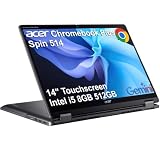
Acer Chromebook Plus Spin 514, 14" 2-in-1 Laptop, Intel i5-1334U, 8GB/512GB | $649.99 | Buy on Amazon |
- Disconnect connected accessories before attempting recovery. Google Chromebook recovery instructions
- If an on-screen restart or reset option is available, try the option shown and allow the device to complete it.
- If the loop continues, use the recovery steps below. Recovery erases local storage, so do not assume there is nothing to lose just because setup is incomplete.
The available official sources do not establish a known defect, a particular update as the cause, or how common this exact issue is. A recent user discussion uses the phrase “stuck rebooting/updating,” but that anecdotal description does not prove the cause or prevalence. User discussion
Recommended Free Tools
Recover the Chromebook from its recovery screen
Enter recovery mode
- Remove connected accessories.
- Hold Esc and Refresh, then press Power.
- Release Power when the device starts. When the recovery screen appears, release Esc and Refresh.
- Follow the recovery screen’s instructions. Exact screens and options can vary by device. Google Chromebook recovery instructions
Understand the data loss before continuing
ChromeOS recovery reinstalls the operating system and permanently erases local storage, including downloaded files. Back up files first if you can access them. Google Chromebook recovery instructions
#1 Best Overall
- THIN & DURABLE DESIGN - Boasting a thin and light design, the Acer Chromebook Plus 514 is designed to keep you productive and entertained from anywhere. It weighs only 3.09 lbs and meets MIL-STD 810H military standards for reliable performance in harsh conditions. With long battery life and fast charge technology, it lets you work, study, watch, and stay connected without interruptions. It is perfect for commuting, travel, or working on the go
- AI-POWERED CREATIVITY - The laptop has AI-powered Google and Adobe tools to turn inspiration into reality faster. Its Gemini AI simplifies organizing creative drafts and optimizing materials. The dedicated Quick Insert key creates high-resolution images and offers writing assistance for seamless creativity. Unlock Google AI Pro for 12 months with this Chromebook Plus purchase. Experience Gemini Advanced, NotebookLM, 5TB of cloud storage, and boost productivity with Gemini integrated into Gmail, Docs, and more
- POWERFUL PERFORMANCE - Powered by the 8-Core Intel Core i3-N355 Processor with Intel Graphics, it ensures smooth performance for everyday tasks. It features 8GB LPDDR5X RAM for fast, efficient multitasking and 512GB SSD, offering ample space for files, apps, media, and more, delivering fast storage access and reduced load times
- EXCELLENT VISUAL - Featuring a 14" WUXGA (1920x1200) IPS touchscreen with 300-nit brightness, this device delivers vibrant visuals and responsive touch functionality. It supports expanding the workspace with 3 external monitors via HDMI (max 4K@30Hz) or USB Type-C (max 4K@60Hz), without a docking station. Plus, a 1080p webcam with a privacy shutter to prevent unauthorized viewing meets daily video chat or conference needs
- RICH CONNECTIVITY OPTIONS - Equipped with 2x USB-C 3.2 Gen 1, 2x USB-A 3.2 Gen 1, HDMI 1.4, and a headphone/microphone combo jack. It features Wi-Fi 6E and Bluetooth 5.3 for blazing-fast wireless speeds and seamless device pairing, plus a white backlit keyboard that lets you work comfortably in any lighting
Choose internet or USB recovery if prompted
Newer Chromebooks may offer recovery over the internet. If that option is absent or you cannot use it, Google’s external recovery method requires a second working Chromebook or a Windows or Mac computer with Chrome and the Chromebook Recovery Utility. Google Chromebook recovery using a USB drive
Create recovery media on another computer
- On a working Chromebook or a Windows or Mac computer with Chrome, open the Chromebook Recovery Utility and follow its instructions. Google Chromebook recovery using a USB drive
- Use a USB flash drive with at least 8 GB of capacity. Creating recovery media erases the drive, so use one whose contents you are willing to lose.
- When the utility asks for the affected device’s model, select the model that matches the device. Do not guess from the name “Googlebook 14”; read the model information from the device or its packaging if available.
- Use the resulting media and follow the Chromebook’s recovery prompts.
If the USB drive is rejected
If recovery reports an unexpected error or says the media does not contain ChromeOS, Google recommends erasing the media and retrying or using another USB drive; some drives do not work well. If the issue persists, contact the manufacturer. Google Chromebook recovery errors Google guidance on contacting the manufacturer
Rank #2
- BUILT FOR EVERYDAY USE - Acer Chromebook Plus Spin 514 features x360 degree hinge, allows Flex 'Laptop' mode for everyday computing, 'Yoga' mode for sharing things, 'Flip' convertible mode for binge-watching, or 'Tablet' mode Spin for more intuitive interaction. With up to 10-hour battery life, it will last full-day use
- AI-POWERED CREATIVITY - Enhance your creative workflow with Google and Adobe AI-powered tools. Use Gemini AI to organize drafts, optimize materials, and boost productivity. Effortlessly create high-resolution images and get writing assistance with the Quick Insert key. Unlock Google AI Pro for 12 months with this Chromebook Plus purchase. Experience Gemini Advanced, NotebookLM, 5TB of cloud storage, and boost productivity with Gemini integrated into Gmail, Docs, and more
- POWERFUL PERFORMANCE - Powered by an Intel Core i5-1334U (up to 4.6GHz) Processor with 10-cores for superior efficiency and speed, 8GB DDR5 RAM for seamless multitasking, and a 512GB PCIe NVMe M.2 SSD for fast storage and reduced load times, ensuring smooth and responsive performance for all your tasks
- CRISP DISPLAY & PRIVACY - Features a FHD Facial Auto Exposure Camera with Privacy Shutter for crystal-clear video calls and enhanced security, while the 14" WUXGA (1920 x 1200) IPS LED-Backlit Touchscreen Display with Intel UHD graphics delivers crisp visuals, supported by the ability to connect 3 external monitors via HDMI and Type-C Ports at 4K (3840x2160) @60Hz (without docking station)
- VERSATILE CONNECTIVITY - Equipped with 2x USB Type-C, USB Type-A, HDMI 1.4 and an Audio combo jack for versatile connectivity. Includes Wi-Fi 6E and Bluetooth 5.2 for fast, reliable wireless performance. A backlit keyboard allows for easy typing in low-light environments
When to contact Acer
Contact Acer if you cannot reach recovery, cannot identify the correct model in the recovery utility, or recovery fails. Have the exact model identifier from the device or packaging ready; the available sources do not establish which model identifier “Googlebook 14” refers to or whether this device offers internet recovery. Acer Support
Acer’s older AC710 article describes a different update-related boot symptom and applies only to the AC710. Its suggested wait period is not evidence for how long this Googlebook 14 should take, so do not use it as a device-specific estimate. Acer AC710 article
Quick Recap
Product prices and availability are accurate as of the date/time indicated and are subject to change. Any price and availability information displayed on Amazon at the time of purchase will apply.

