
Free tools Windows power users keep installed
One-click scans. No signup required.
iTechGuides is reader-supported. When you buy through links on our site, we may earn an affiliate commission. As an Amazon Associate I earn from qualifying purchases. Learn more
When Windows 11 shows blank, generic, or incorrect icons on the desktop, Start menu, or taskbar—but the shortcuts still open normally—the icon cache may be stale or damaged. Rebuilding it removes the cached icon data so Windows Explorer can create fresh copies.
The safest documented method is to stop Windows Explorer, delete IconCache.db, and start Explorer again. If that does not help, Windows 11 may also have icon-cache databases in the Explorer cache folder.
Before rebuilding the icon cache
Confirm that the problem is actually an icon-cache problem:
Recommended Free Tools
- Blank or wrong application icons: rebuilding the cache is reasonable.
- Every desktop icon is missing: right-click the desktop, choose View, and make sure Show desktop icons is enabled.
- This PC, Recycle Bin, Network, or User’s Files is missing: open Settings > Personalization > Themes > Desktop icon settings, select the required icons, and choose OK.
- Image and video previews are missing: those are thumbnails, not ordinary icons. Use the thumbnail steps later in this article.
Save open work before continuing. Windows Explorer will be stopped temporarily, which removes the taskbar, desktop, and open File Explorer windows from view until Explorer is restarted. This does not sign you out or delete personal files.
#1 Best Overall

- A Very Popular Tool with Virtually Limitless Uses
- Terrific for Tooling Freshly Applied Sealants
- Tapered or Chisel End Tools
- Stick Handle Available
Method 1: Rebuild the cache using Task Manager
This follows Microsoft’s primary documented Windows client procedure.
- Press Ctrl + Shift + Esc to open Task Manager. If the compact view appears, select More details.
- On the Processes tab, find Windows Explorer.
- Right-click Windows Explorer and select End task. The desktop and taskbar will disappear.
- In Task Manager, select File > Run new task.
- Enter
cmd.exe, select Create this task with administrative privileges, and choose OK. - In Command Prompt, run these commands separately:
CD /d %userprofile%AppDataLocal
DEL IconCache.db /a- Return to Task Manager and select File > Run new task.
- Enter
explorer.exeand select OK.
Windows Explorer will reload and rebuild the icon cache as Windows needs the icons. Check the desktop, taskbar, Start menu, and any affected folders.
Method 2: Use Command Prompt
If you prefer a compact command sequence, open Windows Terminal (Admin) or Command Prompt (Admin). Then run:
taskkill /f /im explorer.exe
cd /d "%userprofile%AppDataLocal"
del /a /f /q "IconCache.db"
start explorer.exe
The first command forcibly closes Explorer, the second changes to the local application-data folder, and the third deletes the cache file. The final command starts Explorer again.
If the taskbar does not return after the commands finish, press Ctrl + Shift + Esc, select File > Run new task, type explorer.exe, and press Enter.
Rank #2
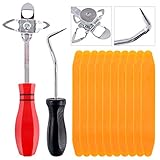
- 【One Convenient Tool Set】The great tool contains 3 kinds of essential tools, allowing you replace or install the window seals, gasket become easier. 1 piece cotter pin puller, 1 piece windshield installing Tool, 10 piece windshield stick setting tool, totally 12 piece. The perfect tool, saving your installation time.
- 【 Offset Windshield Installing Tool】Multifunctional design for various sizes,you could turn the screw too switch the size. Easy to operate: Step 1: adjust the suitable size you need, insert the head of the tool into the windshield lock strip Step 2: put the molding through the hole of tool. Step 3:Flattening tools and push it forward. Please press the insert to prevent displacement while pushing the tool.
- 【Windshield Stick Setting Tool】Made of ABS plastic , non-corrosive and non-conducting, durable and reusable,ergonomic design. Suitable for installing the rear window seals or gaskets without marring or otherwise damaging the rubber parts. Pretty great for detailing places, you also could use them to caulk or clean armor guard off windows.
- 【Cotter Pin Puller】Made of Stainless Steel, with a sharp and bent probe hook tip,the concave-convex handle, comfort to grip. Great windshield installation tool for removing O-rings, installing the windshield trim and pulling seals, rubber, windshield gaskets, glass and strips.
- 【Reliable After-sale Service:】We offer you reliable after-sales service. If you have any questions about our products or any problems with your packages, please feel free to contact us. We will reply you within 12 hours and we will try our best to solve the problems until you are satisfied.
Method 3: Clear the newer Explorer icon-cache databases
Some Windows 11 installations also use icon-cache databases in:
%LocalAppData%MicrosoftWindowsExplorerFor a stubborn problem, stop Explorer and remove the files matching iconcache_*.db:
The Tool Desk
Outbyte PC Repair FREERepair Windows errors before they cause bigger problemsFix Now →Outbyte Driver Updater FREEFix the driver behind crashes, sound loss and screen glitchesFind Drivers →taskkill /f /im explorer.exe
del /f /s /q "%LocalAppData%MicrosoftWindowsExplorericoncache_*.db"
start explorer.exeRestart the computer afterward if the icons remain unchanged. This is a useful fallback, but it should not be presented as a universal replacement for the primary %LocalAppData%IconCache.db procedure: Windows guidance refers to both cache locations.
Icon cache or thumbnail cache?
Application icons and image previews use different cache data. Rebuilding the icon cache will not normally fix missing or outdated previews for JPG, PNG, or video files.
For thumbnail problems, first check the setting:
- Open File Explorer.
- Select View > Options.
- Open the View tab.
- Clear Always show icons, never thumbnails.
- Select Apply, then OK.
You can also clear thumbnails with Disk Cleanup:
- Search for and open Disk Cleanup.
- Select the Windows system drive, normally
C:. - Choose OK.
- Check Thumbnails.
- Select OK and confirm the cleanup.
From an elevated Command Prompt, the Explorer thumbnail databases can instead be removed with:
Rank #3

- A Very Popular Tool with Virtually Limitless Uses
- Stick Handle Available
- Tapered on Both Ends
- Terrific for Tooling Freshly Applied Sealants
taskkill /f /im explorer.exe
del /f /s /q "%LocalAppData%MicrosoftWindowsExplorerthumbcache_*.db"
start explorer.exe
If rebuilding the cache does not work
Check the shortcut itself
If only one shortcut has a blank icon, right-click it, select Properties, open the Shortcut tab, and inspect Change Icon. A shortcut pointing to a deleted executable or invalid icon resource will not be repaired by clearing the cache. Recreate the shortcut or select a valid icon file.
What’s actually slowing this PC down?
Pick the symptom - the matching free tool is one click away.
Re-register ShellExperienceHost
For persistent blank icons across the shell, Microsoft’s troubleshooting flow includes re-registering ShellExperienceHost. Open Windows PowerShell (Admin) or an elevated Windows Terminal session and run:
Get-AppXPackage -AllUsers | Where-Object {$_.InstallLocation -like "*ShellExperienceHost*"} | Foreach {Add-AppxPackage -DisableDevelopmentMode -Register "$($_.InstallLocation)AppXManifest.xml"}Restart Windows after the command completes.
Inspect the shortcut handler only as a last resort
Microsoft also identifies a damaged shortcut IconHandler registry entry as a possible cause. The relevant location is:
HKEY_CLASSES_ROOTlnkfileshellexIconHandlerThe documented default example is {00021401-0000-0000-C000-000000000046}, with a corresponding CLSID entry under HKEY_CLASSES_ROOTCLSID. Registry editing can damage Windows if the wrong value is changed. Back up the registry first, and use this step only if the cache rebuild and shell re-registration have failed.
What not to rely on
- A full reboot is not required as the first step. Restarting
explorer.exeis enough to reload the Windows shell after the documented cache deletion. ie4uinit.exe -ClearIconCacheis not the current primary Microsoft procedure. It appears in community answers, but the current main troubleshooting instructions use Task Manager,IconCache.db, and Explorer restart.- Clearing icons does not fix thumbnails. Use
thumbcache_*.db, Disk Cleanup’s Thumbnails option, or the File Explorer thumbnail setting. - A cache rebuild cannot repair every blank icon. Broken shortcuts, invalid file associations, missing applications, ShellExperienceHost problems, and shortcut-handler corruption need different fixes.
FAQ
Will rebuilding the Windows 11 icon cache delete my files?
No. It deletes cached icon data only. Your applications, documents, shortcuts, and personal files remain in place. Windows Explorer recreates the cache as icons are displayed.
Why did my taskbar and desktop disappear during the fix?
The procedure stops Windows Explorer, which provides the desktop, taskbar, and File Explorer windows. Start it again from Task Manager with File > Run new task > explorer.exe.
Should I delete IconCache.db or iconcache_*.db?
Start with the primary documented file, %LocalAppData%IconCache.db. If the problem persists, stop Explorer and remove iconcache_*.db from %LocalAppData%MicrosoftWindowsExplorer. Windows 11 systems can use both cache locations.
Why are picture previews still missing after rebuilding the icon cache?
Picture and video previews use the thumbnail cache. In File Explorer, clear Always show icons, never thumbnails under View > Options > View, or remove the thumbnail cache with Disk Cleanup’s Thumbnails option.
The Bottom Line
For ordinary blank or incorrect Windows 11 application icons, stop Windows Explorer, delete %LocalAppData%IconCache.db, and run explorer.exe again. If that fails, clear the iconcache_*.db files in the Explorer cache folder, then investigate shortcuts, ShellExperienceHost, or the shortcut-handler registry entry rather than repeatedly deleting the same file.
PC Slower Than It Used to Be?
A free scan shows the junk files, broken settings and background clutter dragging Windows down - then fixes them in one click.Free scan · Windows 10 & 11Outdated Drivers Are Slowing You Down
One free scan finds every outdated or missing driver and matches the right update for your exact hardware.Free scan · exact hardware matchQuick Recap
Product prices and availability are accurate as of the date/time indicated and are subject to change. Any price and availability information displayed on Amazon at the time of purchase will apply.

