
Quick wins for a faster PC:
Fix the driver behind crashes, sound loss and screen glitchesFind Drivers →Repair Windows errors before they cause bigger problemsFix Now →iTechGuides is reader-supported. When you buy through links on our site, we may earn an affiliate commission. As an Amazon Associate I earn from qualifying purchases. Learn more
If you regularly reinstall Windows or Linux, the best answer is not another giant “essential apps” bundle. It is a short, job-based list: a firewall for unwanted connections, a mail client, a local AI workspace, a task planner, a phone bridge, peer-to-peer sync, a distinctive browser, and a second browser for resilience. Dibakar Ghosh’s roundup, published by How-To Geek and republished by Yahoo Tech on August 13, 2026, highlights eight free downloads that fit those jobs.
Install only the tools that solve a problem you actually have. The apps are not an objective ranking, and Ghosh’s first-person recommendations are not independent benchmark results. A few details also need a current check: Mailspring’s pricing and free-tier allowance, plus Zen Browser’s DRM support, can change.



Choose by job, not by the number eight
These apps cover different parts of a PC workflow, so installing all of them at once is unnecessary. Use the matrix to identify the smallest useful set before you download anything.
| App | Primary job | Platforms or companions noted in the source | Where work or data happens | Important limitation |
|---|---|---|---|---|
| Portmaster | Application firewall and network monitor | Desktop operating systems; check the current build for your system | On the computer, controlling application connections | Blocking the wrong connection can break an app or its updates |
| Mailspring | Unified desktop email | Desktop mail accounts; current client support should be checked | Mail is accessed through your accounts; tracking features involve service-specific processing | The source reports limited weekly read receipts on the free plan and a source-reported $8/month Pro price for unlimited use |
| LM Studio | Download and run language models locally | macOS, Windows, and Linux | Models and conversations can remain on the local machine | Capability and speed depend on the model and your hardware |
| Super Productivity | Tasks, time tracking, and focus | Windows, macOS, Linux, Android, iOS, and web | Local by default, with optional synchronization | You must choose and configure a sync method if you need cross-device continuity |
| KDE Connect | Phone-to-PC integration | Android, Windows, Linux desktop, and iOS routes are listed on its download page | Directly between paired devices on an accessible network | Pairing and network permissions are required for remote features |
| Syncthing | Peer-to-peer folder synchronization | Paired computers and other supported devices | Directly between the devices you authorize | Devices must be online and able to connect before changes propagate |
| Zen Browser | Firefox-based browsing with side panels and split view | Windows and Linux versions are discussed in the source | Browser profile data is handled through the browser’s own setup | The article reported a Windows DRM-streaming limitation; compatibility is volatile |
| Brave | Chromium-based backup browser | Desktop and mobile editions should be checked for your devices | Browser profile plus its independent sync system | Some sites can behave differently with built-in ad and tracker blocking |
1. Portmaster: see and control every app’s network access
Portmaster is the list’s defensive tool. Ghosh describes it as a free, open-source application firewall and network monitor that shows which servers applications contact and lets you block individual connections or an application’s internet access altogether.
#1 Best Overall
Why it is useful
Operating systems generally tell you when a program wants to make a connection, but they do not always make the destination or the reason obvious. A per-application view is useful when a newly installed utility starts contacting several domains, when you want to stop telemetry, or when a program should work entirely offline. It also gives you a way to investigate a connection before deciding whether to allow it.
A safe first setup
- Install the build intended for your operating system and let it create the required network service when prompted.
- Open the application list and sort or filter it so you can identify recently installed programs.
- When a connection appears, inspect the destination and the application that initiated it. Do not block a system service merely because its name is unfamiliar.
- Use a temporary block first if the interface provides one. Test the application’s normal functions, then make a permanent rule only when you understand the effect.
- Keep a note of rules you create. That makes troubleshooting easier after an application update.
Trade-offs
A firewall is only helpful when its decisions are informed. Blocking an update host can leave software on an old version; blocking a sign-in or license endpoint can make a legitimate application appear broken. Portmaster is therefore best treated as an observation tool first and a blocking tool second. Its open-source design may appeal to readers who want inspectable software, but the practical benefit is the visibility into connections rather than a promise that every unwanted request will be identified automatically.
2. Mailspring: a unified desktop inbox with optional tracking
Mailspring is the mail-focused recommendation. The roundup highlights a desktop client that can combine accounts in one inbox and includes read receipts and link tracking in its feature set. That is useful if you switch between several addresses or want a single search and compose workflow instead of multiple browser tabs.
Do these 3 things before closing this tab:
1Fix the driver behind crashes, sound loss and screen glitches2Clear out junk files and repair common Windows errors3Scan for outdated or missing drivers - takes under a minuteWhat to check before relying on it
The source article says the free plan limits read receipts each week and reports Mailspring Pro at $8 per month for unlimited use. That figure and allowance are source-reported details from the 2026 article, not a current-price verification. Check the live plan page in your region before subscribing, because pricing, quotas, and feature names can change.
Rank #2
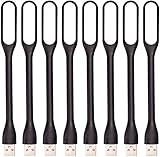
- 【Eye Care】6 pcs of energy-efficient LEDs, Soft light avoiding eye fatigue at night.
- 【Power Source】Powered by various USB devices, like laptop computer USB ports, power bank or phone chargers.
- 【Eco Friendly】lamps are made of environmental friendly silicone, plastic and metal; no harmful objects contained.
- 【Fashion Design】Flexible body, the lampshade is bendable and 360 degrees twisted and tilted, easy to adjust light direction.
- 【Portable】Slim and lightweight, easy to carry anywhere.
Setup checklist
- Install the desktop client and add one account at a time.
- Confirm that incoming and outgoing mail work before adding more accounts; this isolates authentication or provider-policy problems.
- Choose whether to display a combined inbox or separate account views. A combined view is convenient, while separate views reduce the chance of sending from the wrong address.
- Enable read receipts or link tracking only when the recipient and the message context justify it. Tracking can raise privacy expectations and may be blocked by the recipient’s mail system.
- Review notification settings so a high-volume account does not overwhelm alerts from the accounts you actually monitor.
Who should skip it
If you use one account, prefer a provider’s web interface, or do not need desktop search and account consolidation, an additional client may add maintenance without solving a problem. Also treat tracking as an optional convenience, not proof that a message was read: recipients and mail services can suppress or distort those signals.
3. LM Studio: run language models on your own computer
LM Studio is a desktop application for finding, downloading, and running language models locally. Its documented platforms are macOS, Windows, and Linux, and the source notes local document chat and API serving as part of the workflow. The appeal is straightforward: prompts and files can stay on a machine you control instead of being sent to a hosted assistant.
A practical local-model workflow
- Install the version for your operating system and open the model catalog.
- Choose a model that fits your available memory and storage. Start smaller rather than downloading the largest file you can find.
- Download the model, load it, and send a short test prompt. Watch memory use and response speed before importing a large document.
- For document chat, add a non-sensitive sample first and verify that retrieval works as expected.
- If you need to connect another local program, enable the documented API server and restrict access to the interfaces and devices you actually trust.
- Delete models you no longer use; model files can consume substantially more storage than the application itself.
Privacy is a property of the whole setup
Running inference locally can keep prompts and source documents on your computer, but it does not make every workflow automatically private. Downloads, update checks, extensions, operating-system telemetry, backups, and an API exposed to your network are separate considerations. Keep sensitive files out of shared folders, protect the computer account, and avoid exposing a local API beyond the devices that need it.
Capability and hardware limits
Local models are not universally equivalent to hosted assistants. Quality depends on the model, its quantization, the prompt, and the task. Larger or more capable models can require memory, graphics hardware, and storage beyond a typical consumer PC; a model that technically loads may still respond too slowly for regular use. Treat LM Studio as a way to choose a privacy and offline trade-off, not as a guarantee of hosted-service performance.
4. Super Productivity: tasks, time tracking, and focus in one place
Super Productivity combines task planning with time tracking and focus tools. Its official site lists Windows, macOS, Linux, Android, iOS, and web versions, describes the app as MIT-licensed and free, and says tasks remain local by default with optional synchronization.
Build a useful system without over-configuring it
- Create a small set of projects that match real areas of responsibility, such as work, study, and personal administration.
- Add the next physical action rather than a vague goal. “Draft the opening paragraph” is more actionable than “finish the project.”
- Set a realistic estimate, start the focus timer, and record interruptions instead of pretending the session was uninterrupted.
- Review completed time against estimates at the end of a week. The value is better planning, not a perfect productivity score.
- Only after the local workflow feels stable, decide whether optional synchronization is worth configuring across devices.
Local-first does not mean automatically backed up
Keeping tasks local reduces dependence on an account or service, but it also places responsibility for backups on you. Export or back up the app’s data using a method you can restore, and test that restore before trusting it with irreplaceable planning history. If you enable synchronization, check which data is transferred and which devices receive it.
5. KDE Connect: turn a phone and PC into a paired workspace
KDE Connect links a phone with a computer. The roundup calls out file transfer, clipboard sharing, notification mirroring, trackpad and keyboard controls, and remote commands. Its download page lists Android, Windows, Linux desktop, and iOS routes, giving mixed-device households several ways to build a pair.
Pairing steps
- Install the companion application on the phone and the desktop application on the computer.
- Put both devices on a network where they can discover one another, then send a pairing request from one device.
- Accept the request on the other device and grant only the permissions you intend to use.
- Enable features individually. Start with file transfer and clipboard sharing; add notification access, remote input, or commands only when needed.
- Test a small file and a short clipboard item before relying on the connection during a presentation or travel day.
Security and reliability considerations
Pairing is a trust decision. A device that can receive remote commands or input deserves the same care as an account with elevated access. Remove old pairings, avoid accepting unexpected requests, and review permissions after reinstalling either side. Discovery and transfers can fail when guest Wi-Fi isolates clients, a firewall blocks the application, or the phone suspends background activity; moving both devices to a trusted network and allowing the app through the local firewall usually addresses the first two causes.
Rank #4
6. Syncthing: synchronize folders without putting them in a central cloud
Syncthing synchronizes folders directly between devices you pair. The important distinction is operational: it is peer-to-peer synchronization, not cloud storage. If a laptop is offline or cannot reach the other device, a change waits; it does not propagate until the devices are online and able to connect.
Start with a test folder
- Install Syncthing on each device and give each device a recognizable name.
- Exchange device identities and approve the pairing on both sides.
- Share a new test folder rather than your entire home directory.
- Create a small file on one device, wait for the status to show completion, and confirm the file on the other device.
- Only then add working folders, selecting the exact path on each device.
Prevent the common data mistakes
- Do not treat it as a backup. Deletions and corrupted files can synchronize too. Keep a separate versioned or offline backup for important data.
- Plan for conflicts. Editing the same file on two offline devices can create conflict copies. Decide which copy is authoritative before merging.
- Check permissions and paths. A folder can appear shared while the service account cannot read or write it.
- Remember the connectivity requirement. A desktop that is asleep, powered off, or isolated from the network cannot receive changes until it reconnects.
7. Zen Browser: a Firefox-based layout for side-by-side work
Zen Browser is the list’s alternative browsing experience. Ghosh describes it as Firefox-based, with side-panel controls and split view for keeping related pages visible together. That layout can suit research, documentation, and comparison work where repeatedly switching tabs is the main friction.
Use it as a deliberate second profile
- Install the build for your operating system and create a separate browser profile if you want to keep work accounts apart from personal browsing.
- Arrange the side panel and split view around a real task, such as a reference page beside an editor.
- Import only the bookmarks and passwords you need. A smaller profile makes it easier to diagnose an extension or sign-in problem.
- Test your essential sites before moving your entire workflow, including video services, financial portals, and work systems.
DRM compatibility requires a current check
The source article reported that the Windows version did not support DRM-protected streaming services, naming Netflix and Disney+, while Linux did. Browser DRM behavior is a volatile compatibility detail and can change with browser releases, operating-system builds, and service policies. Check the current Zen release notes and each service before treating it as your only browser. Keeping a conventional fallback avoids discovering the limitation during a trip or presentation.
The Tool Desk
Outbyte Driver Updater FREEScan for outdated or missing drivers - takes under a minuteDriver Scan →Outbyte PC Repair FREERepair Windows errors before they cause bigger problemsFix Now →8. Brave: a Chromium backup with built-in blocking
Brave is the fallback browser in the roundup. It is Chromium-based, includes built-in ad and tracker blocking, and uses an independent synchronization system rather than relying on the sync account of another browser. That combination makes it useful when you want a second engine-independent profile or when a site behaves poorly in your primary browser.
Best Value

- Adjustable Shelves & Dividers: Designed with removable metal dividers, this rolling cart adapts to your needs—whether you're organizing books, laptops, tablets, or documents. Use it as a flat surface for larger items or keep the dividers in place to prevent slipping. A versatile rolling binder storage solution ideal for home, school, or office use.
- Spacious 3-Tier Storage: With 3 open tiers, this book cart offers ample storage for binders, notebooks, folders, and even tablets or sketchpads. Perfect for organizing cluttered desks or classrooms, it functions effortlessly as a storage cart or art supply storage organizer to keep your space tidy and productive.
- Smooth-Rolling & Lockable Wheels: Equipped with 4 rolling wheels, including 2 lockable casters, this rolling file cart glides smoothly on any surface while providing stability when parked. Whether used as a utility cart or book carts with wheels, it’s easy to move around your workspace or classroom without lifting a finger.
- Durable Metal & Wood Frame: Built with a strong metal frame and high-quality wood shelves, this rolling cart offers both industrial charm and reliable performance. It's not only a stylish piece for modern workspaces but also a sturdy rolling carts with wheels option that holds everything from office supplies to books.
- Perfect for Home or Office: Compact yet powerful, this rolling cart blends seamlessly into any office, studio, or home workspace. Use it as a rolling binder storage, a book cart, or a rolling file cart. Whether you're organizing client folders or storing art supplies, it's the flexible storage solution you’ve been looking for.
Set it up without creating a cluttered duplicate
- Install Brave and decide whether it is a backup, a privacy-oriented profile, or your main browser.
- Import a limited bookmark set first. Importing every extension and setting can reproduce the same problems you were trying to escape.
- Visit the sites you use most and observe whether blocking changes sign-in, shopping carts, media playback, or embedded widgets.
- Allow a site-specific exception only when you understand what is being unblocked and why the site needs it.
- If you use the independent sync system, add devices deliberately and store any recovery information in a secure place.
Expect some site-specific friction
Ad and tracker blocking can improve page speed and reduce unwanted requests, but it can also affect scripts that a site relies on. A broken layout does not necessarily mean the browser is defective; test the page with a narrowly scoped exception, then remove the exception if it does not solve the problem. Keeping Brave as a second browser also gives you a practical way to determine whether a failure is site-specific or tied to one browser profile.
How to assemble a smaller, sensible install set
If privacy and control come first
Start with Portmaster for connection visibility and LM Studio if you have a local-model use case. Add Syncthing only when you understand that synchronization is not backup and that devices must connect. These three tools give control over network access, AI processing location, and file movement, but each also creates configuration responsibilities.
If your work spans a phone and several computers
KDE Connect handles interactive phone-to-PC features, while Super Productivity provides a task system across the platforms listed by its publisher. Use Syncthing for folders that genuinely need device-to-device replication; do not use it simply because files exist on more than one machine.
Recommended Free Tools
If email and browsing are the daily bottlenecks
Mailspring is the focused choice for several inboxes and desktop mail workflows. Zen is the layout experiment for side panels and split view, while Brave is the Chromium-based fallback. Test both browsers against your essential sites before committing, and check Mailspring’s live plan details if read receipts matter to you.
A clean installation order after a fresh OS install
- Establish recovery first. Confirm that you have working backups, account recovery methods, and a way to undo a network or browser configuration.
- Install the least invasive tools. Set up your mail client, task planner, and secondary browser before adding network rules or remote-control permissions.
- Pair devices deliberately. Configure KDE Connect and Syncthing with test files and limited permissions, then expand only after successful verification.
- Measure local AI expectations. Download a modest LM Studio model, test speed and quality, and check storage before collecting more models.
- Harden gradually. Observe traffic in Portmaster before enforcing blocks. Record each rule so you can reverse it after an update.
- Document the final setup. Keep a short inventory of installed apps, paired devices, sync folders, browser exceptions, and paid features. That list makes the next PC rebuild faster and safer.
What “free” means in this list
Most recommendations are presented as free software downloads, but free does not mean identical operating costs or feature sets. Mailspring is the clearest example: the article describes a limited free allowance for read receipts and reports a paid Pro tier. Super Productivity is described as MIT-licensed and free, with optional synchronization. Local AI may avoid a hosted subscription while still consuming storage, memory, and electricity. Syncthing and KDE Connect avoid a central service for their core device-to-device jobs, but you still supply the computers, network, and backups.
There is no hardware purchase implied by this roundup. A computer capable of running these applications is a prerequisite, not a recommendation to buy a particular component. For LM Studio especially, use the hardware you already have as the constraint that determines model size and speed.
Bottom line
These eight apps are best understood as a menu of targeted fixes, not a package deal. Portmaster adds network visibility; Mailspring consolidates mail; LM Studio enables local model experiments; Super Productivity organizes work; KDE Connect bridges phone and PC; Syncthing moves folders directly between paired devices; Zen changes the browser layout; and Brave supplies a Chromium-based fallback. Pick the few that match your current friction, verify volatile compatibility and pricing details, and test each new permission or sync relationship with non-critical data first.
Quick Recap
Product prices and availability are accurate as of the date/time indicated and are subject to change. Any price and availability information displayed on Amazon at the time of purchase will apply.

