
Do these 3 things before closing this tab:
1Scan for outdated or missing drivers - takes under a minute2Repair Windows errors before they cause bigger problems3Fix the driver behind crashes, sound loss and screen glitchesiTechGuides is reader-supported. When you buy through links on our site, we may earn an affiliate commission. As an Amazon Associate I earn from qualifying purchases. Learn more
OBS Studio is the best actually free screen recorder for most advanced users in 2026. It is free, open-source software for Windows, macOS, and Linux with support for multi-source recording, detailed audio control, presentations, gameplay, and streaming. For simpler needs, ShareX is the strongest Windows utility, Xbox Game Bar is the fastest way to capture a game or app, Snipping Tool is the easiest Windows 11 region recorder, and QuickTime Player/Screenshot is the simplest built-in option on Mac.
“Actually free” matters here. The five recommendations let you complete a useful local recording task without entering a paid trial or buying an upgrade. They do not all provide unlimited cloud storage, advanced editing, collaboration, or live-streaming features. Loom is worth considering for quick online sharing, but its free Starter plan has meaningful limits: up to 25 videos per person and five minutes per screen recording.
What counts as actually free?
This list uses a practical definition: you should be able to record something useful without entering payment details, starting a paid trial, or upgrading to remove a basic usage restriction.
The Tool Desk
Outbyte PC Repair FREERepair Windows errors before they cause bigger problemsFix Now →Outbyte Driver Updater FREEFix the driver behind crashes, sound loss and screen glitchesFind Drivers →That includes free and open-source applications as well as tools already included with Windows or macOS. It does not mean every tool is unrestricted in every respect. A built-in recorder may have fewer production controls, while an open-source application may require more setup. A cloud service can be free to start but still impose limits on recording length, quantity, quality, storage, or sharing.
Popular on Amazon

- Auto-Light Balance: RightLight boosts brightness by up to 50%, reducing shadows so you look your best—compared to previous-generation Logitech webcams (1)
- Easy Plug-And-Play: The Brio 101 Logitech camera works with most video calling platforms, including Microsoft Teams, Zoom and Google Meet—no hassle; the computer camera with microphone for desktop just works
- Built-In Mic: The webcam with microphone lets others hear you clearly during video calls
- Privacy with a Slide: The integrated pc webcam cover makes it easy to get total, reliable privacy when you're not on a video call
- Full Clarity: Full HD 1080p webcam Video Clarity with microphone to look clearer in video calls
The rankings below are editorial recommendations based on official feature, platform, licensing, and pricing documentation—not independent lab testing. No claim is made here about comparative CPU usage, frame-rate impact, export speed, file size, reliability, or recording quality across different computers.
Quick comparison
| Recorder | Platform | Best for | Workflow | Main limitation |
|---|---|---|---|---|
| OBS Studio | Windows 10/11, macOS 12 or newer, Linux | Advanced recording, streaming, gameplay, tutorials, and multi-source layouts | Primarily local recording, with streaming features | More setup and a steeper learning curve |
| ShareX | Windows | Fast captures, GIFs, annotations, OCR, automation, and optional sharing | Local capture with optional upload workflows | Windows-focused; recording setup can require configuration |
| Xbox Game Bar | Windows 10/11 | Quick game and app clips | Built into Windows; saves MP4 clips locally | Not a full desktop-production or multi-source suite |
| Snipping Tool | Compatible Windows 11 installations | Short recordings of a selected screen region | Built into Windows 11 | Basic recording controls and Windows 11 availability |
| QuickTime Player/Screenshot | Mac | Simple full-screen or selected-area recordings | Built into macOS; local save options | Not an advanced editor, mixer, or streaming suite |
1. OBS Studio: best overall for advanced recording and streaming
Choose OBS Studio if you want control over what is recorded and how it is presented. It is free and open source, works on Windows 10 and 11, macOS 12 or newer, and Linux, and is built for both recording and live streaming.
OBS works around scenes and sources. A scene can combine a display or window capture with a webcam, microphone, images, text, a browser window, or a capture card. You can create multiple scenes, switch between them with transitions, and adjust audio through its mixer. Per-source filters and VST plug-in support provide additional control for users who need more than a one-click recorder.
Best uses
- Software tutorials with a webcam and presentation layout
- Gameplay recording and live streaming
- Presentations that need camera, slides, and screen content together
- Multi-camera or capture-card workflows
- Recordings requiring separate audio sources and detailed mixing
Trade-offs
OBS is not the best choice merely because it has the most features. Those features also mean more decisions: which source to add, what audio to capture, which scene to use, and where to save the output. A first-time user may need to configure the layout and make a test recording before producing a polished video.
Do not assume OBS will create the smallest file or impose the least performance impact on every computer. Those results depend on the selected resolution, frame rate, encoder, sources, and hardware.
2. ShareX: best lightweight Windows tool for capture, GIFs, and sharing
ShareX is the best fit for Windows users who want a capture utility rather than a traditional video-production suite. It is free and open source, has no advertisements, requires no account for its core use, and combines screen recording with screenshots, GIF recording, annotations, OCR, workflows, and optional uploads.
It can capture a full screen, a region, an active window, a monitor, or a scrolling page. That makes it especially useful for bug reports, support instructions, short demonstrations, and annotated screenshots that may be more effective than a long video.
Also popular on Amazon

- 【Full HD 1080P Webcam】Powered by a 1080p FHD two-MP CMOS, the NexiGo N60 Webcam produces exceptionally sharp and clear videos at resolutions up to 1920 x 1080 with 30fps. The 3.6mm glass lens provides a crisp image at fixed distances and is optimized between 19.6 inches to 13 feet, making it ideal for almost any indoor use.
- 【Wide Compatibility】Works with USB 2.0/3.0, no additional drivers required. Ready to use in approximately one minute or less on any compatible device. Compatible with Mac OS X 10.7 and higher / Windows 7, 8, 10 & 11 / Android 4.0 or higher / Linux 2.6.24 / Chrome OS 29.0.1547 / Ubuntu Version 10.04 or above. Not compatible with XBOX/PS4/PS5.
- 【Built-in Noise-Cancelling Microphone】The built-in noise-canceling microphone reduces ambient noise to enhance the sound quality of your video. Great for Zoom / Facetime / Video Calling / OBS / Twitch / Facebook / YouTube / Conferencing / Gaming / Streaming / Recording / Online School.
- 【USB Webcam with Privacy Protection Cover】The privacy cover blocks the lens when the webcam is not in use. It's perfect to help provide security and peace of mind to anyone, from individuals to large companies. 【Note:】Please contact our support for firmware update if you have noticed any audio delays.
- 【Wide Compatibility】Works with USB 2.0/3.0, no additional drivers required. Ready to use in approximately one minute or less on any compatible device. Compatible with Mac OS X 10.7 and higher / Windows 7, 10 & 11, Pro / Android 4.0 or higher / Linux 2.6.24 / Chrome OS 29.0.1547 / Ubuntu Version 10.04 or above. Not compatible with XBOX/PS4/PS5.
Best uses
- Short region recordings and animated GIFs
- Annotated bug reports and technical support evidence
- Automated capture-and-process workflows
- OCR and scrolling-page captures
- Users who want optional file-sharing tools alongside local capture
Trade-offs
ShareX has a broad interface and many workflow options, so it can feel less approachable than a single-purpose recorder. Its official guide documents configuring FFmpeg, audio sources, GIF recording, and the location of completed recordings. Depending on the task and configuration, screen recording may therefore require more preparation than pressing a built-in Windows shortcut.
ShareX emphasizes privacy and no account requirement for its core application, but optional upload and sharing features mean you should check the destination before sending a recording. A local capture tool is not automatically a “never uploads” tool.
3. Xbox Game Bar: best for quick Windows game and app clips
Xbox Game Bar is the fastest built-in Windows choice when you need a clip from a game or app. It is available on Windows 10 and Windows 11 and avoids installing a separate recorder for straightforward tasks.
After enabling Game Bar, press Windows+Alt+R to start or stop recording. Press Windows+Alt+M to toggle the microphone. Recordings are saved as MP4 files in VideosCaptures. System-audio capture can be enabled through Game Bar’s Capturing settings.
Free tools Windows power users keep installed
One-click scans. No signup required.
Best uses
- Gameplay highlights
- A quick demonstration of an app
- A troubleshooting clip showing a problem inside a program
- Users who want a keyboard shortcut instead of a configurable production workspace
Trade-offs
Game Bar is designed around recording a game or app clip. It should not be treated as equivalent to OBS for recording a complex desktop layout, combining multiple sources, routing advanced audio, or streaming with scenes and transitions. Do not assume it records the entire desktop in every configuration.
4. Snipping Tool: best simple Windows 11 region recorder
Snipping Tool is the simplest choice when you need a short video of a particular area of a Windows 11 screen. It is an inbox Windows 11 tool, so there is no separate recorder to install for a compatible, up-to-date installation.
Open Snipping Tool, switch to the recording option, select and refine the portion of the screen to capture, and start recording. You can preview the result, pause the recording, and share it afterward. The region-first workflow is useful when the viewer only needs to see one application panel, dialog box, or part of a webpage.
Also popular on Amazon
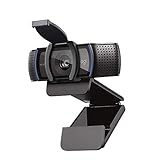
- Make a strong impression in your video conference calls with Logitech webcam with microphone that features a diagonal, fixed 78° field of view to perfectly frame you and your space—plus full HD at 1080p/30fps or 720p/30fps
- Two microphones on this computer camera for desktop capture more realistic sound from a broader range of angles—so your voice comes through sounding natural and clear in conference calls
- Easily create, record, and customize settings with our Capture app. A suite of features on this Logitech web cam lets you fully edit and customize your stream
- Logitech camera for computer has a full HD five-element glass lens and autofocus to capture razor-sharp, clear images in consistent high definition during conference calls. A convenient cover on this 1080p webcam protects the lens—and your privacy
- Logitech RightLight 2 technology in this live streaming camera adjusts to your lighting conditions, producing bright, contrasted images, even if you’re in a dim setting
Best uses
- Short instructional clips
- Demonstrating a particular screen region
- Attaching visual evidence to a support ticket
- Recording without learning a third-party interface
Trade-offs
Snipping Tool is a basic recorder, not a replacement for a production suite. It is also not a universal Windows-release feature: Microsoft’s documented screen-recording workflow specifies Windows 11, and exact behavior can depend on the installed and updated Snipping Tool package. If the recording option is missing, update Windows and the app before concluding that the feature is unavailable.
5. QuickTime Player/Screenshot: best straightforward Mac recorder
On a Mac, use the built-in QuickTime Player/Screenshot workflow when you need a simple local recording of the full screen or a selected area. It avoids installing third-party software and is suitable for a quick demonstration, presentation, or support clip.
In QuickTime Player, choose File > New Screen Recording. macOS opens Screenshot’s recording controls. Before starting, choose options such as the save location and whether to include the pointer or pointer clicks. Start the recording, then stop it from the menu bar.
Best uses
- Basic Mac tutorials
- Recording a selected area of the screen
- Simple presentations and support clips
- Users who want to avoid third-party software
Trade-offs
This workflow is intentionally simple. Apple does not position it as a complete video editor, streaming suite, or advanced audio-production environment. If you need scenes, multiple sources, a webcam layout, detailed audio routing, or live streaming, OBS is the more capable free option.
What about Loom?
Loom is a useful honorable mention, but it does not meet the same “unrestricted free recorder” standard as the five recommendations above. Its $0 Starter plan includes screen-and-camera recording, system audio, sharing, and collaboration features, but the official pricing information lists a maximum of 25 videos per person, a five-minute limit per screen recording, and video quality up to 720p. Loom also states that recording beyond the 25-video limit requires an upgrade.
What’s actually slowing this PC down?
Pick the symptom - the matching free tool is one click away.
That makes Loom attractive for asynchronous feedback, quick explanations, and shareable links. It is a weaker choice if you want to record long lessons, many clips, or an ongoing local archive without meaningful usage caps.
Which free screen recorder should you choose?
- For Windows 10 or 11 and advanced recording or streaming: choose OBS Studio.
- For Windows captures, GIFs, annotations, OCR, and automation: choose ShareX.
- For the fastest Windows game or app clip: choose Xbox Game Bar.
- For a selected region on Windows 11: choose Snipping Tool.
- For a basic recording on Mac: choose QuickTime Player/Screenshot.
- For cloud sharing and asynchronous comments: consider Loom, but plan around its free-plan limits.
- For Linux: OBS Studio is the recommendation in this list; the built-in Windows tools and QuickTime workflow are not cross-platform alternatives.
Before you record: a five-minute checklist
- Choose the capture area. Decide whether viewers need the entire display, one window, or a smaller region. Capturing only what matters makes instructions easier to follow and reduces the chance of exposing unrelated notifications or private information.
- Check the microphone. Confirm the intended input device and speak briefly to verify that the level moves. If you are recording system audio, check that separately; microphone audio and computer audio are different sources.
- Close or silence distractions. Turn off notifications, hide private tabs, and close unrelated applications. This is especially important for full-screen recordings.
- Confirm storage. Screen recordings can create large local files, particularly at higher resolutions or frame rates. Check the destination folder and available disk space before a long session.
- Make a short test clip. Record a few seconds, play it back, and verify the picture, microphone, system audio, cursor behavior, and file location. A test is faster than discovering after a long presentation that the wrong window or audio source was selected.
After recording: sharing and continuous streaming
The five primary recommendations are mainly local recording tools, although some include sharing or streaming workflows. If you need comments and asynchronous review, a cloud video service may be more convenient than sending large files. That convenience usually comes with account, storage, quality, or usage considerations, so it is a separate decision from choosing a free recorder.
Also popular on Amazon

- 【Crystal-Clear 1080P HD Video】This 1080p webcam for PC delivers sharp, true Full HD video at 30 frames per second, bringing your digital world to life with vibrant clarity. Enjoy smooth, real-time streaming with enhanced high dynamic range (HDR) that keeps your face clearly visible even in low light or backlit conditions.
- 【Built-In Noise-Canceling Microphone】This computer camera with microphone features dual noise-reducing digital mics and an advanced audio processor, capturing rich stereo sound while filtering background noise. It ensures clear conversations during video calls, even in busy environments.
- 【Privacy Shutter for Added Security】This secure USB webcam includes a built-in privacy cover, letting you physically block the lens with a simple slide. Protect your visibility and keep the lens dust-free—no drivers needed, just plug into USB 2.0 and start using it immediately.
- 【Flexible Mount & Auto Light Correction】Designed for your computer or laptop, this webcam comes with an adjustable clip for monitors or standalone use. It offers automatic light correction and fixed focus for sharp, well-balanced images in any lighting.
- 【Wide Device & Platform Compatibility】This versatile webcam for laptop and desktop use is compatible with Windows, Mac, Linux, and Android systems. Supports Skype, Zoom, Twitch, YouTube, and more—featuring a 360° rotating head for easy adjustment. Simply plug and play.
If your goal is to stream a recorded video continuously rather than create a new recording, StreamNeo is a separate type of service. Its stated function is to loop recorded video as a continuous YouTube live stream from the cloud with automatic recovery. It does not replace OBS, ShareX, Game Bar, Snipping Tool, or QuickTime: first create the recording, then decide whether a continuous live broadcast is useful. Availability of an affiliate or partner arrangement was not verified for this article.
Turn a Recorded Video Into a Continuous YouTube Live Stream
StreamNeo is designed for the next step after recording: upload a prerecorded video, paste a YouTube stream key, and run it as a continuous YouTube live stream from the cloud.
Because the stream runs in the cloud, your PC can stay off instead of running an encoder continuously. That makes the workflow useful when you want to keep a channel live without leaving your recording computer on.
StreamNeo checks stream health every 30 seconds and automatically restarts dropped streams. For a low-risk trial, the 24-hour 720p/30fps trial is free and does not require a card at signup.
Common problems and sensible first fixes
The recorder cannot save the file
Check the selected save location, available disk space, folder permissions, and whether another application is locking the destination. Try a short recording to a local folder with a simple path. Avoid troubleshooting by immediately installing optimization software; first identify whether the problem is storage, permissions, the application, or the operating system.
The video has no microphone audio
Confirm that the correct microphone is selected and that the application has permission to access it. Check the input level before recording and play back a test clip. In OBS, inspect the relevant audio source and mixer; in Game Bar, verify the microphone shortcut and capture settings.
PC Slower Than It Used to Be?
A free scan shows the junk files, broken settings and background clutter dragging Windows down - then fixes them in one click.Free scan · Windows 10 & 11Crashes, No Sound, or Screen Glitches?
Random freezes, missing sound and display glitches usually trace back to one bad driver. Find and replace yours safely.Free scan · under a minuteSystem audio is missing
System audio is separate from microphone audio. Review the recorder’s audio settings, confirm that the correct output device is active, and make a short test. Game Bar’s system-audio behavior is controlled through its Capturing settings.
Also popular on Amazon
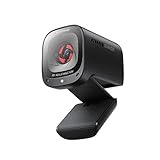
- 2K Ultra-Clear Resolution: Enjoy sharp, detailed video with this 2K resolution webcam for professional-grade conferences, enhancing your PC setup.
- Advanced Audio Clarity with AI Noise Cancellation: This webcam features dual mics to ensure voices are crystal clear, even in noisy environments, making it ideal for virtual meetings.
- Superior Low-Light Performance: This webcam captures crisp images in dim settings without extra lighting, perfect for any home office or late-night streaming.
- Customizable Viewing Angles: Choose from 65°, 78°, or 95° via software to frame your perfect shot during video calls with this versatile webcam for PC.
- Privacy When You Need It: An integrated cover slides easily over the lens of this webcam for security and peace of mind between calls.
The recording is too large
Shorten unnecessary captures, record only the required area, and review the application’s resolution and frame-rate settings where those controls are available. Do not expect one universal setting to produce the same file size on every computer.
The computer struggles while recording
Close unnecessary applications, reduce the capture area or recording settings where appropriate, and test again. OBS gives you more control but also more configuration choices; a built-in recorder may be preferable for a short, simple clip. Performance varies with the computer, sources, resolution, frame rate, and encoder, so a local test is more reliable than a generic promise about resource usage.
How the ranking was made
This is a use-case ranking, not a controlled performance test. OBS ranks first because it combines the widest platform coverage in this group with the broadest production and streaming capabilities. ShareX follows for Windows power users who value capture types, GIFs, annotations, OCR, workflows, and optional sharing. Game Bar and Snipping Tool rank higher for simplicity than for production depth, while QuickTime/Screenshot is the most direct built-in Mac workflow.
Recommended Free Tools
All five can be useful without purchasing an upgrade, but “free” does not erase trade-offs. Choose the tool that matches the recording you actually need rather than automatically choosing the one with the longest feature list.
Frequently Asked Questions
What is the best completely free screen recorder in 2026?
OBS Studio is the best overall choice if you need advanced recording, multiple sources, audio control, or streaming. For a quick Windows app or game clip, Xbox Game Bar is simpler; for a basic Mac recording, use QuickTime Player/Screenshot.
Is Loom completely free?
Loom has a $0 Starter plan, but it is limited. The documented free plan allows up to 25 videos per person, five minutes per screen recording, and up to 720p quality. It is free to start, not unlimited.
Which free screen recorder works on Linux?
OBS Studio is the Linux-compatible recommendation in this list. Xbox Game Bar and Snipping Tool are Windows tools, while QuickTime Player/Screenshot is the built-in Mac workflow.
Quick wins for a faster PC:
Clear out junk files and repair common Windows errorsFree Scan →Scan for outdated or missing drivers - takes under a minuteDriver Scan →Repair Windows errors before they cause bigger problemsFix Now →Can I record my entire desktop with Xbox Game Bar?
Do not assume so in every configuration. Microsoft’s documented workflow centers on recording a game or app clip. Use OBS if you need a dependable multi-source or broader desktop-production workflow.
The Bottom Line
Bottom line: Install OBS Studio for the most capable genuinely free recorder. Choose ShareX for a Windows capture-and-automation toolkit, Game Bar for a fast app or game clip, Snipping Tool for a small Windows 11 region, or QuickTime Player/Screenshot for a straightforward Mac recording. Loom is convenient for sharing, but its free plan is capped rather than unlimited.

