
Yes, you can often overclock a desktop RTX 2060 with MSI Afterburner, but there is no setting that is safe or optimal for every card. Board design, factory tuning, cooling, power limits and individual silicon all affect the result. Use small changes, test core and memory separately, and keep the profile only if it is stable in the games you play and measurably faster than stock. Laptop RTX 2060 settings are not interchangeable with desktop settings.
Identify your RTX 2060 before changing settings
Check the card’s exact model in its manufacturer’s software or product listing. Confirm whether it is a desktop RTX 2060 or laptop GPU, and whether it is the standard RTX 2060 or RTX 2060 Super. Also note the board partner, cooler type, factory boost clock and the power-limit range Afterburner exposes. Do not use a Super model’s settings for a standard 2060.
Even desktop RTX 2060 cards differ. MSI lists its RTX 2060 Gaming 6G at a 1,680 MHz boost clock and 160 W power consumption, while the Gaming Z 6G is listed at 1,830 MHz and 190 W. These are examples of model variation, not universal RTX 2060 specifications; see the Gaming 6G specifications and Gaming Z 6G specifications. NVIDIA’s reference RTX 2060 specification listed a 1.68 GHz boost clock and 14 Gbps GDDR6 memory; partner cards and actual sustained clocks can differ. (NVIDIA’s RTX 2060 partner-card overview.)
A factory-overclocked card may have less frequency headroom left, though a stronger cooler or power limit can change what it sustains. The published boost clock is not a promise of a fixed clock in every game: NVIDIA GPU Boost adjusts operation according to conditions such as temperature, power and voltage.
#1 Best Overall

- Chipset: NVIDIA GeForce RTX 2060 Super
- Boost Clock: 1665 MHz
- Video Memory: 8GB GDDR6
- Memory Interface: 256-bit
- Output: DisplayPort x 3 (V1. 4)/ HDMI 2. 0B x 1
Decide whether an overclock is worth it
An overclock is useful only if it improves the performance you care about without unacceptable heat, noise or power use. A game limited by the CPU may show little or no FPS improvement even when the GPU clock rises. Compare actual frame rates and sustained clocks, not just the Afterburner offset.
If your card is already hot, noisy or power-limited, improve cooling or consider an undervolt before pursuing a larger overclock. On a compact desktop or laptop, lower power and steadier boost may matter more than the highest short-lived clock.
Prepare the tools and a stock baseline
Install updated NVIDIA graphics drivers and MSI Afterburner from MSI’s official Afterburner page or Guru3D. MSI warns against downloading it from unauthenticated sites because fake installers may bundle unwanted or malicious software. RivaTuner Statistics Server, commonly installed with Afterburner, provides an optional in-game overlay. A benchmark and at least one demanding game with a repeatable scene are also useful.
Rank #2

- Memory Speed:14 Gbps.Digital Max Resolution:7680x4320
- Chipset: NVIDIA GeForce RTX 2060
- Video Memory: 6GB GDDR6
- Memory Interface: 192-bit
- Output: DisplayPort x 3 (v1.4a) / HDMI 2.0b x 1
- Open Afterburner and leave the controls at their default values. Do not apply a profile automatically at startup.
- Run a repeatable game benchmark or the same demanding scene for several minutes under consistent settings.
- Record average FPS and, if available, one-percent-low FPS, GPU temperature, GPU usage, sustained core clock, memory clock, fan speed and GPU power or power-limit utilization.
- Repeat the same test after each meaningful adjustment. A score or FPS change is only useful when the test conditions are comparable.
MSI recommends recording benchmark performance and monitoring clock, memory frequency, voltage and temperature before comparing a tuning change with stock operation. Its guide also describes monitoring and Afterburner’s controls: MSI Afterburner guidance.
Understand the Afterburner controls
- Power Limit: Sets the card’s permitted power ceiling within the limits of its BIOS. Raising it does not make the GPU draw that amount continuously. If the card is power-limited and cooling is adequate, increasing the available limit may help sustain boost; a locked or narrow range may offer little benefit.
- Temperature Limit: A thermal-management threshold, not a target temperature. Do not try to keep the GPU at the limit. Maximum operating temperature is product-specific; consult the specification for your exact model rather than assuming one figure applies to every RTX 2060. (NVIDIA temperature guidance.)
- Core Clock: An offset applied to the GPU frequency behavior. It does not guarantee a fixed increase in sustained clock because GPU Boost responds to temperature, voltage and power conditions.
- Memory Clock: An offset for video memory. Tune it separately from the core; excessive memory settings can cause visual corruption, crashes or even a lower benchmark result.
- Core Voltage: Leave it at default while finding ordinary core and memory headroom. More voltage generally adds heat and power and may not produce worthwhile performance. MSI describes voltage control as an optional advanced setting and notes that tuning is at the user’s risk.
- Fan Curve: A more aggressive curve can reduce temperatures and help sustain boost, at the cost of more fan noise and potentially greater fan wear.
Apply a conservative manual overclock
The offsets below are small search steps, not recommended final settings or guaranteed safe limits. Start with core around +15 to +25 MHz and memory around +50 to +100 MHz, then proceed in similarly small increments. The result depends on the individual card, and some cards may not tolerate even these starting changes.
- If the card stays adequately cool, set the power limit to the maximum value Afterburner allows. Leave voltage at default. If temperatures are already high at stock, address cooling first instead.
- Raise the core offset by a small step, apply it, and run a short benchmark. Watch for artifacts, driver recovery, crashes and temperature changes.
- If the test passes, repeat with another small core step. If it fails, reduce the offset to the last stable value. Record that value before moving on.
- Return to the stable core setting, then increase memory by a small step and test again. Back off to the last stable value at the first visual corruption, unexplained score drop, crash or other instability.
- Test the combined core and memory settings. If the combined profile fails, lower one control at a time to identify the cause.
- Save a known-good daily profile only after validation. Keep another profile at stock settings for recovery.
Changing core and memory separately makes failures easier to diagnose. A crash may indicate either one; flickering, colored dots or corrupted textures often point to excessive memory, but are not conclusive. An unexpectedly hot card with little performance improvement may be hitting power or thermal limits, or simply reaching diminishing returns.
Rank #3
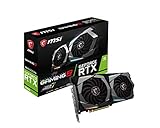
- Chipset: NVIDIA GeForce RTX 2060
- Core Clocks: 1830 MHz/ 14 Gbps
- Memory Interface: 192-bit
- Video Memory: 6GB GDDR6
- Output: DisplayPort x 3 (V1.4)/ HDMI 2.0B x 1
Use OC Scanner for a core-curve starting point
OC Scanner, available for compatible GPUs through Afterburner, analyzes the voltage/frequency curve and proposes a core curve. It can save some manual trial and error, but its result is not a guarantee of stability in your games.
- In Afterburner settings, enable Unlock voltage control and Unlock voltage monitoring if those options are available.
- Record a stock baseline, then set appropriate available power and temperature limits.
- Open the OC Scanner interface or Curve Editor and run the scan. MSI says the scan may take approximately 30 minutes or less, depending on the system.
- Apply the resulting curve, then test it in benchmarks and the games you actually play before saving it as a daily profile.
A scan can pass its own workload while a game, ray-tracing workload, shader compilation event or longer session exposes instability. Treat the result as a candidate to test, not a finished overclock. MSI’s workflow and curve guidance are in its Afterburner overclocking and undervolting guide.
Test stability beyond a quick benchmark
Quick screening
A five- to ten-minute benchmark is useful for catching obvious problems such as artifacts, crashes, driver resets or excessive temperatures. Compare its score with stock as well as watching for visible errors. MSI names tools such as FurMark and Unigine Heaven in its Afterburner instructions, but one synthetic test cannot establish stability in every game.
Rank #4
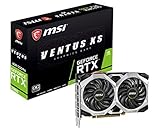
- Chipset: NVIDIA GeForce RTX 2060
- Boost Clock: 1710 MHz. Power consumption: 160 W
- Memory Interface: 192-bit
- Video Memory: 6GB GDDR6
- Output: DisplayPort x 3 (V1.4)/ HDMI 2.0B x 1
Longer validation
- Run a longer loop or repeat the benchmark several times.
- Play at least one demanding game and a second game using a different engine.
- If you use ray tracing, test a ray-tracing workload as well.
- Check both heavily loaded scenes and gameplay with lower GPU utilization.
- Look for delayed crashes, texture corruption, driver recovery and score regressions, not just a successful launch.
- Compare FPS, sustained clocks, temperature and power with the stock baseline. A higher clock alone does not demonstrate a faster result.
Recognize instability and recover safely
| Symptom | Possible cause | What to do |
|---|---|---|
| Game crashes to desktop | Core or memory setting too high; possibly a driver issue | Revert the last change to its previous stable value, then retest one control at a time. |
| NVIDIA driver resets | Unstable core or memory, excessive temperature, or a power transient | Reset to stock and check temperatures before trying smaller changes. |
| Colored dots, flashing textures or geometry corruption | Often excessive memory clock, though other instability is possible | Reduce memory immediately; do not treat artifacts as harmless. |
| Black screen or system freeze | Severe instability, power or thermal issue, or driver problem | Reboot and load the stock profile before diagnosing further. |
| Benchmark score falls after a memory increase | Memory instability or error-related performance loss | Lower the memory offset and compare again. |
| Settings revert after reboot | Profile was not saved or Afterburner is not applying it at startup | Save a profile; enable startup application only after confirming the profile is stable. |
| Sliders are unavailable | GPU BIOS, laptop firmware, vendor restrictions or Afterburner configuration | Do not force unsupported controls or use firmware modifications to bypass the restriction. |
- Click Reset in Afterburner to return the controls to default.
- If the desktop is unstable, reboot and prevent Afterburner from applying the problematic profile at Windows startup.
- Open Afterburner again, reset the settings, and confirm the card runs at stock before troubleshooting drivers, cooling or hardware.
- If needed, uninstall or reinstall Afterburner. Do not continue raising settings simply because the computer restarted normally after a crash.
MSI documents the Reset control and profile functions in its Afterburner instructions.
Independent reader supportYour contribution helps us test, update, and keep practical guides available for everyone.Keep temperature and cooling under control
Temperature limits are management boundaries, not operating targets. Compare temperatures before and after tuning, and check for dust, blocked intakes, poor fan orientation, inadequate cooler capacity, high room temperature or a fan curve that favors silence. Aged thermal paste may also contribute to poor cooling, but investigate the specific card before attempting maintenance.
Cooling and power constraints affect sustained performance. If GPU Boost reduces the clock as the card heats up, a larger offset may deliver little real-world gain. Likewise, power limits differ between partner models: MSI’s Gaming 6G and Gaming Z 6G specifications list 160 W and 190 W respectively. Do not assume all RTX 2060 cards have the same limit.
Best Value
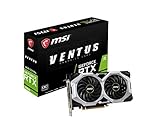
- Chipset: NVIDIA GeForce RTX 2060
- Core clocks: 1710 MHz / 14 gbps
- Memory interface: 192-bit
- Video memory: 6gb gddr6. Power consumption: 190 w
- Output: DisplayPort x 3 (v1.4) / HDMI 2.0b x 1
Choose between overclocking, undervolting and a hybrid
| Approach | Best suited to | Trade-off |
|---|---|---|
| Conventional overclock | Desktop users seeking the highest practical FPS who have cooling headroom | May increase heat, noise and power; gains vary, and stability takes testing. |
| Undervolt | Users prioritizing temperature, noise, efficiency or steadier boost, especially in a compact case or laptop | Requires careful voltage/frequency-curve tuning and stability testing; results vary by card. |
| Hybrid tuning | Users seeking a balance of performance and efficiency | Can combine a moderate memory overclock, tuned voltage/frequency curve, frame-rate cap and custom fan curve, but each change still needs validation. |
MSI’s guide covers voltage/frequency-curve undervolting as well as overclocking: MSI’s guide. Undervolting is an alternative to test, not a promise of identical performance at lower power.
Take extra care with a laptop RTX 2060
Laptop models can have lower power limits, shared CPU/GPU cooling, restricted voltage controls and manufacturer-specific firmware behavior. Do not reuse desktop offsets. MSI says Afterburner can work with laptop GPUs, but recommends minor boosts and close monitoring of both CPU and GPU temperatures.
- Prioritize temperature monitoring and make only small changes.
- Check CPU and GPU temperatures together during a demanding game.
- Consider supported undervolting or power management if the goal is cooler, quieter operation.
- Avoid BIOS modifications and unofficial vBIOS flashing to unlock controls.
Understand the risk and warranty terms
Software settings are generally reversible, but that does not make every adjustment risk-free. Instability is more common than permanent damage when voltage and temperatures remain controlled; excessive voltage or heat, poor power delivery and firmware modifications can raise the risk of hardware damage. Warranty coverage depends on the card vendor’s terms. MSI states that damage caused by overclocking is not covered by its warranty in its Afterburner guidance.
Quick Recap
Before keeping a daily profile
- The card is the correct desktop or laptop RTX 2060 variant, and you have not applied another model’s settings.
- The final profile passed extended testing in demanding games, not only one short benchmark.
- Performance is measurably better than stock in the workload you care about.
- Temperature, fan noise and power use remain acceptable to you.
- You saved a known-good profile and retained a stock profile for recovery.
Product prices and availability are accurate as of the date/time indicated and are subject to change. Any price and availability information displayed on Amazon at the time of purchase will apply.
Free tools Windows power users keep installed
One-click scans. No signup required.

