
To hard reset a Dell XPS 15, shut it down, unplug the AC adapter and accessories, then hold the power button for 15–20 seconds. Reconnect the adapter and turn the laptop on. This drains residual power; it is not a Windows factory reset, and Dell says it does not affect personal files.
Hard reset an XPS 15 to drain residual power
Dell’s general hard-reset instructions include XPS laptops. Follow these steps without opening the computer:
-
Shut down the laptop. If it is frozen, hold the power button until it turns off. This forced shutdown does not reset Windows or erase files.
-
Disconnect the AC adapter and external devices, including USB drives, printers, webcams, and memory cards.
Outdated Drivers Are Slowing You Down
One free scan finds every outdated or missing driver and matches the right update for your exact hardware.Free scan · exact hardware matchPC Slower Than It Used to Be?
A free scan shows the junk files, broken settings and background clutter dragging Windows down - then fixes them in one click.Free scan · Windows 10 & 11Special offer. See more information about Outbyte and uninstall instructions. Please review EULA and Privacy policy.#1 Best Overall
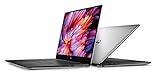
 Dell XPS 15 9530 Business Laptop (15.6" FHD+, Intel 10-Core i7-13620H (Beat i9-12900H), 32GB DDR5 RAM, 1TB SSD), Backlit, Fingerprint, Thunderbolt 4, Wi-Fi 6, IST HUB, Win 11 Pro w/AI Copilot, Silver
- 32GB DDR5 4800MHz RAM, 1TB PCIe NVMe M.2 SSD; 13th Gen Intel 10-Core i7-13620H (10-core 16 threads, base clock speed 2.4GHz, max turbo to 4.9GHz, 24MB L3 Cache)
-
Hold the power button for 15–20 seconds to drain residual power. That is Dell Support’s recommended duration in its hard-reset guidance, last modified 1 May 2026.
-
Reconnect the AC adapter and press the power button to start the laptop.
Dell states that this hard reset does not affect personal files. It is a basic power-drain procedure, not a repair guarantee.
What “reset” means: three different procedures
These options address different problems and are not interchangeable.
|
Procedure |
Purpose |
Effect on files and Windows |
When it may fit |
|---|---|---|---|
|
Hard reset |
Drain residual power by disconnecting power and holding the power button. Rank #2
Sale

Dell 15.6 Laptop, FHD, Intel Core Ultra 5 225U, 16GB RAM, Windows 11 Home
|
Dell says personal files are unaffected; Windows is not reinstalled. |
Try this first for a power-related glitch or unresponsive laptop. |
|
Windows or Dell OS recovery |
Diagnose, repair, restore, or reinstall the operating system. Free tools Windows power users keep installed One-click scans. No signup required. Special offer. See more information about Outbyte and uninstall instructions. Please review EULA and Privacy policy.
|
The effect depends on the recovery option. Review its data-retention choices and back up files where possible before proceeding. |
Consider it when the Dell logo appears but Windows will not load, or when repair or reinstallation is needed. |
|
BIOS/UEFI defaults |
Restore firmware setup settings. |
Dell says a BIOS reset leaves files, programs, and Windows untouched, but firmware settings may need review afterward. |
Consider it if the problem began after a BIOS setting was changed and you can enter BIOS setup. PerformancePC Slower Than It Used to Be?DriversCrashes, No Sound, or Screen Glitches?PerformanceWindows Errors? Fix Them Before They Spread Special offer. See more information about Outbyte and uninstall instructions. Please review EULA and Privacy policy.
|
If the XPS 15 still will not start
Use what appears on the screen—and whether the laptop shows any signs of power—to choose the next route. A hard reset cannot resolve every hardware or operating-system failure.
No signs of power
If there are no lights, fan activity, or other signs of power after the reset, follow Dell’s power troubleshooting and diagnostics for your exact XPS 15 model. Do not assume that opening the laptop or disconnecting its internal battery is the next step.
Dell logo appears, but Windows does not load
This is a Windows no-boot problem rather than a no-power failure. Dell’s SupportAssist OS Recovery can start automatically on supported computers after repeated unsuccessful boot attempts. Depending on the computer and available options, it can diagnose hardware issues, back up files, repair the computer, or restore factory defaults. Check what a selected recovery option will do to your data before confirming it.
Rank #4

- With 16 GB DDR5 SDRAM of memory, runs as many programs as you want without losing the execution
- 15.6" display with 1920 x 1200 resolution showcases movies, games and photos with impressive clarity
- 1 TB total SSD capacity provides more productive performance and superior data storage for a variety of files including HD quality videos, movies, photos, music, and more
Dell’s cited SupportAssist guidance excludes Qualcomm-based computers and directs those systems to Windows Push-Button Reset first. Availability and recovery choices depend on the computer’s configuration.
What’s actually slowing this PC down?
Pick the symptom - the matching free tool is one click away.
Problem began after changing BIOS settings
If you can enter BIOS setup, restoring defaults may be relevant. Dell cautions that the factory-reset option may not restore every setting, so check the boot configuration and instructions for your particular XPS 15 model afterward.
Independent reader supportYour contribution helps us test, update, and keep practical guides available for everyone.Why you should not remove the battery for a routine hard reset
The normal residual-power procedure needs only the laptop’s power button and AC adapter. XPS 15 generations differ, and internal battery access is model-specific. For example, Dell’s XPS 15 9520 service manual describes battery removal as a procedure for authorized service technicians; that instruction is specific to the 9520, not every XPS 15. Use the manual for your exact model or contact Dell support rather than treating internal battery disconnection as a standard consumer step.
Dell guidance
-
Dell hard-reset instructions (Article 000139016; last modified 1 May 2026).
-
Dell instructions for resetting BIOS or CMOS and clearing NVRAM.
The Tool Desk
Outbyte PC Repair FREERepair Windows errors before they cause bigger problemsFix Now →Outbyte Driver Updater FREEFix the driver behind crashes, sound loss and screen glitchesFind Drivers →Special offer. See more information about Outbyte and uninstall instructions. Please review EULA and Privacy policy. -
Dell troubleshooting for no POST, no power, no video, and no-boot problems.
Quick Recap
Bestseller No. 3
Product prices and availability are accurate as of the date/time indicated and are subject to change. Any price and availability information displayed on Amazon at the time of purchase will apply.

