
Do these 3 things before closing this tab:
1Clear out junk files and repair common Windows errors2Fix the driver behind crashes, sound loss and screen glitches3Repair Windows errors before they cause bigger problemsThere is no evidence-backed universal winner for every content creator. Choose OBS Studio if you want detailed control over scenes, sources, audio, and streaming; Camtasia if you want recording and editing in one product; or Loom for short recordings that are quick to share, provided its plan limits fit your workflow. Mac users can also consider ScreenFlow. The products serve different needs, and the available product information does not establish comparable recording-quality or performance benchmarks.
Choose by the work you need to do
| Software | Best fit | What to weigh |
|---|---|---|
| OBS Studio | Creators who want configurable scenes, sources, audio, and live-streaming controls. | Free and open source, but setup and performance depend on your hardware and recording choices. OBS Project |
| Camtasia | Creators who want screen capture and a video editor in the same workflow. | Paid tiers differ in editing, AI, and sharing features. Confirm the current plan and price for your region. TechSmith store |
| Loom | Creators making short screen-and-camera recordings for quick online sharing. | The listed free Starter plan has video-count and recording-length limits. Check the current plan details before relying on it for frequent or longer recordings. Loom pricing |
| ScreenFlow | Mac users looking for a recorder and editor to investigate. | Telestream lists support for Apple Silicon and Intel-based Macs; it is not a like-for-like option for Windows or Linux. Check current macOS compatibility and price. Telestream technical specifications |
OBS Studio: control over scenes and sources
OBS Studio is free, open source software for video recording and live streaming, with Windows, macOS, and Linux support listed by the OBS Project. You build a scene from sources such as a captured window, image, text, browser window, webcam, or capture card. It also offers audio mixing, hotkeys, custom transitions, Studio Mode, Multiview, and plugin or script customization.

That flexibility is useful for tutorials with multiple layouts, demonstrations that switch between applications, and workflows that need control of audio and video sources. It also means there is more to configure than in a simple record-and-share tool. OBS’s system requirements page cautions: “Having a compatible system does not guarantee that it is capable of streaming or recording using OBS Studio.” CPU needs vary with encoder, resolution, frame rate, and scene complexity. Test your own setup rather than treating minimum requirements as a promise of smooth recording. See the OBS system requirements.
The OBS home page listed version 32.2.2, dated August 14, when the cited product information was accessed; the year was not stated there. Releases and platform requirements can change, so check the official site for the current version before installing. OBS Studio
What’s actually slowing this PC down?
Pick the symptom - the matching free tool is one click away.
#1 Best Overall

- High resolution 1080P Full HD Webcam. Plug and play Batteries are not included. This 1080P webcam supply Crisp Image and Crystal Clear Video. Webcam captures your clips in true 1080p glory, and 30 frames per second, so even the most detailed makeup tutorials look crisp and clear.
- Suitable for mainstream software, Compatible with multi system. Versatile 1080P USB webcam for gaming, blogging, conferencing and Live streaming, widely works with Windows 10, Windows 7, Windows 8, Windows 2000, Windows XP, Android TV, Mac OS X etc. Compatible with Facebook, Skype, OBS, You Tube, Twitter,Twitch .Switch 2
- 110 Degree Wide Angle Webcam with Microphone. Fixed focus Webcam captures Full HD video at a wide angle of up to 110 degrees. Giving you an unparalleled perspective for a wide variety of conditions when you live streaming, video chatting or recording. Build-in auto noise reduction Mic makes sound purer and clearer, and pick up your voice even at 3m distance. Also Easy to turn off the webcam microphone on the software setting you used, when you want to use your own headset or speake..
- Easy to Setup, Play and Plug:The product has no battery.1080P webcam camera with low light correction, makes you see clearly even in dim light. Easy to Setup, just Play and Plug, No additional driver need. It also features a universal clip, with a 6ft USB power cable that fits to laptops and LCD monitors.
- This web camera for desktop computers comes With Tripod and Privacy Cover. PC webcam with Privacy cover allows you to enjoy safe digital web life when not in use and prevent hackers from spying on you. To control what your video displays at any time, effectively protecting your privacy. The webcam comes with a tripod, convenient for you to place the computer camera..
Camtasia: capture and editing together
TechSmith describes Camtasia as a screen recorder and editor that can capture screen, camera, microphone, and system audio. Its features material lists recordings up to 4K at 60 frames per second. Built-in or external microphone recording is supported; a dedicated USB microphone is optional, not a requirement.
The store page lists four annual plans. These are vendor-listed prices captured in 2026, not independent comparisons, and may vary by region, billing, or offer:
Rank #2
| Plan | Listed annual price | Plan distinction |
|---|---|---|
| Starter | $39.00/year | Features vary by tier; check the store listing for current editing, AI, and sharing inclusions. |
| Essentials | $179.88/year | Features vary by tier; check the store listing for current editing, AI, and sharing inclusions. |
| Create | $249.00/year | Features vary by tier; check the store listing for current editing, AI, and sharing inclusions. |
| Pro | $599.00/year | Features vary by tier; check the store listing for current editing, AI, and sharing inclusions. |
Because the plan inclusions and pricing can change, compare the current TechSmith plan details against the editing and sharing tools you actually need before purchasing.
Loom: quick sharing, with limits to check
Loom is oriented toward screen-and-camera recording and sharing. Its pricing page lists the free Starter tier at $0, with up to 25 videos per person and a five-minute screen-recording limit. The page also describes system-audio capture and sharing features. Business is listed with unlimited videos and recording length, plus basic editing. Verify current plan limits and prices on Loom’s pricing page, especially if you make frequent or long creator videos.
Free tools Windows power users keep installed
One-click scans. No signup required.
Rank #3
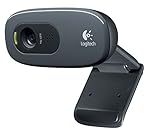
- This Certified Refurbished product is tested and certified to look and work proof as new restoration functionality. process includes, cleaning, inspection, basic and repacking. The product ships with all accessories, a minimum of 90 days warranty, and can only arrive in a generic box. Select sellers who maintain high performance can offer certified refurbished products on Amazon. com
- HD 720P, video calls and HD video recording, 2.4 GHz, Intel Core2 Duo, 2 GB RAM, 200 MB HDD space
- Video capture: Up to 1280 x 720 pixels, Logitech Fluid Crystal
- 3MP Sharp Photo Technology, Hi-Speed USB 2.0
- Built-in microphone filters out background noise
ScreenFlow: a Mac-specific alternative
Telestream’s technical specifications identify ScreenFlow as software for Apple Silicon and Intel-based Macs, listing macOS Tahoe 26 and Sequoia 15 support and a starting price of $199. Those operating-system details and price are vendor-published and may change. Check the current specifications and price before buying; the available documentation does not provide a comparative performance test against the other options.
Match the software to your recording workflow
For tutorials and demonstrations
Choose OBS if you want to arrange multiple sources and control scene changes or audio in detail. Choose Camtasia if you prefer to record and then edit within the same product. For short walkthroughs that you intend to share quickly, Loom may be simpler, but make sure the recording limit fits the lesson.
Rank #4
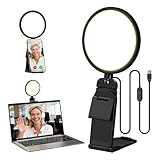
- Upgraded Light Panel — 200% Softer – LitONES features a 4-layer optical soft panel with edge-lit technology that eliminates glare and hotspots. The ultra-soft diffused light gently diminishes shadows, unifies complexion, and enhances your best features — delivering flattering light that ensures you always appear sharp, natural, and engaging in every video meeting
- Vivid On‑Camera Colors, Comfortable Long‑Hour Lighting – , Professional-grade CRI (Ra) 97.8 ensures true-to-life color reproduction in your videos, so you never look washed out on camera again. The soft, natural light is also gentle on your eyes, helping you stay comfortable and focused during long zoom calls or streaming sessions
- 50 Dimmable Modes - 5 color temperatures (3000K-6500K from cool white to warm tones) and 10 adjustable brightness levels (3%-100%) providing you with unparalleled flexibility, allowing you to achieve the perfect lighting for video calls, remote conferences, zoom meetings, streaming, podcasting, or content creation
- Angle It Any Way You Want – With 360° rotation and 180° tilt, the light head moves freely to put light exactly where you need it. Height adjusts from 6 to 8.9 inches to suit your setup. Use it as a key light to brighten your face, or as a balance fill light to soften shadows — simply hang it behind your monitor or place it on your desk
- Screen-Safe Hanging Mount – With a 2"–2.5" stretchable hanging clip, this webcam light installs instantly with no tools required. It fits most monitors and laptops—from thin to thick, regular to curved—and stays firmly in place without taking up desk space or scratching your screen
For screen recordings with a camera
Camtasia and Loom both describe screen-and-camera capture. OBS can assemble a webcam and screen capture as sources in a scene. ScreenFlow is an option to investigate if you work on a Mac. Product feature descriptions establish capture options, not which one produces the best-looking result on your particular computer.
For budget and plan constraints
OBS has no software purchase price and is open source. Camtasia has paid annual tiers with different feature sets. Loom’s listed Starter tier is free but limits video count and screen-recording length. ScreenFlow’s vendor page lists a starting price. Compare the current product pages for terms that apply to your region and intended use rather than treating these figures as permanent.
Windows Errors? Fix Them Before They Spread
Repair common Windows errors and clear accumulated junk for a smoother, more stable PC - no reinstall needed.Free scan · no reinstallCrashes, No Sound, or Screen Glitches?
Random freezes, missing sound and display glitches usually trace back to one bad driver. Find and replace yours safely.Free scan · under a minuteTest before committing to a production workflow
- Confirm compatibility. Check the official system requirements for your operating system and hardware, especially for OBS and Mac-specific ScreenFlow.
- Build a representative recording. Include the screen or app you normally demonstrate, your webcam if you use one, and the microphone or system audio you need.
- Record a short sample. Check that the image, sound, and scene layout meet your needs, then inspect the saved file and confirm it plays correctly.
- Test a realistic session. For OBS in particular, verify performance with the encoder, resolution, frame rate, and scene complexity you intend to use. The OBS Project notes that compatibility alone does not guarantee recording capability.
- Check limits and sharing. Confirm recording length, plan limits, editing features, and how you will share or host the finished video before building a recurring process around a tool.
Or let it run in the cloud
If your goal is a 24/7 YouTube stream made from uploaded videos rather than recording your screen, StreamNeo is a different kind of tool: upload a recording or build a playlist, add your YouTube stream key, and go live. It loops the uploaded video from the cloud, so no computer or home connection has to stay on. Videos stream as uploaded, up to 4K 60fps, at one flat price per slot; StreamNeo can automatically recover if YouTube drops the stream. The first day is free with no card. Monthly pricing is $9.99 per month. Start your free day with StreamNeo.
Quick Recap
Product prices and availability are accurate as of the date/time indicated and are subject to change. Any price and availability information displayed on Amazon at the time of purchase will apply.

