
Quick wins for a faster PC:
Fix the driver behind crashes, sound loss and screen glitchesFind Drivers →Repair Windows errors before they cause bigger problemsFix Now →Scan for outdated or missing drivers - takes under a minuteDriver Scan →iTechGuides is reader-supported. When you buy through links on our site, we may earn an affiliate commission. As an Amazon Associate I earn from qualifying purchases. Learn more
Are you having trouble setting up alarms on Windows 11? If you are, then this how-to-use alarm in Windows 11 article will guide you.
Prerequisite for Using Alarms
To ensure that alarms in Windows 11 function correctly, 2 prerequisites need to be met. First, I’ll be guiding you in the next two sub-sections on how to correctly set Time Zone, Date, and time.
Secondly, you will learn how to disable sleep in Windows 11.
The Tool Desk
Outbyte Driver Updater FREEScan for outdated or missing drivers - takes under a minuteDriver Scan →Outbyte PC Repair FREERepair Windows errors before they cause bigger problemsFix Now →1. Set Time Zone, Date/Time Correctly
The first step of meeting the conditions for using alarms accurately is checking if your computer has the right Time-Zone. Additionally, you need to check if the Date and Time are correctly set.
#1 Best Overall

- Digital alarm clock with a 0.7-inch green LED display for easily checking the time at a glance
- Built-in nightlight gently illuminates a dark room
- Repeating snooze function makes it possible to sleep a little longer
- AC powered with integrated power supply. Batteries may be used as a backup power source to ensure time and alarms are retained in memory for 8 hours (refer to User Manual for details)
- Measures 4.5 x 3.5 x 2.4 inches (LxWxH); weighs 0.4 pounds (6.6 oz) Note: Batteries are not included
To achieve the above, follow the procedures below:
- Go to the taskbar, click on the search icon, and search date.
- Thereafter, click Date and time settings.

- When the Date and time settings opens, confirm if Set the time automatically is toggled OFF. Check also that Set Time Zone automatically is OFF.

- After that, go to Time zone and click the drop-down arrow to select your Time Zone.
- For the final step, go to Set the date and time manually and click Change. Thereafter, set the correct time.


2. Disable Sleep Settings
For you to receive Windows 11 alarm notifications always, you must disable sleep mode. To disable sleep mode in Windows 11 follow the steps below.
- Go to the taskbar, right-click the Start menu and click Settings.

- When the Windows Settings opens, select System and click Power & battery. Next, on the Power & battery go to Screen and sleep, and click on the drop-down arrow


- Finally, when the Screen and sleep category open, check if all the options are set to Never.
How to Use Alarms and Clock
Having met the two requirements, follow the guides below to use four features of Windows 11 Alarm & Clock.
Firstly, go to the taskbar click the search icon and search for alarms to open Alarms & Clock. Then, follow the steps in each sub-section below to set the different alarm and clock options in Windows 11.
Recommended Free Tools

Option 1: Use Countdown Timer
We will begin with Countdown Timer which is the Windows 11 Alarms & Clock’s first feature. Moreover, you can use this tool to time yourself while completing a task or an activity.
Follow the process below to set up Counter Timer in Windows 11.
Rank #2

- Large Display Electric Alarm Clock with Brightness Dimmer: Corded plug in clock with compact streamline design yet large number display. 2 inches jumbo illuminated LED digits ensure the time is easy to see even for impaired vision people. The brightness dimmer allows you set the brightness of display, needless worry the brightness, either too bright thus affecting your sleep or too dark to read time.
- Adjustable Alarm Sound: Single alarm setting with 9 minutes snooze. The beep alarm sound can be set from 30-90 DP as preference. Needless worry about too loud alarm sound frightening you or too low to wake you up from deep sleeping. One simple ON/OFF button allows you disable the alarm on weekend.
- USB Charging Port: Convenient USB port allows you to charge your smartphone or other electric device without plug in wall, handy, convenient and organized.
- Easy Operation Alarm Clock: Intuitive setting button, experience zero stress when setting the time or alarm. Easy for kids, seniors and the elderly.
- Adapter Powered Only and Battery for Memory: Plug in to power the clock with the included DC adapter (with 59 inches USB cord). 2 x AAA batteries (not included) needed for storing time and alarm settings in case of power outage. With battery power source only, the screen will go blank and alarm will not sound.
- Once Alarms & Clocks open, by default the Timer tab is opened timer templates.
- To add a new timer, navigate to the bottom right corner, and click Add new timer.

- Once the Add new timer window opens, set up the timer, rename it, and click save.

- For instance, when you are ready for your morning meditation, click the button below the timer. Thereafter, the countdown will start in reverse order down to zero, on reaching zero, you will get a notification alarm.


Option 2: Set Alarms
In this sub-section, I’ll show you how to set up alarms in Windows 11 using the Alarms & Clock features. Follow the steps below to set up alarms in Windows 11.
- On the Alarms & Clock window, click Alarm on the left pane. Then, at the bottom right of the window, click Add an alarm.

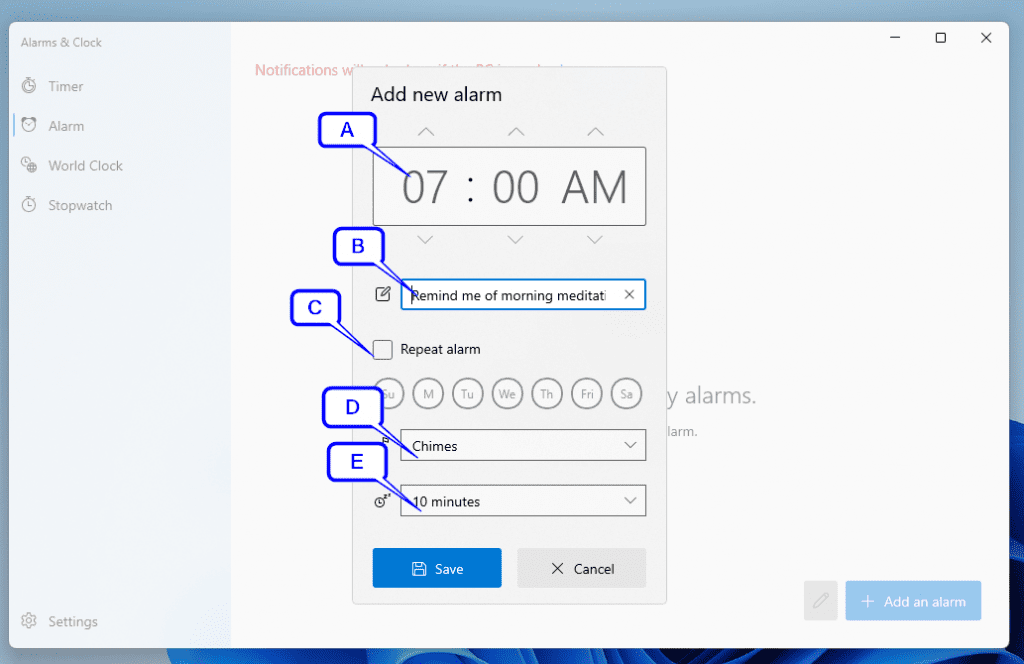
- Once the Add new alarm window opens follow the use of the letters in the screenshot below to set the alarm.
A – Alarm time – when the alarm will ring – the first two digits indicated the hours while the next two are minutes. B – Alarm name – the name that shows when the alarm buzzes – it reminds you of the purpose of the alarm. C – Select the Repeat checkbox for the alarm to ring more than once. Afterward, select the days for the alarm to ring. However, you can place the alarm on repeat by selecting the checkbox.
D – Click the dropdown arrow to pick a ring tone for the alarm. E – Click the dropdown arrow to set the snooze time (the default time is 10 minutes)
Outdated Drivers Are Slowing You Down
One free scan finds every outdated or missing driver and matches the right update for your exact hardware.Free scan · exact hardware matchWindows Errors? Fix Them Before They Spread
Repair common Windows errors and clear accumulated junk for a smoother, more stable PC - no reinstall needed.Free scan · no reinstall- When you are done setting up the alarm, click Save and the saved alarm will appear (see the second screenshot).

Option 3: Add Additional World Clocks
To display more clocks on Windows 11, perform the following steps in the World Clock tab.
- On the Alarms & Clock window, click World Clock. Then, navigate to the bottom right and click Add new city.
- On clicking the Add new city button, a search box will appear at the top of the window.

- As soon as you begin typing the name of a city – Windows 11 Alarms & Clock will pop up a suggested list of cities. Then, click on the chosen city to add the clock.
In the screenshot below I added New York, USA.

- When you click the city, it will be added as the second clock on the map. Also, you can delete additional clocks by clicking on the pencil icon.
- Then, click the delete icon on the additional clock as shown in the second screenshot.


Option 4: Use Stopwatch in Alarms & Clock
Similar to the Countdown Timer, you can use the Stopwatch to time yourself on specific activities. However, unlike the Countdown timer Stopwatch time counts from zero until you stop it, hence the name Stopwatch.
Thus, when you want to use the Stopwatch in Windows 11 Alarm & Clock, select the Stopwatch on the left pane. Then click the start button.
Rank #3

- Small & Compact Plug-in Alarm Clock for Every Room: Perfect for modern homes ditching cable boxes—place it under your living room TV to replace the lost clock display, or use it as a sleek bedside alarm in the bedroom. Also ideal for home offices, gyms, or dorm desks.
- 3-in-1 Multispace Display: Stay organized with a bright, easy-to-read display showing time, date, and indoor temperature—no more switching apps or devices.Its compact design fits seamlessly into any space, keeping you on schedule whether you’re streaming, working, or sweating.
- Adjustable Brightness for Day & Night: Adjust screen brightness in 4 levels+OFF with a single touch of the top-mounted button—no confusing menus. Keep it dim for a distraction-free bedroom at night or boost it for clear visibility in bright gyms or sunlit home offices.
- Plug-in Power Clock: This alarm runs on AC power (cable included), ensuring it’s always on and accurate.
- Sleek, User-Friendly Design:Designed with simplicity in mind: a single top button controls brightness, while the clean, modern look complements any decor—from minimalist living rooms to industrial-style home gyms. Its intuitive interface works for all ages.
The stopwatch will start counting and continue until the pause button is clicked.


Option 5: Change Alarms & Clock Settings
If you want to modify the Alarm & Clock settings, go to the left pane and click Settings on the bottom left. However, on the Settings page, the only adjustable setting available is the App theme.
So, you can set the Alarm & Clock window to appear in dark mode but the change will take effect when next you open the app. Meanwhile, the app’s default is “Use default setting“

Frequently Asked Questions
Yes, Windows 11 has an alarm feature with updated features like the creation of focus timers.
To locate the Alarm & Clock app on Windows 11, follow any of the two methods below.
Method 1: Click the Start menu, on the start menu app list select Alarms & Clocks.
Method 2: Click the search icon on the taskbar and search for alarm.
Do these 3 things before closing this tab:
1Scan for outdated or missing drivers - takes under a minute2Clear out junk files and repair common Windows errors3Fix the driver behind crashes, sound loss and screen glitchesRank #4

- Easy To Use Wooden Digital Alarm Clock with Large Numbers: This modern electric alarm clock is designed with big bold 1.8 inches numbers that can be easily seen across the room, and simple to set, making it an ideal small digital clock for kids, teenagers, adults, seniors and the elderly. (Notice: The display only lit when plugged in)
- 6 Dimmable Brightness Level: DreamSky wooden bedside clock can be easily set with adjustable dimmer for different situation of using, dark enough for sleep and bright enough to watch in the day.
- 5 Adjustable Volume Level and Snooze Feature: Featuring an alarm volume of up to 105dB, this loud alarm clock is perfect for heavy sleepers and also accommodate light sleepers with an adjustable volume range from 70 to 105dB. And with the snooze function, you can earn a 9 minutes extra rest.
- Plug In Clock (Not Battery Powered): The DreamSky nightstand table clock is powered by the included adapter, which can provide a stable time display, making a handy wood clock for living room, bedroom, office, kids room etc.
- Alarm and Setting Backup: The battery backup feature of this wooden alarm clocks for bedrooms will keep the alarm work during the power outage, no worry for oversleeping. Meanwhile it can save the time setting, which can save the trouble of reset the clock. (Notice: Battery only operates alarm, not time display. The batteries are not included)
The alarm will not work when your PC goes to sleep. That’s why as part of the prerequisite to setting up an alarm, you need to disable sleep mode.
To add widgets to Windows 11, do the following:
a) Hold down the Windows key + W to bring up the widget tab or click on the widget icon on the taskbar.
b) When the widget window opens, click and drag the chosen widget to the desired position on the desktop.
Windows 11 was released on the 5th of October 2021.
Conclusion
Alarms & Clocks have played vital roles in our day-to-day activities. These activities range from waking up in the morning and exercising to activities that require prompt timing.
Having said that, I believe you are now familiar with the prerequisite needed for using alarms in Windows 11. Also, with the steps we’ve provided, you should be able to use the features of the Alarm & Clock app.
Best Value

- PLUG IN ALARM CLOCK WITH BATTERY MEMORY: This plug in alarm clock powered by USB only — all functions, including the display, require a wired power connection. You can also insert three AAA batteries (not included) as a battery backup to save all your time & alarm settings and ensure alarms still ring when power fails, but they CANNOT light up the screen or power the clock for regular daily use.
- BEDROOM CLOCK WITH DIMABLE LED DISPLAY: The compact digital clock (6.2" x 3" x 2.8") has a 48mm blue bold font for easy time viewing from a distance. You can easily toggle between 5 brightness levels, from very bright to completely dim. It also offers 12 or 24-hour time formats to meet different time reading habits.
- DUAL ALARM CLOCK WITH SNOOZE FUNCTION: Our bedside alarm clock supports setting two separate wake up times, convenient for family members with different schedules. There is an easily accessible snooze button on the top, enabling you to easily activate an additional 9 minutes of snooze even in a half-awake state.
- LOUD ALARM CLOCK WITH 4 VOLUME LEVELS: Our loud alarm clock offers four levels of volume. With one click you can switch to the volume that suits you best, effectively waking you up and starting your day with a fresh start!
- EASY-TO-USE ALARM CLOCK FOR GIFT GIVING: With clearly labeled buttons for easy operation, this table clock pleases as both functional bedside timekeeper and a considerate present. Ideal for personal use or as a considerate gift for children, seniors, teenagers, or loved ones.
These features include the Countdown Timer, addition of World Clocks, Stopwatch, and settings adjustments.
I hope this Windows 11 guide was helpful. If it was helpful to you, click on “Yes” beside the “Was this page helpful” question below.
You may also express your thoughts and opinions by using the “Leave a Comment” form at the bottom of this page.
Free tools Windows power users keep installed
One-click scans. No signup required.
Finally, visit our Windows 11 How-To page for more Windows 11 guides and fixes.
Quick Recap
Product prices and availability are accurate as of the date/time indicated and are subject to change. Any price and availability information displayed on Amazon at the time of purchase will apply.


