
Do these 3 things before closing this tab:
1Repair Windows errors before they cause bigger problems2Fix the driver behind crashes, sound loss and screen glitches3Clear out junk files and repair common Windows errorsExcel COUNT Function is used for counting items in a worksheet. Excel COUNT also has the conditional function, COUNTIF. COUNTIF counts if a specific condition is TRUE.
This guide shows how to use Excel COUNT and COUNTIF functions.




Option 1: Count with the COUNT Function
In this section I will demonstrate how to count individual cells and a cell range.
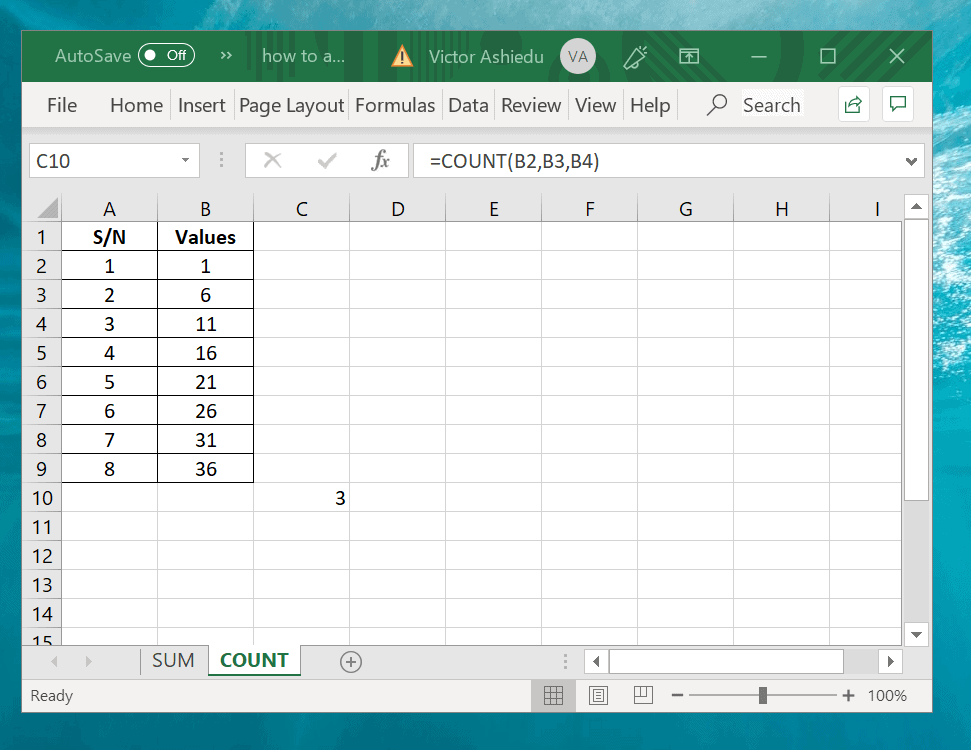
To count cells B2,B3 and B4, use the formula below.
Recommended Free Tools
=COUNT(B2,B3,B4)
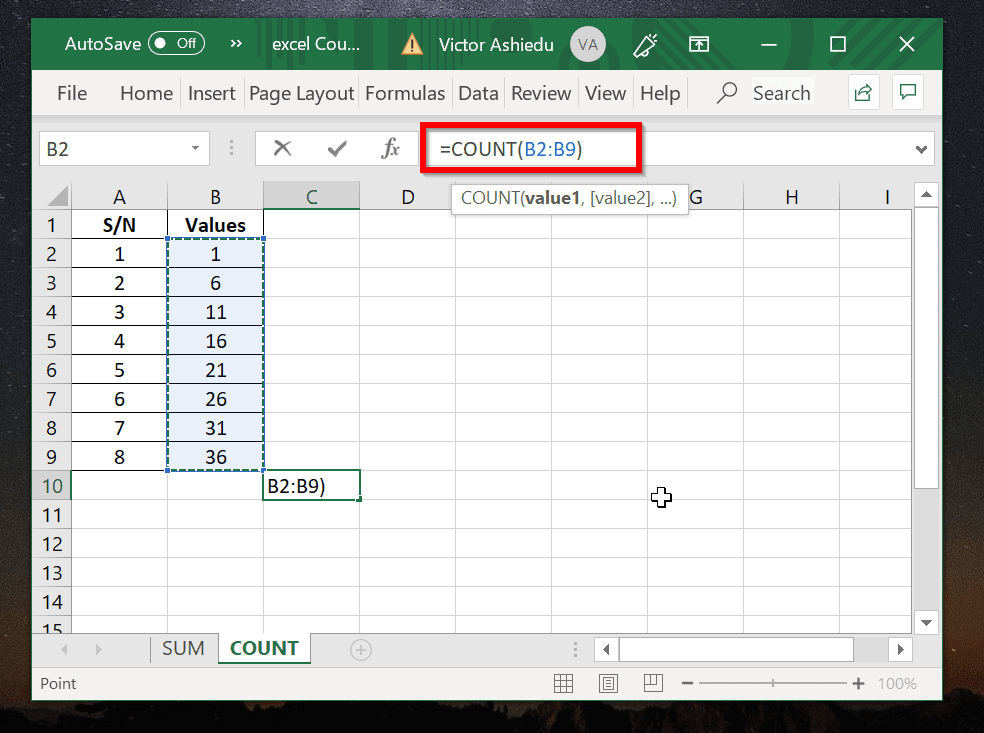
To count the cell range B2 to B9, use the formula below:
=COUNT(B2:B9)
Option 2: Count with the COUNTA Function
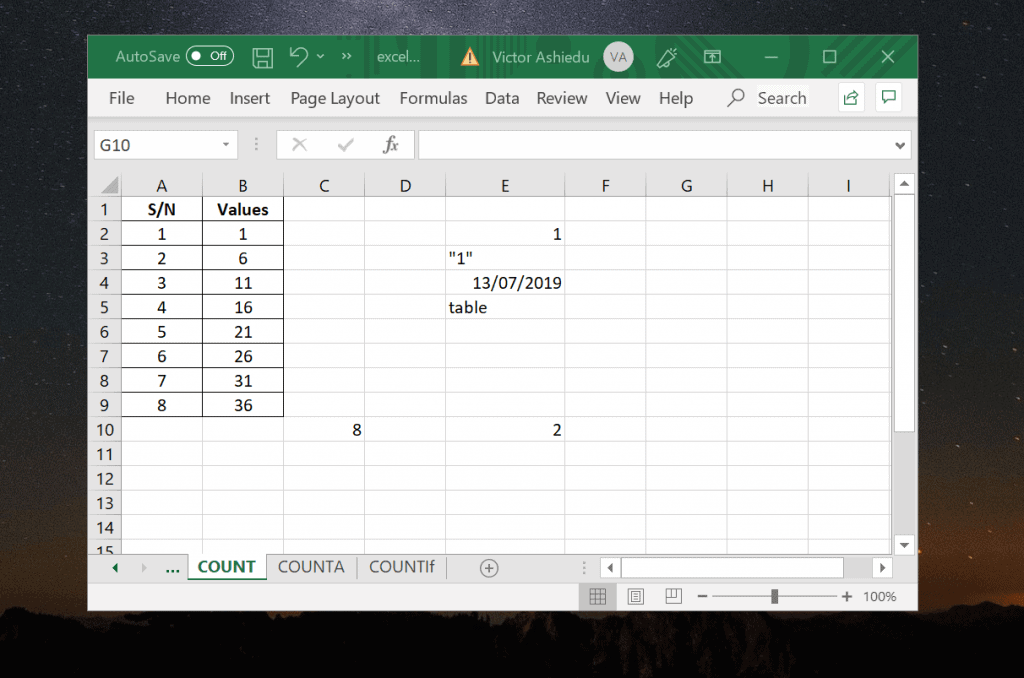
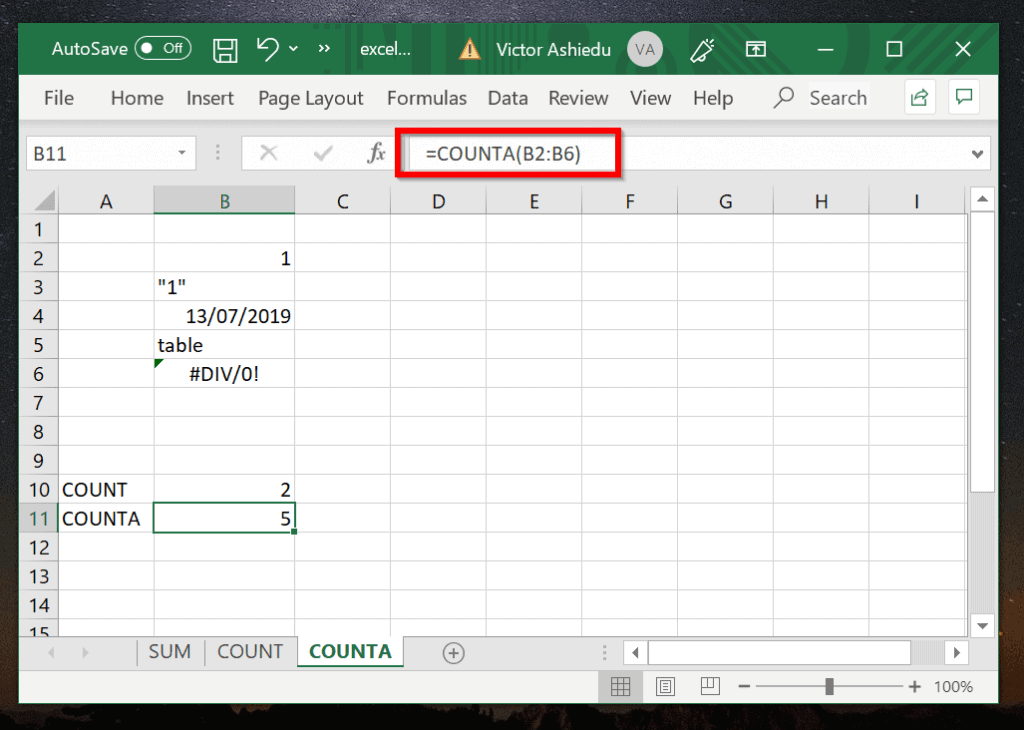
The worksheet below (cells B2 to B6) shows a number and a number enclosed in quotation marks. The worksheet also has date, error and text values.
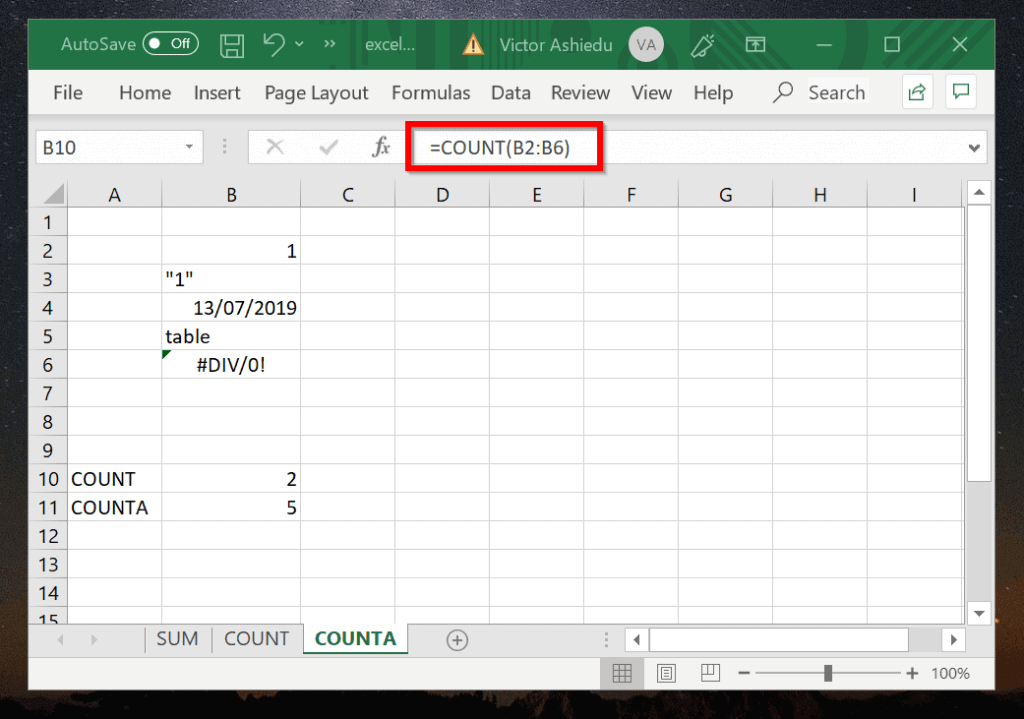
If you use the COUNT function to count B2 to B6:
=COUNT(B2:B5)
The result will be 2. The reason is because COUNT function cannot count numbers enclosed in quotation marks. Also, it cannot count texts or errors. However, you can use COUNT to count numbers and dates.
To count logical values, text, or error values, use the COUNTA function. The formula below will count all values in cells B2 to B6
What’s actually slowing this PC down?
Pick the symptom - the matching free tool is one click away.
=COUNTA(B2:B6)
The result is 5. All the entries have been counted!
Option 3: Count with the CountIF Function
CountIF Function counts cells that meet a specific condition.
Below is the Syntax
COUNTIF (range, criteria)
range – the cell range you want to count
criteria – the condition that must be met for a cell to be counted

Refer to the worksheet in the image above. To count only numbers greater than 3, use the formula:
Best Value

- Used Book in Good Condition
=COUNTIF(B2:B6,">3")
The result is 2.
If you want to add multiple conditions, use COUNTIFS.
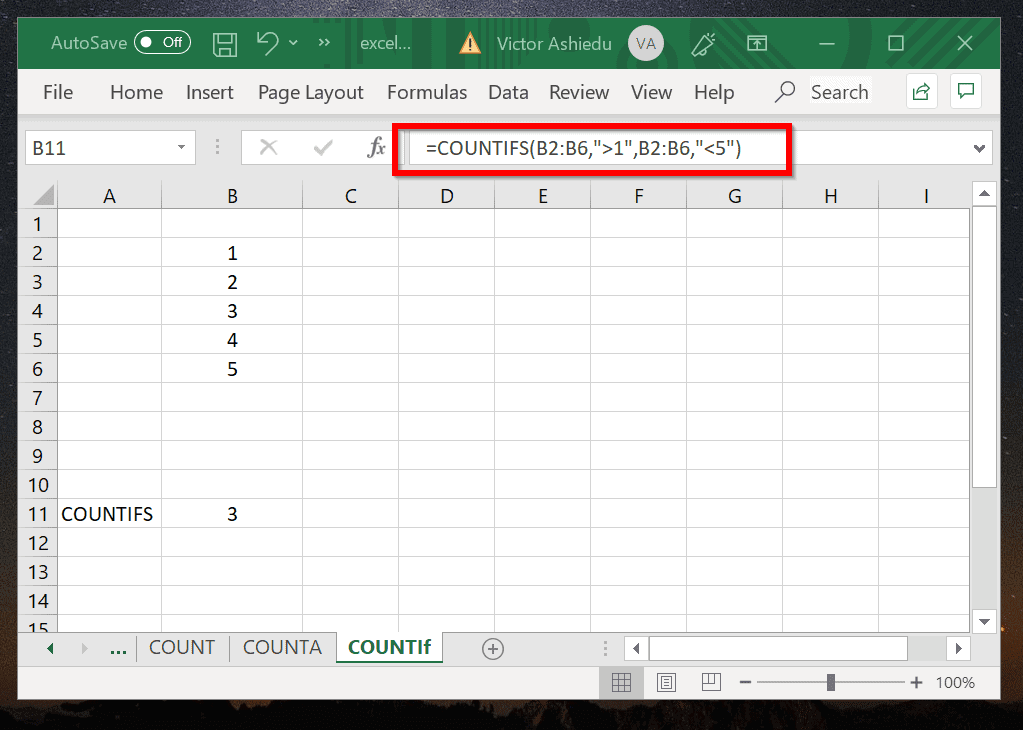
In the Excel Count example below, I will use COUNTIFS to count how many numbers (excluding 1 and 5) are contained in cells B2 to B6.
Here is the formula:
=COUNTIFS(B2:B6,">1",B2:B6,"<5")
And the result…
Conclusion
The COUNT Function comes in handy when you need to Excel to count a set of cells or a range. One thing to be in mind though: if you need to count logical values, text, or error values, use the COUNTA function.
I hope you found this Itechguide helpful. If you found the guide helpful, kindly share the part of the guide you found most helpful.
Leave your feedback by completing the “Leave a Reply” form found at the bottom of this page. Alternatively, you can respond to the “Was this page helpful?” question below.
Quick Recap
Product prices and availability are accurate as of the date/time indicated and are subject to change. Any price and availability information displayed on Amazon at the time of purchase will apply.


