iTechGuides is reader-supported. When you buy through links on our site, we may earn an affiliate commission. As an Amazon Associate I earn from qualifying purchases. Learn more
Are you creating a custom PowerShell script or function and need to add help information? This guide teaches you the steps to do that.
Overview of PowerShell Help
When you need information about the syntax and parameters of a PowerShell cmdlet, you run the Get-Help command. For example, if I need information about the Get-ChildItem cmdlet, I’ll run the command below.
| # | Preview | Product | Price | |
|---|---|---|---|---|
| 1 |

|
Technical Manual | $292.00 | Buy on Amazon |
| 2 |

|
Sterile Processing Technical Manual (CRCST 9th Edition) | $90.68 | Buy on Amazon |
| 3 |

|
Star Trek The Next Generation: Technical Manual | $13.98 | Buy on Amazon |
| 4 |
|
Aliens: Colonial Marines Technical Manual | $19.39 | Buy on Amazon |
Get-Help Get-ChildItem
Here is the result of the command in PowerShell…

As you can see from the screenshot, the Get-Help command returns the NAME, and SYNOPSIS of the cmdlet. In addition to that, it also returned the SYNTAX, DESCRIPTION, and some other relevant information about Get-ChildItem.
What’s actually slowing this PC down?
Pick the symptom - the matching free tool is one click away.
The purpose of this article is to teach you how you can add this help information to your own PowerShell script or function.
Popular on Amazon
In the first instance, some of the information is automatically added when you turn your script into a PowerShell Function. However, as you’ll see later in this guide, you have to add some of the information by adding help information to the function.
There are two ways you can add help to your PowerShell Script or Function.
- Using the comment-based help method
- By creating an XML help file
This guide will teach you how to add comment-based help. To learn how to add help using the XML file method, visit How to Create the Cmdlet Help File.
How to Add Comment-Based Help to a PowerShell Script or Function with Examples

When I updated PowerShell Function Explained recently, I used the example in the article to create a function. I call the function, Get-ItemsBetweenDates.
Earlier I said that when you create a function PowerShell adds some of the information the Get-Help returns. Sone of the information added automatically are the NAME and SYNTAX of the function.
So, when I run the Get-Help against the Get-ItemsBetweenDates function, I get the information shown in the screenshot below.
Get-Help Get-ItemsBetweenDates
I ran the above command on PowerShell ISE. I removed the script pane of ISE so you can see the command clearly.
Do these 3 things before closing this tab:
1Fix the driver behind crashes, sound loss and screen glitches2Clear out junk files and repair common Windows errors3Scan for outdated or missing drivers - takes under a minute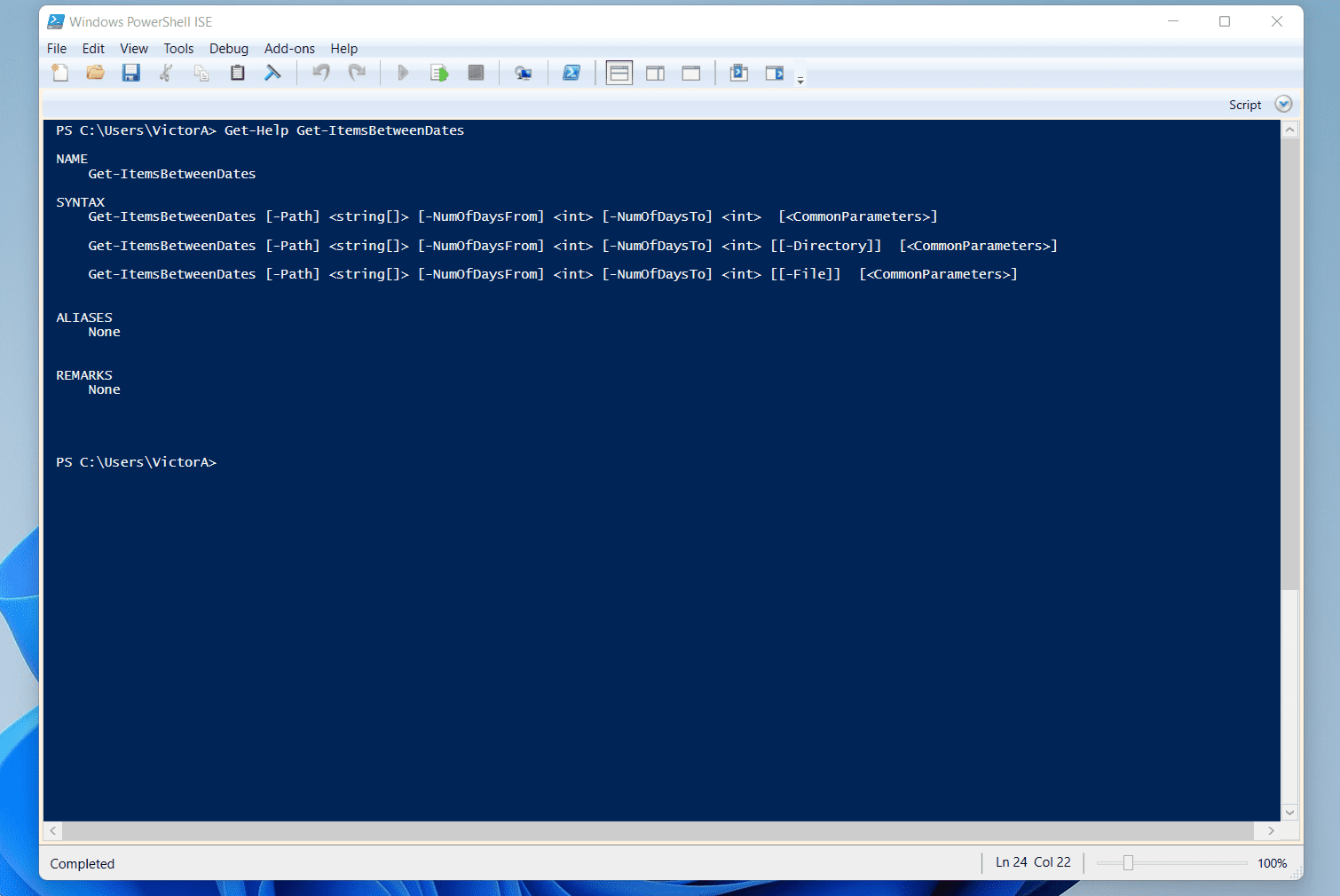
So, how do you add these other bits? Glad you asked!
The answer is as simple as adding <# #> just before the param block of the function. If I am being honest, it is a little more than just adding <# #>!
Also popular on Amazon
- Technical Manual: Comprehensive sterile processing reference guide
- Specifications: CRCST 9th Edition
- Applications: Essential resource for sterile processing certification preparation
But seriously, it is really easy. In PowerShell, you use <# #> to add a comment block. This is why this method of adding help to a PowerShell script or Function is called comment-based help.
Since this is a hands-on guide that walks you through the process, let me start by adding the comment block to my Get-ItemsBetweenDates function.
Here is the full function code. If you look closely, you’ll notice that after the opening {, I defined the parameters of the function.
Function Get-ItemsBetweenDates  {

  [CmdletBinding(DefaultParameterSetName="Path")]
  param(
    [Parameter(ParameterSetName='Path', Mandatory=$true, Position=0)]
    [Parameter(ParameterSetName='File', Mandatory=$true, Position=0)]
    [Parameter(ParameterSetName='Directory', Mandatory=$true, Position=0)]
    [string[]]$Path,
    [Parameter(ParameterSetName='Path', Mandatory=$true, Position=1)]
    [Parameter(ParameterSetName='File', Mandatory=$true, Position=1)]
    [Parameter(ParameterSetName='Directory', Mandatory=$true, Position=1)]
    [int]$NumOfDaysFrom,
    [Parameter(ParameterSetName='Path', Mandatory=$true, Position=2)]
    [Parameter(ParameterSetName='File', Mandatory=$true, Position=2)]
    [Parameter(ParameterSetName='Directory', Mandatory=$true, Position=2)]
    [int]$NumOfDaysTo,
    [Parameter(ParameterSetName='File', Mandatory=$false, Position=3)]
    [switch]$File,
    [Parameter(ParameterSetName='Directory', Mandatory=$false, Position=3)]
    [switch]$Directory
)
BEGIN {
$DateFrom = (Get-Date).AddDays(-$NumOfDaysFrom)
$DateTo = (Get-Date).AddDays(-$NumOfDaysTo)
}
PROCESS {
   IF ($File) {
        $report = Get-ChildItem $Path -File | Where-Object {($_.LastWriteTime -LE $DateTo) -AND ($_.LastWriteTime -GE $DateFrom)}
    } ELSEIF ($Directory) {
        $report = Get-ChildItem $Path -Directory | Where-Object {($_.LastWriteTime -LE $DateTo) -AND ($_.LastWriteTime -GE $DateFrom) }
} ELSE{
        $report = Get-ChildItem $Path | Where-Object {($_.LastWriteTime -LE $DateTo) -AND ($_.LastWriteTime -GE $DateFrom)}
}
}
END {

    $report | Select-Object -property `
   @{Label=”File/Folder Name”;Expression={$_.Name}},
   @{Label=”Modified Date”;Expression={$_.LastWriteTime}}


}
}
The first step to adding help information is to add the comment block just after the opening {. The updated function will look like this (I expanded the comment block so it’s formatted how it should be in a script).
Function Get-ItemsBetweenDates  {
<#

#>
  [CmdletBinding(DefaultParameterSetName="Path")]
  param(
    [Parameter(ParameterSetName='Path', Mandatory=$true, Position=0)]
    [Parameter(ParameterSetName='File', Mandatory=$true, Position=0)]
    [Parameter(ParameterSetName='Directory', Mandatory=$true, Position=0)]
    [string[]]$Path,
    [Parameter(ParameterSetName='Path', Mandatory=$true, Position=1)]
    [Parameter(ParameterSetName='File', Mandatory=$true, Position=1)]
    [Parameter(ParameterSetName='Directory', Mandatory=$true, Position=1)]
    [int]$NumOfDaysFrom,
    [Parameter(ParameterSetName='Path', Mandatory=$true, Position=2)]
    [Parameter(ParameterSetName='File', Mandatory=$true, Position=2)]
    [Parameter(ParameterSetName='Directory', Mandatory=$true, Position=2)]
    [int]$NumOfDaysTo,
    [Parameter(ParameterSetName='File', Mandatory=$false, Position=3)]
    [switch]$File,
    [Parameter(ParameterSetName='Directory', Mandatory=$false, Position=3)]
    [switch]$Directory
)
BEGIN {
$DateFrom = (Get-Date).AddDays(-$NumOfDaysFrom)
$DateTo = (Get-Date).AddDays(-$NumOfDaysTo)
}
PROCESS {
   IF ($File) {
        $report = Get-ChildItem $Path -File | Where-Object {($_.LastWriteTime -LE $DateTo) -AND ($_.LastWriteTime -GE $DateFrom)}
    } ELSEIF ($Directory) {
        $report = Get-ChildItem $Path -Directory | Where-Object {($_.LastWriteTime -LE $DateTo) -AND ($_.LastWriteTime -GE $DateFrom) }
} ELSE{
        $report = Get-ChildItem $Path | Where-Object {($_.LastWriteTime -LE $DateTo) -AND ($_.LastWriteTime -GE $DateFrom)}
}
}
END {
    $report | Select-Object -property `
   @{Label=”File/Folder Name”;Expression={$_.Name}},
   @{Label=”Modified Date”;Expression={$_.LastWriteTime}}
}
}
Now that I have added the comment block, the next step is to add the SYNOPSIS, DESCRIPTION, and the other relevant help information. These items are called help keywords.
Before I show you how to add these help information, I will use the first sub-section below to discuss the different help keywords. Then, in the second sub-section, you’ll learn how to add them to a function.
Quick wins for a faster PC:
Clear out junk files and repair common Windows errorsFree Scan →Fix the driver behind crashes, sound loss and screen glitchesFind Drivers →Repair Windows errors before they cause bigger problemsFix Now →PowerShell Function Help Keywords
In the table below, I have listed the common help keywords and their meaning. The common practice is to add keywords in all capitals.
However, you can still add it in lower case. What is important is to add the tag name next to a period (.).
| PowerShell Function Help Keywords | Meaning of the Help Keywords |
|---|---|
| .SYNOPSIS | Use this to briefly describe the function. Any information you add here is displayed in the SYNOPSIS field of the Get-Help result |
| ..DESCRIPTION | This is where you provide a detailed description of the function. The Get-Help command displays any information you add here in the DESCRIPTION section |
| .PARAMETER | Use this to add a description for each parameter you defined in the function. You can have as many of the .PARAMETER tag as the parameters you have in your function |
| .EXAMPLE | Use this tag to show how to run your function. You can add as many examples as you want. When you run Get-Help, it will return the information in the .EXAMPLE tag as EXAMPLE 1, EXAMPLE 2, etc. |
| .INPUTS | Use the .INPUTS tag to list the .NET Framework classes of objects the function will accept as input. You can add as many .INPUTS as you want. The information here is displayed in the INPUTS section of the Get-Help result |
| .OUTPUTS | Similar to .INPUTS but this time, you use this to list ist the .NET Framework classes of objects the function will accept as output when the command runs. |
| .NOTES | If you feel that you need to add any other relevant information that cannot fit into any of the keywords already described above, use the .NOTES tag. The information added here is shown in the NOTES section of the Get-Help result |
| .LINKS | Use this tag to add any relevant link where users can find online information about your function. the Get-Help result displays this information in the RELATED LINKS section |
How to Add Help Keywords to PowerShell Script or Function
In the last sub-section, I discussed the common PowerShell function help keywords. I also described how to use each tag.
Also popular on Amazon
In this section, I will show you how to add the help keywords.
The Tool Desk
Outbyte PC Repair FREEClear out junk files and repair common Windows errorsFree Scan →Outbyte Driver Updater FREEFix the driver behind crashes, sound loss and screen glitchesFind Drivers →Let’s start with the syntax of a PowerShell function help keyword.
<#
.< help keyword>
< help content>
#>
You already know that <# #> is the comment block. The “.< help keyword>” represents any of the keywords I described in the last sub-section.
Additionally, the “< help content>” is the information you provide.
So, let me start by adding a SYNOPSIS to my Get-ItemsBetweenDates function. Here is the SYNOPSIS on its own…
Free tools Windows power users keep installed
One-click scans. No signup required.
.SYNOPSIS
    Get-ItemsBetweenDates returns files and/or folders with modified dates betwwen two dates in a specified path
And here it is in the function.
Function Get-ItemsBetweenDates  {
<#
.SYNOPSIS
    Get-ItemsBetweenDates returns files and/or folders with modified dates betwwen two dates in a specified path
#>
  [CmdletBinding(DefaultParameterSetName="Path")]
  param(
    [Parameter(ParameterSetName='Path', Mandatory=$true, Position=0)]
    [Parameter(ParameterSetName='File', Mandatory=$true, Position=0)]
    [Parameter(ParameterSetName='Directory', Mandatory=$true, Position=0)]
    [string[]]$Path,
    [Parameter(ParameterSetName='Path', Mandatory=$true, Position=1)]
    [Parameter(ParameterSetName='File', Mandatory=$true, Position=1)]
    [Parameter(ParameterSetName='Directory', Mandatory=$true, Position=1)]
    [int]$NumOfDaysFrom,
    [Parameter(ParameterSetName='Path', Mandatory=$true, Position=2)]
    [Parameter(ParameterSetName='File', Mandatory=$true, Position=2)]
    [Parameter(ParameterSetName='Directory', Mandatory=$true, Position=2)]
    [int]$NumOfDaysTo,
    [Parameter(ParameterSetName='File', Mandatory=$false, Position=3)]
    [switch]$File,
    [Parameter(ParameterSetName='Directory', Mandatory=$false, Position=3)]
    [switch]$Directory
)
BEGIN {
$DateFrom = (Get-Date).AddDays(-$NumOfDaysFrom)
$DateTo = (Get-Date).AddDays(-$NumOfDaysTo)
}
PROCESS {
   IF ($File) {
        $report = Get-ChildItem $Path -File | Where-Object {($_.LastWriteTime -LE $DateTo) -AND ($_.LastWriteTime -GE $DateFrom)}
    } ELSEIF ($Directory) {
        $report = Get-ChildItem $Path -Directory | Where-Object {($_.LastWriteTime -LE $DateTo) -AND ($_.LastWriteTime -GE $DateFrom) }
} ELSE{
        $report = Get-ChildItem $Path | Where-Object {($_.LastWriteTime -LE $DateTo) -AND ($_.LastWriteTime -GE $DateFrom)}
}
}
END {

    $report | Select-Object -property `
   @{Label=”File/Folder Name”;Expression={$_.Name}},
   @{Label=”Modified Date”;Expression={$_.LastWriteTime}}


}
}
Now when I run “Get-Help Get-ItemsBetweenDates”, it includes the SYNOPSIS.

In the final script below, I have added all the relevant help keywords.
Function Get-ItemsBetweenDates  {

<#
.SYNOPSIS
    Get-ItemsBetweenDates returns files and/or folders with modified dates betwwen two dates in a specified path

.DESCRIPTION
    The Get-ItemsBetweenDates allows you to return files or folders that was modified between two dates.
    When you run the command without specifying the -File or Directory parameters, Get-ItemsBetweenDates
    returns all files and folders that meet the modifed date range criteria.
.PARAMETER Path
    Specifies the path to the folder you want Get-ItemsBetweenDates to return items from.
    This parameter accepts wildcards. See examples for details.
.PARAMETER NumOfDaysFrom
    This will be the earliest number of days from today that you want to return files with modified dates.
    Specifiy this in numbers, NOT dates.
.PARAMETER NumOfDaysTo
    This will be the latest number of days from today that you want to return files with modified dates.
    Like the NumOfDaysFrom parameter, specify a number. Note that NumOfDaysTo MUST be smaller than
    NumOfDaysFrom
.PARAMETER File
    This is a Switch parameter type. By default, Get-ItemBetweenDates returns both files and folders.
    However, if a user wants this function to return only files, the user will include the File parameter
.PARAMETER Directory
    Like the File parameter, this is also a Switch parameter type.
    If a user wants this function to return only folders, the user will include Directory.
    Note that you cannot specify File and Directory parameters in the same command.
    You can either specify File or Directory in one command.
.EXAMPLE
   If you want to return the files and folders that were modified between 5 days ago
   and 30 days ago, run the command below:

   Get-ItemsBetweenDates -Path D:\PS-Tutorial\* -NumOfDaysFrom 30 -NumOfDaysTo 5

   The command displays a result similar to the one below:

   File/Folder Name    Modified Date
    ----------------    -------------
    about_Operators.txt 14/06/2022 14:55:33

.EXAMPLE
    To display files last updated between two dates, run the commmand below:

    Get-ItemsBetweenDates -Path D:\PS-Tutorial\ -NumOfDaysFrom 30 -NumOfDaysTo 0 -File.
    The command will display just files. Here is the result of my command:

    File/Folder Name    Modified Date
    ----------------    -------------
    about_Operators.txt 14/06/2022 14:55:33
    NE-Null.txt         18/06/2022 15:55:23

.EXAMPLE
    To display folders last updated between two dates, run the commmand below:

    Get-ItemsBetweenDates -Path D:\PS-Tutorial\ -NumOfDaysFrom 30 -NumOfDaysTo 0 -Directory.
    The command will display just folders. Here is the result of my command:

    File/Folder Name Modified Date
    ---------------- -------------
    Stanley          18/06/2022 14:31:46

.LINK
    Advanced PowerShell Function Explained with Examples
    PowerShell Script to Find Items Modified Between Dates
#>

  [CmdletBinding(DefaultParameterSetName="Path")]
  param(
    [Parameter(ParameterSetName='Path', Mandatory=$true, Position=0)]
    [Parameter(ParameterSetName='File', Mandatory=$true, Position=0)]
    [Parameter(ParameterSetName='Directory', Mandatory=$true, Position=0)]
    [string[]]$Path,
    [Parameter(ParameterSetName='Path', Mandatory=$true, Position=1)]
    [Parameter(ParameterSetName='File', Mandatory=$true, Position=1)]
    [Parameter(ParameterSetName='Directory', Mandatory=$true, Position=1)]
    [int]$NumOfDaysFrom,
    [Parameter(ParameterSetName='Path', Mandatory=$true, Position=2)]
    [Parameter(ParameterSetName='File', Mandatory=$true, Position=2)]
    [Parameter(ParameterSetName='Directory', Mandatory=$true, Position=2)]
    [int]$NumOfDaysTo,
    [Parameter(ParameterSetName='File', Mandatory=$false, Position=3)]
    [switch]$File,
    [Parameter(ParameterSetName='Directory', Mandatory=$false, Position=3)]
    [switch]$Directory
)
BEGIN {
$DateFrom = (Get-Date).AddDays(-$NumOfDaysFrom)
$DateTo = (Get-Date).AddDays(-$NumOfDaysTo)
}
PROCESS {
   IF ($File) {
        $report = Get-ChildItem $Path -File | Where-Object {($_.LastWriteTime -LE $DateTo) -AND ($_.LastWriteTime -GE $DateFrom)}
    } ELSEIF ($Directory) {
        $report = Get-ChildItem $Path -Directory | Where-Object {($_.LastWriteTime -LE $DateTo) -AND ($_.LastWriteTime -GE $DateFrom) }
} ELSE{
        $report = Get-ChildItem $Path | Where-Object {($_.LastWriteTime -LE $DateTo) -AND ($_.LastWriteTime -GE $DateFrom)}
}
}
END {

    $report | Select-Object -property `
   @{Label=”File/Folder Name”;Expression={$_.Name}},
   @{Label=”Modified Date”;Expression={$_.LastWriteTime}}


}
}
Independent reader supportYour contribution helps us test, update, and keep practical guides available for everyone.Frequently Asked Questions
For you to get information to run a command using a PowerShell cmdlet, run the Get-Help command. Then, specify the cmdlet.
For example, to get help information about the Get-Content command, run the command below:
Get-Help Get-Content
To add help to a PowerShell script, type the comment block – <# #>. Then, within the comment block, add the different help keywords.
For example, the PowerShell statement below adds the SYNOPSIS, DESCRIPTION and a parameter help information.
<#
.SYNOPSIS
<add synopsis help here>
<add description help here>
.PARAMETER Path
<add information about the Path parameter here>
#>
Also popular on Amazon
To update Get-Help to return the newest help information in PowerShell, run the Update-Help command.
Except you manually download and provide a help file, your computer must be connected to the internet for the Update-Help command to run successfully.
To declare a parameter in PowerShell, start with the param block. Here is the basic syntax of a param block:
param (
)
Then, within the param block, declare the parameter
param (
$Path
)
This is a very basic syntax of the param block. To learn more about PowerShell parameters read my article PowerShell Param: Syntax, Types, Attributes, Arguments, And Examples
There are two methods to comment out code in PowerShell Script. You can add # before a single line of code.
However, if you want to comment out a block of codes, it is better to use the comment block. For example, all the information within the comment block <# #> below, will be commented out in the script.
<#
All the information with this block are commended out
#>
PowerShell has multiple cmdlets that you can use to filter objects. The most common cmdlets you can use for filtering are Where-Object and Select-Object.
However, depending on what you want to filter, some cmdlets have the Filter parameter as well. To list all the cmdlets that has the Filter parameter, run the command below:
Get-Command -ParameterName Filter
Recommended Free Tools
Conclusion
If you add help to your PowerShell Script or Function, users can use the Get-Help information to display the help information. You can add help using the comment-based method.
Alternatively, you can add help to a script or function by creating an XML help file.
In this guide, I show you how to add help to a PowerShell Script or Function using the comment-based method.
I hope I have been able to help you add help to your PowerShell Script or Function. I also hope you found this guide easy to follow and the examples clear.
If so, click on “Yes” beside the “Was this page helpful” question below. You may also express your thoughts and opinions by using the “Leave a Comment” form at the bottom of this page.
Finally, you continue your PowerShell scripting journey by heading over to our Windows PowerShell How-To Guides page.
Quick Recap
Product prices and availability are accurate as of the date/time indicated and are subject to change. Any price and availability information displayed on Amazon at the time of purchase will apply.