

The Tool Desk
Outbyte Driver Updater FREEScan for outdated or missing drivers - takes under a minuteDriver Scan →Outbyte PC Repair FREERepair Windows errors before they cause bigger problemsFix Now →iTechGuides is reader-supported. When you buy through links on our site, we may earn an affiliate commission. As an Amazon Associate I earn from qualifying purchases. Learn more
Battery lifetime is arguably the biggest problem facing smartphone users today. This guide shows 7 ways to turn on battery saver on Samsung Galaxy S9. Doing this will increase the battery life of your phone.
Details of each step is shown below. All the steps described will start from Settings. Here is the image. I will not show this image in the individual steps.

Step 1: Use “Optimize Now”
This is one quick way to turn on battery saver for your Samsung phone.
Recommended Free Tools
Here are the steps
- On your Samsung Phone, open Settings.
- Then click Device Care.
- Next, click Optimize Now. The process will run. Then return optimization results. See a sample result below.
Step 2: Select a Power Saving Mode
Follow the steps below to set up the right power saving mode for reduced battery usage.
Popular on Amazon

- 【Why Don't Sell Increased Capacity Battery 】- Because most of the so-called upgraded batteries on the market are exaggerated, the actual use time does not increase much, but the price is expensive. Our battery capacity and voltage is 100% same as your original s9 battery, it is a real 3000mAh can be perfectly compatible with the motherboard of your phone, and will not damage the hardware and reduce the service life of phone, true to providing long-lasting battery life.
- 【100% Size Fit & Safe And Durable Battery】- Many upgraded batteries will be taller than the original ones and will protrude after installation, but our s9 battery are the same size as the original and can be perfectly embedded in the motherboard frame. With the premium integrated lithium-ion battery cell with CE, UL and ROHS certification, which can effectively to prevent from over-charging, over-heating protection and over-discharging. ★Only compatible with Samsung Galaxy S9.
- 【Latest IC Chip Smart Power Housekeeper 】- Use the latest cost-effective smart IC chip on the market now which same as the original Galaxy S9 battery, combined with the latest science and technology at the same time, so that the battery has an exclusive smart power housekeeper which can intelligently control and distribute the power, maximize power conversion rate. Longer power life without bothering about running out of power and shut down some apps all the time.
- 【Your Time And Patience Are Very Valuable】- Does your phone often turn off because of no electricity, causing some trouble? Do you have to close some applications to save power? Do you want a better performance phone, but the cost of replacing a new phone is too high? If yes, then please choose our same as original capacity galaxy s9 g960 battery. It is the most affordable and quickest way to bring life back to your phone, so why not try to repair the phone yourself?
- 【Double Quality Inspection With 1:1 Ratio To The Original】- All products are fully automated and have a 1:1 ratio to the original battery size. After replacement, no repair marks are visible and your phone is restored to its original condition. Before leaving our warehouse, we conduct a double quality inspection on each product to ensure that the battery received by the buyer is free of defects. Any questions please don't hesitate to contact UooFide directly.
- From Settings page, select Device Care.
- Click Battery.
- When Battery app opens, click Power mode.
- Then select one of the last 2 options: Medium power saving or Maximum power saving.
Step 3: Enable “Put app to sleep”
The “Put app to sleep” feature is configured per individual app. When you toggle this setting on, the app will be put to sleep immediately when it is not in use.
In other words, any app with this feature turned on will perform limited background activities. Thereby saving you battery.
First navigate to Settings > Device Care > Battery. Then follow the steps below to switch “Put app to sleep” on for individual apps:
Crashes, No Sound, or Screen Glitches?
Random freezes, missing sound and display glitches usually trace back to one bad driver. Find and replace yours safely.Free scan · under a minutePC Slower Than It Used to Be?
A free scan shows the junk files, broken settings and background clutter dragging Windows down - then fixes them in one click.Free scan · Windows 10 & 11- Beneath the Battery App, click the drop-down beside Usage by apps. Then select 1 week. This will sort the Apps by battery usage, with apps that consumed most battery in the past 1 week on top.
- To turn on battery saver with this method, click on the individual app. For this example, I will click Analytics (the first app on my list).
- When the app opens, scroll down to “Put app to sleep” and switch it on.

Step 4: Disable Background App Activity
One reason you run out of battery is because a lot of apps constantly refresh. This happens on the background.
One way to turn on battery saver is to stop background app refresh for apps with the highest battery consumption.
Here are the steps to stop app from refreshing on the background:
Also popular on Amazon
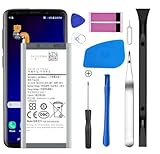
- [Compatible Models] Developed especially for Samsung Galaxy S9.Compatible with Samsung Galaxy S9 SM-G960, SM-G960A, SM-G960T, SM-G960P, SM-G960V, SM-G960R4, SM-G960F, SM-G960U, EB-BG960ABA, EB-BG960ABE.
- HIGH QUALITY BATTERY: Adopts advanced lithium-ion technology combined with high-density battery core, which is measured to improve the battery life by 15%.
- REPAIR TOOLS INCLUDED: the necessary tools to replace the battery are presented, which can be combined with installation tips or online video tutorials to easily complete the replacement and save the cost of cell phone repair.
- SAFE AND RELIABLE: The batteries from the factory are qualified by a series of quality tests and have passed many international certification tests such as CE, with protection functions such as overcharge, overdischarge and short circuit.
- IMPORTANT NOTE: To enhance your experience, please fully charge and discharge the newly installed battery 3 - 5 times to activate all the properties of the new battery.
- Navigate to Settings > Apps.
- Then, click the App you want to stop from refreshing on the background.
- When the app opens, click Battery. Then toggle the switch beside Allow background activity to switch it off.

Step 5: Reduce Device Brightness
Most smartphone users leave their device brightness at default settings. This consumes more battery than necessary.
Free tools Windows power users keep installed
One-click scans. No signup required.
Another way to turn on battery saver is to adjust the brightness settings of your device.
Here are the steps:
- Navigate to Settings > Display.

- Beneath Brightness, use the slider to reduce the brightness. You may also switch Adaptive brightness. Read the details above to see how you can use this feature.
Step 6: Enable Wifi Power Saving Mode
One big battery consumer is your Wifi app. Here is how you turn on battery saver for WiFi:
- Navigate to Settings > Connections > Wi-Fi > Advanced

- Toggle the switch beside Wifi Power Saving mode to turn it on.
Step 7: Optimize Battery Usage for Individual Apps
Finally, you can enable Optimize Battery Usage for apps that consume your battery more.
Here is how to do this:
- Open Settings. Then search for and open Special Access.
- Under Special Access open Optimize Battery Usage
- To turn on battery saver for an app, click the switch beside the app to turn it on.
Conclusion
If you apply the 7 steps discussed in this guide, your Samsung phone should start consuming less battery. Let’s know if this worked for you by responding to the “Was this page helpful?” question below.
You may also find more guides on our Smartphone page helpful.
Quick Recap
Product prices and availability are accurate as of the date/time indicated and are subject to change. Any price and availability information displayed on Amazon at the time of purchase will apply.



