
Quick wins for a faster PC:
Scan for outdated or missing drivers - takes under a minuteDriver Scan →Clear out junk files and repair common Windows errorsFree Scan →iTechGuides is reader-supported. When you buy through links on our site, we may earn an affiliate commission. As an Amazon Associate I earn from qualifying purchases. Learn more
If your Motorola phone is not showing an expected update, it is often waiting for a staged rollout, carrier certification, or release in your country—not necessarily malfunctioning. First check the installed Android and security-patch versions, then manually check for updates under Settings. If an update is offered but will not install, improve the phone’s Wi‑Fi, battery, storage, and restart conditions. For a failed over-the-air installation, Motorola’s Software Fix (Rescue Software Update) can refresh the model- and carrier-specific software from a Windows PC.
Follow the sequence below. It separates a legitimately delayed update from a download problem, an installation failure, and a possible hardware fault.
Why a Motorola phone may not have the update yet
Motorola does not deliver every Android or security update to every phone at the same moment. Availability depends on the exact model, country or region, distribution channel, carrier, and partner approvals. Two otherwise identical phones can therefore show different update statuses.
Do these 3 things before closing this tab:
1Clear out junk files and repair common Windows errors2Scan for outdated or missing drivers - takes under a minute3Repair Windows errors before they cause bigger problemsRollouts are staged across models and regions
Motorola says it may have “hundreds of software versions to test” because of the number of models, regions, and distribution channels. Before a build reaches a device, carriers and other partners may require certification, independent testing, or changes. Motorola explains that owners may not receive updates at the same time even when they are in the same region.
#1 Best Overall

- VOTY USB-C fast charger cable for Motorola Moto g power/g stylus/g fast/ g9/g9 plus/g9 play/ g8/g8 power/g8 plus/g8 play/ g7/g7 power/g7 play/g7 plus/g7 supra/g7 optimo/g7 turbo/ g6/g6 Plus and cellphone with usb c type c porot. USB C Cable for Motorola Moto Z/ Z Force/ Z play/ Z2/ Z2 force/ Z2 play/ Z3/ Z3 Play/ Z3 Force/ Z4/ Z4 force/ X4/ G Pro/ G 5G Plus/ One 5G UW/ One Fusion+/ Edge/ Edge+
- Type C Charger Fast Charging for Moto G Play 2021/2023/2024, Moto G Power 2021/2022/2023/G Power 5G, Moto G Stylus 2021/G Stylus 2021 5G/G Stylus 2022/G Stylus 2022 5G/G Stylus 2023/G Stylus 2023 5G, Moto G 5G 2023/2024, Moto Edge 2022/Edge+ 2022/2023 /G Fast
- Fast Charging and Sync: USB C cable supports quick charge up to 5V/2.4A for devices and data syncing speed up to 480Mb/s. Data transfer and power charging 2 in 1 USB C cable. Recommend using an original wall charger for fast charging
- Wide Compatibility: moto g7 charger cable fast charging, widely compatible with Moto G Fast / G Power / G Stylus,Moto G8,G7 G7 Play,G7 Plus,G7 Power G6,G6 Plus X4 Z3 Z2 Play Z Droid Force, type c fast charging cable for Moto G Power / Moto G Stylus and other USB-C devices
- Enhanced Durability: Long usb type c charger cable with a double-braided exterior and a premium aramid fiber core. It has passed 10,000 bending tests and can easily withstand daily use.
That means a friend’s phone receiving an update is not proof that your device is overdue. A rollout can be released in waves, paused while a problem is investigated, or limited to a particular carrier variant. There is no universal delivery date or percentage that applies to all Motorola phones.
An Android upgrade and a security update are different
An Android operating-system (OS) update moves an eligible phone to a newer Android version. A security update keeps the current Android version and adds fixes and improvements supplied by Google, along with any Motorola or carrier changes included in that build. Your phone can be current on one type while still waiting for the other.
Eligibility is model- and carrier-specific
Update entitlement is tied to the phone’s precise model and software channel, not just the product family name. A carrier-sold variant can have a different schedule from an unlocked or retail variant. Check the model details and carrier before assuming that a version listed for another device should be available to yours.
Recommended Free Tools
Check what is installed before troubleshooting
Knowing the current version prevents you from troubleshooting an update that is already installed under a different label.
Rank #2

- Motorola Original- Motorola black, 1m (3.3ft) USB-A to USB-C data/charging cable. OEM part # SKN6473A new in Motorola retail packaging with hologram security label and Welcome Guide.
- Same cable that ships with the Moto Z2, Z3, G6, G6 Plus, G7, G7 Play, G7 Power, G8 Play, G8 Plus, G Power, G Stylus, Motorola Edge, Edge+, One 5G Ace, One 5G UW Ace, One 5G, and Moto X4- also compatible with Moto Z family (Play, Droid, Force), Moto M, and other USB-C devices.
- Great for data transfer- easily connect your USB-C device to your computer to move photos and files.
- Supports up to 3A of current- cable can handle up to 3 Amps of charging current which allows for fast charging when connected to fast charger.
- 2 year manufacturer's warranty- buy with confidence knowing that your purchase is backed by a Motorola quality guarantee
- Open Settings.
- Tap About phone.
- Open Device details, then Android version (the wording can vary by software version).
- Record the Android version, Android security update date, and build number shown on the screen.
Compare the phone’s exact model, region, and carrier with Motorola’s current update information. Do not treat a newer Android version seen on a different model as evidence that your phone should already have it.
Manually check for a Motorola update
Automatic notifications can be delayed, dismissed, or hidden while the phone is busy. A manual check asks Motorola’s update service for the latest release that is eligible for your device.
- Connect the phone to a reliable Wi‑Fi network if possible.
- Open Settings.
- Use the path System > Advanced > System updates, then tap Check for updates.
- If your model does not show that path, try Settings > System updates or Settings > About phone > System updates.
- If an update appears, read the version and size, choose download, and follow the on-screen installation prompts.
Menu labels vary between Motorola software releases. Searching for “System update” from the Settings search box is a useful shortcut when the path has moved.
If “Your software is up to date” appears
A current-status message means the update service has no eligible package for that phone at that moment. It does not prove that every Motorola phone has the same release.
Rank #3
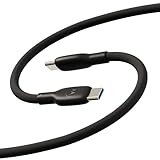
- Soft, Flexible Silicone- Charge in comfort with this soft-touch, free flowing cable with a flexible silicone exterior. It's silky smooth and avoids hanking for ease of positioning during use and storage.
- 40,000 Bend Tested- Ultra reliable, this cable is our most durable yet withstanding over 40,000 bends at the strain relief up to 120 degrees based on internal testing. Backed by a 2 year manufacturer's warranty.
- TurboPower 5A 100W Charging- Designed for high power transfer, this cable supports up to 100 Watts of USB Type C charging at up to 5 Amps of current making it perfect for higher powered USB-PD devices like laptops in addition to phones and tablets. At 6.6ft (2m) it's got plenty of length for reaching the outlet.
- Cable Management Wrap- Easily keep your cable organized with the attached silicone cable wrap tool which allows for easy storage of the cable or can attach it to table or desk legs to keep it organized.
- Motorola Original- Long 6.6ft/2m TurboPower 5A Silicone USB-C to USB-C cable with cable management wrap- Black color
- Confirm that you checked the exact model and carrier variant, not a similarly named model.
- Check whether the expected item is an OS upgrade or only a security update.
- Allow for staged delivery, partner certification, and regional availability.
- Check again later rather than repeatedly forcing the updater; a release can be enabled for your device after the previous check.
- Do not install firmware intended for another model or region. A mismatched package can make the phone unusable and is not a supported way to obtain an unreleased version.
Motorola’s published guidance does not provide a universal waiting period. If the company or your carrier has not released a build for your model and channel, no phone-side setting can make it appear.
Prepare the phone for a download and installation
When an update is available but the download stalls or installation fails, remove the common environmental causes before using recovery software.
Use dependable Wi‑Fi
Connect to a stable Wi‑Fi network. This avoids mobile-data charges and reduces the chance that an interruption leaves a large package incomplete. Avoid starting an update while moving between access points or when the signal repeatedly drops. If the network is unreliable, try another trusted Wi‑Fi connection.
Charge the phone
Charge the battery before you begin and keep the phone connected to power during the process when practical. Motorola user guides warn that an update needs enough battery power to finish. A low battery can stop a download or prevent the installation from starting.
Rank #4

- Motorola Original- Motorola USB-C to USB-C 3.3 foot (1 meter) data and charging cable
- Supports 3 Amp Fast Charging when used with fast charger and USB2.0 Data Transfer Speeds up to 480mbps between Type C devices
- 10,000+ Bends- Durable design tested to withstand over 10,000 bends
- Compatible with devices in the motorola razr (razr, razr+, razr ultra, razr fold), moto g (power, stylus, play), and motorola edge families, as well as other USB-C devices
- 2 Year (24 Month) Warranty- Buy with confidence as your cable comes backed by a 2 year limited manufacturer's warranty
Free internal storage
Open Settings > Storage and check available space. Remove old downloads, offline media, or apps you no longer need, then retry the update. An update needs room for the downloaded package, temporary files, and the installed system. Removing a few megabytes may not be enough for a large OS upgrade; use the storage screen to identify the largest removable items.
Restart before trying again
If the updater appears stuck, restart the phone normally and run the manual check again. A reboot stops a background process that may have hung and gives the update service a clean start. Do not interrupt a phone that is actively installing an update; restart only when it is back at the normal Android interface and the process is clearly stalled.
What to do when an over-the-air update fails
An over-the-air (OTA) update is the normal carrier or Wi‑Fi delivery method. Error messages, repeated restarts at the installation stage, or a download that fails after preparation indicate that the OTA path did not complete.
Retry once after correcting the conditions
- Restart the phone.
- Reconnect to reliable Wi‑Fi.
- Charge the battery and confirm adequate storage.
- Return to Settings > (System > Advanced) > System updates > Check for updates.
- Start the download again and leave the phone undisturbed while it verifies and installs.
If the same package fails repeatedly after these checks, continuing to tap “try again” is unlikely to solve a damaged or incomplete software state. Move to Motorola’s computer-based recovery option.
Best Value

- Compatible for All USB C Devices: Usb a to usb c cable fast charging car charger cord is compatible for Moto Edge Razr 2024 2023 2022, Edge 50 Ultra Pro Fusion 40 30 Edge+, Moto G Stylus 5G 2024 2023 2022 2021 G 2025 2024, G Power 2026 2025, G Play, G Pure, G Fast; Google Pixel 8a 8 8 Pro,7a 7,7 Pro,6; iPhone 16 15 Pro Max,15 Plus,15 Pro,15; Samsung Galaxy S25 A16 A15 5g A25 A55 A35 S24 ultra S24+ S24 ,Z Fold 5 4 3,Z Flip 5 4 3,A24 4G,A14 5G A13, A54 A53 S23 S23+ S23 Ultra,S21 FE A52 and more.
- QC3.0 Fast Charging & Transfering: The power cord android charger type c cable supports safe fast-speed charging 3.1A and data syncing speed up to 480Mb/s. 56kΩ resistor provide perfectly reliable conductivity &stability and protect your phone and charger block from damage. c charger cord user-friendly USB C ends design allows you to plug into all USB Type-C compatible devices without worrying about the orientation of the port.
- Durable & Heavy USB C Cord: Made of reinforced SR design using nylon braided material can withstand 40,000+ bending tests, which effectively protects usb a to c charger cable from breaking. Premium metal zinc alloy connectors made usbc charger cord nylon braided samsung fast charging wire without tangle,more durable with best price for long life usage.
- Extra Long: With the 6ft usb to usb c cable, you can charge your devieces wherever you want. More convenient on traveling, office, car, power bank, several cell phones, Pods, share to families.
- What You Get: 2 Pack 6 feet USB C Cable Compatible for Type C Phone Charging Cord(Blue Purple), 7x 24 Hours friendly customer service. If you have any questions, please feel free to contact us.
Distinguish a failed update from a delayed release
| What you see | Likely situation | Next action |
|---|---|---|
| No update is offered | The build is not yet available for this model, region, carrier, or channel, or the phone is already current. | Verify the exact model and version, then wait for the eligible rollout. |
| An update is offered but will not download | Wi‑Fi interruption, insufficient storage, or a stalled background process. | Use stable Wi‑Fi, free storage, restart, and retry. |
| Download completes but installation reports failure | The OTA installation could not apply the package successfully. | Retry once after preparation; use Software Fix if it fails again. |
| The phone repeatedly resets, will not boot normally, or shows component symptoms | Potentially deeper software corruption or a hardware fault. | Use supported recovery if the phone connects; seek repair if recovery cannot complete or diagnostics indicate hardware failure. |
Use Motorola Software Fix (Rescue Software Update) from a Windows PC
Motorola’s Software Fix, also called Rescue Software Update, is a fuller recovery route than an OTA check. It downloads and applies the current software available for the specific model and carrier. It is intended for software problems, not for obtaining an Android version that Motorola or a carrier has not released.
Requirements
- A Windows PC with an internet connection.
- A USB cable that carries data, not only charging power.
- The Motorola phone and its exact model and carrier information.
- A backup of important data before starting.
Verify the phone’s connector before choosing a cable. Many current Motorola phones use USB‑C, but the connector and cable supplied with a particular model can differ. A cable cannot unlock an unreleased or carrier-blocked update; it only provides the connection required by the recovery tool.
Back up before rescue
Back up photos, videos, contacts, messages, authenticator data, and files using the methods you normally trust. Also make sure you can sign back in to the accounts used on the phone. Motorola’s Software Fix workflow includes backup and restore guidance, but you should not begin a full software refresh while assuming that every local item will remain available.
What’s actually slowing this PC down?
Pick the symptom - the matching free tool is one click away.
Run the rescue workflow
- On the Windows PC, install Motorola Software Fix from Motorola’s official support source.
- Open the tool and choose the rescue or software-update workflow.
- Connect the phone with a data-capable USB cable. If Windows asks for permission or a driver, follow the tool’s instructions.
- Allow the tool to identify the phone and select the model- and carrier-specific software it offers.
- Read the warnings, confirm that your backup is complete, and start the update.
- Keep the USB cable connected and the PC online while the software downloads, reflashes, and verifies the phone.
- Follow the prompts for the restart and any restore steps. Do not disconnect the cable because the screen appears inactive during a long stage.
- After Android starts, connect to Wi‑Fi, complete setup checks, and open Settings > About phone > Device details > Android version to confirm the installed version and security-update date.
The tool may reflash the operating system and test hardware. It cannot guarantee eligibility for an Android release that has not been published for your model or carrier. It also is not a method for removing a Google account or bypassing account protection.
If Software Fix cannot see the phone
- Unlock the phone if it is running and accept any USB permission prompt.
- Try another USB port on the PC.
- Use a different known-good data cable; a charge-only cable will not work.
- Restart the PC and phone, then reopen Software Fix.
- If the phone never reaches a state in which the PC can communicate with it, or the tool reports a hardware problem, stop repeated attempts and arrange service.
Choose the right recovery path
| Method | What it requires | Best use | Important limits |
|---|---|---|---|
| OTA update | Eligible Motorola/carrier rollout, Wi‑Fi or mobile data, sufficient battery, and free storage. | Normal Android or security-update installation. | Cannot install a release that has not been offered to the model, region, or carrier. |
| Software Fix / Rescue Software Update | Windows PC, internet connection, data-capable USB cable, and a backup. | Repeated OTA failures, corrupted software, boot or reset problems that still allow the phone to connect. | Uses the current model- and carrier-specific software; does not remove account protection or repair physical damage. |
| Repair or service | Authorized service or qualified repair provider. | Hardware failure, persistent bootloader lockups, damaged ports, or recovery that cannot complete. | Service is required when the fault is physical; software tools cannot repair failed components. |
When the problem is probably hardware
Motorola identifies OTA failures, bootloader lockups, storage-related problems, repeated resets, and other software symptoms as issues a full software update may fix. However, not every symptom is software-based.
Arrange repair or contact Motorola support when the phone has physical damage, a loose or damaged charging port, a battery that will not accept charge, signs of liquid exposure, unexplained shutdowns after a successful reflash, or a recovery tool that reports a component failure. A software tool cannot repair a failed storage chip, display, battery, port, or other physical component.
Keep notes of the exact error, the Android and security-patch versions, the model and carrier, and the steps already attempted. Those details help service staff distinguish a delayed rollout from an installation fault.
Quick Recap
A practical decision checklist
- Version check: Record Android version, security-update date, and build number under Settings > About phone > Device details > Android version.
- Eligibility check: Confirm the exact model, country, carrier, and whether you are expecting an OS upgrade or a security update.
- Manual check: Use Settings > (System > Advanced) > System updates > Check for updates, or the alternate System updates path on your software version.
- Connection check: Use dependable Wi‑Fi and avoid switching networks during the download.
- Power check: Charge the phone sufficiently and keep it powered during installation.
- Storage check: Review Settings > Storage and remove unneeded files or apps.
- Restart: Reboot once if the updater or a background process is stuck.
- Recovery: If the OTA installation still fails, back up data and use Software Fix on Windows with a data-capable USB cable.
- Service: Seek repair when recovery cannot communicate with the phone or symptoms point to physical damage.
What not to do
- Do not flash firmware from another model, region, or carrier to force an update.
- Do not disconnect the USB cable or power off the PC while Software Fix is writing or verifying software.
- Do not assume that a cable, factory reset, or repeated manual check can create eligibility for an unreleased Android version.
- Do not erase the phone before making a backup unless Motorola support or a repair professional has instructed you to do so.
- Do not treat a successful software reflash as proof that a failing battery, port, storage component, or other hardware has been repaired.
Product prices and availability are accurate as of the date/time indicated and are subject to change. Any price and availability information displayed on Amazon at the time of purchase will apply.

